ERE Data in Filevine, Automatically: Chronicle's Native Integration
Speakers
Nikhil Pai
Co-founder and CEO of Chronicle, the platform helping Social Security disability firms automate case tracking, manage ERE access, and streamline document workflows
Will Yang
Co-founder of Chronicle, moderator
On this page
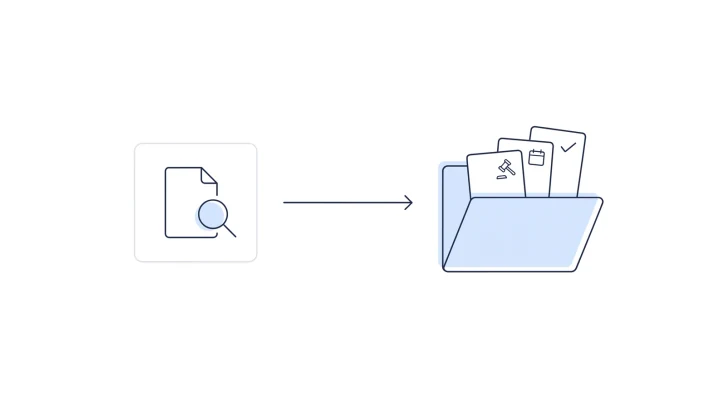
Chronicle launched its native Filevine integration on April 16, 2026, during a live demo event, the latest session in the Advancing Technology in Disability Law series. The integration automatically syncs Electronic Records Express (ERE) data from Chronicle into Filevine projects, replacing the manual data entry that disability firms have historically relied on to keep their case management system aligned with what the Social Security Administration is actually doing. For the product-level overview of what the integration does and what it unlocks downstream, see our announcement post on the Filevine integration.
Fall 2026 Updates: What’s New in the Filevine Integration
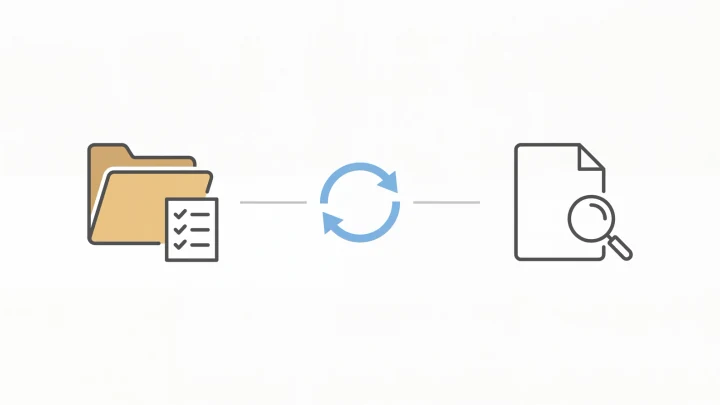
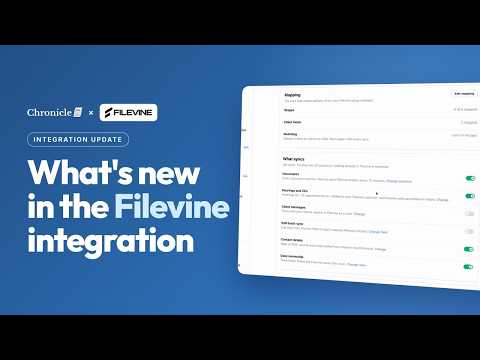
Since the April 2026 launch, the Filevine integration has become a two-way sync: Chronicle still sends ERE data into Filevine, and Filevine now fills in SSNs, contact details and case ownership in Chronicle. Most of these changes came from feedback from the dozens of firms connected to Filevine. Nikhil Pai and Will Yang walk through every change in this 12-minute update, recorded in November 2026:
Data Now Flows Back Into Chronicle
- SSN back-sync. Chronicle pulls missing SSNs out of Filevine, from the contact or a specific project section, so your team gets access to case files sooner.
- Contact details. Tell Chronicle which Filevine fields hold date of birth and phone number. Chronicle Dispatch uses them to text clients, and you can switch any field off.
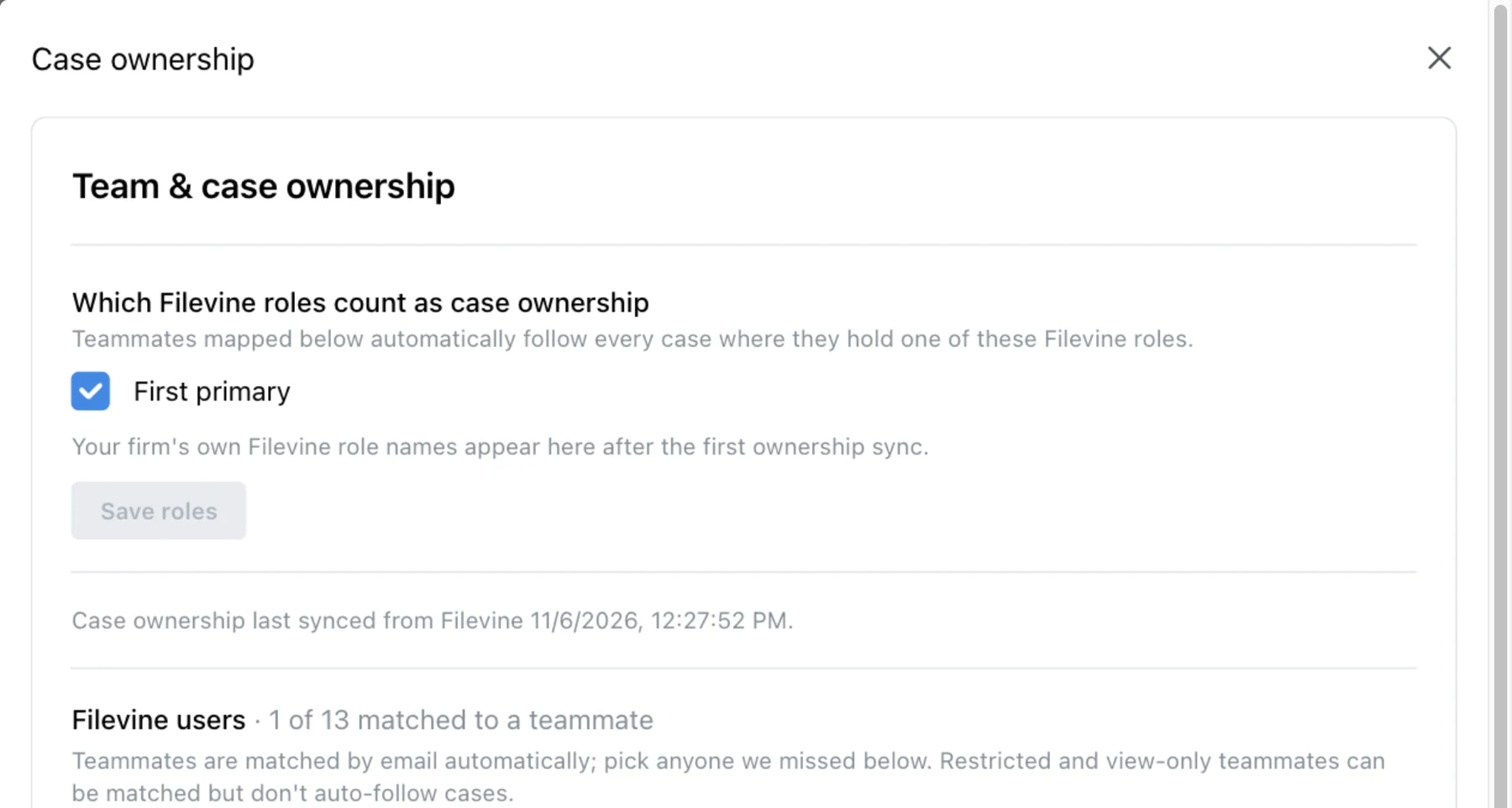
- Case ownership. Choose which Filevine roles Chronicle tracks, such as First Primary or your case team. Filevine users are matched to Chronicle teammates by email, so they follow their cases and get the right notifications.
More of Your ERE Data in Filevine
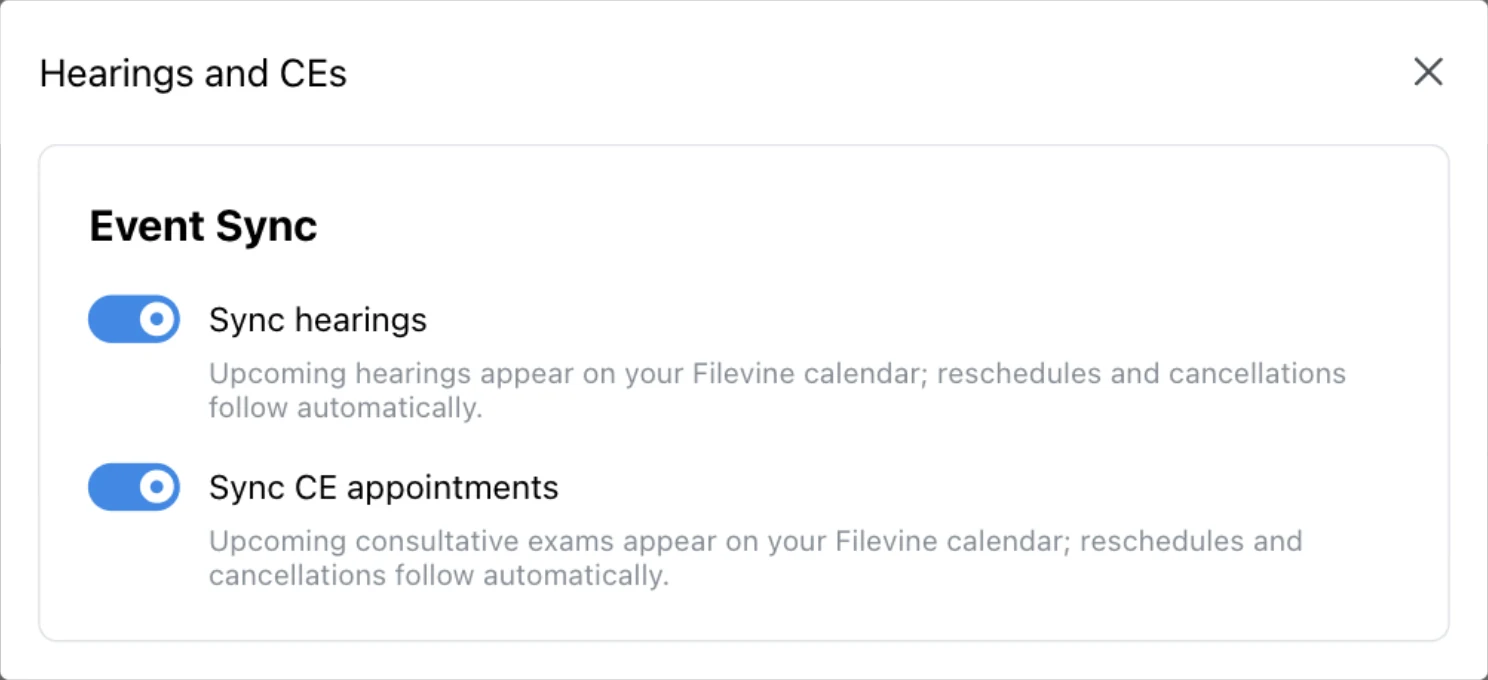
- Hearings and CEs. Choose which event types sync. They land on the Filevine calendar for each project.
- Client texts. If you use Chronicle Dispatch, every text with your client is pushed into Filevine as a note, a full record for a fee petition.
- Document sections. Documents land in folders on the Filevine project, and you choose which sections sync.
A Sync Center to Check It All
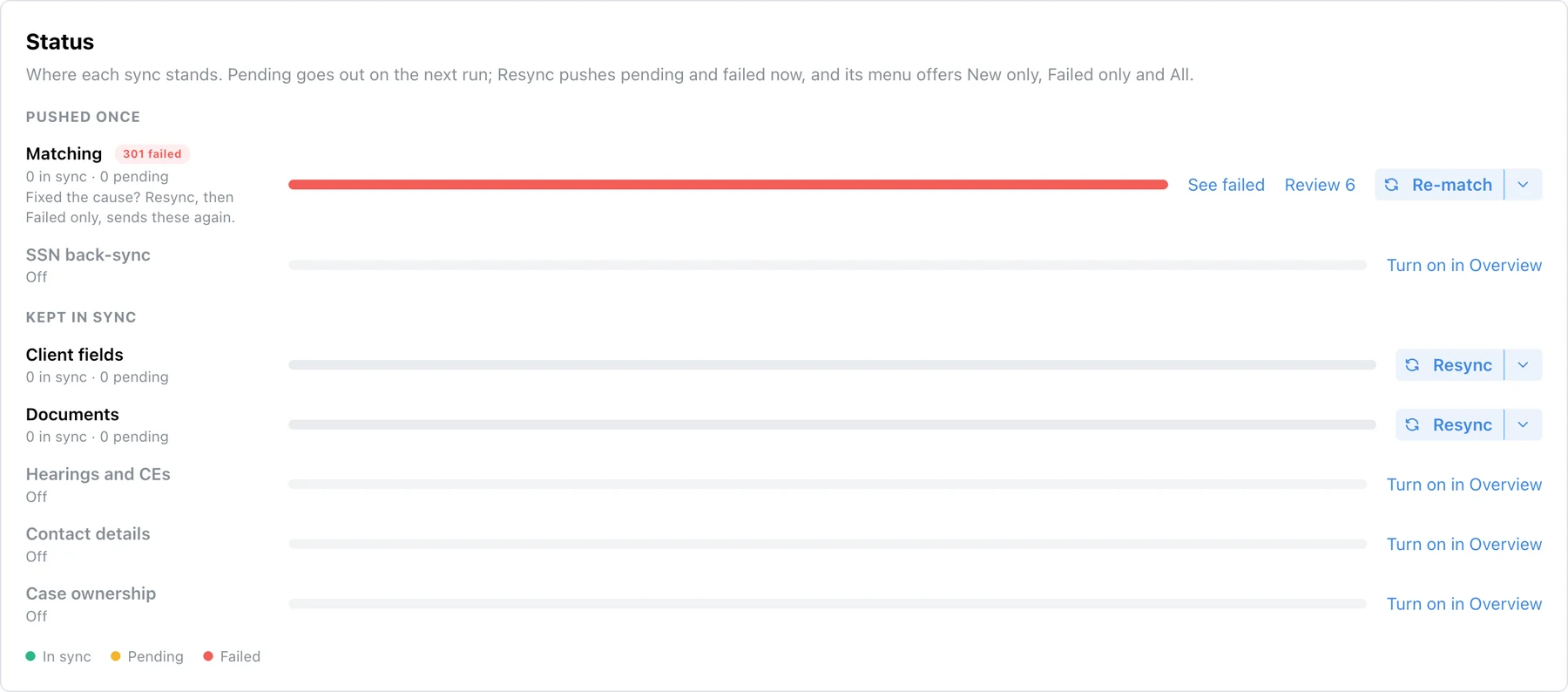
The new sync center shows what is matching for each data type, lets you resync, and lists any clients that did not match so you can link them by hand.
Each of these is its own setting, so you can turn them on one at a time. The basics (connecting Filevine, matching clients, and mapping ERE status and dates to fields and phases) have not changed, and the original walkthrough below still covers them.
The Original Launch Walkthrough (April 2026)
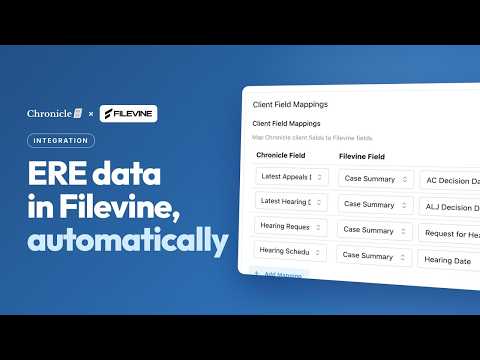
The Core Problem: Manual ERE Data Entry Into Filevine
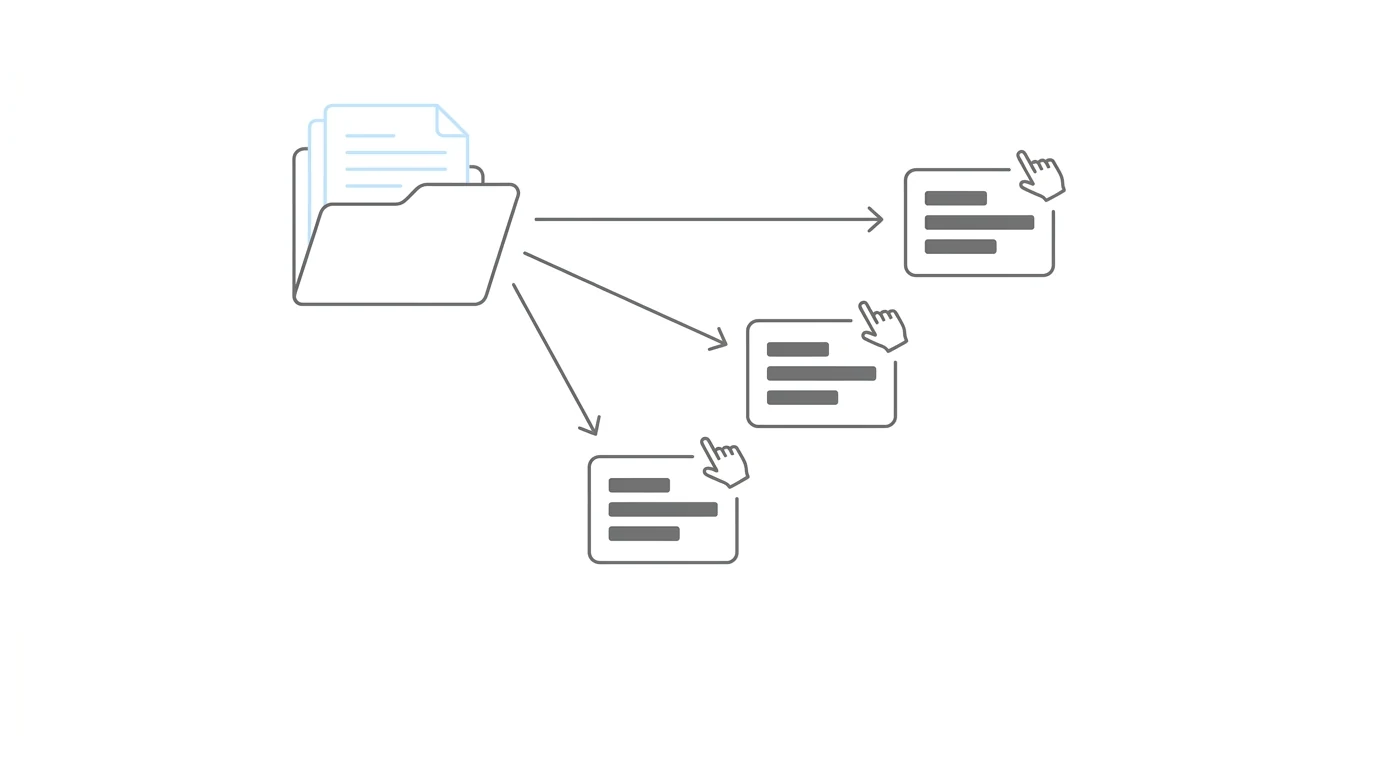
For firms using Filevine as their system of record, case managers spend hours every week typing ERE data into Filevine projects: status updates, hearing dates, decisions, documents. That workflow tax scales directly with caseload. More cases, more manual entry.
As Nikhil explained: “A lot of data is changing all the time, whether it is the hearing date, or the status of the case, or the DLI and the AOD, or new documents coming in. A lot of that moves very quickly, it’s all in the ERE, and it’s hard to keep track of.”
The disconnect has a specific downstream cost. Filevine automations only run when someone changes a project phase or enters a field. “This lets Filevine fall behind reality,” Nikhil said. “Unless someone remembers to make that update, you actually don’t know what you need to do next, and that makes you miss deadlines or fall behind and scramble at the last minute.”
Specific consequences of manual entry:
- Data entry falls behind: Your CMS stops reflecting what’s actually happening at the SSA.
- Staff toggle constantly: Case managers jump between the ERE and Filevine to reconcile state.
- Automations don’t fire: Filevine phase-based automations can’t trigger on events the system doesn’t know about.
What the Integration Syncs
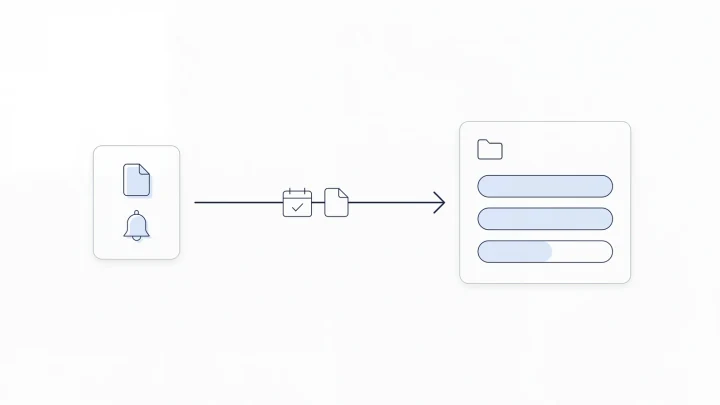
The native integration pushes three core data types from Chronicle into Filevine every 15 minutes:
- Case status: ERE level, status, and decisions map into Filevine project phases.
- Calendar events: Hearings land as Filevine calendar entries on the associated project.
- Documents: Evidence and notices from the ERE sync into a Chronicle ERE folder inside each Filevine project.
This is a direct API connection, not a Zapier workflow or third-party middleware.
How the Setup Works
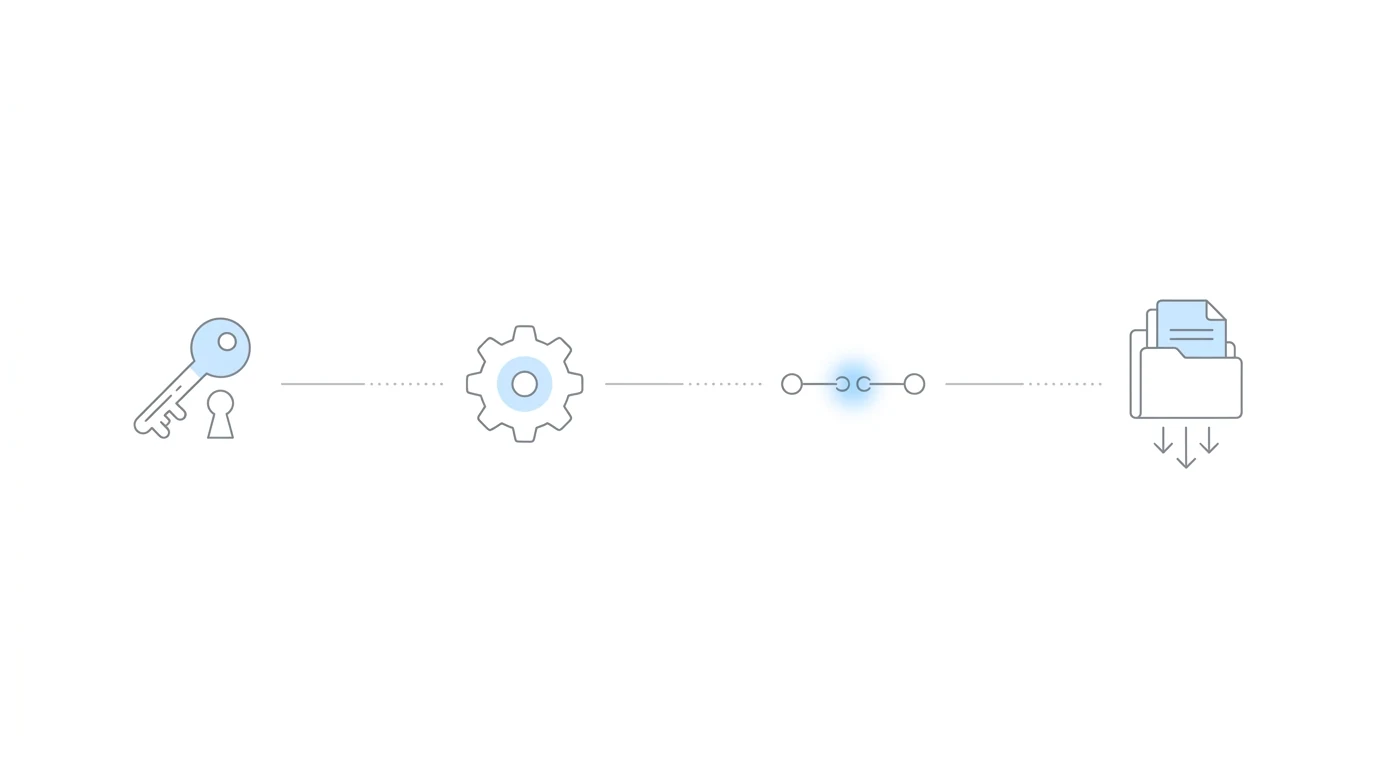
Setup runs in four steps inside Chronicle, but the Filevine side requires a specific preparation sequence. The three-part Filevine configuration (activating the Chronicle integration, creating a service account, and generating a personal access token) is where most firms spend time on the first pass.
Step 1: Connect and Authenticate
A Filevine admin sets up three things in Filevine first:
- Activate the integration. In Filevine, go to Settings → Advanced → Integrations, search for Chronicle, and click Activate.
- Create a Chronicle service account. Still in Advanced, go to Service Accounts, click New, choose Chronicle, grant all permissions, and Create.
- Generate a personal access token. Under your user settings, go to Manage My Account → Access Tokens, click New, and assign the token to the Chronicle service account with Filevine API, Webhook API, and Bulk Data API scopes.
That token can only be copied once. Paste it into Chronicle at Settings → Integrations → Filevine and hit Save Changes.
As Nikhil explained the three access scopes: “The first one is API access. This is how we interact with the system — a set of protocols for how I get a contact or a matter. The bulk data API is so we can use the API in bulk, so we can be more efficient with API calls. And then the webhook API access lets us know when changes happen in Filevine — when a change happens, they tell us via a webhook.”
Step 2: Configure the Sync
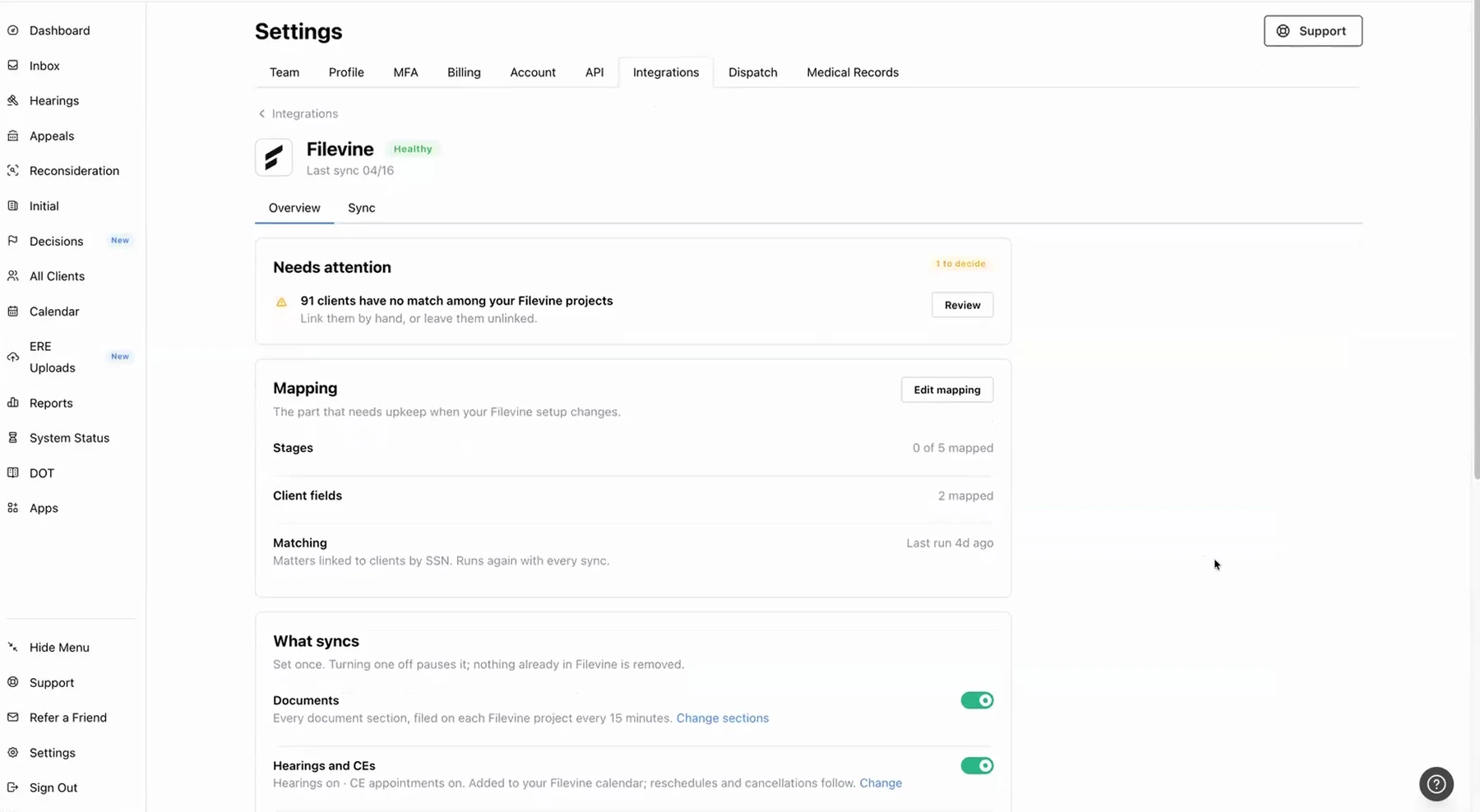
Select your project type (Social Security Disability) and tell Chronicle where the client’s SSN lives in Filevine. SSN can be on the built-in contact field or in a project section field. Chronicle can pull from either.
For multi-discipline firms running PI, workers’ comp, or other practice areas alongside SSD, the project type selector makes sure Chronicle only operates on disability projects.
There’s also an optional toggle to sync full SSNs from Filevine back into Chronicle, which automatically enables document monitoring. Standard Chronicle per-case fees apply for any cases auto-enabled this way.
Step 3: Client Matching
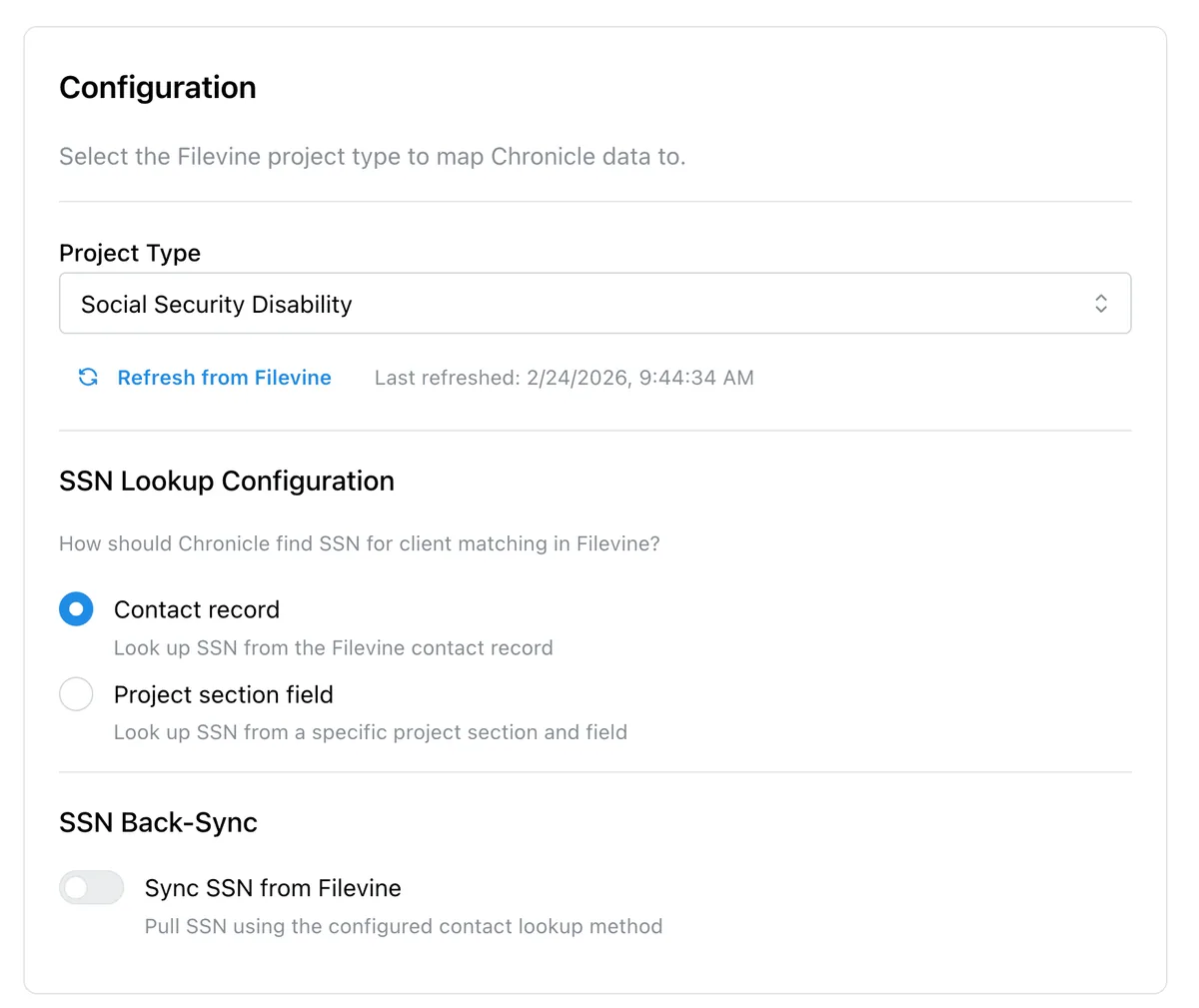
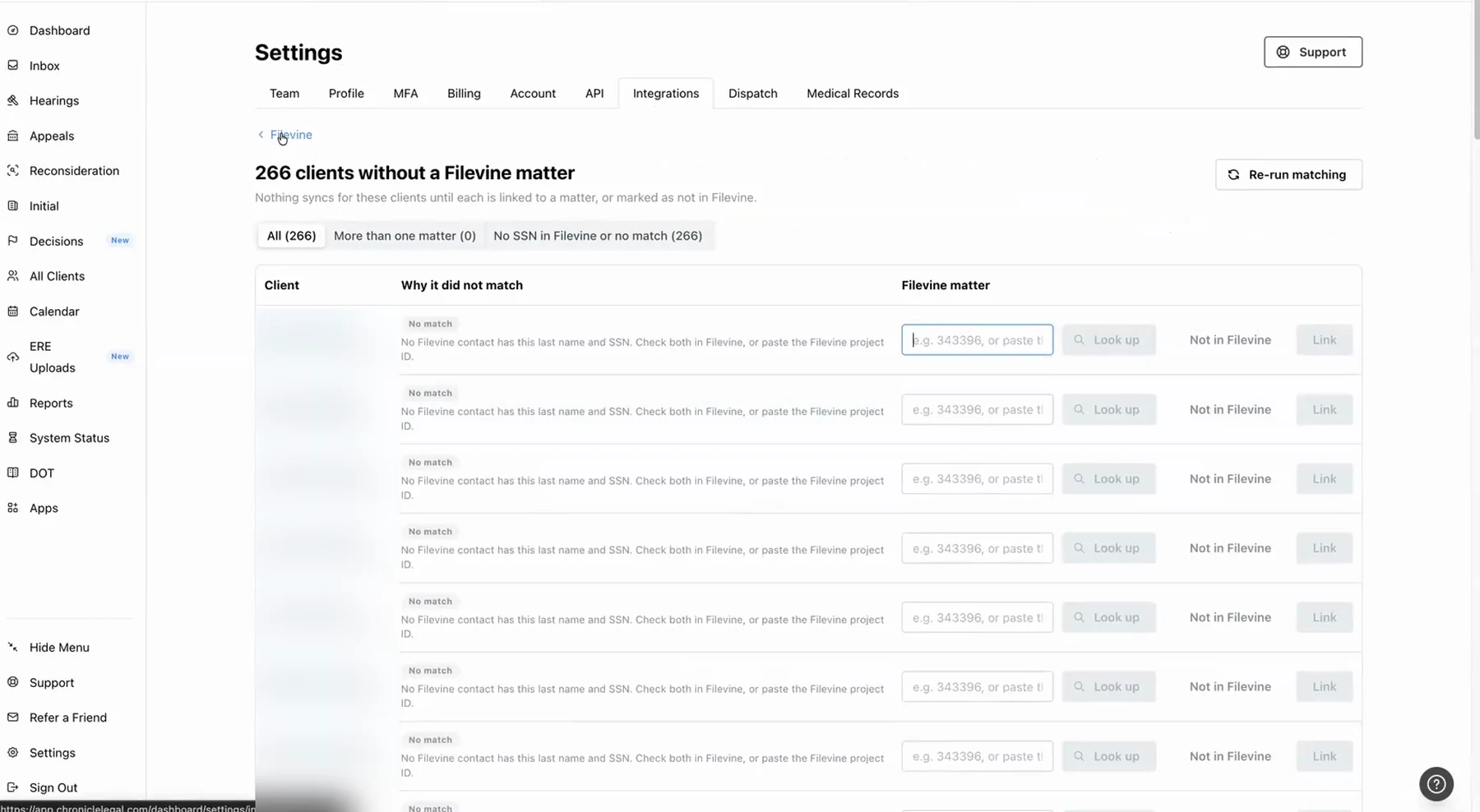
Chronicle matches ERE clients to Filevine contacts using last name and last four of SSN. The match runs against all clients when you click Match Clients, and unmatched clients surface in an exhausted list with a reason.
The two failure modes are Multiple Matches (too many Filevine projects match the same last name + last four) and No Match Found (last name spelling differs from the ERE). Unmatched clients can be exported and resolved manually in Filevine.
Step 4: Phase Mapping
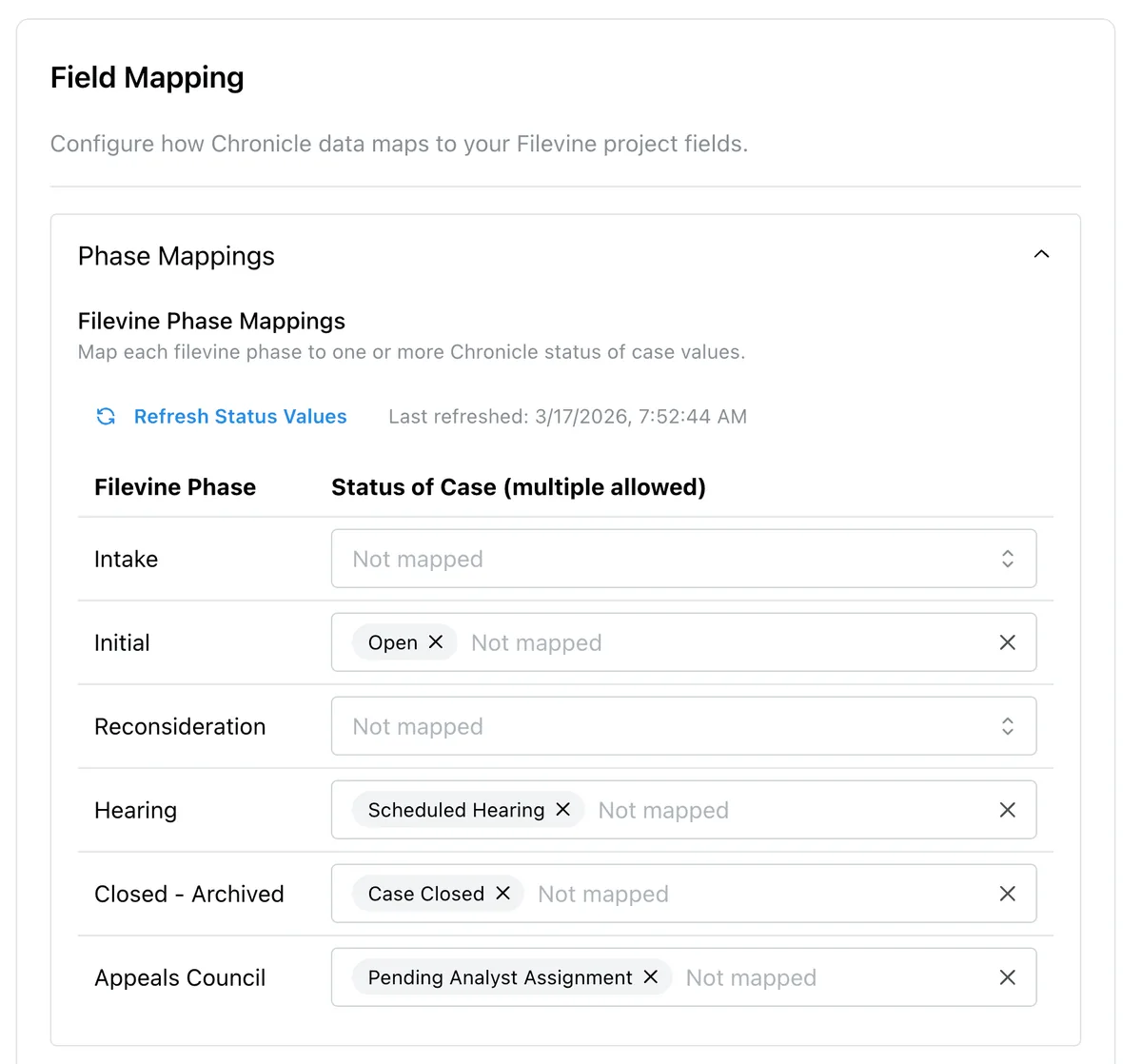
Each Filevine phase maps to one or more Chronicle case statuses. For example: Initial phase → ERE “Initial Open”; Recon phase → ERE “Recon Open”; Hearing phase → ERE “Scheduled Hearing” (rather than “Ready to Schedule,” so the project only moves when the hearing is on the calendar).
Importantly, Chronicle will never overwrite manual phase changes: “We will only ever move it once,” Nikhil emphasized. “So if we move it into hearing, and then you move it to appeals, the system won’t move it back.”
Step 5: Field Mapping
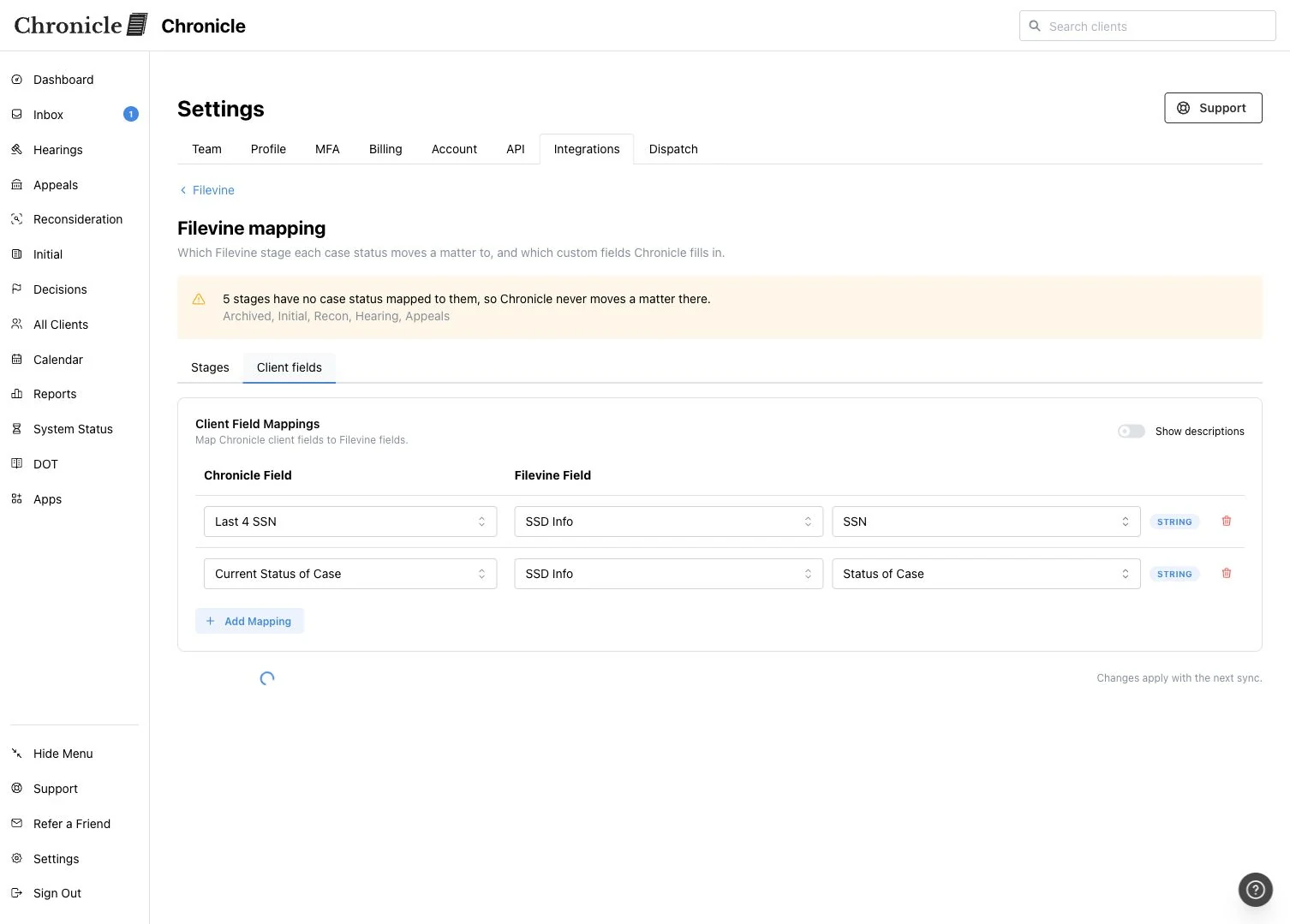
Map specific ERE data points to Filevine fields: status of case, DLI, AOD, ALJ, hearing date, office. Chronicle supports Filevine text fields and date fields. Related contacts and pick lists are not yet supported, so ALJs configured as Filevine contacts can’t be populated automatically today.
Nikhil’s recommendation for first-time setup: “Start small — just do a couple phases or a couple fields, just to see if it works well, and then you can always increase from there.”
Step 6: Document Sync
Toggle document sync on, and Chronicle automatically moves ERE files into a Chronicle ERE folder inside each Filevine project. The folder is created automatically on first sync. Documents sync every 15 minutes alongside the other data types.
For existing cases, Resync, then All, on the Documents row of the Sync tab pulls in historical documents. Nikhil’s recommendation here was direct: “For the most part, I would say backfill your documents. It’s worth having everything from the ERE in there, so each client file looks complete in Filevine.”
Having ERE documents in Filevine is also what makes Filevine’s own AI features meaningfully useful: the AI has the full case evidence to work with instead of a partial record.
Sync History and Manual Resync
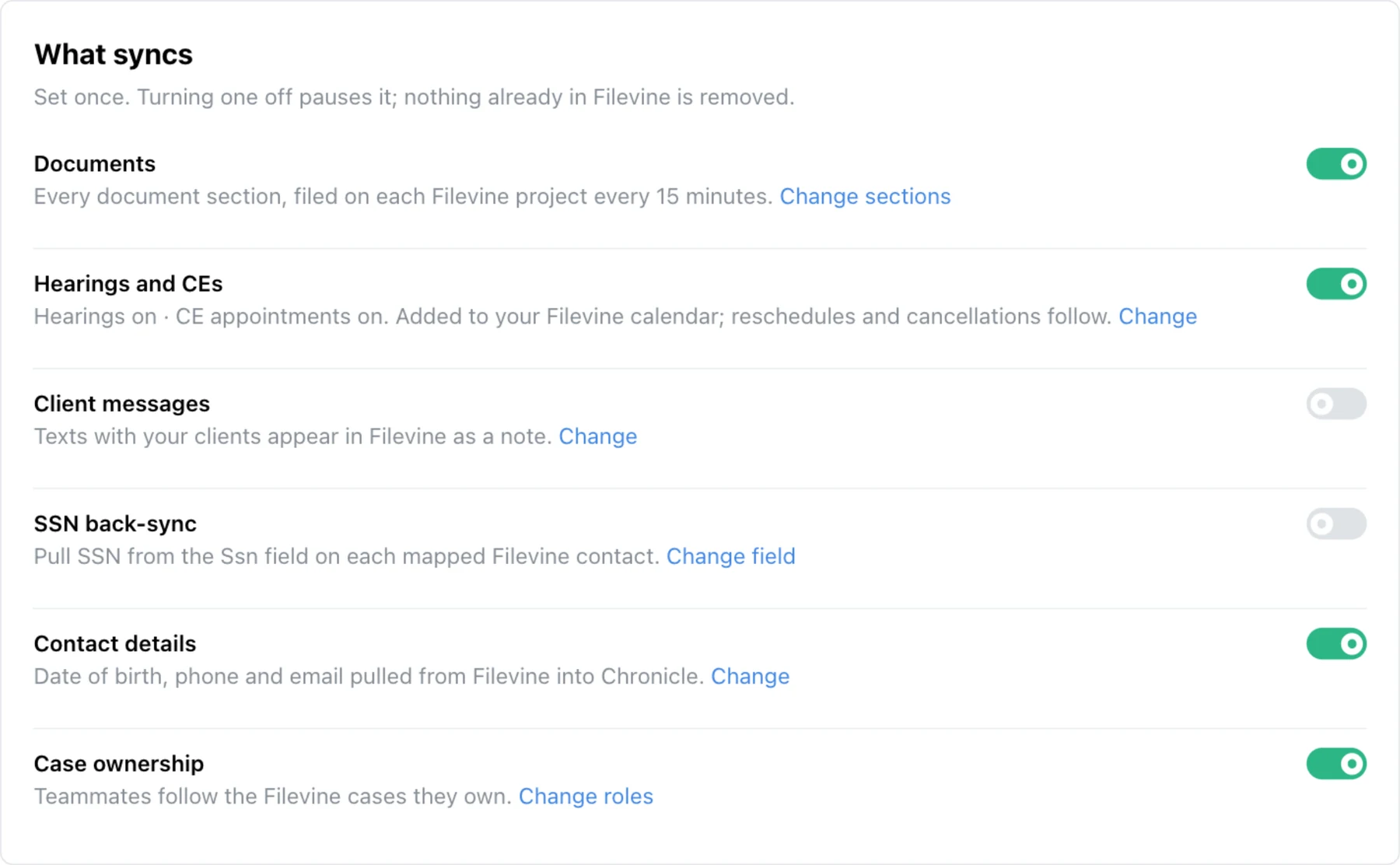
Under Settings → Integrations → Filevine, the Sync tab shows where each sync stands and logs every run with status, record counts and duration. Resync is available on each data type if you want to force a full refresh after changing mappings, which is how you backfill mapped fields across all existing matched projects.
Why Native Matters: A Direct API, Not Zapier
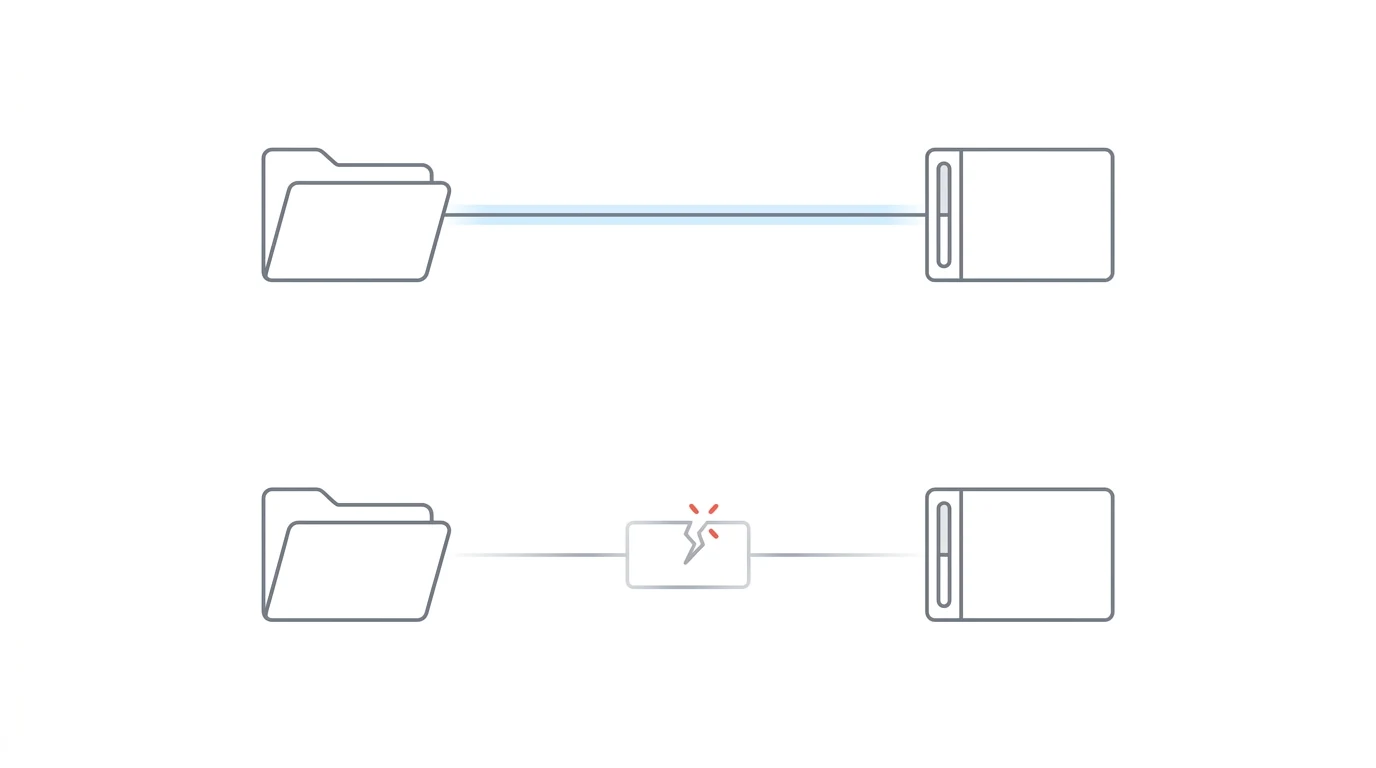
Most firms attempting this workflow before today used Zapier as a bridge. Chronicle’s native integration replaces that setup with a direct API connection.
As Will Yang put it during the recap: “It essentially allows you to just authenticate and configure it once. As opposed to having to manage all of these other potential setups and Zaps through Zapier for this same functionality to exist through a Zapier flow.”
The practical differences:
- Cost: Included with Chronicle Pro. Nikhil on switching: “You’re paying a hundred dollars a month for something that this will do better. Definitely make that transition.”
- Reliability: No third-party connector to debug when it breaks. Chronicle maintains the integration directly, including when Filevine’s API evolves.
- Document sync: Zapier-based Filevine integrations typically can’t move documents. The native integration does, which unlocks Filevine’s AI features downstream.
- Ongoing updates: The integration evolves alongside Filevine and Chronicle, with no firm-side reconfiguration required.
Customer Proof: John Foss, Fortis Disability
John Foss at Fortis Disability has been running the integration in early access. He joined the call live and his team’s experience was shared verbatim during the session:
"We really enjoy and appreciate the native Filevine integration. The field mapping feature has been a game-changer, immediately saving our team significant time by eliminating manual data entry. Furthermore, we really appreciate the updated phase mapping, which enables powerful downstream automations in Filevine, ensuring our team stays timely and on target."
The specific sequence Fortis described (field mapping first for the time recovery, then phase mapping to unlock downstream automations) is the order Nikhil also recommended for new firms: get the fields flowing, prove the data is right, then layer on the phase-based automations on top.
What’s Not Yet Synced
A few ERE data types and Filevine field types were not part of the initial launch:
- Consultative exams (CEs): Now supported. Since the Fall 2026 update, CE appointments sync to the Filevine calendar for each project.
- SSA information requests: Roadmap item.
- Medical requests: Roadmap item.
- Related contacts and pick lists: Text fields and date fields are supported today; related contacts (like ALJs configured as Filevine contacts) and pick-list fields are not.
- Date of birth sync back to Chronicle: Now supported. Since the Fall 2026 update, Chronicle can pull date of birth and phone number from the Filevine fields you choose.
The launch covers the core data firms need in their CMS every day: status, hearings, and documents.
Availability & Pricing
Current status: Available today for all Chronicle Pro customers with a Filevine subscription.
Cost: Included with Chronicle Pro at no additional fee. Chronicle Essentials customers need to upgrade to Pro to access the integration. A separate Filevine subscription with admin access is required.
Setup time: The personal access token setup takes a few minutes if you’re already a Filevine admin. Phase and field mapping configuration varies. It’s a firm-level design decision about what ERE statuses trigger what phase moves, and what data lands in which Filevine field. Most firms get through the full configuration in a single working session.
Launch offer: Chronicle is offering a free white-glove integration setup session for Pro customers. Book a white-glove setup session to have the team walk through the configuration live.
Frequently Asked Questions
Is the phase mapping required?
No. Everything is pick and choose: phase mapping, field mapping, and document sync each turn on independently. Many firms start with field mapping only, then layer in phase mapping once they trust the data.
Do I need to pre-create a Chronicle ERE folder in Filevine?
No. Chronicle automatically creates the Chronicle ERE folder on first sync. If you’ve already created one with the exact name, Chronicle will use it, but the recommendation is to let the system create the folder to avoid duplicates.
Will the integration field-map related contacts, like ALJs configured as Filevine contacts?
Not yet. Field mapping supports Filevine text fields and date fields. Related contact fields and pick lists are not yet supported.
Does the document sync pull the merge packet, or individual files?
Individual files. Every document from the ERE lands in the Chronicle ERE folder as a separate file, not as a bundled merge packet.
How long does setup typically take?
The personal access token setup runs a few minutes. The phase and field mapping configuration is where firms spend real time. It’s a design decision about what ERE status triggers what phase, and what data goes where. Start small, prove it works, then expand. As Nikhil put it in the Fall 2026 update, there are a couple of steps in Filevine to get the token Chronicle needs, and once that’s set up, it’s pretty straightforward.
If I resync, will Chronicle overwrite hearing dates or other fields I’ve already entered manually in Filevine?
Yes, that’s what resync is for. On ongoing sync, Chronicle only updates going forward and overwrites fields it owns. If you click the resync button, Chronicle wipes the mapped fields and repopulates from current ERE data for every matched project. Phase moves are the exception: manual phase changes are not reversed.
What exactly gets overwritten?
Only fields you’ve explicitly mapped. If you mapped the “office” field to a specific Filevine field, Chronicle will overwrite whatever’s there with the current ERE value. Unmapped fields are untouched.
Does data flow both ways?
Yes, since the Fall 2026 update. Chronicle sends ERE data into Filevine, and Filevine can fill in SSNs, contact details and case ownership in Chronicle. The SSN back-sync auto-enables document monitoring on new cases. Standard Chronicle per-case fees apply to any cases auto-enabled this way.
Can Chronicle also pull date of birth from Filevine?
Yes, since the Fall 2026 update. Turn on the contact details back-sync and tell Chronicle which Filevine field holds the date of birth.
Is there an additional charge to sync a Chronicle case into Filevine?
No. Chronicle Pro includes the sync at no additional per-case cost.
What happens with future Filevine field-mapping suggestions?
Field mapping stays manual for now. Every firm structures Filevine sections and fields differently, so Chronicle keeps the mapping configurable rather than prescriptive. The benefit: you set it up once and forget about it.
Is there a native MyCase integration?
Not yet. Chronicle’s native integrations are Clio, Filevine, Litify and Neos. MyCase firms can currently bridge with Zapier for stage and field mappings, but Zapier cannot handle the document sync.
Why does this require Chronicle Pro?
Native CMS integrations are part of the Chronicle Pro plan. The Pro plan is what unlocks the direct API connections Chronicle maintains on each firm’s behalf.
Where did the Fall 2026 updates come from?
Feedback from the dozens of firms connected to Filevine. Case ownership is one example: firms were already assigning cases in Filevine and then doing it again in Chronicle, so the ownership sync now brings those assignments over.
What should we turn on first?
Most firms start with a few field mappings and the SSN back-sync, then add document sync over time. Come back to the settings now and then; reviewing what else you could turn on is the step most firms miss.
We built our own integration with webhooks. Why switch to the native one?
A custom integration takes real time to maintain as technology and SSA data change. Chronicle maintains the native integration and keeps adding to it, as the Fall 2026 update shows, so new data reaches Filevine without your team rebuilding anything.
Upcoming Events
See what’s next on Chronicle’s events calendar and subscribe to get notified when new sessions go live. If you’re attending NOSSCR in Baltimore next week, the Chronicle team will be there in person.
About This Series
This session is part of Chronicle’s Advancing Technology in Disability Law series, spotlighting tools, workflows, and integrations helping disability firms modernize how they work. Upcoming sessions cover additional CMS integrations, automation patterns, and partner launches.
Filevine joins Chronicle’s growing ecosystem of partner integrations, including our native Clio integration and Litify integration, the Superinsight medical chronology integration, and the Benny integration for automated SSA forms.
For firms still spending 15+ hours a week on manual ERE checks, the native Filevine integration is the fastest way to recover that time inside the case management system your staff already lives in.
Key Takeaways
-
Manual ERE-to-Filevine data entry is eliminated. Case status, hearings, and documents sync into Filevine projects every 15 minutes without anyone typing them in.
-
Native integration beats Zapier on cost, reliability, and scope. Zapier cannot sync documents, costs roughly $100/month, and breaks without warning. The native integration is included with Chronicle Pro.
-
Filevine setup has three prerequisite steps. Activating the integration in Filevine, creating a Chronicle service account, and generating a personal access token are the Filevine-side work. Then configuration happens in Chronicle.
-
Chronicle never overwrites manual phase changes. Automatic phase moves happen once; manual overrides always stick. Field values do get overwritten on resync, but only for fields you’ve explicitly mapped.
-
Document sync unlocks Filevine’s AI features. Having the full ERE evidence in Filevine means the AI has the full case record to work with. Backfill documents on initial setup so the existing caseload catches up immediately.
For questions or to learn more: Contact support@chroniclelegal.com or book a Chronicle demo.
Follow us on LinkedIn to continue hearing about upcoming events.
Full transcriptsLightly edited for readability. About 7k words.
Fall 2026 Update (November 2026)
Lightly edited for readability.
Will Yang: Hello, everyone, and welcome to What’s New Between Chronicle and Filevine. In this video, we’re going to go over everything that’s new in the Filevine integration that natively works with Chronicle since our initial April release. Before we talk about what’s new, let’s get a little background on how Chronicle and Filevine work together. If you haven’t already watched our full breakdown, we have a very comprehensive video you can access by scanning the QR code on screen to find it on YouTube, or you can search for it on our blog. In that workshop, we show you exactly how to connect your Filevine account to Chronicle, how to match Chronicle clients to your existing records, and how to map ERE status and dates into your fields. That gives you a solid foundation for exploring what’s new with this integration. Nikhil, why don’t you share a little more about what has evolved since the initial release?
Nikhil Pai: Yeah, for sure. At Chronicle, integrations have always been core to our strategy, because the case management system is where firms live. Our key goal has always been to reduce manual data entry, so your systems are up to date, you can build automations, and your staff does less busy work. What has changed since April 2026 is that we’ve expanded the scope of what our integration is able to do with Filevine. Before, it was very limited: it only sent certain field data in and did phase mappings. We’ve expanded that in two ways: the amount of data we can push into Filevine, such as CEs and more, and what we can pull out of Filevine to make Chronicle more useful to your staff.
Data now flows back. That’s one of the key changes we’ve launched: rather than Chronicle only writing to Filevine, we can pull things out. The first thing we’ve added is the ability to pull out SSNs. If you previously had to manually enter SSNs into Chronicle, we can pull those out of Filevine, so your team gets access to their information earlier.
Second is contact details. If you’re using Chronicle Dispatch, our automated text messaging service, we’re able to pull out information like date of birth and phone numbers, which helps Chronicle Dispatch text your clients.
And last is case ownership. In Chronicle, we have our follow system, which is really great for notifications. Those notifications have been based on rules your firm sets up to follow cases, or on people manually following them. Chronicle can now pull your case ownership out of Filevine, so whatever is already set up in Filevine can quickly flow into Chronicle and automate those follows for you, and you can turn on those specific notifications. Each of these is its own setting; you don’t have to turn everything on at once.
If you haven’t heard about Chronicle Dispatch, you can learn more on our blog, where we’ve done a webinar explaining what it is, or in Chronicle, just go to the Inbox tab and we’ll show you the benefit of Dispatch for your own caseload. It’s a two-way text messaging service that lets us automate communications to your clients about things like CEs and forms.
Now for everything else that’s new in the Filevine integration. As I just mentioned, we can now push documents, which become individual folders on the project in Filevine; hearings and CEs; and client messages, so if you’re using Dispatch, each of those text messages is pushed into Filevine as a note. And what we’re able to pull out of Filevine are the SSNs, the contact details, again to help with Dispatch, and case ownership.
Going into this a little more specifically: for the contact back-sync, you can tell us exactly which field to pull things like date of birth or phone number from, and each of these can be turned on and off. You don’t need to turn all of them on.
For case ownership, you tell us which roles in Filevine you want us to track. It doesn’t need to be all of them; it could be first primary, and if you have a case team, those can all be synced in. Then you’ll be able to tell us which Filevine user maps to which user in Chronicle. Those are matched automatically by email, but you can override them and add additional mappings as well.
For CEs and hearings, you can tell us which event types to sync into Filevine. These go on your Filevine calendar for each project. And for client messages: if you’re using Dispatch and want us to push all of those back-and-forth communications with your client into Filevine, you can toggle on client messages. This is super helpful if you want a full record for a fee petition.
And lastly, we have a great new sync center that tells you exactly what is matching and not matching for each data type, so you can trigger a resync if you need to and quickly review which clients we were unable to match.
Will Yang: Now that we’ve gone over at a high level exactly what’s new, what you’ve probably gathered is that Chronicle can now consistently send ERE data even more robustly into Filevine, and Filevine, on the other side of things, can help fill in SSNs, contact details and case ownership in Chronicle. With this back-and-forth integration, you essentially get more efficiency for your firm and fewer tedious admin tasks day to day. So let’s shift gears and see exactly how this looks in the actual Chronicle user experience.
Nikhil Pai: Awesome. All right, this is Chronicle. You’ll find the integrations under Settings, then Integrations. You do need to have an admin role in Chronicle to get access to this page. If you’re new to the integration, you’ll start by clicking Add Integration, finding Filevine and connecting it. It’s a very straightforward process, and we have a full Help Center article on how to set it up, or you can watch our previous webinar.
For current users, you can just go into Manage on Filevine, and here you’ll see all the new things we’ve launched. As a quick reminder, you are able to manage your field mapping, meaning which data Chronicle sends to which fields in Filevine, and which stages are triggered by different case statuses at the ERE.
Going down, you can see how to turn each of these new features on. For documents, you can turn this on and off, and you can also select which sections you want updated in Filevine. Same for hearings: you can turn that on and off and choose which event types. For client messages, if you’re using Dispatch, you can turn that on. For the SSN back-sync, you can also turn it on and tell us whether we should pull the SSN from the contact or a specific project section. For contact details, you can choose which fields you want on, and again turn certain things off; if you don’t want us to pull the date of birth, you can turn that off as well. And for case ownership, you’ll be able to see all of your user roles and all of the users in Filevine, and select which Chronicle teammate is mapped to each one.
Then for sync history, we have this great new sync center where you can see exactly what’s going on with all of your syncs. Any clients that couldn’t be matched, you can review in Chronicle, and now just enter the Filevine matter ID to make a manual link if we weren’t able to match them automatically. We match on last name, so if there’s ever an issue like a hyphenation or a duplicate last name, that’s where we often have issues matching. And that’s the Filevine sync.
Will Yang: Awesome. If you have any questions about how these updates to the Filevine integration with Chronicle work, feel free to reach out to us at support@chroniclelegal.com. As a reminder, integrations are included for all users on the Chronicle Pro plan. And if you’re not currently on Chronicle, you can learn more by booking a demo with us at chroniclelegal.com/demo or by scanning the QR code on screen.
We’re going to tackle some of the common questions people may have about these updates, and about the integration in general. The first question I have for you is: what was the inspiration behind these improvements to the Filevine integration, and how does Chronicle approach evolving these integrations?
Nikhil Pai: At Chronicle, we always believe the customer comes first, so a lot of this came from feedback from firms using this integration. We’re working with dozens of firms connected to Filevine at this point, and we got a lot of really great feedback from our initial release. And obviously the key thing is reducing the amount of manual work your firm needs to do. That’s the inspiration behind things like case ownership: that work was already being done in Filevine, and firms were redoing it in Chronicle. How could we make that easier for them? So we built the case ownership sync.
Will Yang: Next question: how long do you find it typically takes for a firm on Filevine to turn on and set up the integration? Is it a tedious process, or pretty straightforward? What does it look like in the implementations you’ve overseen?
Nikhil Pai: The setup process is very straightforward. There are a couple of steps you need to do in Filevine to get the token we need to connect, but once that’s set up, it’s pretty simple. We always recommend firms start small, turn on just a couple of syncs, and then expand over time. That’s the thing most firms miss: coming back to their integrations and reviewing what else they could turn on. It’s always great to start small, make sure things work, and expand from there. Most firms start with just some field mappings and the SSN back-sync, and then expand to things like documents over time.
Will Yang: The last question for you: I’m sure you’ve seen cases where firms have built their own custom solutions versus using a native integration like this. What advice would you give a firm that has built its own direct implementation in the past, through webhooks or other creative solutions? What are the real benefits of leaning into a native integration like the Filevine and Chronicle integration?
Nikhil Pai: Yeah, for sure. Well, if you’ve built your own custom integration, one, I applaud you. That’s what I love about this community: people have a lot of hustle, will try to figure things out on their own, and are fairly tech-savvy. But as you know, it’s a lot of work, and it takes a lot of time to maintain, especially as technology moves faster and faster. That’s where having a trusted partner like Chronicle maintain your integrations saves you time, not just now but in the long run, as we find new ways to sync more data into your case management system, like we are today. These integrations are not static, and we’re always adding more. So finding a great provider like Chronicle can save you a lot of time in the long run.
Will Yang: Awesome. And with that, if you have any other questions, feel free to reach out to us at support@chroniclelegal.com. Otherwise, that wraps up what’s new in the Filevine and Chronicle integration. Thanks, everybody.
Integration Launch Event (April 2026)
The following is a cleaned and lightly edited transcript of the full integration launch event.
Welcome and Series Introduction
Will Yang: Hello everyone, and welcome to today’s session, ERE Data in Filevine, Automatically. This session is part of Chronicle’s Advancing Technology in Disability Law series, where we spotlight tools, workflows, and integrations that are helping disability firms modernize how they work.
As a heads up, in case it’s your first time in one of these virtual events, you will receive a full replay right after today’s event, so you don’t need to worry about missing anything. We’ll have detailed notes and takeaways from everything we present today, as well as the recording. We’ll also be taking questions throughout in the chat box, and if you have any questions, feel free to include two hashtags in front of that question to make it stand out.
By the end of this session, you are going to learn how Chronicle’s native Filevine integration eliminates a lot of the manual ERE data entry that you might be doing right now. You’re also going to learn how to set up authentication, field mapping, and phase mapping, as well as what it looks like when you have ERE data flowing into your Filevine projects automatically. And then, last and most importantly, how to get started. We’ll include some details as to how to get started by yourself, as well as if you want a free white-glove setup session, assuming that you’re a Chronicle Pro customer with us now.
As a quick heads up, we will have a feedback form at the end of this workshop. If you’re looking for a downloadable guide to how to set up your CMS and integrate it with what we’re going to show you today, or if you’re just curious and you may not use Filevine but you use another CMS right now, we have a downloadable when you submit the feedback for today’s session.
As a quick introduction from me, I’m Will. I focus on building education, partnerships, and collaborations that help disability practices adopt better tools and stronger operational standards. We’re also joined today by Nikhil, the founder of Chronicle. Chronicle is the platform helping Social Security disability firms automate their ERE monitoring, case tracking, and document workflows. Chronicle now monitors over 177,000 cases and 7.5 million SSA documents across 2,100 disability professionals.
To get us kicked off today, Nikhil’s going to talk a little bit more about why we built this integration, and then we’ll hop right into a live demo. Nikhil, feel free to take it away.
Why We Built This
Nikhil Pai: Great, well, great to be chatting with y’all. I’m excited to be launching this today and showing everyone. I know for quite a few folks here, we’ve been talking about building a native integration with Filevine for quite a while, and that day has come.
The problem we’re really trying to solve: in SSA, especially, you have many cases running, whether it’s 20 to thousands. A lot of data is changing all the time, the hearing date, the status of the case, the DLI and the AOD, new documents coming in. A lot of that moves very quickly, it’s all in the ERE, and it’s hard to keep track of.
For a lot of firms, you have your case management system, that’s your system of record, that’s where you’re doing all your work and tracking it. But it’s disconnected from the ERE data. The ERE data lives outside of Filevine, and so what a lot of staff has to end up doing is mainly data entry. If you have Filevine set up to generate tasks on certain statuses, or when certain things are true, that only happens when your team changes the project phase in Filevine, or enters some data into a field in Filevine. Then your automations run. So this lets Filevine fall behind reality. Unless someone remembers to make that update, you actually don’t know what you need to do next, and that makes you miss deadlines or fall behind and scramble at the last minute. That’s the problem we’re really trying to solve: this manual data entry problem.
What we’ve built here today is a native integration, so that all that data in the ERE, currently being captured by Chronicle and constantly updated in a Chronicle dashboard, can also flow into your Filevine project. That way, you are no longer doing that manual data entry. At Chronicle we check the ERE every two hours for new statuses, and every day for new documents. All that can push automatically into Filevine, so your automations run, your data’s up to date, and you’re no longer left behind scrambling, like, “oh, I forgot to make that change today, and now we’re already behind the appeals deadline.” Chronicle really is pushing that data into Filevine for you.
It’s super easy to get set up, and I’ll be walking you through this. There’s four simple steps. One is connect and authenticate, make sure that we have access to your Filevine account. Two, configure the data sync, and I’ll walk you through the different kinds of data you can sync into Filevine, and how you can match and map and decide what goes where. Three, start the sync, so that we can actually start updating those cases for you.
With that being said, let me share my screen and do my demo.
Live Demo: Connect and Authenticate
Nikhil Pai: Just a quick level set. You have your Filevine account, your standard Filevine account with all your contacts and all your projects. And then you have your Chronicle dashboard, with all your cases and all the information from the ERE. The question is, how do you connect those two?
Step one is authentication, actually connecting your Chronicle account to your Filevine account. We’ll have this in the guide afterwards, and we’ll send out a recording. It is a multi-step process with Filevine.
The key place you need to go in Chronicle is Settings, Integrations, and then Filevine. That’s where the integration lives, and where you can see all the things going on.
Now, to actually get set on Filevine’s side, there’s a multi-step process. First, you have to enable the integration. We are an official Filevine integration, so you’ll find us on their marketplace. You go into Settings, Advanced, Integrations, and then search for Chronicle. Your Chronicle integration comes up, and you’ll click Activate.
Step two is setting up a service account for Chronicle. This is the Chronicle user that will do all the actions in Filevine for you. Under Settings, Advanced, go into Service Accounts. Search for your org, it probably will come up by default. Click New, select Chronicle as a service account, give it all permissions, and click Create.
Step three is creating a personal access token for that service account. Click up into your initials and user settings, and go to Manage My Account. Then go into Access Tokens. Click New, create a name for it, I call it Chronicle, and then select that service account you just created. So you’re creating a token for Chronicle’s user, and you’ll give it Filevine API access, webhook access, and bulk data API access. Those are the three we need. Click Create.
It will then generate this personal access token. Just note, you can only see this access token once. When you create it, Filevine will only let you copy and paste it once, so make sure you copy it and put it somewhere safe, because once I click Done, I will never see it again. Copy it, go back into Chronicle Settings, paste it in, and hit Save Changes. That creates the authentication.
Quick recap: step one, go into Advanced, Integrations, turn on Chronicle. Step two, create the service account under Service Accounts. Step three, create the personal access token under Access Tokens, which gets you the code to paste into Chronicle.
Will Yang: Just for clarification, Nikhil, can you, in layman’s terms, explain the three access levels that they’re granting with that personal access token?
Nikhil Pai: Yeah, for sure. The first one is API access. This is how we interact with the system, a set of protocols for how I get a contact or a matter. The bulk data API is so we can use the API in bulk, so we can be more efficient with API calls. And then the webhook API access lets us know when changes happen in Filevine, when a change happens, they tell us via a webhook. That’s like a message to us saying, “hey, this matter updated.”
Live Demo: Configure the Sync
Nikhil Pai: With authentication set up, you need to tell us how to find and match clients in Filevine. The way matching works in Chronicle to Filevine is we use last name and last four of SSN. Those two things need to match up exactly. If there’s any misspelling of the last name, or there’s multiple cases, the system will fail to match, and I’ll show you what that looks like. But just know: last name and last four of SSN is how we match. So the thing you need to tell us is where you keep the full SSN in Filevine.
For most firms, it’s in one of two places. It’s either on the contact record, or in the project itself. Let me jump back into Filevine. They have a built-in SSN field, right here, this is a default in every single Filevine contact. Some folks keep it on the contact. Otherwise, some folks will have a project section where they keep the SSN on the project itself. We’re able to address both.
So you’d tell us: should we look at the contact record, or should we go to a project section? For example, here I had it on the SSD info section, and I select SSN. We can do either, you could either pull it from the project, or from the contact.
If you want us to, we can also take the SSNs and put them into Chronicle. This is how we turn on document monitoring. A lot of you may have been using Enable Documents to do this manually on every case. You can just turn it on automatically to pull out of Filevine, and we’ll automatically move that SSN into Chronicle.
One thing I also want to note: if you’re a multi-discipline firm, so you do PI and workers’ comp, you may be using project types to delineate different types of projects. You will be able to select which project type is the SSD project type. Just know, you’ll have to select the project type. It will default to the first one; just grab the one you use for disability cases.
Live Demo: Client Matching
Nikhil Pai: That’s the configuration side. Once you’ve saved all that, you can click Match Clients. The system will then go look at all clients in Filevine and try to match them with the ERE. You can see here, we already have most of them matched.
The thing that can happen is cases can either have multiple matches, meaning there’s multiple projects in Filevine so we can’t match them, or there is no match, meaning the last names don’t line up exactly. That’s something you’ll have to fix in Filevine, we can’t actually do any of the matching otherwise on the Chronicle side. If there’s multiple matches or no matches found, you can export this list and try to fix it.
Live Demo: Phase Mapping
Nikhil Pai: Now going into the actual data syncing and how you choose what goes into those clients we’ve matched.
First, there’s phase mappings. In Filevine, you may know about this dropdown, the project phase. Right here, I’ve set some basic disability-relevant phases, so I have initial, recon, hearing, and appeals. The standard levels at the SSA.
I can now choose, based on the Chronicle status of case (what the SSA is saying it is, whether it’s closed, pending hearing, ready to schedule), all of those can change the phase in Filevine. Some good examples: at the initial level, I want to go to initial when it’s an initial open. So as soon as the initial is open, it will move the project automagically to the initial phase in Filevine. Same for Recon. I can say, you know what, I actually want Recon open to move it to the Recon stage. Then for hearing, maybe I only want to go to hearing once it’s actually scheduled, so I can do scheduled hearing, and it will only move to the hearing stage when the ERE stage is now scheduled hearing.
You may have multiple phases in Filevine. We will automatically pick up whatever you’ve configured in Filevine and let you pick and choose which of these phases you want to trigger those automated movements.
We will only ever move it once. So if we move it into hearing, and then you move it to appeals, the system won’t move it back. It’s safe in the sense that it will only make the change once.
Live Demo: Field Mapping
Nikhil Pai: The last thing you can configure in terms of data is the field mappings. On my project, I have my SSD info, status of case, DLI, office. Or, for example, I have a hearing tab with the ALJ and the hearing date.
I can choose what Chronicle data, AOD, DLI, all of this stuff, maps to what in Filevine. If I click Add a Mapping, I can say I want the DLI to go into the SSD info section for DLI. Or I want to have the ALJ populate, ALJ full name, I’ll put in the hearing information into the ALJ field, and I’ll hit save.
This will automatically pipe the data from Chronicle into Filevine. To show you, if I open up Logan here, the data has already synced, and I’m able to see some of this data populated into Filevine. Reducing the amount of manual data entry you need to have.
Live Demo: Document Sync and Sync History
Nikhil Pai: The last thing I can do is turn on document syncing. It’s just a quick toggle, turn that on, and this will automatically move the documents from the ERE into Filevine, into a folder called Chronicle ERE. If I go into Logan, I’ll see there’s a document section, Chronicle ERE, and I can see the documents populating. All the documents from the ERE are backed up to Filevine, which saves on mail scanning and having to continually update those files.
If I ever have any questions about what’s happening, I can come down here and review all the sync data and what’s been happening in the background.
One thing to note: when you turn on the sync for the first time, we will only update new data. If you want to go back and update all the old data into Filevine, you have to click the resync button and do All. That will resync all of the data back into Filevine that is set prior.
That is the live demo.
Recap and Why Native Beats Zapier
Will Yang: Excellent. Nikhil, why don’t you summarize what you just went over?
Nikhil Pai: Quick summary. Step one is connecting it, you’ll need to create an access token in Filevine. The steps are: turn on the integration, create the service account, generate the access token, then paste that into Chronicle. Then you configure the matching: how do we find the SSN in Filevine? Is it on the contact, or is it in a project section?
Then we run the client matching, so we’re able to see who we’ve been able to match based on last name and last four of SSN.
Next, you configure the phase mapping or field mapping, what phase, based on what ERE status of case, and how does it move automatically based on the ERE status of case changing. The field mapping is what data goes into what field in Filevine. Quick tip: start small, just do a couple phases or a couple fields to see if it works well, and then you can always increase from there.
Last is enabling the document sync. All syncs will run every 15 minutes, but this pushes the data from Chronicle into Filevine so all the documents are there, in the Chronicle ERE folder.
Then, under Settings, Integrations, Filevine, you can review a history of all the syncs and what has been happening in the background.
Will Yang: Before this integration, a lot of folks were probably monitoring the ERE and then manually entering things into Filevine. Now you don’t need to do that. There’s some questions that may come in in terms of, in the past, we may have advised you to set up a Zapier instance. You might be wondering, if you tried Zapier, what are some of those limitations or differences with this native integration?
Now that we have this native integration with Filevine, it essentially allows you to just authenticate and configure it once. As opposed to having to manage all of these other potential setups and Zaps through Zapier for this same functionality to exist through a Zapier flow.
The other benefit is that this is included with your Chronicle Pro subscription. If you kept using Zapier, you’d have to maintain a separate Zapier subscription, which I believe is anywhere from around $100 a month to maintain. This direct API makes it so there’s no need for middleware. In the past, you would have it speaking to Zapier to then speak to Chronicle. Now it’s just Chronicle to Filevine, a more direct connection. That also means our team at Chronicle is handling the updates for this integration. If you configured it via Zapier, you’d have to reconfigure things if their API ever changes on the Filevine side.
We’ve been fortunate to have some folks testing this out early. I actually think John is in the audience today, so good to see you, John. John Foss from Fortis Disability shared with us: “We really enjoy and appreciate the native Filevine integration. The field mapping feature has been a game-changer, immediately saving our team significant time by eliminating manual data entry. Furthermore, we really appreciate the updated phase mapping, which enables powerful downstream automations in Filevine, ensuring our team stays timely and on target.”
As a reminder, what’s now syncing is ERE case status going into Filevine projects, hearing dates showing up as calendar events, and ERE documents being accessible in Filevine.
If you’re wondering how to get started, I’m going to drop in the chat a link in case you and your team would like to schedule a white-glove integration setup with us. Our team will just make sure you have everything squared away on the first setup. If you usually handle these things yourself, you’re welcome to access this directly from your Chronicle integrations page. As a heads up, you will need a Chronicle Pro plan, as well as a Filevine subscription with admin access.
Q&A
Will Yang: One question from the chat, from Christy: is the phase mapping required? Her process requires phase changes as specific filing steps.
Nikhil Pai: Great question, Christy. It is not required. Everything is pick and choose. You can have a phase mapping, you don’t need to. You can have field mapping, you don’t need to, or the document sync. You can turn on what you want. To your point, Christy, if you do enable the phase mapping, those automations, those processes, can run automatically because the ERE will update the phases for you.
Will Yang: Sherry asked, do we need to set up the folders in documents in order for that to work?
Nikhil Pai: No. Chronicle will automatically create a Chronicle ERE folder in Filevine and upload the individual documents, which is, I believe, Alex’s next question.
Will Yang: Cassidy asked: we have ALJs as contacts in Filevine. Will Chronicle still be able to field map that?
Nikhil Pai: Unfortunately not. That’s a great question. The field mappings that we’re able to do are either text fields or date fields. We are not able to do related contacts, or pick lists.
Will Yang: To clarify Alex’s question, he was asking specifically: is it the entire claim file or individual documents?
Nikhil Pai: It is the entire claim file as individual documents. It’s not the merge packet, it’s the actual underlying files.
Will Yang: Joseph asked: if we create a folder in our folder structure called Chronicle ERE, will the documents autosync to that folder instead of creating a new one?
Nikhil Pai: I think we will actually pick it up, it has to match exactly if you have it as Chronicle ERE. However, I do recommend you let the system create it automatically, just to avoid any duplicate folders.
Will Yang: Kimberly asked how the notification system works when new documents will be uploaded to Filevine.
Nikhil Pai: Those are still something you will need to enable yourself under Chronicle Notifications. We actually have a great session about that, where you can claim a case and turn on those notifications so you know when new documents come in. And just know, within 15 minutes those will get uploaded into Filevine.
Will Yang: Sherry wanted to confirm there’s a folder that all documents will go to on an ongoing basis.
Nikhil Pai: Exactly. It will create a Chronicle ERE folder, and all the documents out of the ERE will go in there on an ongoing basis. If you run a backfill, it will move everything old in.
Will Yang: Sherry previously asked: in the past, if folks had wondered about Filevine integrating pre-this native integration, there might have been a need for Zapier. Does this essentially replace the need for that if you’re a Filevine user?
Nikhil Pai: Yes. I recommend: move off of Zapier. You’re paying $100 a month for something that this will do better. Definitely make that transition, and I would recommend getting the white-glove setup meeting booked so we can walk through it.
Will Yang: How long does this setup typically take from what you’ve seen so far?
Nikhil Pai: Great question. The actual step of getting that personal access token takes a couple minutes. You just have to make sure you are an admin on Filevine, and that goes relatively quickly. The area that can take longer, and is really dependent on your firm, is configuring the phase mapping and the field mapping. This is a lot of new data that’s possible to have in Filevine, or automations that are possible, so it’s up to you to make that design choice of what ERE status triggers what phase, or what data goes where in the field mapping. That can take a while, depending on how much thought you all want to put into that process.
Will Yang: Can you sync CEs or info requests right now?
Nikhil Pai: Unfortunately, we are not able to sync CEs or info requests at this time, but something will come down the line.
Will Yang: You mentioned there was a document backfill option. What’s your best tip for that in terms of when to use it versus when to go with just documents going forward?
Nikhil Pai: For the most part, I would say backfill your documents. It’s worth having everything from the ERE in there, so each client file looks complete in Filevine. Pretty much always backfill.
Will Yang: For this data flow, does it go both ways, or is it one-directional right now?
Nikhil Pai: It is one-directional for the most part, Chronicle pushing into Filevine. The one thing we will sync back out is the SSN. As you know, Chronicle needs the full SSN to actually monitor documents. If you turn on that setting, we will automatically pull out the SSN and put it into Chronicle, so we can start looking and tracking those documents in the ERE. Just note, fees apply, that’s your $14 per case, so it will automatically start adding those clients.
Will Yang: Christy’s asking what’s the best way to verify what kind of Chronicle account you’re on.
Nikhil Pai: If you go into Settings and then Billing, you can click the View Billing button, there’s a big blue button at the top, and that will show you what plan you’re on.
Will Yang: In the case where someone’s attending today and they might not be on Filevine, but they want to know what other case management systems Chronicle integrates with, what’s the overall approach, and what’s available natively versus via Zapier?
Nikhil Pai: In Chronicle, if you go on the sidebar, we have an Apps section, where you can filter by case management systems, and that will give you some description and information about each.
Will Yang: Cassidy asks: if we set it up to map old cases from Chronicle, will it override anything that’s already been typed into Filevine, or will it not map since the field would have already had a pre-existing value? Cases where hearings are scheduled and they already entered hearing info manually.
Nikhil Pai: It will overwrite if there are new updates. Chronicle will only update cases going forward, so if you connect it and they have a new hearing date, we will automatically try to update that in Filevine. If you click the resync button, we will wipe out everything and try to update everything with the current information in Chronicle for every single case into Filevine. Just note: if you click integrate now, it will only change it going forward, and it will overwrite data. If you click the resync button, it will change all data going back in time.
Will Yang: Mark’s wondering: what exactly does it overwrite? What information in Filevine is lost?
Nikhil Pai: Overwriting is dependent on what fields you are mapping. For example, say you have an office field, and you have it spelled in a specific way. Chronicle will overwrite that with whatever field we have in Chronicle, based on what’s in the ERE.
Will Yang: Michael asked: if SSN is automatically flowing from Filevine to Chronicle, that essentially enables the case in Chronicle, correct? Can Chronicle pull the date of birth from Filevine as well?
Nikhil Pai: That is correct. This does enable the cases in Chronicle automatically. We cannot currently pull the date of birth field out of Filevine, we only pull the SSN.
Will Yang: Christy asks: if a case has already been brought into Chronicle, is there any additional charge for importing it into Filevine?
Nikhil Pai: Nope. This is the great thing about being on the Pro plan, this is just part of the package, and there’s no additional cost in this sync.
Will Yang: One question I had during the demo: you were showing the field mappings. Is there any future plan for suggested field mappings based off of common cases of categories?
Nikhil Pai: At this point, it’s always going to be manual selection. There’s a lot of different ways and different sections people use for fields, so we’re going to let you pick and choose. But the great thing about this kind of integration is you set it up once, and you can forget about it. You’re only ideally going to the field mapping once or twice, as you get it up and running.
Closing Remarks
Will Yang: If folks have any other questions, feel free to drop them in the chat. I think we’ve mostly caught up.
Just to recap for everybody: today we walked through Chronicle’s native Filevine integration, how it syncs ERE case status, hearings, and documents directly into your Filevine projects. There’s no need for Zapier or any extra cost if you’re on the Pro plan, and you can configure your field mappings and phase mappings so it matches your workflow.
Biggest takeaway: if your firm is using Filevine, your team should definitely not be manually typing in ERE data anymore with this native integration, since Chronicle can handle this sync to your case management system.
As a reminder, if you’re on a Pro plan, there’s that link in the chat where you can set up some time for a white-glove setup session if you want our team to review your setup with this integration. If you want to do everything yourself, there’s the setup checklist once you submit feedback from today’s workshop.
Other than that, we plan to have a couple events in May, so we hope to see you then. And if you’re going to Baltimore next week for NOSSCR, we’ll see you there as well.
That covers it for today. Thanks, everybody, for joining in.
Filed under IntegrationsPublished April 16, 2026