
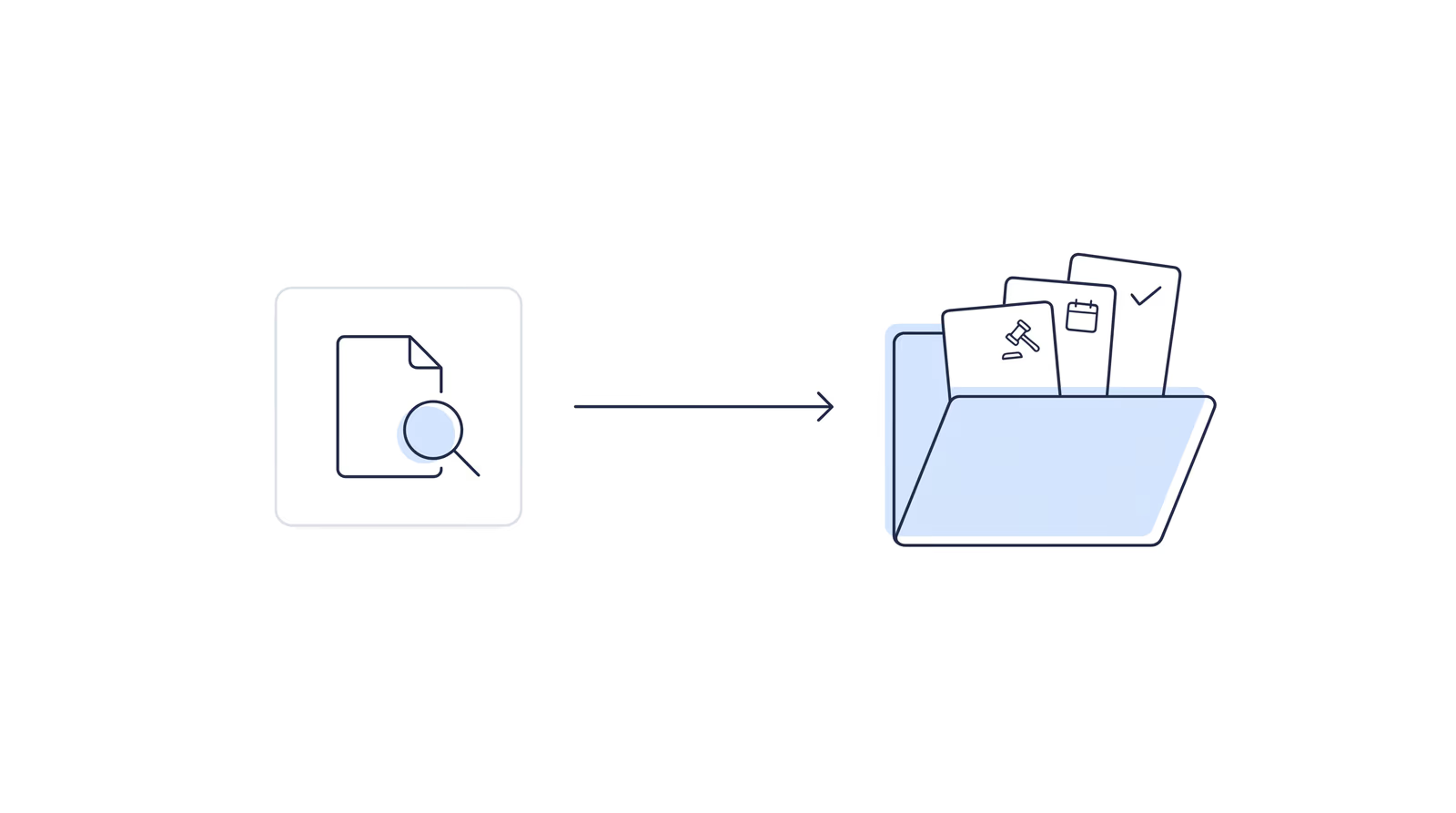
If your firm takes cases through Atticus, you know the request. As each case moves through SSA, Atticus asks you to send key documents from the client’s file: the denial you’re appealing, the appeal you filed, the hearing notice, the decision.
Chronicle now sends those documents for you. On November 18, 2026, we hosted a live session with Atticus to launch the integration, as part of our Advancing Technology in Disability Law series. Erin Casale, who leads the Atticus partner network, opened with why Atticus is asking for these milestones. Chronicle co-founder Nikhil Pai then showed exactly what syncs, what your firm still sends, and how to set it up in a few minutes.
You can catch the replay here:
Speakers:
- Erin Casale, Director of Partner Network at Atticus. Erin leads the team that works with Atticus’s partner firms, after seven years leading Customer Success teams across all federal agencies and all 50 state governments.
- Nikhil Pai, Co-founder and CEO of Chronicle. Nikhil worked at Atticus before founding Chronicle, which monitors the ERE for Social Security disability firms.
- Will Yang, Co-founder and Head of Growth at Chronicle, host and Q&A moderator.
Key Takeaways
- Chronicle sends Atticus the documents it asks for. When a document Atticus needs posts to a client’s ERE file, Chronicle’s daily check picks it up and files it in your shared Atticus folder in Box.
- You choose the clients. Only the clients you select as Atticus clients sync, and only the documents Atticus needs. Atticus gets no general access to your Chronicle account and never receives raw medical records.
- It catches up on what Chronicle already holds. Turning on document sync backfills the eligible documents Chronicle already has for your selected clients, then keeps going as new ones post.
- A few documents still come from you. A Notice of Award that arrives by mail, a withdrawal notice that never posts to the ERE, and the Atticus Fee Addendum stay with the firm. If you use the DocuSign Atticus provides, the Fee Addendum needs nothing extra.
- Setup is four steps and no added fee. A Chronicle admin with access to the Atticus Box folder connects Box, picks the folder, selects clients and turns on sync. It’s included on the Chronicle Pro plan.
Why Is Atticus Asking for Case Milestones?
Erin opened by acknowledging the obvious. Some attendees knew her as the person who sent the email they were least excited to get this year. As Erin put it: “So thank you for not shooting the messenger.”
Then she grounded the request in three audiences, starting with clients.
Clients call Atticus too
Clients don’t only call their firm for updates. They call Atticus, and right now Atticus has nothing substantive to tell them. Erin explained the result plainly: “That means they don’t get the answers they’re looking for, and that means there’s a 100% chance they’re calling into you and your team.”
With case milestones in hand, Atticus can answer status questions itself. Erin was clear about the line: “We’re never going to be able to answer every client question, and we shouldn’t. We’re not their primary representatives, you are.”
What firms get back
Erin asked firms to hold Atticus to two things next year. The first is stronger screening at intake, so the clients Atticus sends are a better fit, more likely to persist and more likely to win. The second is practical findings on what moves cases forward, drawn from what Atticus sees across all of its partners.
Why it matters to Atticus
Atticus and its partner firms share responsibility for these cases under their agreements. Milestones let Atticus uphold that, and, in Erin’s words, “make sure we’re always keeping our promises to clients when we send them to you.”
Where Does the Time Go Today?
For most firms, meeting the request is manual. Nikhil walked through the current process: “someone has to spot that document as it comes into the ERE for each file, download it from the ERE, and then send it over to Atticus.”
Each file takes several minutes. Across hundreds of Atticus cases, that adds up to real staff time spent moving paper from one place to another.
Atticus offers firms a few ways to make this easier. This session covered the route for firms on Chronicle, or considering it.
How Does the Chronicle and Atticus Integration Work?
Chronicle already checks every client’s ERE file daily, at every level from initial through the Appeals Council. That daily check is what powers the integration.
Here is the flow:
- Chronicle checks the ERE file daily for any of the document types Atticus needs.
- When one appears, Chronicle files it in your shared Atticus folder in Box, in a folder for that client.
- It only does this for clients you’ve selected as Atticus clients, and only for the documents on Atticus’s list.
As Nikhil said: “We’re only ever going to do this for the cases you are working on with Atticus, and only the documents they specifically need, never anything more.”
The integration also catches up on the past. Nikhil described the backfill this way: “Any file we have for any client you’ve been monitoring with Chronicle, we can send over to Atticus, so you can also do that backfill process.”
If you already use Chronicle with Clio or Filevine, the setup will feel familiar.
Which Documents Sync to Atticus?
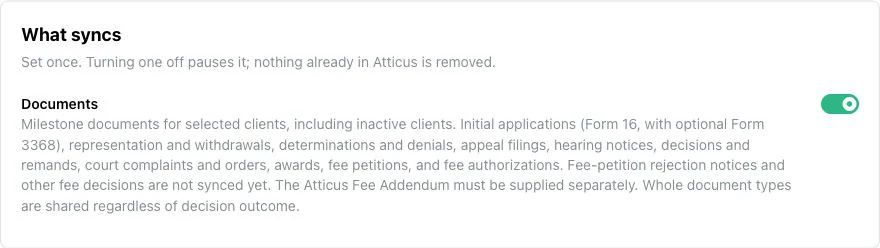
The list was narrowed with the Atticus team so only what Atticus needs is shared. It covers:
- Initial applications: the SSA-16, with the SSA-3368 when available
- Representation: the SSA-1696 and withdrawals
- Determinations and decisions: DDEs, notices, ALJ decisions, remands and awards
- Appeals and hearings: appeal filings, hearing notices (the HA-507) and amended notices of hearing, Appeals Council decisions and denials
- Court filings: complaints and orders
- Fees: fee petitions and fee authorizations
Nothing outside that list leaves your account. Nikhil was specific: “we’re not uploading your briefs or anything else that’s proprietary to your firm. It’s just the documents Atticus needs.”
What does Atticus not receive?
Atticus does not get access to your ERE sections or your Chronicle account. Some forms on the list carry client details by nature, the SSA-3368 among them, but Atticus never receives raw medical records.
What does your firm still send?
A few things Atticus needs never reach the ERE, so Chronicle can’t send them:
- A Notice of Award that arrives by mail. Upload it to Atticus yourself.
- Withdrawal notices that don’t post to the ERE.
- The Atticus Fee Addendum. If your firm uses the DocuSign Atticus provides, you don’t need to do anything. Erin explained that firms on another signature platform still send it, which is “status quo for everyone now; that doesn’t change.”
Nikhil was candid that it isn’t a perfect system, but most of the documents Atticus needs now reach it as soon as they show up in the ERE.
How Do You Set Up the Atticus Integration?
Four steps, all inside Chronicle. Two requirements come first: the person setting it up must be a Chronicle admin, and must have access to the Box folder Atticus shared with your firm.
Step 1: Get into your Atticus Box folder
Atticus shares a secure Box folder with each partner firm. Erin’s instructions: search your inbox for an email from Box, accept the invite, and set a password.
If you can’t find the invite or never received it, email lawyers@atticus.com and Atticus will resend it. If your Box account shows two folders, Ongoing and Backlog, connect Chronicle to Ongoing.
Step 2: Connect Box in Chronicle
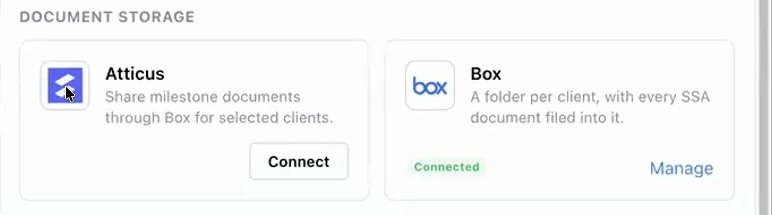
In Chronicle, go to Settings, then Integrations, then Add Integration, and choose Atticus. Click Connect with Atticus and grant Chronicle access to your Box account. Log into Box first, since the person who holds the Box account has to authorize it.
Step 3: Choose the shared Atticus folder
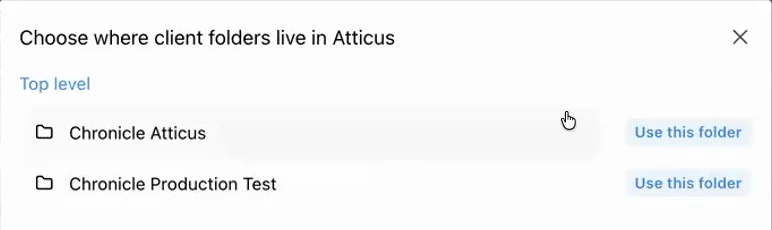
Pick the folder Atticus also has access to. As Nikhil stressed: “This is super important: you want to make sure you’re choosing the folder that Atticus also has access to.”
Click Use This Folder, then Save Folder Settings. Nothing syncs yet.
Step 4: Select your Atticus clients and turn on document sync
Search for clients and select them one at a time, or import a list in bulk. Chronicle has a CSV template, and Atticus will send your firm its client list on request. Then switch on document sync.
Once it’s on, Chronicle creates a folder for each selected client and starts filing documents. Nikhil said the first backfill takes a couple of hours to fill in. You can open the shared Box folder at any point to see exactly what has been sent.
How Do You Keep the Atticus Client List Current?
New Atticus clients are not added automatically yet. Today you select them in Chronicle as they come in.
Nikhil’s recommendation was a weekly habit: ask Atticus for an updated client spreadsheet each week and upload it to Chronicle. Re-uploading clients who are already selected is safe, because the import ignores duplicates.
For firms on Filevine, there is no way yet for Chronicle to read an Atticus flag or field from Filevine. Export the list from Filevine and upload it the same way. Erin added that Atticus referral emails now carry a unique referral ID, in light gray at the bottom, which some partners use for their own matching.
What About Older Cases Chronicle Never Captured?
The backfill covers every eligible document Chronicle holds, however old. Roger asked about clients a firm represented before it started using Chronicle. Nikhil answered: “if Chronicle has the documents, we will send them over to Atticus.”
The gap is a case that left the ERE before your firm started on Chronicle. If Chronicle never captured it, there is nothing for Chronicle to send.
For those, Atticus offers a vetted third-party contractor to collect backlog documents from your case management system. Erin confirmed it’s “very much still on the table.” Email lawyers@atticus.com to start.
Availability and Pricing
Chronicle: Pro plan. Nikhil confirmed on the call that there are no additional fees for the Atticus integration.
Who can set it up: a Chronicle admin with access to your firm’s Atticus Box folder.
Atticus: an Atticus partner firm with the shared Box folder.
Not on Chronicle, but on Filevine or Clio? Atticus has its own options for pulling documents from those systems. Email lawyers@atticus.com.
Frequently Asked Questions
Which Box folder should I connect, Ongoing or Backlog?
Ongoing. Erin asked firms to connect Chronicle to the Ongoing folder.
Are new Atticus clients added automatically?
Not yet. Select new Atticus clients in Chronicle as they arrive. Many firms will find a weekly upload of Atticus’s client spreadsheet easiest.
What happens if I upload a client who is already selected?
Nothing changes. The import ignores duplicates.
Does Atticus get access to every section of the ERE file?
No. Atticus receives only the specific documents on its list. It never gets general access to your Chronicle account or your ERE file, and it never receives raw medical records.
Who at my firm can set this up?
A Chronicle admin who also has access to the Box account Atticus shared with your firm. The integration requires the Chronicle Pro plan.
Is there an additional fee?
No. Nikhil confirmed there are no additional fees for the Atticus integration on the Pro plan.
What does “5 clients have more than one possible Atticus folder” mean?
Chronicle creates a single folder per client. That message means a client has two matching folders in Box, often from a duplicate client record. Email support@chroniclelegal.com and the team will sort it out.
Will Chronicle send documents for clients I represented before I started using Chronicle?
Yes, if Chronicle has the documents. If the case left the ERE before Chronicle ever captured it, use Atticus’s third-party backlog option through lawyers@atticus.com.
Does a Notice of Award sync?
A Notice of Award that arrives by mail does not, because it never reaches the ERE. Send it to Atticus yourself, along with the Atticus Fee Addendum if you don’t use Atticus’s DocuSign.
Can Chronicle pick up Atticus clients flagged in Filevine?
Not today. Export the list from Filevine and upload it to Chronicle.
How to Get Started
Already on Chronicle? Book an integration setup session and we’ll connect Box, choose your Atticus folder and select your Atticus clients with you. Or email support@chroniclelegal.com.
New to Chronicle? Chronicle checks every client’s ERE file daily and tells your team what’s new, which is what makes this integration possible. Book a Demo to see it on your own cases. For more on how ERE monitoring works, read our guide to ERE monitoring software or see Chronicle’s case status features.
On Filevine or Clio without Chronicle? Email lawyers@atticus.com for Atticus’s options.
Atticus joins Chronicle’s integrations, alongside Neos, Litify and LexMed.
Watch the Full Replay
Upcoming Events
- Disability Peers in Practice, December 2026 (Session 11): a small-group mastermind where disability firm owners and operators compare what is working. Wednesday, December 9 · 1:00 PM CT · Register
- Disability Peers in Practice, December 2026 (Session 12): the same format in a second room. Wednesday, December 9 · 3:00 PM CT · Register
About This Series
Advancing Technology in Disability Law is Chronicle’s series of live sessions with the partners and practitioners shaping how disability firms work, from case management and medical evidence to hearing prep and now Atticus. Every session is recorded and recapped here.
See everything coming up on the Chronicle events calendar, and follow Chronicle on LinkedIn to hear about new integrations as they go live. Questions about anything covered here: support@chroniclelegal.com or 847-665-9612.
Full Session Transcript
The transcript below has been lightly edited for clarity and readability.
Welcome
Will Yang: Welcome, everybody, and welcome to Atticus Case Milestones, Now Automatic. This is an exciting event that we are thrilled to be sharing today, about how Atticus and Chronicle are now collaborating so that Chronicle can send Atticus the case documents it needs, and how you can set it up for your firm as well.
I know there are still some folks coming into the room from the waiting room. In case you just joined us, folks are chiming in with their name, their firm, and where they’re based.
Here’s how today is going to work. We’ve got about 45 minutes planned to walk through everything. We may finish before that, and then we’ll have some time for Q&A. If you have any questions along the way, feel free to drop them into the chat and we’d be happy to answer them. And if for whatever reason you need to drop off early, don’t worry about it. We’ll have the recording and the takeaways ready for you shortly after today’s event, and we’ll send them to the email you registered with.
Without further ado, a quick round of introductions. First and foremost, I’m really excited to bring Erin Casale from the Atticus team here. Earlier this year, Erin joined Atticus as the director of their partner network, leading the team that gets to work with wonderful partners like the disability firms like you. Before that, she spent seven years leading customer success teams working across different federal agencies and all of the state governments, so she has tons of experience on this side of things.
We also have Nikhil Pai, the co-founder and CEO of Chronicle. We are the disability operations platform that powers a lot of that rich data from the ERE into other systems, whether it’s Atticus, case management systems, and things of that nature. And I’ll be guiding today’s Q&A. I run a number of the community events for Chronicle, to make sure you all have the quality educational resources you need to keep improving how you run your practices.
Here’s the agenda. First, we’re going to hand it over to Erin, who will share why case milestones matter to Atticus and to your clients. Then Nikhil will cover how exactly this integration works, how it all flows from the ERE to your shared Atticus folder. We’ll talk about setup, what you need to do to get this in your accounts, walk through everything step by step, and answer all of your questions. With that, I’m going to pass it over to Erin to kick us off on why case milestones matter.
Why Case Milestones Matter to Atticus
Erin Casale: Thanks for letting me unmute, Will. Hello everyone, thank you so much for being here with us today, and more importantly, thank you so much for working with us on this project. Some of you may know me, as Will described, as the leader of our lawyer network, our partner network here at Atticus. Others of you are probably thinking, you’re the person who sent me the email I was least excited to get this year, about these case milestones. So thank you for not shooting the messenger. I’ve talked with many of you about this live, but I want to take a moment to ground on why we’re even asking for this, and why it matters.
As usual, any time we’re talking, there are three main audiences here, and we’re always going to put clients first. The why behind this for clients is that, just like they most often call you for updates on what’s going on with their case, they also check back in with us. Right now, we have nothing substantive to tell them. That means they don’t get the answers they’re looking for, and that means there’s a 100% chance they’re calling into you and your team.
By knowing the contours of how a case is progressing, we can change this. We’re never going to be able to answer every client question, and we shouldn’t. We’re not their primary representatives, you are. But we can give them those contours and answer their status-based questions, which is mostly what they are when they’re calling us, and hopefully take many of those calls off your desk. So: a better client experience for the folks we have sent to you.
The second audience is you. Why does this matter to you? We will turn all of these documents and case milestones you’re giving us into better insights and better service for you. Two main things you should put us on the hook for next year are: one, turning this into stronger screening at our intake, so that the clients we’re sending you are a better fit, more likely to persist, and more likely to win. Second is really practical findings on what moves cases forward, based on what we see across all of our partners, and then you can decide whether those are a good fit for your practice.
Last but not least is Atticus. As you know, and as our agreements lay out, we share joint responsibility for these cases. This helps us uphold that to the maximum degree and make sure we’re always keeping our promises to clients when we send them to you.
So those are our whys. Again, I really appreciate everyone’s partnership on this and everyone’s willingness to engage, and a huge thank you to the team at Chronicle for helping make this possible, and hopefully really, really easy for you to send us the documents so that you can focus on serving those clients. With that, over to Nikhil.
Where the Time Goes Today
Nikhil Pai: Awesome, thanks so much. I’m super excited for this partnership and the integration we’re building. As some of you may know, I used to work at Atticus, so I owe a lot of Chronicle’s success to the Atticus team.
As you know, the reason Chronicle exists is to save you time, especially as you go through the SSD process over an 18 to 24 month timeframe per case. There’s just a lot going on, and as you go through each stage, Atticus needs documents. What Chronicle does is monitor the ERE for documents. We check every e-file, every single day, so we can tell you and your staff what’s going on.
The current process Atticus is requesting from you is: when there are certain milestones, a denial you’re appealing, the appeal you filed, they want you to send those documents over. For most teams we’ve spoken to, someone has to spot that document as it comes into the ERE for each file, download it from the ERE, and then send it over to Atticus. It’s a very manual process. Each file takes several minutes, and if you’re doing hundreds of cases, it adds up to a lot of time. Atticus has offered a couple of different solutions to make that more streamlined, and today we’re going to talk about the option if you are a Chronicle user, or you’re interested in using Chronicle.
How the Integration Works
Here’s how it works. Because Chronicle is monitoring your ERE file, we’re able to check that file daily for whether one of the documents Atticus needs is in it. There are 20 or so different documents, and we check for them on a daily basis, then make sure that document goes to Atticus. So we’ll say, okay, the denial letter, the DDE, is now in the file, let’s send that over to Atticus. Just the files they need. We’re only ever going to do this for the cases you are working on with Atticus, and only the documents they specifically need, never anything more.
Additionally, because you are a Chronicle customer, if you’ve had documents sitting there for the last year that Atticus now needs, we can help you get caught up. Any file we have for any client you’ve been monitoring with Chronicle, we can send over to Atticus, so you can also do that backfill process.
So that’s how we’re sending information from Chronicle to Atticus. It’s very similar to our Clio or Filevine integrations, if you use those today.
Which Documents Sync
Very specifically, what documents go to Atticus? We want to be very careful that you have full control over what you’re sharing with Atticus. We know this is your data, and you want to make sure nothing is shared that’s not related to an Atticus case, like a client who wasn’t referred over by Atticus.
The documents we sync are: applications, so initial applications, SSA-16s or 3368s when available. Any representation documentation, like the 1696 or withdrawal letters. Decisions, which would be DDEs, notices, ALJ decisions, remands, awards. Appeals and hearings, so whenever you file for a hearing or an appeal, those are sent over. And then fee petitions and fee authorizations.
I can send over a very robust list of exactly what they are. There are a lot of specific names, like AC Decision, AC Denial, Hearing Notice, which is a 507, Amended Notice of Hearing. We have a very specific set of documents that we’ve worked with the Atticus team to narrow down, so we’re only sending what is needed.
What the Firm Still Sends
I will flag, though, that there are certain things that don’t enter the ERE that the Atticus team still needs, and you will need to upload those manually. The key one is the notice of award. Those just don’t enter the ERE, so you have to upload those manually. Withdrawal notices don’t always show up in the ERE, so those are something you’ll want to upload manually. And the Atticus fee addendum is something you’ll just have to make sure the Atticus team has separately.
So it is not a perfect system, but we are sending over a majority of the documents needed as soon as they show up in the ERE, so the Atticus team has them in a prompt manner.
New to Chronicle: What Powers This
I know this is a lot of jargon. If you’re new to Chronicle and you don’t know what Chronicle is, here’s a quick high-level overview. Chronicle is ERE monitoring software. We check every case’s e-file for you every single day, so you know what new documents the SSA has for your clients. Most firms usually get this in the mail; that’s how they know what’s going on. Chronicle monitors the ERE.
We also do this at all levels, so from initial all the way through the AC, we check that case every single day. That’s what powers this integration. Other service providers only really do things at the hearing level. Chronicle is able to tell you about new documents coming in at every single level. Our system is also used by teams to know what’s going on: we notify your staff about new documents, decisions, and so on, so your staff can be proactive rather than reactive to changes in cases.
Definitely reach out if you’re interested in learning more about Chronicle. You can book a demo and see how it works using this QR code.
Setup in Four Steps
Let’s go through the setup process, how you actually set up this integration. It’s four steps, and it’s pretty straightforward.
First, you’ll want to make sure you have your Box account from Atticus. Erin, would you speak to how firms make sure they have access to that folder? One second, she’s muted, but she’ll be there in a sec.
Erin Casale: Thank you, Will. Sorry, I want to make sure there’s no background noise. Yes, great question, Nikhil. Many of you likely already received this email, but it was probably a couple of months ago, so we’re happy to resend it. If you search your inbox for anything from Box, that’s just capital B, O, X, you should see an invite from them to your secure folder.
What you need to do is accept that invite. There’s a link in the email, you’ll set up a password, and then you’ll have access. That is all you need to do. If you’re thinking, I never got this email, or I don’t know what you’re talking about, can you resend it? Just reach out to us. You can drop it in the chat right now, or ping lawyers@atticus.com, and we’ll make sure you’re on the correct Box folder.
Nikhil Pai: Awesome. Once you have that Box folder set up with your account, whoever has that Box account will need to set up the integration.
They’ll go into Chronicle under Settings, then Integrations. There’s Add Integration, and you’ll select Atticus. The first thing you’ll do is connect your Box account, so you’re essentially just authorizing Chronicle to put files in your Box account. Then you’ll select the shared Atticus folder. This is super important: you want to make sure you’re choosing the folder that Atticus also has access to.
Then you’ll select which Atticus clients you want synced over. This goes back to wanting you to have control: you select which of your clients should be sent to Atticus. Then you turn on the document sync, and it just starts running from there. Every client we already had documents for will drop into the Atticus folder, and going forward, as we find new documents, those will automatically sync into Box and the Atticus folder.
Here are some screenshots. Step one is where you pick the folder we’re going to sync into, and the folder format, which I would do as first name, last name, and last four of the SSN. The next step is turning it on. You just flick the switch, and it explains which documents are syncing. We never go outside of that list, so we’re not uploading your briefs or anything else that’s proprietary to your firm. It’s just the documents Atticus needs.
Live Walkthrough
With that, let’s go through a live demo of how to set this up. Let me share my screen. Are you able to see this?
For folks who are new to Chronicle, this is the Chronicle dashboard. As I was saying, we monitor the ERE on your firm’s behalf. We’re able to pull all the information on the ERE on a daily basis, multiple times a day, so you can see everything from your hearings, to your decisions, to your fee payments, to your assignments at the field office. So Chronicle’s a very comprehensive platform for knowing what’s going on with the SSA in real time.
I’ll pull up a file. Arthur Miller is a good example of a hearing-level client, where I have a whole set of documents Chronicle is checking every single day. We have key things in here, like decision documents: the ALJ hearing decision, or the DDEs from the initial and recon levels, and the hearing notices. I can open these in Chronicle, and these are exactly the documents Atticus needs for their case monitoring. Because Chronicle is checking this daily, as soon as there’s a new document in the ERE, it shows up in Chronicle. You can also follow them and get notifications, so your staff can see these things coming in.
The way the connection with Atticus works is you go into Settings, then Integrations. You click Add an Integration, and you’ll see the list of integrations we offer, and there’s one for Atticus. You click Connect with Atticus, and it asks you to grant access to your Box account. Once again, if you’re not logged into Box already, make sure you’re logged in, or that you have access to the Box folder from Atticus, before you do this, and that the person who has that Box account is the one doing this, because they need to be able to log in and authorize it. So you grant access to Box, and it jumps back here.
Then you choose which folder to drop these into. Right now, I have my mock folder in my Box account, Chronicle Atticus. Yours will be named whatever Atticus tends to name it. Make sure you select that folder to share to. So I choose the folder, it pulls up all the folders I have available in my Box account, and I click Use This Folder, then Save Folder Settings, and I’ll finish the setup.
Selecting Atticus Clients
At this point, nothing is syncing yet. You’ve just said, I have this all set up. Now you have a list of all your clients that you can tag and send to Atticus. I have all my clients, and I can search by name, or I can import a list if I want to do it in bulk. To give you a quick overview, I can select a couple of cases here. I can search for Arthur, the case I was just pulling up, and select that as well, and then I’ll add a couple more. Now these clients are the only ones that will be synced to Atticus. Nothing else is synced, just the ones you’ve turned on.
You can also import a list. If you have a spreadsheet, you can download our template. You can also request a spreadsheet export from the Atticus team, then upload the spreadsheet and add them in bulk.
As of now, there’s nothing automatic that hooks up to Atticus to do this for you. I’ve talked to Erin about hopefully getting that in the future, so maybe one day we’ll be able to pull them automatically. But for now, it is a manual process where you select all your Atticus clients.
Turning On Document Sync
Then, going down here, you click on the document sync. That is what turns on the syncing of documents from Chronicle to that Box folder. Once you turn on this little green switch, it’s live. It will take a couple of hours to fill everything in.
To give you an understanding of what it looks like on the Box side and the Atticus side, you can go in and monitor what’s being sent to Atticus. If I go into that shared Box folder, I can see all the clients I have selected, so Arthur Miller here. I can jump in, and I’ll see it has a folder for each specific document. I can see very specifically it’s the decision letters, it’s the DDEs. If I go into other sections, it’s just the 3368s. Nothing else from Arthur’s file is being synced in, other than the documents Atticus needs.
And that’s pretty much it. That is how you set up the integration.
Where to Go from Here
Will Yang: Awesome. We’re going to start tackling questions in just a little bit, so if you have any, please start leaving them in the chat. Some folks already have. Nikhil, maybe you can wrap us up on where to go from here, and then I can open it up for questions.
Nikhil Pai: For sure. If you’re already on Chronicle, you can follow these instructions, and we’ll send the recording. That’s how you set up the integration with Atticus. If you need any help at all, just email support@chroniclelegal.com and we’ll make sure you have access, but you all should have access.
If you’re new to Chronicle and want to learn more about how you can use this integration, and also get ERE monitoring that helps your team operate proactively rather than reactively, just go to chroniclelegal.com/demo to book a demo. And if you’re on Filevine or Clio, Atticus also offers some solutions to pull the documents straight out of Filevine and Clio, so email lawyers@atticus.com to get instructions from their team.
Q&A
Will Yang: Awesome. With that, let’s get started with some of our questions. This was tackled in the chat, but I want to make sure it’s also on the recording. Steven was asking: there are two folders in his Box, Ongoing and Backlog. Erin, does it matter which one he selects?
Erin Casale: If y’all can hook them up to the Ongoing folder, that is great.
Will Yang: Awesome. The next question is from Paul: going forward, do we have to manually add all new Atticus clients?
Nikhil Pai: Yes, for the time being, you’ll have to go through and click new clients as they come in. What I recommend is getting a spreadsheet on a weekly basis, and this is where I’d say, bug your Atticus team to send you that spreadsheet.
Erin Casale: We’ll do that.
Nikhil Pai: And then upload it into Chronicle. That way it’s just a weekly thing where you upload it into Chronicle, and we do all the tagging for you.
Will Yang: Jonathan asked: Erin, in your email you indicated there would be a third-party vendor to get the backlog. Is that still happening, or are we now responsible for going back through those cases and getting them to the Atticus team?
Erin Casale: Great question, Jonathan, and yes, it’s still happening. If you’re interested in working with our vetted third party to get the backlog documents, especially if you’re already a Chronicle user or going to become one, this will be for folks you were working with pre-Chronicle and don’t have ERE access to anymore. That contractor is very much still on the table, and you can just send us a note at lawyers@atticus.com. We can share more about that and kick it off.
Will Yang: Catherine asked: there’s no way to sync to Atticus, but is there a way to sync Atticus clients in Filevine if they’re marked with a hashtag, or by a field named Atticus in Filevine? Nikhil, this might speak to the Filevine side of things and how it works with the Atticus side.
Nikhil Pai: Chronicle hooks up to Filevine, and some of you may be using that. We currently have no way to flag which ones are Atticus clients from that. We are probably going to build that in the future, but in the meantime, you should be able to export a list out of Filevine pretty easily and upload it to Chronicle for that weekly flow I was mentioning. Erin, I don’t know if there’s anything for your team on the Filevine side.
Erin Casale: We don’t have anything specific on the Filevine side. One thing to note: we did start including unique referral IDs in our referral emails, and we have some partners using those to set up more custom matching within their systems, so that is an option. They’re at the very bottom of the referral emails you get from us, in light gray, so they’re not obtrusive. But Catherine, the answer to your question, as Nikhil said, is unfortunately no for right now.
Will Yang: Lori asked: does Atticus get access to all the sections, A, B, D, E, and F?
Nikhil Pai: Through the Chronicle integration, no. They only get the documents within those sections that they need. Very specifically, things like decision letters and appeals letters, and things like a fee agreement. They’ll never get medical evidence. Certain documents do have medical information in them; the 3368, the initial application, has some specific things about the client, and that will be included. But we won’t send them a raw medical record.
Will Yang: Marcella asked whether this integration requires a Chronicle admin to set up, or if anyone at the firm can set it up.
Nikhil Pai: It needs to be a Chronicle admin, and as I was mentioning, they also have to have access to the Box account Atticus gave you. Those are the two sides of it: you have to be a Chronicle admin and have the Box account. And I do think you have to be a Chronicle Pro user, not an Essentials plan user. That’s the one other thing to know.
Will Yang: Jason asked, and he may be trying to set this up right now: what does this message mean? “5 clients have more than one possible Atticus folder. Choose the right one, or create a new folder.”
Nikhil Pai: The way Chronicle syncs is we create a single folder per client. If there’s ever a duplicate folder for some reason, you’ll get that error. Flag it to us, it should be easily fixable. It’s essentially saying this client has two folders in Box, and it might be a duplicate client or something like that, which we just need to sort out and merge.
Will Yang: Andrew asked: are there any additional fees associated with this? They’re already Chronicle users.
Nikhil Pai: Nope, there are no additional fees to use this feature. Once again, you have to be on the Pro plan. Most of you here are on the Pro plan.
Will Yang: Jason asked: if we upload a list with clients who have previously been uploaded, will it just disregard the duplicates the next time it syncs?
Nikhil Pai: Yes, the import will ignore duplicates.
Will Yang: Awesome. I think that covers the questions we have so far. Is there anything else either of you would like to cover? Oh, Roger has a question. Roger asked: if we have an Atticus client whom we represented before we started Chronicle, but whose file is now loaded into Chronicle, will Chronicle go backwards and pull in the historical documents, or will Chronicle only pull historical documents for clients we opened with Atticus after we started using Chronicle?
Nikhil Pai: Great question. The best way to think about it is: if Chronicle has the documents, we will send them over to Atticus. If the client has reappeared and we have access to them now, we’ll send over the documents, so we will do that backfill. The only reason Chronicle wouldn’t have the documents is if it’s a really old case. For example, it’s an old case you won, there’s no longer ERE access, and you started using Chronicle afterward, so we don’t know who they are. They’re not in the ERE, and there’s no way for Chronicle to grab the documents. That’s where you have to work with Erin’s team, and potentially the contractors, to pull them out of your case management system.
Will Yang: Awesome. I think I’ve covered all of the questions in the chat. As a reminder, if you’re looking to review anything from today, you’re welcome to do so with the follow-up email and recording we’ll send in the next day or so. And if you want to join us for a future event, we hope to see you in December. We’ve got plenty planned, including our Peers in Practice mastermind small groups, as well as a couple of fun releases coming out. Be sure to log into your Chronicle account, and you’ll see some of those invites in your dashboard.
I think there might be one final question. Andrew: so this will take our past Atticus list to upload, correct? Also, will this handle all future document uploads? The fee addendum is uploaded with the e-signs, and the NOA is uploaded once received. Is there anything else that needs to be manually uploaded?
Nikhil Pai: Past Atticus list, yes. Once again, if Chronicle has access to that client’s documents in the ERE, we will upload them, and all future documents. For example, say it’s a case that closed and was out of the ERE, but then you filed an appeal later, or a new application months later, and they showed up. If we have access to their old case file, because the SSA re-shows the old decisions, we will upload those as well. The fee addendum and the NOA, yes, are something you have to upload manually once they’re e-signed. I guess that makes sense, Erin? They have to have a signed one.
Erin Casale: Yep. For folks, most but not everyone is using DocuSign provided through Atticus. If you’re in that camp, you don’t need to do anything additional there. If you have a different signature platform, then we don’t know that it’s signed, so we do need you to send that to us. That’s status quo for everyone now; that doesn’t change.
Nikhil Pai: And just as a future thing: we’ve heard from the NOSSCR folks that sometime next year, NOAs may be available in the new portal they’re launching. When that day comes, we’ll make sure they go in as well.
Close
Will Yang: All right, I think that covers all of the final questions. Thank you so much to Erin and the rest of the Atticus team who were able to join us today, as well as all of you, and I’ll catch you all at a future event. Thanks, everybody!
Nikhil Pai: Thanks, everyone.
Erin Casale: Thanks so much, everyone, appreciate you.