
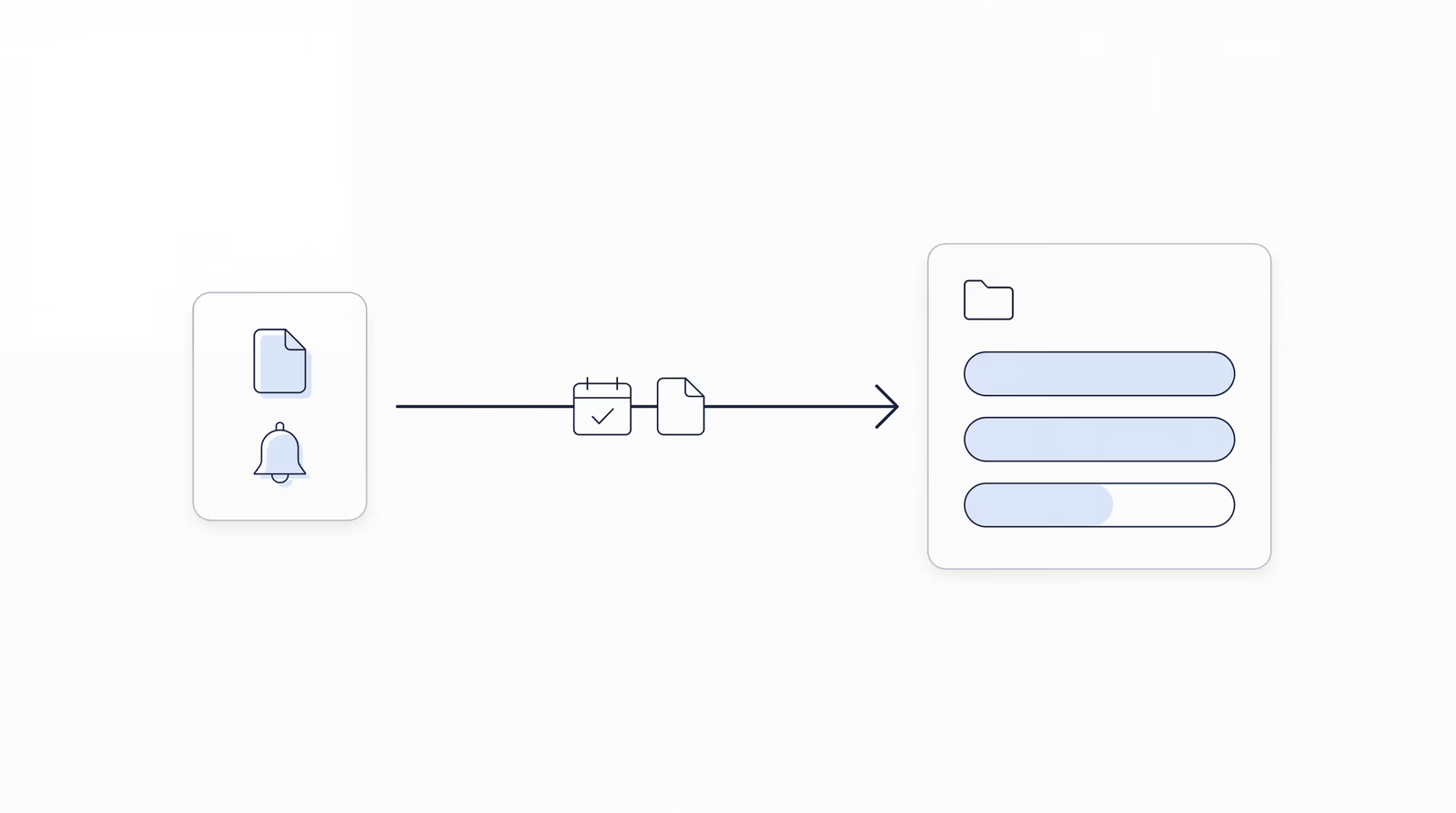
Chronicle now integrates directly with Neos. Electronic Records Express (ERE) data flows from Chronicle into Neos on its own, so the case dates, documents, hearings and CEs your team currently retypes by hand arrive without anyone touching them. Data also comes back: Neos can fill in SSNs, contact details and case ownership in Chronicle.
There is no Zapier in the middle and no export to run. Once Neos enables the integration, you connect it inside Chronicle’s settings, map your fields once, and the sync keeps Neos current from then on.
We recorded the whole thing end to end: the four setup steps, then a live walkthrough inside a Chronicle account. You can watch it here:
Speakers:
- Nikhil Pai, Co-founder and CEO of Chronicle, the platform helping Social Security disability firms automate case tracking, manage ERE access, and streamline document workflows. Chronicle monitors more than 335,000 cases and 12 million SSA documents for 2,800+ disability professionals.
- Will Yang, Co-founder of Chronicle, host. Will leads community, partnerships and events at Chronicle, building educational resources for disability law practices.
Key Takeaways
- Chronicle integrates directly with Neos. Case dates, custom fields, case status, documents, hearings and CEs, and Chronicle Dispatch client texts land in Neos without anyone typing them.
- Data comes back, too. Neos can fill in missing SSNs, contact details (date of birth, phone and email) and case ownership in Chronicle.
- The sync runs about every 15 minutes. As Nikhil put it: “This data sync actually works every 15 minutes.” That is a schedule, not a guaranteed completion time.
- Case dates are where the value is. Neos automation runs on case dates, and Chronicle fills them from the ERE, so task lists start days earlier than they would from the mail.
- Start small. Map a couple of case dates and turn on the SSN back-sync first, tell your team, see how it works, and expand from there.
Why Does Neos Fall Behind the ERE?
Neos is where a firm actually operates. It holds the task list, the case list and the documents, and for a large practice it is the system of record that everything downstream depends on.
The trouble is that SSA cannot send any updates into Neos. Somebody at the firm has to read the ERE and type the key information in, case by case. Once you are handling more than a handful of cases, that becomes really difficult, and Neos falls behind what is actually true about a case today.
The problem is not Neos. The problem is that getting ERE data into Neos has required making your staff the middleman.
What Does the Neos Integration Sync?
The integration is a direct connection between Chronicle and Neos, and data moves in both directions.
From Chronicle into Neos:
- Case dates. If you run Neos, you already know case dates are the field your automations key off. Chronicle fills them with ERE data such as denial dates and hearing dates at each level.
- Custom fields and case status. Map any ERE data point to a Neos field you choose, including case status text.
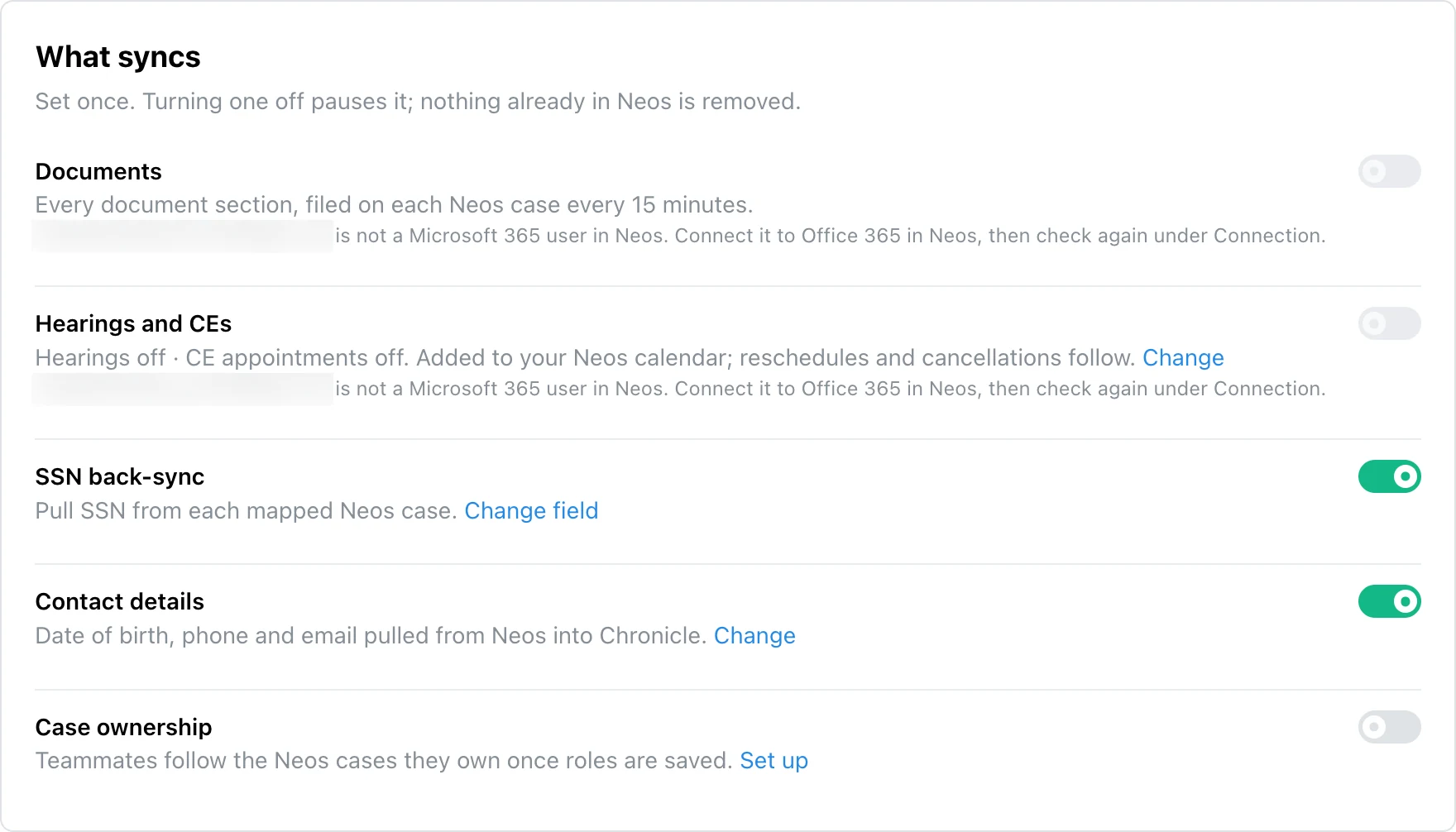
- Documents. Turning on document sync creates a folder on each Neos case and files the SSA documents from Chronicle into it.
- Hearings and CEs. Choose hearings, consultative exams (CEs) or both, and they show up on the Neos case calendar.
- Client texts. If you use Chronicle Dispatch, every text to a client and every reply becomes a note in Neos, whether the message was automated or sent by hand.
From Neos back into Chronicle:
- SSNs. Chronicle pulls SSNs out of Neos, so your team does not have to enter them before Chronicle can sync documents from the ERE.
- Contact details. Choose which of date of birth, phone number and email Chronicle pulls. Chronicle Dispatch uses them to contact your clients and verify their identity.
- Case ownership. Choose which Neos staff roles count, map Neos users to Chronicle teammates, and the right people follow the right cases for Chronicle’s notifications.
The sync runs about every 15 minutes, and each piece is its own setting.
What Does Neos Not Support?
Chronicle cannot move a case phase in Neos. You can often build a Neos automation that moves the phase off a case date Chronicle does write, and because Neos automation is built around case dates, most firms get what they need there.
Field mapping covers text, date and number fields. Picklists and multi-selects are not supported.
How Do You Set Up the Neos Integration?
Four steps. Only Chronicle account admins can set up an integration.
Step 1: Connect Neos
Neos support has to turn on the integration first. Fill out the Neos intake form linked from our Help Center article with your firm’s details and Chronicle’s; Neos takes a couple of days to process it and emails you when it is done. The article also covers the Neos integration user and permissions to create.
For document and calendar sync, Chronicle’s Neos integration user needs a Microsoft 365 license that includes SharePoint, connected to Office 365 in Neos.
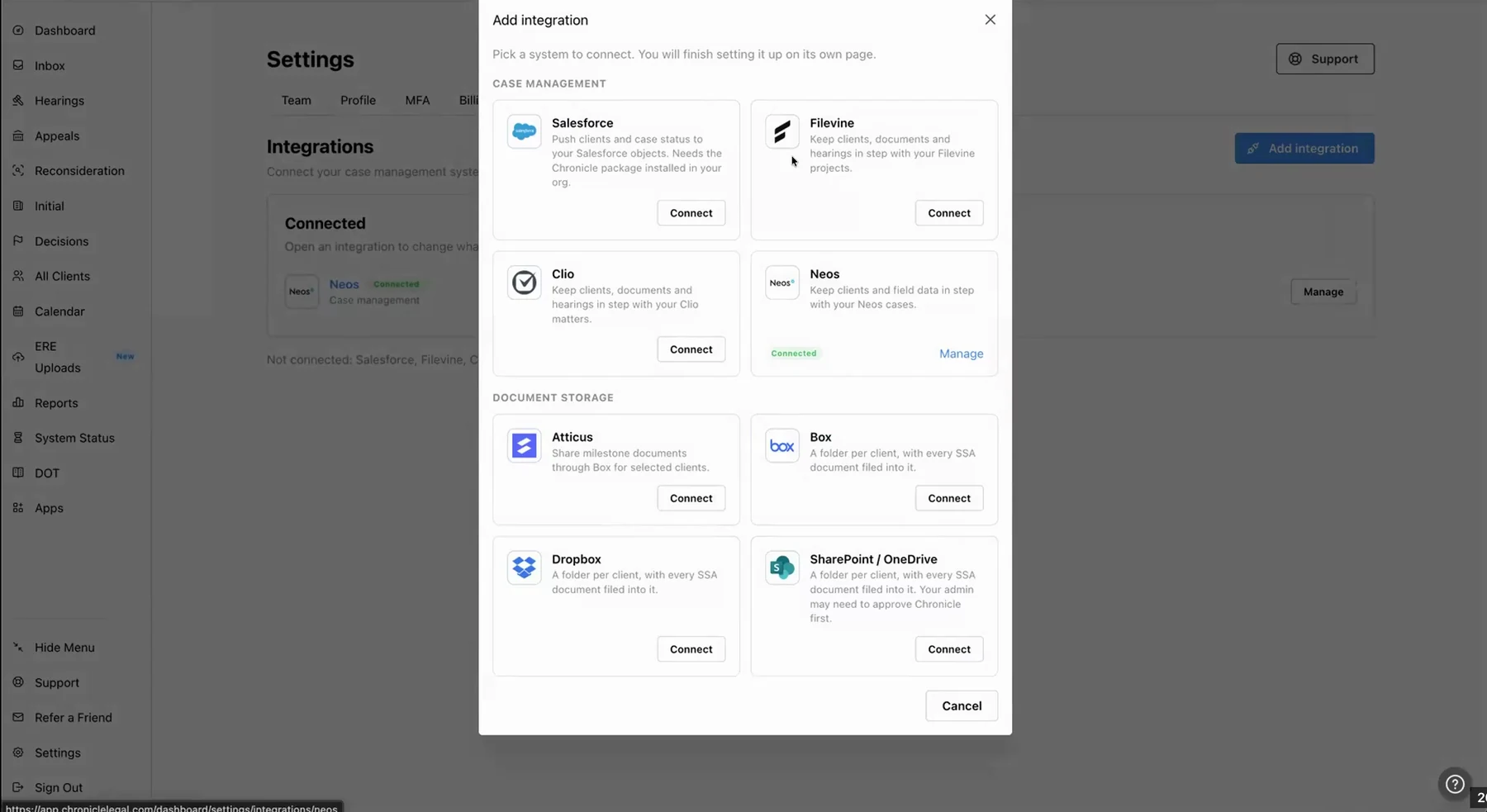
Then a Chronicle account admin goes to Settings, then Integrations, clicks Add Integration, selects Neos and enters your company ID.
Step 2: Match Clients
Tell Chronicle which Neos case types to look at. If you also run personal injury or workers’ comp, Chronicle ignores those matters and looks only at your Social Security case types.
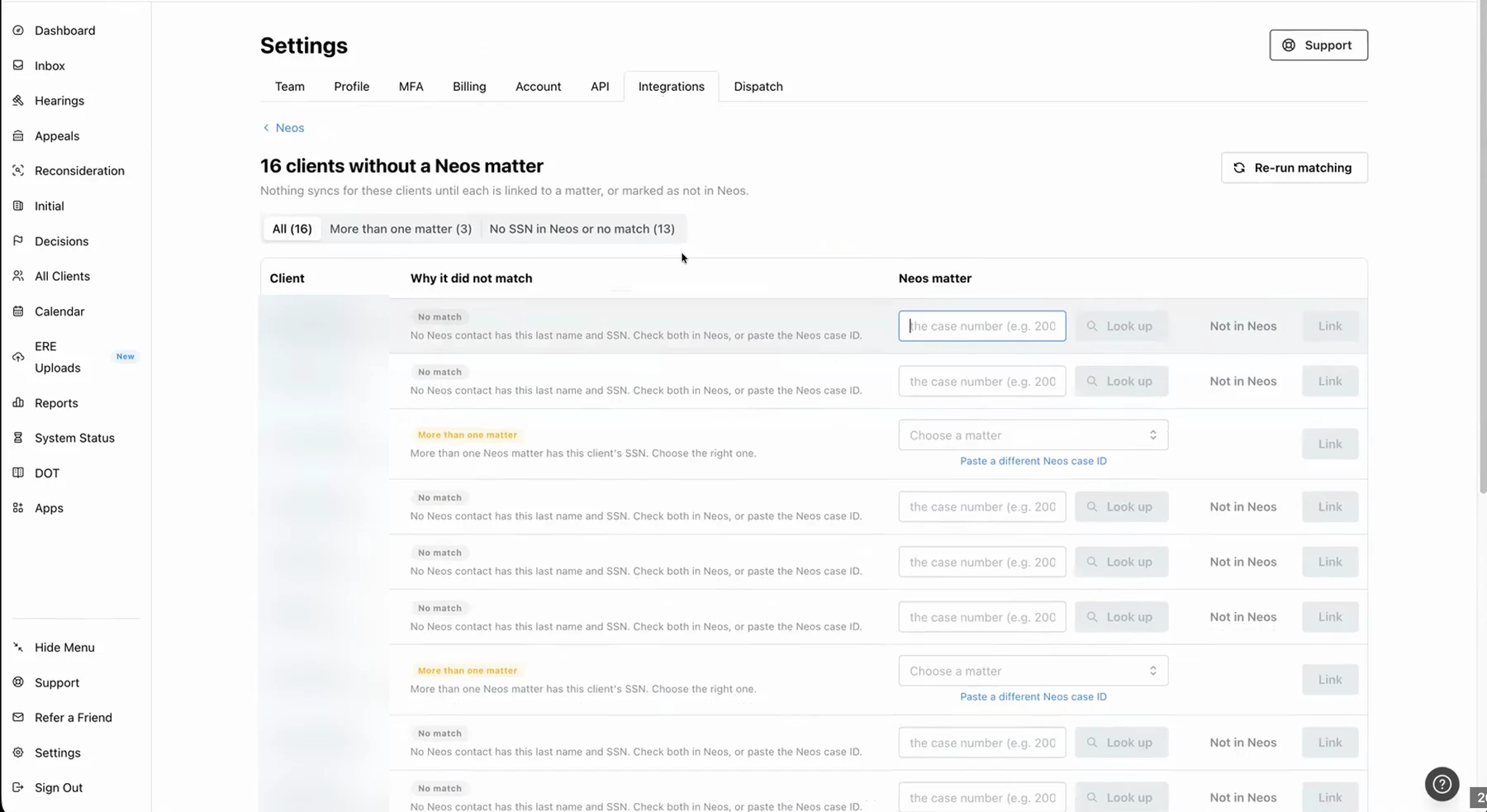
Chronicle then matches each client to a Neos case on last name and the last four digits of the SSN. Depending on your caseload, the first match takes several minutes to an hour.
If a last name differs between the two systems, for example a hyphenated name, the match fails. The sync page lists every unmatched client, and you can paste the Neos matter ID to link each one by hand.
Step 3: Map Your Fields
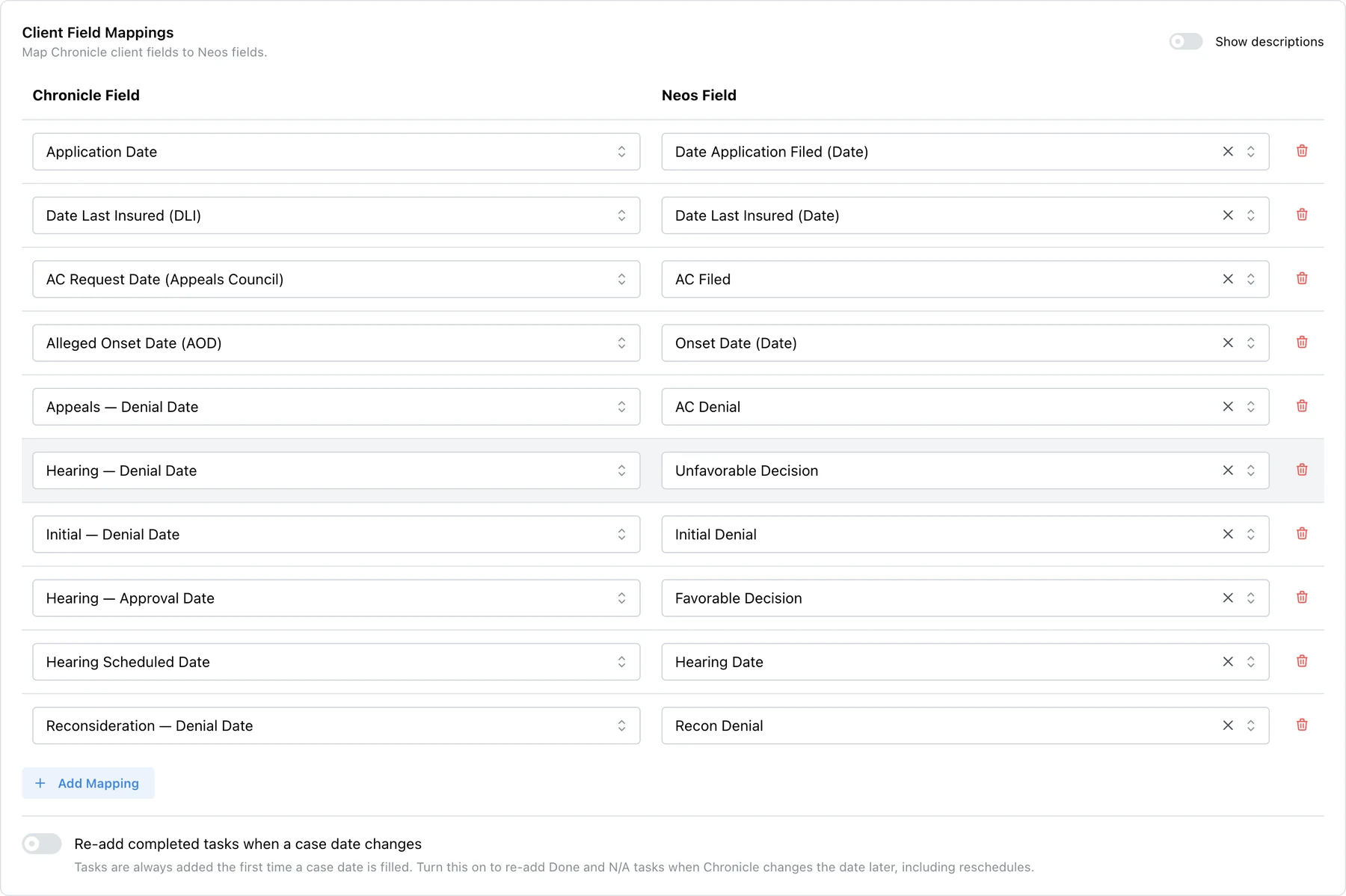
Choose which Neos field receives each ERE date. Case dates are where most firms get the most value, because they trigger the automations your team relies on. Turn on descriptions to see what each Chronicle field means, with sample data.
Two specifics:
- The sync writes data going forward. Once you save the mapping, Chronicle updates Neos as new information arrives from SSA.
- Re-add completed tasks when a case date changes. Tasks are always added the first time a case date is filled. Turn this on if you want the task list to run again when Chronicle refills a date, for example a rescheduled hearing or a second hearing after an Appeals Council remand. It is off by default.
Step 4: Choose What Syncs
Turn on the pieces you want: documents, hearings and CEs, client texts, SSN back-sync, contact details and case ownership. Then use the sync status page to see what is running, what is pending, and which clients still need a match.
How Do You Roll It Out?
The setup itself is quick. Nikhil said that once Neos has enabled the integration, everything you need to do takes about 10 minutes.
The rollout is where to go slowly. Start with a couple of fields you already have, say the hearing date, since a hearing date that sets off a task list is a very typical workflow. Get feedback from your team, make sure the automation works the way you expect, and expand from there. Dates that arrive on their own will start task lists earlier than your team is used to, so walk through what each automation does before you turn it on.
What Can You Automate Once ERE Data Is in Neos?
The hearing date is the obvious one: it lands, and your hearing prep and client outreach task list builds itself.
The less obvious wins come from data that was never in your case management system at all. Chronicle has so much ERE data that there are probably case dates you have never thought about triggering off of, like the date an initial application or a reconsideration was denied. Those are appeal triggers, and now they can start a task flow the day they arrive instead of the day someone notices.
On how closely it fits Neos, Nikhil said: “We’ve dived in really deep on the Neos integration to make sure it works for Neos firms.”
Which Firms Are Running It?
Victory Disability, a practice of more than ten attorneys in Malvern, Pennsylvania, runs the integration, pushing ERE data into Neos.
Emily Sisbarro described the value of connecting the two systems in a case study interview recorded before this integration shipped:
There’s not that many options that do this, that connect the ERE to a case management system for an all-in-one platform. So it’s unique and it’s easy to use and it’s easy to show our staff how to use it.
Emily Sisbarro, Victory Disability
Availability and Pricing
Chronicle: Pro plan. The Neos integration is included at no additional cost.
Neos: An active Neos subscription, with the integration enabled by Neos support.
Setup: The Help Center article covers every step. If you want the team to walk it with you, email support@chroniclelegal.com or book a demo.
Frequently Asked Questions
Does Chronicle integrate directly with Neos?
Yes. Chronicle connects to Neos natively from Settings, then Integrations, using the company ID you get once Neos support enables the integration. There is no Zapier step and no export to run.
Does Chronicle create hearing and CE events in Neos?
Yes. Turn on the hearings and CEs sync, choose hearings, CEs or both, and they appear on the Neos case calendar. Chronicle’s Neos integration user needs a licensed Microsoft 365 account connected to Office 365 in Neos.
Can Chronicle move a case phase in Neos?
No. You can often build a Neos automation that moves the phase based on a case date Chronicle writes, but Chronicle will not change the phase itself.
Does data flow both ways?
Yes. Chronicle sends ERE data into Neos, and Neos can fill in SSNs, contact details and case ownership in Chronicle. Each back-sync is its own setting.
How often does it sync?
About every 15 minutes.
Which Neos field types are supported?
Text, date and number fields. Picklists and multi-selects are not supported.
What happens when a hearing is rescheduled?
Chronicle refills the case date with the new hearing date. If you turn on “Re-add completed tasks when a case date changes,” the task list runs again too. It is off by default.
How does Chronicle match my clients to Neos records?
On last name and the last four digits of the SSN. Anything it cannot match shows up on the sync page, where you can paste the Neos matter ID to link it.
Who at my firm can set this up?
A Chronicle account admin. On the Neos side you need Neos support to enable the integration, and someone who can set up the Neos integration user.
How long does setup take?
Neos takes a couple of days to process the intake form. After that, Nikhil says you can set up everything you need in Neos within about 10 minutes.
What does it cost?
The Neos integration is included with the Chronicle Pro plan at no additional cost. You also need an active Neos subscription.
Which setting delivers the most value?
Mapping ERE data into your Neos case dates. Most firms already have automations built on case dates, and those used to fire only when someone updated the date by hand, sometimes days later when the mail arrived. When Chronicle fills a decision date or hearing date in Neos, your team starts on the task list days earlier.
How does Chronicle Dispatch work with Neos?
Chronicle Dispatch automates client communication over text: forms requested, CEs, status changes, or a check-in every 30 days, all in your firm’s own wording, and clients can reply if you turn on two-way texting. With the Neos integration, each message sent or received is logged as a note on the Neos case, so the full record is there when you run a fee petition.
How long does a rollout take?
The setup itself is quick: once Neos enables the integration, the steps in Neos take about 10 minutes. The rollout is where to go slowly. Start with one or two fields, such as the hearing date, make sure the automation it triggers works for your team, and expand from there. Chronicle has dates you may never have triggered off before, so most firms keep finding more to map over time.
Other integrations haven’t worked well for us in Neos. Why is this one different?
Chronicle has worked closely with firms that run Neos and built this integration around how they work: filling case dates that drive task lists, and rebuilding a task list when a date like a hearing changes. Neos-specific details like those are where most of the work went.
How does Chronicle decide what to build?
From customer feedback. Most of what Chronicle has built came from firms asking for it, with a focus on speed, from how fast the app responds to checking the ERE every day on every case, and on keeping the product intuitive enough that teams get value from day one with little training.
How to Get Started
- Fill out the Neos intake form from the Help Center article and wait for Neos to confirm
- In Chronicle, go to Settings, then Integrations, then Add Integration, and select Neos
- Enter your company ID
- Choose your case types and review any unmatched clients
- Map a small set of case dates
- Turn on what syncs, starting with the SSN back-sync, and watch the sync status page
Questions, or want the team to walk it with you: support@chroniclelegal.com. Not on Pro yet? See Chronicle pricing.
Neos joins Chronicle’s case management integrations, alongside the native Clio, Filevine and Litify integrations. For how the options compare, see our guide to case management tools that integrate with ERE.
Watch the Full Walkthrough
Follow Chronicle on LinkedIn to hear about new integrations as they ship. Questions about anything covered here: support@chroniclelegal.com or 847-665-9612.
Full Walkthrough Transcript
Lightly edited for readability.
Welcome and the Problem
Will Yang: Hello, everyone, and welcome to Your ERE Data in Neos. In this event, what we’re going to be covering is how the direct integration of Chronicle and Neos works together. We’re going to talk about how to set it up, why we even started building this, as well as what it does. But just to get things kicked off, we need to understand what the problem is here. The problem that you’re probably familiar with is that the SSA ultimately cannot send any updates into Neos. Somebody at your firm has to read the ERE and type in the key information case by case. And as you can imagine, once you’re handling a handful of cases, that becomes really, really difficult. So what we’ve done is we’ve built this Neos integration to help solve this problem. Nikhil, let’s go ahead and talk about what exactly this does.
What the Integration Does
Nikhil Pai: Yeah, for sure. As Will was mentioning, there’s a lot of great data the SSA provides, and you want that in your case management system, whether it’s for record keeping, automations, or filling out templates for documents. What Chronicle does is we are able to move information into Neos, such as case dates, custom fields, case status, text messages that we’re sending out through Dispatch, SSA documents, hearing and CE appointments, and more. We’re also able to pull information back into Chronicle. As your team may be doing today, you have to enter some manual information into Chronicle, such as SSNs. With that sync, Chronicle is able to pull SSNs out of Neos, and also pull in additional information like date of birth, phone numbers, emails, and case ownership, so that way Chronicle can know who’s following which cases for our notification system. This data sync actually works every 15 minutes, so pretty much as soon as something happens at the ERE and at the SSA, it will be up to date in Neos.
The Four Setup Steps
Will Yang: In order to get your Neos and Chronicle direct integration set up, it really comes down to four simple steps. The first thing you’re going to want to do is connect everything, so a Chronicle admin user is going to want to enter the company ID from Neos support. The next thing we’re going to do is match clients, which is where we match each client to a Neos case on last name as well as the last four digits of their SSN. Then we’ll map fields, where we’ll choose which Neos fields actually receive each ERE date and the case status. And then in step four, we’re going to want to turn on what syncs. This can include everything from documents, hearings and CEs, client texts that may be sent out from Dispatch, and any back syncs that you want to toggle on. From here, we’re going to talk about exactly what each of these steps might look like.
Step 1: Connect
Nikhil Pai: Awesome. So for step one, connecting to Neos, you’ll want to make sure that you have Neos support turn on the integration. That requires filling out a form that is in our Help Center with your information and Chronicle’s information, and they’ll email you within a couple of days. Once it’s on, there are a couple of additional steps to create the service accounts and the right permissions. All of this is also detailed in our Help Center article. Then the Chronicle account admin will add your company ID to Chronicle, and that will get the integration going.
Step 2: Match Clients
Step two will then be mapping your clients from Neos to Chronicle. This is essentially letting us choose which Chronicle client goes to which project in Neos, so that way the information can sync correctly. You’ll just have to enter the case type, and then you’ll also be able to manually override things as necessary if we’re unable to match. Often that has to do with hyphenated last names.
Step 3: Map Fields
Once that’s set up, you can then map your dates and your fields from Chronicle to Neos. This could be any field for any section, but the key one that most firms get the most value from is the case dates. Chronicle can use our detailed information about denial dates and more at each level to fill out specific case date fields in Neos, to be able to trigger the automations that your team relies on.
You do have the ability to turn on rebuilding the task list when the date changes. The specific use case this often comes up with is a rescheduled hearing or a second hearing. When Chronicle sees a field has already been filled, so the hearing date was there prior, we can refill that field with the new hearing date and have the task list regenerated, so your team can move forward and redo those tasks as needed. It’s off by default, but you can turn that on as needed.
Step 4: Turn On What Syncs
Then you can turn on additional syncs. If you want specific documents moved into Neos, you can turn on the document sync. And then you can also turn on the hearing and CE sync, so that way hearings and CEs show up on the Neos calendar. As a reminder, those do need to be Office 365 accounts. For the event sync, you can specifically choose if you want hearings or CEs or both turned on.
Then, if you are using Chronicle Dispatch, which is our messaging service, you can turn on the client messaging sync. This creates Neos notes for every single time a client is messaged and every time they respond. That could be automated or manual messages.
You can also turn on our SSN back sync if you want Chronicle to pull the SSNs out of Neos, so your team doesn’t have to manually enter them. For contact information for Dispatch, we can also pull out specific information. For the contact back sync, you can turn on which information you want us to pull out, such as the date of birth, the phone number, or the email address. Each of these is optional, and they’re used for Dispatch to contact your clients or verify their identity.
We can also turn on case ownership. If you want Chronicle to know which folks are following cases in Neos, and have that moved into Chronicle for notifications, you can choose which staff member types you want synced in, and then map users between each system to make sure the right person is following the right case.
As we always recommend when it comes to integrations, start small. Start with just a couple of fields, a couple of case dates, the SSN back sync. Tell your team, see how it works, and then adjust over time. It’s always important to get feedback as you turn new things on, so that way you make sure your systems are working, as this tends to be tricky when it comes to automations.
And then finally, you can go to the sync status section to see what’s going on with your cases. Is everything syncing as expected? And you can review the cases we could not match, so that way everyone is correctly matched.
Will Yang: So now that we’ve seen a little bit of all the things we can do with the Neos and Chronicle integration, let’s go ahead and jump into what this looks like in the Chronicle user experience.
Live Walkthrough: Connecting
Nikhil Pai: So once you open Chronicle, your Chronicle admin needs to go to Settings and then Integrations. This is where we list all the possible integrations with Chronicle. You’ll click Add Integration and select Neos. That will start the integration process. Because Neos is a complex system, there are multiple steps to the setup process that require Neos to actually take some action on their side. We have this Help Center article that will guide you through the process, but the first thing you will need to do is fill out the Neos intake form. If you go to this form right here, it will open Neos’s request for setting up an integration, where you’re entering your firm details and Chronicle’s information. That will take a couple of days for them to process, and they’ll email you once it’s complete. Once that’s done, all you need to do is enter your firm info into Chronicle, and we will connect to your Neos account. If you need any help with this at all, please contact our support team, and we can schedule a call or assist you over email in that setup process, as there are multiple steps you will need to take in Neos. But once that’s done, it’s pretty straightforward.
Live Walkthrough: Matching
We go straight to matching. I’m going to jump into this Neos integration, where you just need to tell us what case type to look at. If you’re working with multiple case types in Neos, we’re able to manage that. I can just click Edit here and choose which case types to select from. This chooses for Chronicle what case types in Neos we need to look at. So if you’re a PI firm and a workers’ comp firm, we’ll ignore all your other matters. We just look at the Social Security matters, and we have the ability to sync to multiple case types if needed.
Once that’s done, our system will automatically start matching your clients. This matching process can take several minutes to an hour, depending on your caseload. It will look at each client and essentially match on last name and last four of the SSN. Just note, if there’s any difference in last name, like a hyphenation, that means we won’t be able to match. Luckily, if you come to this sync page, there’s a great tool here to review the unmatched clients. You can quickly see a list of each of them and enter the Neos matter ID, so that way you can manually match that client to Chronicle.
Live Walkthrough: Mapping
Once you’ve done that, you can proceed to the mapping. As you probably know as Neos users, case dates are the main trigger for a lot of the automations in your account. Chronicle is able to use all the data we’ve collected from the ERE to fill out those case dates for you, or any other additional fields. You can see here we have our Neos fields and our Chronicle fields. You can also turn on descriptions to see what each field means, and we offer some sample information. As you can see here, it’s a very standard setup, where we have case dates for things like initial denial and hearing date, and each of these can be filled in by the corresponding Chronicle data. If there are any other fields in other sections, it’s very easy to go through the case fields list and add those to Chronicle and have those filled out.
Once you configure that, the data will sync going forward, so it will automatically update the information in Neos when we receive new information from the SSA. If you do want us to also automatically trigger tasks once we’ve updated the date, you can toggle this on optionally. That means if there’s a second hearing and you want the task list to be triggered again, you can turn that on to make sure your task lists are retriggered after the first fill.
Live Walkthrough: What Syncs
Then you have the ability to also choose what else syncs. You can turn on documents, which means Chronicle will create a folder on every single file in Neos and drop all the individual documents from Chronicle into that project. Please note you have to have Chronicle added as a Microsoft 365 user in order for that sync to work. We can also use your calendars in Neos to update hearings and CEs, once again requiring a Microsoft 365 account.
You can also have Chronicle pull SSNs out of Neos, meaning that you won’t have to manually enter SSNs for the documents to be synced out of the ERE. You can also have contact details synced out of Neos, if you want Chronicle to be able to grab phone number, email address, or date of birth. This is very helpful for Dispatch. Additionally, if you have Dispatch turned on, we can also sync all of the text messages we send out into Neos. As a quick reminder, Dispatch is Chronicle’s two-way messaging system, where we automate messages to your clients about CEs, forms requested, and more.
And finally, there’s also case ownership. If you have a large team and you want to make sure that they are automatically following their cases in Chronicle based on what they’re set up to follow in Neos, those can also be synced in, and Chronicle will automatically match your firm users to their Chronicle users, to make sure that they’re auto-matched and have their followers synced in. And that’s pretty much it.
Results at Victory Disability
Will Yang: In case you’re wondering what some firms that have already been getting value out of the Neos and Chronicle integration have been saying, Emily from Victory Disability told us that “there’s not that many options that do this, that connect the ERE to a case management system for an all-in-one platform. So it’s unique and it’s easy to use and it’s easy to show our staff how to use it.”
This is just a little preview of the power of what this integration can do for you, if you take the couple of minutes it takes to set it up for your firm. Just to summarize what we’ve covered today: with the Neos integration, Chronicle can send ERE data into Neos, and on the other side of things, Neos can fill in SSNs, contact details, as well as case ownership in Chronicle. What this really unlocks is the ability to save a lot of time on the tedious administrative tasks that take time away from client advocacy.
Now we’re going to shift gears and talk about some of the questions you may have about this integration. But before we do, it’s important to remember that this integration is available for all users on the Chronicle Pro plan. If you have any questions about setup or switching to a Pro plan, feel free to reach out to us at support@chroniclelegal.com. And if you happen to be watching this and you’re not currently using Chronicle, you can book a walkthrough at chroniclelegal.com/demo or by scanning the QR code on the screen.
The Highest-Value Settings
The first question we’re going to explore: what do you see as the highest-value settings to toggle with this Neos integration, from the firms that have been using it?
Nikhil Pai: Yeah, for sure. For most firms, the number one most valuable feature to turn on is mapping ERE data into their case dates. Most firms already have several automations set up on their case dates, and before, they only got triggered when their staff went in and updated those case dates. That could be days late, it could be when the mail came in, and so it was slowing down the whole firm. By turning on this automation, where Chronicle takes a decision date or a hearing date and populates that case date in Neos, your team is immediately able to get started on that task list, days ahead of time.
Rollout Timelines
Will Yang: Next question. When it comes to rolling out these integrations, you mentioned starting small. What does that typically look like from a rollout standpoint? Is it taking a few weeks to get those first two or three fields in and seeing how it lands, or maybe faster than that? What have you typically seen in terms of rollout timelines?
Nikhil Pai: Yeah, for sure. The setup itself is very simple. You can set up all of the things you need to do in Neos within 10 minutes. The key is just starting with only a few fields mapped, say the hearing date, since that’s a very typical workflow: when the hearing date is set, you have that as a case date, and you work on that automation to make sure it works well for your team, and then start to expand out from there. The great thing about Chronicle is we have so much data that there are probably case dates you haven’t even thought about triggering off of that you could now trigger off of. So that’s where we usually see firms start: with the fields they have, and then expanding beyond that over time.
How the Integration Was Built
Will Yang: Sometimes firms that are using Neos have tried other integrations, and they don’t work quite as well out of the box. What sort of assurance can you give folks about how this Neos integration has been built, so they have confidence in it?
Nikhil Pai: Yeah, for sure. We’ve had the pleasure of working very closely with firms that use Neos, and folks who are on Neos know not a ton of other firms use it. We’ve dived in really deep on the Neos integration to make sure it works for Neos firms. The fact that I’m talking about case dates and rerunning task lists off of case dates hopefully shows you the level of detail we’ve put into this integration to make sure it works for your Neos workflow.
How Chronicle Builds Product
Will Yang: And for those who are newer to Chronicle, can you share a little more about how Chronicle approaches building product, and maybe what’s different from some of the other providers when it comes to ERE monitoring?
Nikhil Pai: Yeah. Chronicle always believes the customer comes first, and a majority of the features we’ve built over time come directly from customer feedback. Whether it’s our obsession with speed, to make sure that everything works as fast as possible, both in the interface when you click around and in the frequency that we check the ERE. We check the ERE every single day on every single case to make sure you have real-time data, so you’re never caught behind schedule on your cases and you always know what’s going on. And it’s quality-of-life things: we always make sure our systems are intuitive and easy to use, so there’s little training, and folks start getting value from day one.
Chronicle Dispatch With Neos
Will Yang: And the last question: in terms of the client texting you mentioned, what exactly is Dispatch, for people who may not be as familiar with it? And what does it typically look like for a firm that’s using Neos with Chronicle Dispatch day to day?
Nikhil Pai: Yeah. As great as Neos is at automating task lists, it’s not great at automating client communications. And as we all know, there are multiple steps in the SSD process that your client needs to take, such as filling out forms, attending CEs, and so on. Chronicle Dispatch is a product to automate that client communication. We do this over text message. It’s a two-way system, so your client can respond if you turn on the two-way setting. That lets you automate messages, so whenever something important happens, like a status change or a form being requested, or you just want to send a check-in every 30 days to let them know you’re still there, all of that can be customized to your exact language and automated, so it happens without your staff being involved, but it’s also recorded in your Neos case management system. That way, if you’re running a fee petition or just trying to understand what’s going on in the case, it’s all there in your case management system.
Wrap-Up
Will Yang: Awesome. And with that, that will wrap it up for our Chronicle and Neos video, going over all the key things in this direct integration. Again, if you have any questions, feel free to email us at support@chroniclelegal.com. Other than that, thanks so much for watching.
Nikhil Pai: Thanks, y’all.