
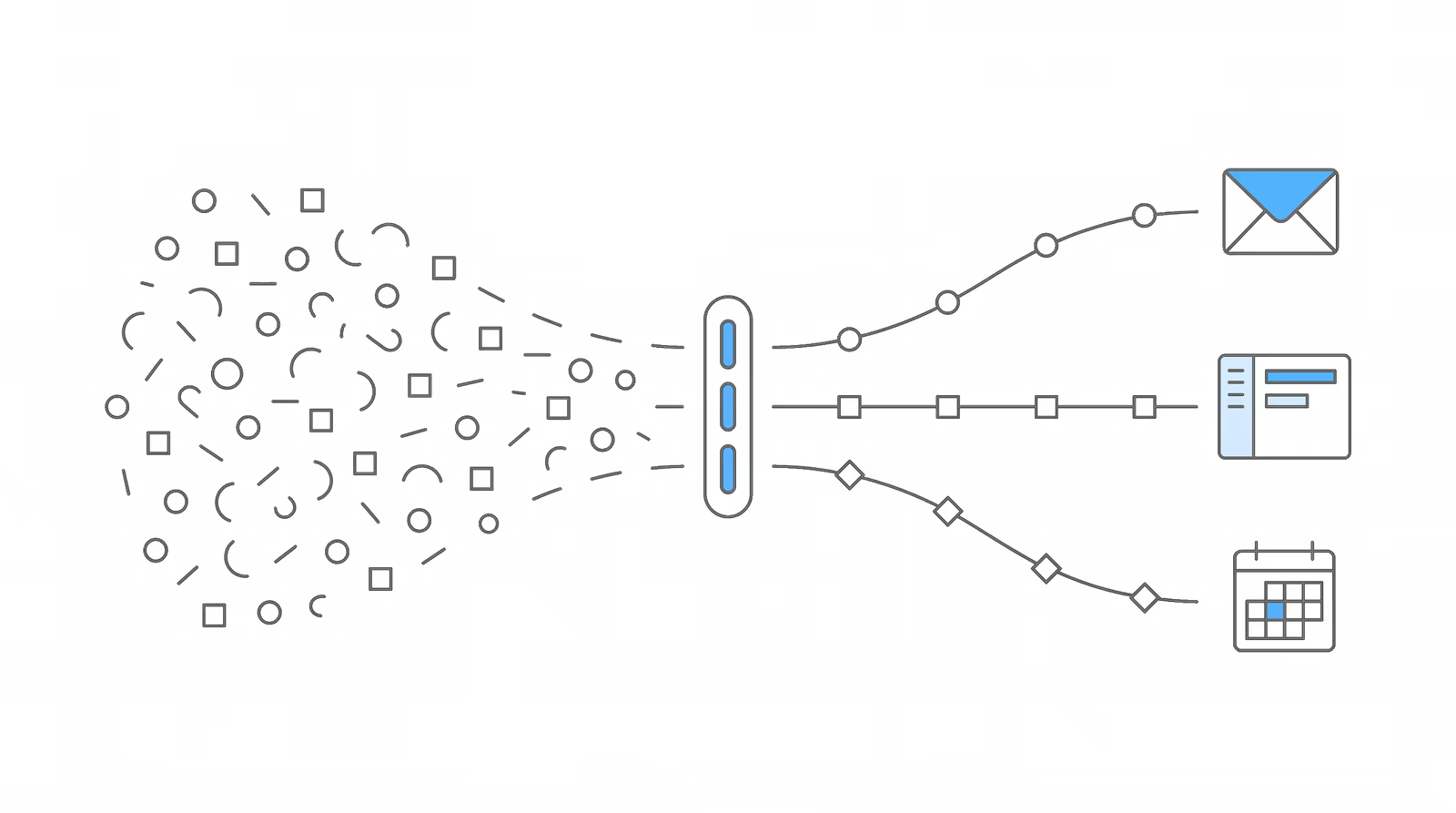
On August 13, we ran the first session of Chronicle Unlocked, a new hands-on training series that goes one section of the product at a time and shows you how firms actually configure it. The numbering runs 101, 201, and 301 by depth, so a 201 assumes you have Chronicle open and want to go past the defaults.
We opened with a poll, and the room answered honestly. Asked whether their Chronicle notifications felt too loud, too quiet, about right, or honestly not sure what I’m subscribed to, most of the room picked too loud. A few picked about right. One attendee volunteered that he follows every category on nearly every client and does not mind the noise, because he has no staff and wants to see everything himself. Another said he had solved it with an Outlook rule.
Both of those are real answers, and neither is the one we wanted to leave people with. Filtering in Outlook works right up until the message that mattered lands in the folder nobody opens. This session was about doing the routing inside Chronicle instead, where it can key off case stage, last name range, and which rep account owns the file.
You can catch the replay here:
Speakers:
- Nikhil Pai, Founder, Chronicle. Built Chronicle, the SSD ERE monitoring and analysis platform, and ran both live builds in this session.
- Will Yang, Head of Growth, Chronicle. Leads growth and community at Chronicle and hosts the Chronicle Unlocked series.
Key Takeaways
-
Broad by default is a deliberate starting point, not a misconfiguration. Chronicle turns on a wide set of notifications when a firm begins, because on day one nobody knows yet which SSA events matter to them. The design assumes you will narrow it later.
-
Following a case changes three surfaces at once, not just email. It sets what you get notified about, what your dashboard filters down to, and what appears in a subscribed calendar feed.
-
There are seven notification categories, and five of them open into specific sub-actions. Only decisions and status of case are a simple on and off. Hearings and CEs alone carries seven sub-actions, including rescheduled, canceled, and expert changed.
-
The real problem is usually routing, not volume. An intake coordinator and a hearing attorney should not receive the same alerts on the same case, and matching categories to a role solves more complaints than turning things off.
-
A follow rule is a live membership, not a one-time bulk action. Saving one applies it retroactively to every case that currently matches and keeps applying it to new clients as they arrive.
-
Settings you made on an individual case win. A rule will not overwrite notification preferences you already set on a specific client.
Why do Chronicle notifications arrive broad by default?
The first thing Nikhil addressed was not how to turn notifications down. It was why they start high.
Broad by design. You can get everything, and then slowly sharpen it to your exact use cases.
Nikhil Pai, Founder, Chronicle
As he put it in the session: “So it’s broad by design. You can do everything, you can get all the information, it can be a real fire hose, and then you can slowly tune it and really sharpen it to your exact use cases.”
The reasoning is asymmetric risk. A notification you turned on and did not need is an email you delete. A notification you never turned on is an SSA event your firm found out about late, or from the client. Nikhil framed the asymmetry directly: “It’s really easy to turn something off. You just don’t know what you’re missing if you haven’t turned it on.”
That framing matters for anyone evaluating whether their setup is broken. If Chronicle feels like a fire hose in month two, the platform is behaving as designed. The configuration work is the part that has not happened yet. It is the same pattern we see in firms that treat ERE monitoring as a replacement for their case management system rather than a layer that feeds it: the tool is doing its job, and the routing around it has not been set up.
What does following a case actually change?
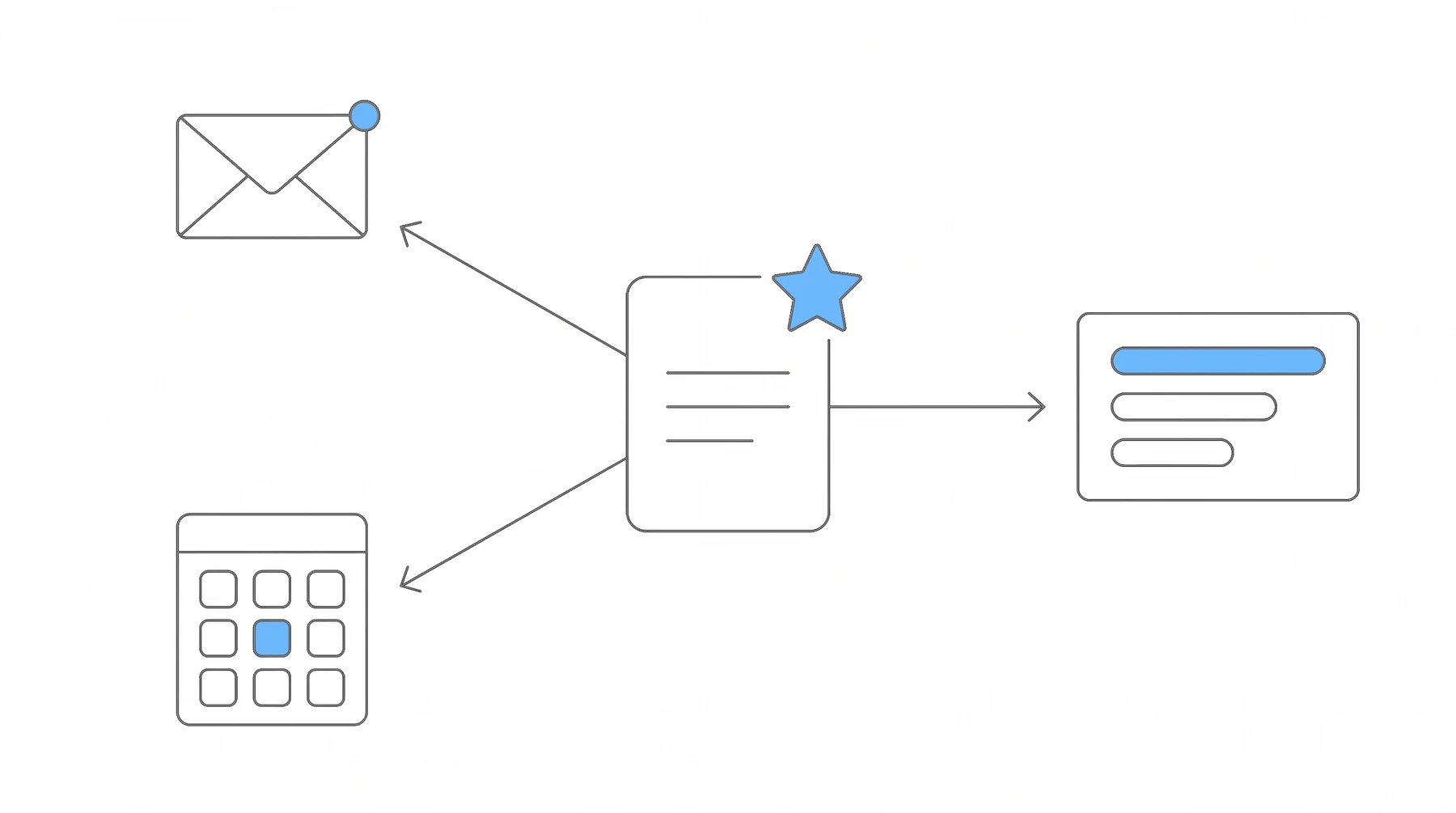
Most people read the Follow button as a subscribe toggle for email. It does more than that, and the extra behavior is the part worth knowing.
Following a case sets three things:
- What you get notified about. The email alerts tied to that case.
- What your dashboard filters to. You can filter the firm dashboard down to only the cases you follow. In a firm running thousands of active cases, this is the difference between a usable view and a wall.
- What lands in your calendar feed. If you subscribe Chronicle’s calendar to Outlook or Google Calendar, that feed can be filtered to your followed cases too.
Nikhil described the mental model as the closest thing Chronicle has to case assignment: “It’s really about saying, these are my cases, I care about them.” He was careful to add that following is not exclusive. Several people at a firm can follow the same case, and if you manage other people, you can see what they follow.
One behavior changed recently and is worth flagging to anyone who remembers the older system. Follows created automatically by a rule now appear in the follower list on the case. Previously, global notification settings were invisible from the case itself, which meant a case could have people receiving alerts on it with no way to see who. Now the list shows everyone, rule-created or manual.
There is also a case for following with no notifications at all. Nikhil demonstrated saving a follow with every category switched off, which leaves the case out of your inbox but inside your dashboard and calendar filters. For anyone who works from the dashboard rather than email, that is the whole configuration.
Which of the seven categories should each role turn on?
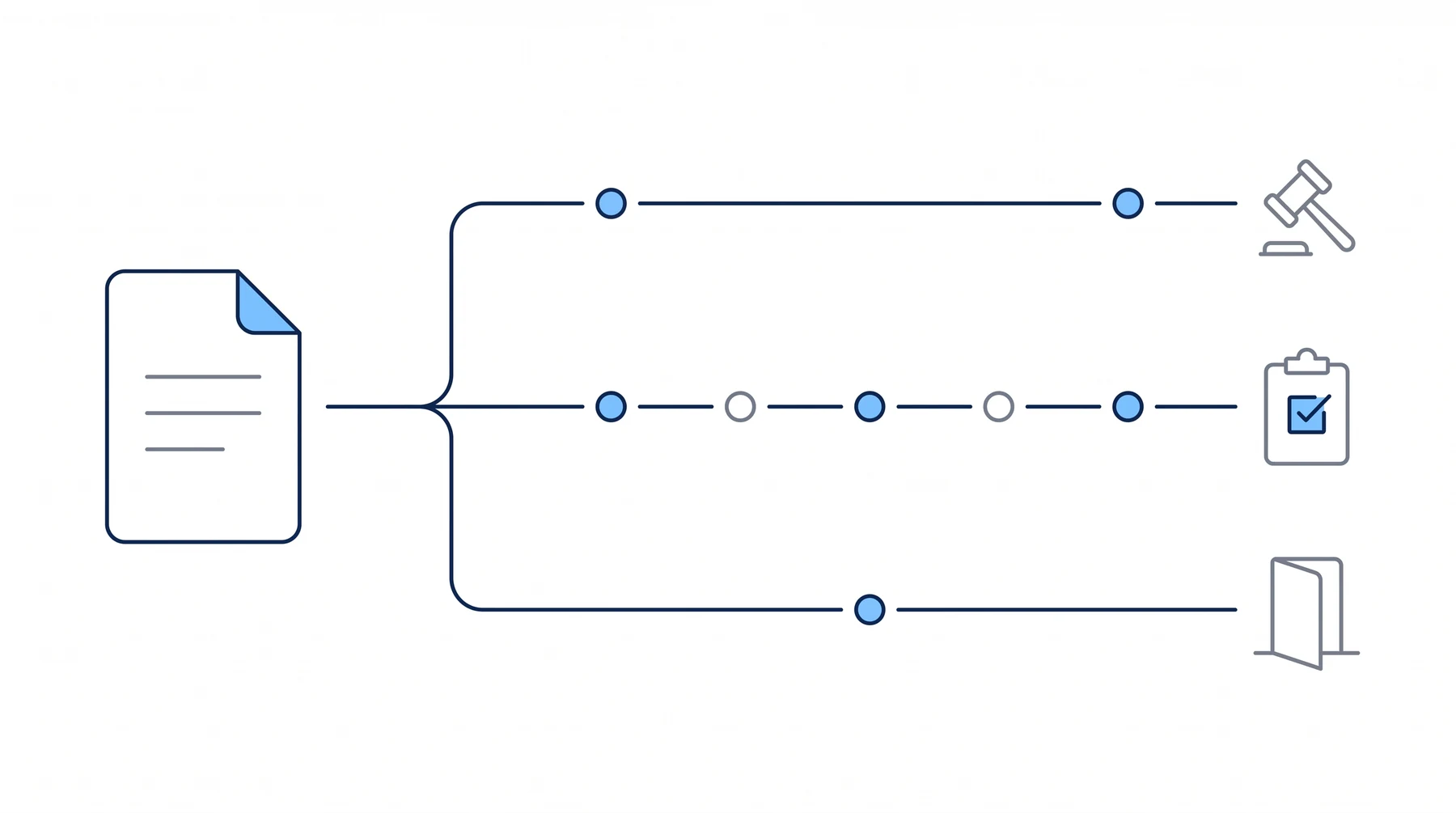
Chronicle groups notifications into seven categories. Five of them expand into specific sub-actions rather than a single switch, which is where most of the useful precision lives.
| Category | What it covers |
|---|---|
| Decisions | Decisions at any level |
| Milestones | A case opened, closed, or was dropped at a level |
| Status of case | The high level SSA status, for example master docket to ready to schedule |
| Hearings and CEs | Scheduled, updated, rescheduled, canceled, experts changed, missed CE, attendance declined |
| Documents | Added, or exhibited |
| Medical records | Sent, or received |
| Info requests | Sent, or received |
Two details from the walkthrough are easy to miss. Dropped, under milestones, is better read as withdrawn: the case was pulled from the SSA, whether by you, by the client, or because the SSA removed the representative. And attendance declined, under hearings and CEs, is tied to a client portal that Chronicle has not launched yet, so it is visible in the list but not yet usable.
Medical records and info requests both apply at the initial and reconsideration levels, where you can see the SSA send a request and then see it come back.
The part of this section that generated the most nodding was the mapping from category to role. Nikhil sketched three:
- Attorneys want decisions and hearing scheduling. Less about consultative exams. On documents, they usually care about exhibited rather than every document added.
- Case managers want status changes and info requests, because both are things they have to tell the client about, plus documents so they know when records are arriving. As Nikhil noted: “Case managers honestly probably want the most notifications, since they have a lot they need to be working on at any point in time.”
- Intake may only want milestones opening, which confirms the 1696 was processed and the case is moving, so nobody has to chase the client about paperwork that already went through.
He was explicit that this is a starting point rather than a recommendation: “This is just a starting point, it’s not prescriptive.” The point of the mapping is that it separates two questions people tend to collapse into one. Which events matter, and to whom. Most complaints about notification volume are really complaints about the second question.
What is a follow rule, and what happens the moment you save one?
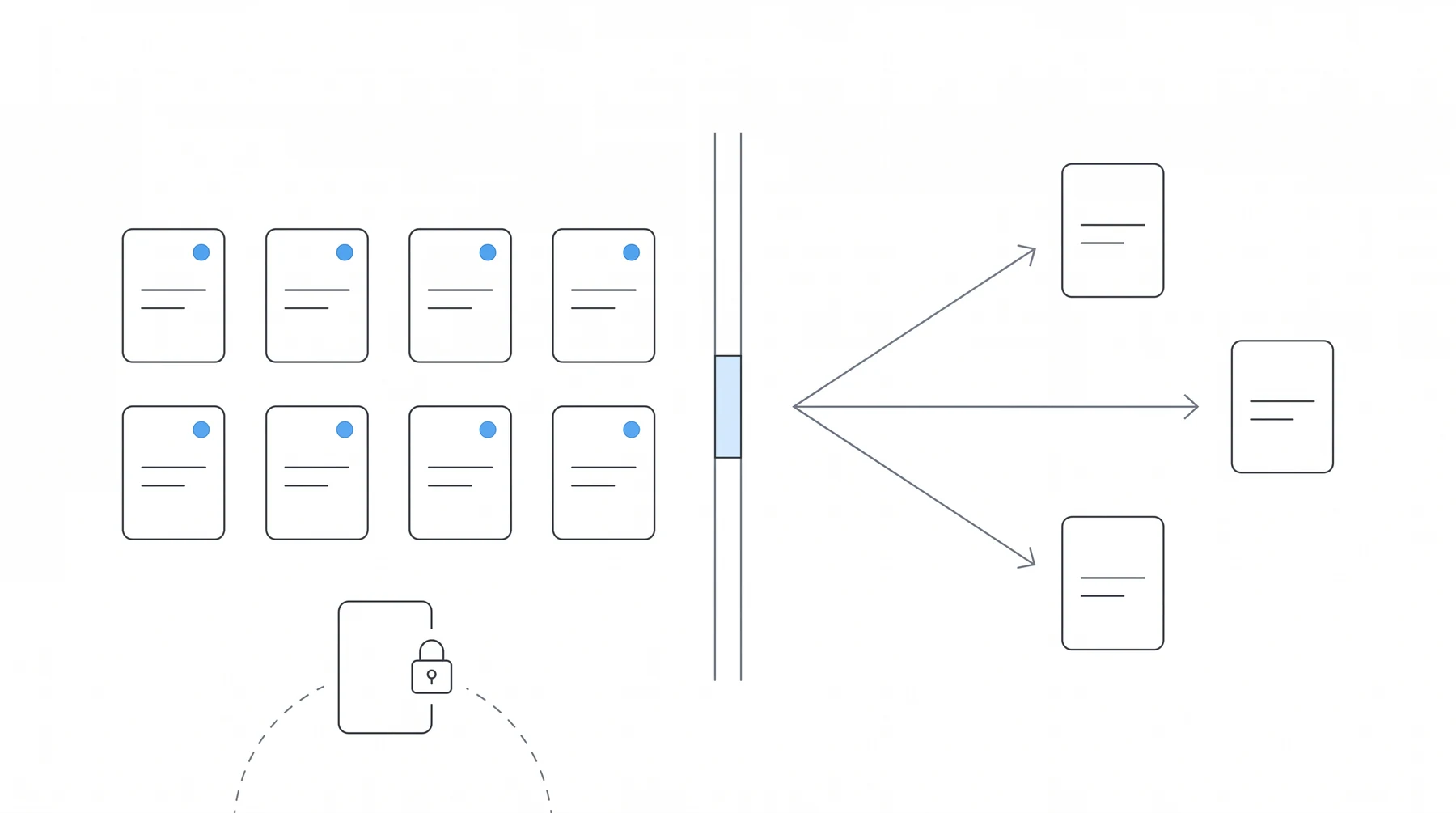
Following cases one at a time does not survive contact with a real caseload. Nikhil put the limit plainly: “if you’re a case manager with 400 cases, you can’t hand-follow.” Even at 20 cases it becomes a list you have to maintain by hand every time intake adds a client.
A follow rule replaces that list with criteria. You define what you want to follow, for example cases at the initial level with last names A through G, and Chronicle follows the matching cases for you and applies your chosen notification settings to all of them. When a new client arrives who fits the criteria, the follow happens automatically.
Rules live under Settings, then Profile, then Follows and Notifications. Admins can open any team member’s profile and build rules on their behalf, which is how firms handle staff who will not do this themselves.
There are two ways in. Quick add generates rules from presets, and Nikhil’s advice on where to start was specific: “Definitely decisions. Most folks care about decisions.” Attorneys should add hearing changes on top of that; case managers should add initial and reconsideration client requests. Presets are editable after they are created. The alternative is New Rule, which builds from a blank state.
Three behaviors take effect the moment a rule is saved, and all three surprise someone every time.
A rule is a live membership, not a one-time bulk action.
Nikhil Pai, Founder, Chronicle
It applies retroactively and prospectively. In Nikhil’s words: “A rule is a live membership. It’s not a one-time bulk action”. Saving it follows every case that currently matches, and every case that matches later.
Auto-unfollow is a toggle you control. With it on, a case that stops matching the criteria drops off your follow list and out of the follower list on the case. Nikhil recommends leaving it on for most rules, but it is a per-rule choice, not global behavior.
Per-case settings are never overwritten. This is the one to remember if you have hand-tuned individual clients: “Those will take priority. Those will always be the rules we notify on first. We won’t override those.”
How do firms actually split a caseload with rules?
Nikhil closed the teaching portion with six patterns, drawn from how firms have set this up rather than from a recommended configuration.
- By stage. The simplest version. You care about initial and reconsideration, so you take status changes at those levels and nothing else.
- By name range. Last name A through G to one case manager, H through Z to another. New clients get routed automatically as they arrive, which is what makes this hold up over time.
- By owner. Chronicle supports multiple rep accounts, so a firm with two attorneys can point each case manager at the caseload of the attorney they support, segmented by ERE account.
- By specialty. One person owns consultative exams and nothing else, so they take hearings and CEs at initial and reconsideration, scheduled and rescheduled, with everything else off.
- Low noise. A pulse rather than a feed. Just the handful of events you actually act on.
- Dashboard only. Follow broadly, turn every email off, and work from the dashboard and calendar instead.
That last pattern is the one people forget is available. Following and notifying are separate decisions, and choosing to follow widely while receiving no email is a legitimate configuration rather than a half-finished one.
Criteria stack inside a single rule, which is what makes patterns two and three practical. Nikhil demonstrated combining a stage filter and a name range in one rule during the second live build, and confirmed in Q&A that stage and alphabetical can share a rule. Rules also stack against each other in a priority order: when a case matches more than one rule, the first matching rule owns it and the rest cascade below. The ordering behavior is one of the topics held for the 301 session.
Frequently Asked Questions
Do status and milestone notifications overlap?
They do overlap, since a status change usually comes with a milestone. Chronicle bundles notifications per client rather than sending one email per event, so a milestone and a status change on the same case arrive together instead of as two separate messages.
Can I apply notification settings to all my clients at once instead of case by case?
Yes. That is what follow rules do. You set criteria, and Chronicle follows every matching case and applies your notification settings across all of them.
Can I set up a rule that mirrors another user’s follows?
No. There is no sync between two users’ follows. Each person sets their own rules. The workaround is copying the same rules onto the second user’s profile, which an admin can do from the other person’s settings.
Does a follow rule apply only to cases I already follow, or to all cases?
To every case that matches the rule’s criteria, whether or not you were already following it. The criteria define the population, not your existing follow list.
If I want to know when the SSA sends a questionnaire to a client, is info requests enough, or do I also need document added?
Info requests alone is enough. That category captures anything the SSA marks as a questionnaire it has sent out. Document added is broader and would also give you everything landing in the e-file, including consultative exam reports and medical record requests.
Can I get notified when ADL forms go out to a client?
Yes. ADL forms appear under info requests, so turning on info requests sent will cover them.
Where do I set a notification for when a hearing is scheduled?
In a follow rule, set the stage to hearing, then under notifications add hearing scheduled.
I only want hearings, not consultative exams. They are in the same category. Can I separate them?
Yes, by stage. Consultative exams only occur at the initial and reconsideration levels, or as Nikhil put it, “CEs only happen in initial and recon, or at least they’re only reported to us at initial and recon.” A rule scoped to the hearing stage will produce hearing alerts without CE alerts, even though both live in the same category.
Can I combine a stage filter and a name range in one rule?
Yes. Stage and alphabetical range can be set in the same rule, so a rule can cover initial and reconsideration cases with last names A through G.
Can a follow rule be based on a matter team in our case management system?
Not yet. Syncing follows from a CRM such as Clio or Filevine into Chronicle is in development, and Nikhil confirmed it is a planned capability rather than a current one.
If I change a rule’s name range, can I keep the cases it already matched?
Not by editing the rule. “As soon as you change the rule, it will automatically unfollow everyone.” The workaround Nikhil demonstrated is to delete the rule while keeping the existing follows, then create a new rule with the narrower range. Deleting a rule does not remove the follows it created. This came up as a workload rebalancing question, where a firm wanted to move a case manager from A through D to A through C without reassigning current clients, and the delete-then-rebuild path is what solves it today.
How do we remove an employee who no longer needs to follow a case?
If the follow was manual, an admin can open the case, click the follow control, select that person, and unfollow them. If the follow came from a rule, the rule has to be edited instead, since it will re-follow the case otherwise. Admin management of follows is a 301 topic.
A case is not in Chronicle yet, but the SSA sent us a letter acknowledging representation. When will it appear?
“Most cases will show up in Chronicle when the field office has processed the 1696 and sent it to DDS.” If the 1696 is still sitting at the field office, the case is not in Chronicle yet. Once it reaches DDS it becomes visible, provided the SSA staff completed the step that exposes it in the ERE. When a case is slow to appear, the fix is usually a call to the SSA rather than anything on the Chronicle side.
Watch the Full Replay
Upcoming Events
Disability Peers in Practice, August session brings disability practitioners together to work through one operational topic. August’s topic is the people problem: hiring, training, and scaling a team. August 20 · 12:00 PM and 2:00 PM CT · Register
The Mid-Year Checkpoint: What’s Working in Disability Firm Growth Right Now is a panel on what is actually moving for disability firms in the second half of 2026. August 27 · 12:00 PM CT · Register
About This Series
Chronicle Unlocked is our hands-on product training series. Each session takes one area of Chronicle, teaches it at a stated depth, and gives you working time to configure your own account while we answer questions live. This was Notifications 201. Notifications 301 will cover sub-stage criteria, rep account rules, rule ordering, and admin management of follows across a team.
It sits alongside our other community programming. The Disability Firm Playbook is vendor-neutral operations education for disability firms, and Disability Peers in Practice is a practitioner roundtable. Chronicle builds software for this practice area and the community around it, and those are not separate projects.
Written setup steps for everything covered here live in the Chronicle Help Center, in the articles on notification types, follow rules, following a case, and notification setup.
The full calendar is at chroniclelegal.com/events, and we post session recaps and clips on LinkedIn. To see how Chronicle handles ERE monitoring for your firm, book a demo or reach us at support@chroniclelegal.com or 847-665-9612.
Full Session Transcript
Lightly edited for readability.
Welcome and What You’ll Leave With
Will Yang: Hello, everyone, and welcome to Chronicle Unlocked Notifications 201. This is a new series that we are starting, and today the focus is going to be all around getting the right alerts to the right people.
The spirit behind this series is that we’re going to be digging deeper into different sections of Chronicle, to help you better understand the different ways you can use Chronicle to meet your daily needs as well as your staff’s daily needs. This is a good way for you either to refresh on things you already know, and learn from us walking through different example cases of what we see folks do, or to learn new use cases where you’ve never explored some of these sections of Chronicle before.
Some general housekeeping before we get started. First and foremost, as I mentioned to some folks earlier, if you don’t already have Chronicle open, it would be great for you to do so, because we’re going to pause two times over the course of this next hour so that you can set things up on your end and make sure everything’s configured to your liking. Also, everything you can do today does not require admin access. So if you are worried about that, because you might be at a different permission level, you don’t need to be, because everything will be targetable from any level of account.
If you have any questions along the way, all we ask is that you drop them in the Zoom chat. It’s helpful if you drop two hashtags in front of them, so they’re a little bit easier to spot. And this is recorded, so whether you need to review it later, or somebody on your team hasn’t had the opportunity to attend live today, they can check out that recording, and it’ll have a summary with some of those key takeaways.
Let’s talk about outcomes from this workshop. Here’s what you’re going to leave with. The first thing is you’re going to learn more about how to get your notifications tuned to your role, and not necessarily just the default setting. The default setting has a lot of strengths to it, but at the same time, we’re going to learn the particularities of why you might want to make it a little bit more specific.
The second thing is we’re going to talk about how you can create at least one follow rule running on your caseload. That will be something we walk through together with a real example, and Nikhil will share more about what he commonly sees people set up in terms of rules.
And then lastly, we’ll have an answer to why you might not be getting the alerts that you expected, because we’ll have gone over all the fundamentals of how to set up notifications to be most successful on your Chronicle account.
For folks attending today who may not be actively using Chronicle, this is also a good opportunity to understand more about what exactly is possible when you adopt a modern SSD ERE monitoring platform like Chronicle.
With that, I’m going to pass it over to Nikhil to share more about the broad design of how notifications are teed up in Chronicle, and talk about what changes when you start refining it further.
Why Notifications Start Broad
Nikhil Pai: Excited to be showing you all this feature today. Some of you may remember it from your training sessions, or noticed that we made some changes. There’s a lot going on here to cover, but to start off, I want to start with why we have this system, and how to think about it.
When you get Chronicle at day one, you should think about notifications as something you want to turn on immediately and go quite broad with. You just don’t know yet what’s important to your firm, given the amount of information Chronicle surfaces, so we want you to start broad and understand what is even out there, what information you get, so that nothing slips by. That’s a good default to go with. And then as you start to develop your understanding of Chronicle, you can start dialing that in and focusing and tuning it into exactly what each team member works on.
So it’s broad by design. You can do everything, you can get all the information, it can be a real fire hose, and then you can slowly tune it and really sharpen it to your exact use cases. That’s what we’re going to go through today. Don’t worry if you’re feeling like you get a fire hose right now. We will show you how to make that better.
Starting with that first question, I would love to hear this feedback from you all. Right now, how do you feel about your Chronicle notifications? A, too loud. B, too quiet. C, about right. Or D, honestly, I’m not even sure what I’m subscribed to. Take a minute, pop your answers in, so we can understand how we can make this better.
Right now, we have A from Will Viner, lots of A’s, Rick also has an A. Rick, I know you have a lot of cases, I can’t even imagine how many thousands of emails we send. Ben says, with an Outlook rule set up, the notifications are perfect. I think that’s a great point. A lot of folks set up specific notification folders, so that we don’t bombard you. Lots of A’s, and then some C’s from TC, and Kerie and Townsend. So it sounds like some folks have dialed it in, which would be great to have those folks share what they’re doing at some point.
It seems like a majority of A’s right now, which we can definitely show you how to handle.
What Following a Case Actually Does
Let’s start with what following actually does. The best way to think of following a case is that it does several things for you. It’s kind of like in a case management system, when you assign out a case, it is saying, hey, I care about this case, and I want to focus on it.
It affects what you get notified on, so what email notifications you’re getting. Second, it affects what’s actually on your dashboard and what you can filter it to. I’ll show you what that looks like, but you can filter your dashboard to just the cases you follow. So if you’re part of a large firm, and you say, hey, I only care about these cases, you can filter it down so your dashboard just shows you those cases. And third is that you can have it filter your calendar feed. If you are using our calendar feature and have it subscribed to your Outlook or Gmail, or whatever calendar software you use, you can also have your calendar filtered down to just the cases you’re following.
It’s really about saying, these are my cases, I care about them. Not to say that other people can’t be following the same case.
With that, let me go into a live demo, walking you through what following does. Let me share my screen.
This is Chronicle right now. This is your full dashboard with all of your cases, everything in the firm. Whether you have 20 active cases or 20,000, you have the same dashboard full of all your cases, which can mean it can be quite noisy.
To follow a case, and this is the way you do it one by one, I’ll go into the follow rules a little bit later, you can click into any specific case, so David here, for example, and you’ll see that there is a Follow or Following button. This case I’m already following, and I can see the followers are me. For a different case, say Robert here, I can follow this case, which is why it says Follow versus Following. And I can click into this, and I can now see what notifications I can turn on when I follow a case.
Just so you know, you don’t actually have to turn on any notifications when you follow. I can say I want to follow this case with no notifications and click Save. It shows I’m now following this case, I am a follower. And that also means if I go to the dashboard, I can filter this down to just my clients, and that case now shows up, because I am following that case. And just so you know, if you’re a manager of other folks, you can also see what other folks are following.
The Seven Notification Categories
Going back to following this case, I can click Following, and then I can edit the notifications. In Chronicle, we have many new notification types. This is something that has changed in the last couple of weeks, and you may or may not have noticed, and we now have very specific types of notifications you can turn on.
Decisions is pretty self-explanatory. You can turn on decisions at any stage, so you can say, I want decision notifications on this case.
Milestones are about cases opening and closing at the SSA. Opening means that the case was opened, so they got the receipt and they’re now processing the case. That could be at the initial level, at the recon level, hearing, or appeals. Closed means it closed at that level, so if they close out the case at initial and you haven’t filed the appeal yet, it’s going to be closed, and you can get a notification on that. And dropped is better understood as withdrawn. Some folks have emailed me about what dropped means. It means the case has been withdrawn from the SSA. This could be by you or by the client, for multiple reasons. Or, for example, the SSA just removes you. So it’s a good way to understand if any case was closed out before it even completed.
Status of case is your generic status of case. That’s any change between assigned to staging, master docket to ready to schedule, and so on.
Hearings and CEs is one of the most powerful ones, and it’s super helpful. This would be for any hearings and CEs. You can get notified when it’s scheduled, when there are any updates, like the location changing, if it was rescheduled, canceled, which we see quite often, or the experts change, such as an ME or a VE being added. Missed CE, so if you’re focused on the initial and recon level, if a client actually missed a CE, the SSA does report that. And attendance declined is with our new client portal that we’re launching, so that’s not something you can use today. We’ll be launching that in a few weeks to months.
Then there’s documents added or exhibited, which is fairly self-explanatory. And then medical records and info requests. These are for the initial and recon level. You can see when the SSA sends out these requests, and if they receive them back.
So once again, you can really dial these in, pick and choose what you want. Let me drop this screen and go back to the slideshow.
Just to recap that: for any case, you can click that Follow button, or if you’re already following it, you can click it again, and you can pick through these notification types to really pick and choose what you want.
There are seven categories of notifications. There’s decisions. Milestones, which is whether cases open, close, or are withdrawn from any level. Status of case, which is that high-level status the SSA gives. Hearings and CEs, so you can see if something was scheduled, rescheduled, missed, and so on. Documents added or exhibited. Medical records sent or received. And info requests sent or received. Turning those on lets you get notifications for those cases, and you can pick them individually.
Tuning Categories to Your Role
Given that there are so many categories, I want to help you understand when you would use these. You can imagine that across different roles, whether you’re an attorney, a case manager, or intake, you may want different notifications for different cases.
If you’re an attorney, you probably want to know when decisions come in, or when a hearing gets scheduled. Probably less about CEs, actually. And maybe you don’t want to know about every single document getting added, but you want to know when it’s exhibited.
Case managers, if you’re really working through things with your client, probably want to know whenever the status changes so you can inform the client, and any info requests, so once again you can inform the client. And then documents, so you know when they’re retrieving new medical records, or there are any forms you need to fill out. Case managers honestly probably want the most notifications, since they have a lot they need to be working on at any point in time.
And then intake, maybe you just want to know when milestones open. You want to know at initial that a case was actually processed, so you know they have processed the 1696, and you don’t need to badger your client to attest to the 1696 or anything like that. And maybe you don’t need medical records.
This is just a starting point, it’s not prescriptive. As we mentioned at the beginning, you want to start as broad as possible and then whittle down, because you never know what you’re missing until you turn something on. It’s really easy to turn something off. You just don’t know what you’re missing if you haven’t turned it on.
That being said, we want to take a pause now and work through picking a client. Pick some client on your dashboard, and start trying to dial in what notifications you want. I’m going to stop here and let you take the wheel, go into Chronicle and try to turn on some notifications. I know I just gave you a lot of information, so please start popping questions in the chat, and I can answer them live as you go through, so we can work through an example of what a notification configuration could look like for a client.
Build Pause: Tune One Client
Will Yang: If folks want to take a moment to look at their settings right now, and what they might be following. On the other side of things, if you have any questions, feel free to drop them in the chat, and we’ll take a moment to answer some of those. I apologize in advance, but in the future I will have a little music in between these sections for the two to three minutes that we’re doing this.
Nikhil Pai: I’ll also voice over some questions as you go through this. Ben asked, do status and milestones overlap? They do overlap, in the sense that usually a status comes with a milestone. But what Chronicle does with notifications is we bundle them per client. We don’t send you an individual email for a milestone and an individual email for a status of case change. We can put it in one email, so you’re not getting flooded as much as you could be.
Will Yang: Will Viner asked, is it the same process to do this for all clients, at the global level?
Nikhil Pai: That’s actually what we’ll cover right after this with the follow rules, so I might hold on that question for a while.
Ann’s Law Firm asked, I have social security cases, do you have a process built for that? Just so you know, and I’m not sure if you’re a current Chronicle user, everything Chronicle does is just for disability firms, so it’s social security cases that we focus on.
Will Yang: When folks are done with tuning categories for at least one of your clients, if you can give a thumbs up in the Zoom chat, that’ll give me a good sense of where the room is at on this first pause break.
Meanwhile, Liz asked the question, how do we remove employees that no longer need to follow a case?
Nikhil Pai: We are actually going to go really in depth on a lot of that in the 301 version of following and unfollowing, and that goes into admin management as well, in our next session in the series. But to give you a sense: for any case, if you’re an admin in Chronicle, you can click the Follow button and choose the person’s name and unfollow them. But if there is a follow rule that caused the follow, you have to go edit the rule. I know that’s a lot of jargon, and I think it will make a lot more sense at 301, but feel free to reach out as well.
Will Yang: We’re having a good, steady stream of thumbs ups, so I think we’re in a great place to go into follow rules. Let’s dig into that.
Why Follow Rules Exist
Nikhil Pai: As you probably know, we used to have a system for global client notifications, which was kind of a mouthful and didn’t really make sense. We’ve changed this and updated it recently to follow rules and notifications, so I’ll walk you through that today.
Why we built this: if you’re a case manager with 400 cases, you can’t hand-follow. This whole thing we just went through for this example, you’re not going to do one by one for all 400 cases you manage. Even if it’s 20, it’s still something you maybe don’t want to maintain, especially if you’re on a team that handles just a certain level, or you’re an intake manager or a paralegal that handles just a certain aspect of it. You don’t want to have to keep your list up to date and your notification rules up to date for the sets of clients that you actually care about, and usually that comes down to level, alphabet, something specific.
That’s why we created follow rules, so you can have this all automated without having to do it manually all the time.
The way to map the concept of a follow rule is that you set up a set of criteria saying, hey, I only want to follow cases at initial from A to G. You set that criteria, and the system will automatically follow those clients for you and apply your notification rules to those clients. And then all those things, being the notifications, the dashboard, and the calendar, will all automatically update for you for those cases.
It’s building on top of what we just covered in terms of what following does on an individual level, and automating it for all of the clients that you care about based on the set of criteria that you set.
Building a Follow Rule
Let me walk you through a live example of how you do this.
To recap, you can go into any client and see the Follow and Unfollow button, depending on what state you’re in with that client. Rather than going case by case, you can go into Settings, then your Profile, and then Follows and Notifications. This is the new section where you can manage your follow rules.
Just in case you are someone who is doing this for someone else, if you’re an admin, you can click on a button here, click Edit User, and there’s the same section, but you’re doing it for someone else. So if you want to apply these follow rules for someone who’s less tech-savvy, or just doesn’t have the time, you can apply them to other people.
For my case right now, I’m logged into my own section, and let me clear this out so you can see what it looks like from a blank state.
Here, we have a couple of presets available for you, where you can say, I want to just get all decisions. Maybe you’re starting from scratch, and you want all decisions at all levels. Or, I want to know whenever a hearing changes. Or, I’m a case manager for initial and recon, so I want to know whenever an info request is sent out. You can click one of these buttons and we’ll auto-generate the rules for you, so you don’t have to configure them one by one.
You can see here, it created my four rules. Just to walk you through the anatomy of one rule, I can turn it on and off, so I can disable one if I don’t want it on for now, and you don’t have to fully delete it. And then I can edit it. This little edit button is how you edit it. You can change the name, which is always helpful, to give it a full name.
You can see here, the stage it’s set for is initial. So you’re saying, only initial cases do I want followed, and I want decision notifications on. Super simple follow rule here. I’m just saying, for my initial decisions rule, for initial cases, I want decision notifications. That means whenever a case is at initial and it gets a decision, I will get notified on that case.
You can see here it matches 52 clients. You can see some example names, which just helps you understand who it’s matching to.
And something that is on here is auto-unfollow, which means that once the rule is no longer true for this client, stop giving me these notifications, stop following them. You can turn that off if you want, but most likely you want it on. It just means if they no longer match the criteria, remove my follow.
Just to give you the other example, let me save this rule. You can see here, I have this for recon as well. I have recon decisions, so when it’s at recon, give me decision notifications.
Say I want to get a little more crazy with the hearing decisions rule. Maybe I actually want this to give me a little more information. I can say hearing decisions and new hearing events, that’s going to be the name of my rule. I might say, turn on hearing scheduled notifications for this rule, and click Save. That now means that whenever a hearing is scheduled, I get notified on that, and we show you right here the things that are on for this rule.
As you can see, it’s pretty powerful. To give you some more examples, let’s show you how to set up that case manager focused info request rule. I’m going to start from scratch, click New Rule here, and it’s going to pop open a new box. I might call this info requests. I might deselect all of these, and I’m going to leave on info requests. I want to know whenever an info request is sent out only. And I can say this is only for the initial and recon stage.
So this is now saying, for initial and recon, I want to automatically follow these cases and get info request notifications for when they’re sent out, and I can click Save. That’s my new rule for info requests: initial and recon, info request sent, any client, I get notified on.
But say I am a case manager who actually only covers last names A through G. I can just put that in. A through G, and I can click Save. And now it’s a sub-segment of the initial and recon cases, to only last names A through G. So if you’re a large firm, you can really see how this can get powerful if you want to split up cases alphabetically or any other way.
Will Yang: Of the out-of-the-box ones that you had, decisions, hearing changes, and initial and recon client requests, which ones do you usually advise folks to start out with?
Nikhil Pai: Definitely decisions. Most folks care about decisions. And then if you’re an attorney, definitely pick hearing changes. Obviously you’re the one covering those, so it’s helpful to get hearing change notifications. And if you’re a case manager, do initial and recon client requests. So pretty much everyone should have decisions, and then depending on your role, either hearing changes or initial and recon requests.
That’s the two ways. Remember, you can either quick add, there’s a quick add button here if you want to add them, or you can create them custom, one by one.
What a Rule Does Once It’s On
Now let’s jump back to the slide. Just to recap, the place you find this is under Settings, then Profile, then Follows and Notifications. You can click on any team member, edit them, and find the same thing if you want to do it for someone else. There’s a quick add button, so if you want to quickly add one of our templates, you can just click those buttons and it will generate the rules for you. Or you can click the New Rule button and create it manually so you can really dial it in. Just so you know, if you quick add, you can customize those as well.
A rule is a live membership. It’s not a one-time bulk action, especially with auto-unfollow on. It’s going to say, going forward, and for all my clients right now, follow these cases.
Something that changed is that previously, you used to not be able to see who had these global notifications on. So now, if someone turns on one of these auto-follow rules, they will show up as a follower on that client. I know this is something that confused some folks. Now, whenever you turn on notifications at the global level with these follow rules, they will show up as a follower in that list for each client.
Consequences worth knowing. Auto-unfollow: you toggle this on for the rule, and you can choose this per rule. It means that if they no longer match the criteria, you no longer follow them automatically. It will drop off the list under each client where it says Followers, and it will no longer show that name.
The second is, it applies to all matches. As soon as you turn on a rule, it will look at the current set of clients and apply you as a follower to all of them, and anyone who matches it going forward. So it is retroactive in that sense.
The one thing I always want to flag is it will not override per-client settings. Say that you add follow rules on, and you had already set a couple of custom notification preferences on a couple of clients. Those will take priority. Those will always be the rules we notify on first. We won’t override those.
Giving the example that we gave before, splitting the caseload alphabetically: this is super important if you’re a large firm. You can add those name ranges by last name or first name, and that way you can split up those caseloads and they will automatically get followed, or kind of assigned out. So if a new client gets added, they will automatically get followed based on those criteria of last name or first name.
Six Ways Firms Structure Follow Rules
Ways firms structure this. The most basic is by stage. Maybe you only care about initial or recon, and you’re saying, I only want status changes at initial or recon. Super easy to set up.
Second is by name range. If you’re trying to do some sort of balancing between case managers, a lot of people apply alphabetical name ranges to their follow rules.
Third is by owner. As you know, Chronicle supports multiple rep accounts, so if you have a firm with two attorneys, and case manager A handles one attorney’s caseload and case manager B handles the other attorney’s caseload, you can segment by owner, so it’s fully segmented by the ERE accounts.
Fourth is by specialty, and this is more about how you dial in the notifications that you want. Maybe one person only cares about CEs, and they have to call out on every single CE. You can turn on initial and recon hearings and CEs whenever they’re scheduled, rescheduled, and so on, and nothing else. So you can really focus on what you care about in terms of notifications for your specialty.
Fifth is low noise. Maybe you just want a quick pulse on a case, and you don’t need to know about everything, so you can say, just give me the key things I care about.
And then sixth, which is totally valid, is to say, I want no notifications. I’m going to just use the Chronicle dashboard, that’s where I’m going to go. And you can turn off all notifications.
We’re going to take another break now, and let you try to build out a follow rule yourself with Chronicle open.
Build Pause: Build a Follow Rule
Will Yang: As folks start that process, we’ve got a number of questions to work through. The first question was around whether there’s a way that a rule can be created to follow cases that another user follows. In other words, a sync between two people, with the example being an assistant working for two attorneys out of 10.
Nikhil Pai: Unfortunately not. Each user will need to set their own follow rules. And of course, you can also, as I’ve shown, manage follow rules for someone else by editing them, but there’s no sync to say, I want to follow all of Will’s follows. But you can just copy the rules, pretty much.
Will Yang: Yeah, that’s what I was going to say. A quick workaround on that would be copying the same rules and applying them.
Rick had the question of, does the rule only apply to cases that the person is actually following, or all cases?
Nikhil Pai: That’s where the criteria comes in. The rule only applies the notification settings to the clients that fit that criteria of the rule. So if I say I want initial status changes, it will apply to any case that matches initial.
Will Yang: Will asked the question, at initial and recon level, if we want to be notified when the SSA requests a questionnaire or form from the client, I can see we can select info requests. Will this capture all client requests, or do we need to also enable the document added tag?
Nikhil Pai: Great question. For info requests, you just need to turn on info requests. That will capture anything that the SSA marks as a questionnaire they have sent out. Document added would give you anything that’s in the e-file that gets added, so that could be the CE reports, or medical record requests they send out, and things like that.
Will Yang: Emily asked, is there a way that we can get notified if ADL forms are sent to a client to complete?
Nikhil Pai: Yes, that would be info requests. Under info requests, they do show when an ADL form is sent out, and that would be something you could turn on as info requests sent.
Will Yang: Rick asked, if I want to be notified when a hearing is scheduled, where do I set that notification?
Nikhil Pai: Under follow rules, you can set the stage to hearing, so you just want hearing stage, and then under Notifications, you want to add hearing scheduled.
Will Yang: Mike asked, can you combine status filters and name filters? So say I want a rule that applies to all cases at status X with the last name A to D.
Nikhil Pai: Yes, you can combine those in the same rule. You can do stage and alphabetical in the same rule, and really get crazy with it.
Something I do want to flag is that you can even stack rules. This is where it gets 301 again, but if you have clients matching multiple rules, we do it in order. You’ll see in Follows and Notifications, it’s 1, 2, 3, 4. If they match the first one, we’ll take those rules, and if they don’t, we’ll cascade down.
Will Yang: Michael asked, is there a follow rule that can be based on a CRM’s matter team?
Nikhil Pai: Great question, Michael. That is actually a feature currently in development, so we will soon be able to support taking the follows that you have in your case management system, like Clio or Filevine, and automatically sync those into Chronicle.
Will Yang: What might be useful is if you want to share your screen again and walk through some of the examples from these questions. I think it might be useful for folks to see a representation of what you just covered verbally.
Nikhil Pai: For sure. Let me share my screen again.
Going somewhat in unordered fashion, as I mentioned in terms of stacking, all of these rules have an order to them, so if you want to say this rule should apply first, you can reorder them. We’ll cover this more in depth in 301, but if a client matches multiple rules, they go in priority based on what’s here in order.
Then to the question of stacking stage and alphabet, for example, this initial rule. I can have initial and recon, and then I can add the range here, A through G, and click Save, and this rule now applies for all initial and recon cases A through G. So it does stack in that sense.
To Rick’s question about hearing scheduled. I can create a new rule. It’s down here. Sometimes that’s a little confusing, but it’s at the bottom. I can then say, at hearing, I want to get notifications when a hearing is scheduled only. So I might turn off a lot of these, and then just say scheduled. That’s how you get hearing scheduled.
And just note, hearings and CEs, I know, are lumped together, but CEs only happen in initial and recon, or at least they’re only reported to us at initial and recon. So as long as the stage is set to hearing, you’re only going to get hearing scheduled, not CE scheduled.
Will Yang: I think that covered Rick’s follow-up question there.
And then Mike had a question. Once a rule matches a case, can those rules be locked? For instance, he wants one person handling A through D, then down the road they might realize that there’s an imbalance of workload, so they want to change to A to C, but they don’t want current clients to have to change support staff.
Nikhil Pai: Great question. Unfortunately, I don’t think so. As soon as you change the rule, it will automatically unfollow everyone. This is where it gets a little into 301.
If you delete a rule: right now, I have this rule, and it matches a certain number of clients. I can delete it, and I can keep the follows. So I can delete it, and it will keep everyone who’s currently under my name, and then I can create a new rule, and that new rule can have A through C. That’s how you can massage the system to do what you want. But we can definitely get into more of that in the 301.
Will Yang: If folks have any questions on this second section for follows and notifications, feel free to drop them in. Otherwise, we’re going to go back to the slide deck and talk about what’s coming down the road in terms of the 301 that Nikhil mentioned.
What’s Coming in 301
Nikhil Pai: Obviously this is a super exciting system that lets you really dial things in. You can really go down the rabbit hole. We built this system to be pretty flexible, so we have a whole thing around sub-stage as well, so you can set a narrow sub-stage. The best way to think about it is that maybe someone only cares about pre-hearing, whereas someone else cares about post-hearing. That’s what sub-stage allows you to do. Rep account, so you can mirror whoever owns the account. And then stacking rules and ordering and deciding which one wins. That will all go into our 301, Advanced Follow Rules, and setting all of that up.
Key Takeaways
Will Yang: If you have any questions, feel free to drop them in the chat. But with that, let’s talk about key takeaways from today.
Nikhil Pai: One, categories tuned to your own role. Think about the notification types that you care about, and then think about which cases you would want that applied to. We have this extensive list, and we also have a great Help Center article that explains each category in detail. Or you can always refer back to this webinar that we’ll send you as a recording. But you can think about what notifications are possible, what your role at the firm is, and then tune it to your role.
Get at least one rule running. Follow one case, or add a follow rule and get that going. Definitely at least decisions is an easy starting one.
And view who else follows your key cases. You can see in that list in Chronicle who’s following which case. As I mentioned, auto-follows now show up in that list. That way you can chat with other people at your firm, see what they’re doing, trade notes, and it’s always a good way to understand what’s possible.
Closing Q&A
Will Yang: Amazing, and with that, that wraps up Chronicle Unlocked 201 for notifications. If you have any questions, feel free to drop them in the Zoom chat. We will take any final questions at this time.
Also, if you can find the link in the Zoom chat, there’s a feedback form. If you can share with us what you are curious about or would like to learn more about within Chronicle, that would be helpful. The reason why we’re putting today’s session together is because it came up in some of our peer roundtables that folks would love deeper dives into different sections of the product. So if you can take 60 seconds to share that feedback, that would be super helpful.
And a reminder for folks, next week, and I see some familiar names here today, we will be doing our next peer roundtable, a week from today. There’s both a 12 p.m. and a 2 p.m. Central room. The topic of the month on that side is the people problem, so hiring and scaling of teams. If you want to join in on that discussion, those rooms are also open.
With that, let’s see if there are any final questions that we maybe missed. I think there was one early on that may have been covered in the chat, but I’ll take it for the purposes of the recording here. Mark had asked the question of when a case will start showing up in Chronicle. Specifically, he was looking for a case to follow, but it’s not in Chronicle, and the SSA had sent them a letter acknowledging that they do represent that person. So at what point does it show up in Chronicle?
Nikhil Pai: For sure. Most cases will show up in Chronicle when the field office has processed the 1696 and sent it to DDS. So if they have not sent it to the DDS yet, and it’s sitting in their stack of papers, it’s likely not in Chronicle yet.
And then even once it gets sent to DDS, what I’ve heard is that the people at SSA need to click a certain button when they send it over to make it show up in the ERE. Lots of folks here, I have heard from calls, have problems where cases are not getting assigned quickly enough. But the second it’s at the DDS, it will show up in Chronicle, as long as they click the right buttons at the SSA. So unfortunately, if cases do not show up in a timely manner, usually you have to call the SSA and wait on their wait line.
Will Yang: And then Mike had shared some feature suggestions, to add an open date as a filter and stack that with the other filters.
Nikhil Pai: For sure, that’s a great idea, we’ll definitely look into it.
Will Yang: Awesome. I think we’ve covered all of the questions for today, so we’re going to go from there. In general, if you have any follow-up questions, feel free to reach out to us. Otherwise, you’ll get the recording and replay for today’s workshop. Thanks so much, everybody, for attending this first Chronicle Unlocked session. Hope to see you at the next one.
Nikhil Pai: Thanks, guys.