
If your Monday mornings start with logging into the ERE and manually hunting for what changed over the weekend, this session was built for you.
On March 12, 2026, Chronicle hosted the inaugural session of The Disability Firm Playbook, a new series that tackles one specific operational challenge per session with actionable takeaways firms can implement the same week. The first topic: how to identify at-risk cases before they escalate into missed deadlines, surprised clients, or silent files that suddenly demand attention.
Chronicle founder Nikhil Pai walked attendees through two complete workflows side by side. First, the standard ERE method using Stash Report spreadsheets to filter for recent decisions and scheduled consultative examinations. Second, the Chronicle notification method that replaces manual spreadsheet triage with daily email alerts tied to specific case events. Will Yang moderated the session, ran audience polls, and handled Q&A. The live chat was active throughout, with practitioners from firms managing anywhere from 70 to 750 cases sharing how long their Monday triage actually takes.
This recap covers both workflows in detail, the notification configuration options Nikhil demonstrated live, and the full Q&A from the session.
You can catch the full replay here:
Speakers:
- Will Yang, Partnerships & Education at Chronicle, moderated the session and managed audience Q&A throughout
- Nikhil Pai, Founder of Chronicle, the platform helping Social Security disability firms automate case tracking, manage ERE access, and streamline case preparation. Chronicle now monitors more than 235,000 cases and 11.7 million SSA documents across 2,800+ disability professionals.
Key Takeaways
“We would receive calls from our clients telling us they’d been approved or denied. That doesn’t look very good professionally.” — Will Viner, Viner Disability Law
“Before Chronicle, we were always in overall case review. Since then, it’s always a daily check for status updates and get on to other work. I can’t imagine my business without it anymore.” — Lance White, Magnolia Disability (shared in the live chat)
The four patterns that emerged from the session:
- The SSA does not warn you when things change. Notices arrive by mail with deadlines that may already be days away. Without a system for checking the ERE daily, firms are relying on physical mail to learn about SSA activity, and that dependency creates real risk. As Nikhil put it, cases can sit dormant for months and then suddenly require action with a tight deadline attached.
- The ERE spreadsheets contain more data than most firms realize. The Stash Report download for initial and reconsideration cases includes columns for scheduled CEs, claimant info requests, and pending questionnaires. Most firms never scroll down to click “Download Spreadsheet” at the bottom of the list, missing the extended data that makes manual triage possible.
- Notification setup determines whether Chronicle works as a dashboard or a workflow. Firms that only use the Chronicle dashboard still have to hunt for changes. Firms that configure notifications by case or by stage get a daily email inbox that functions as a task list, where each item corresponds to a specific case event that needs attention.
- The right notification strategy depends on team structure. Solo practitioners and small teams benefit from per-case notifications to avoid email overload. Larger firms with stage-based teams can use blanket notifications by stage. One pattern Nikhil described: initial and recon teams use per-case notifications to reduce noise, while the hearing team uses by-stage notifications to catch every decision.
Why Is Case Visibility So Hard in Disability Law?

Nikhil opened the session by framing the problem that makes case triage uniquely difficult in Social Security disability practice. The challenge is structural, not a reflection of firm competence.
The SSA does not push notifications when case status changes. Firms learn about decisions, hearing schedules, and CE appointments through physical mail or by manually checking the ERE. As Nikhil explained: “You end up calling the SSA all the time, takes up hours, and you just need more information. The SSA doesn’t warn you when things change or happen on a case. You usually have to dig and hunt and find it.”
This is compounded by the nature of disability cases themselves. Processing timelines are unpredictable. A case can sit idle for months, then suddenly require action with a 10-day response window attached. Nikhil identified three failure modes that result from this dynamic:
Missed deadlines. Many SSA notices carry 10-day response windows. If mail is delayed, a firm may already be two days from the deadline by the time the notice arrives. The firm has to contact the client, gather information, and respond under pressure.
Client knows before you do. When a claimant receives an approval, denial, or questionnaire before their representative is aware of it, it erodes trust. Nikhil shared a quote from Will Viner of Viner Disability Law that captured this precisely: “We would receive calls from our clients telling us they’d been approved or denied. That doesn’t look very good professionally.”
Silent files activate without warning. Cases that have been dormant suddenly require action. Without a system that flags these transitions, the case reappears as an emergency rather than a scheduled task.
For firms managing growing caseloads, these problems compound. As Nikhil noted: “It’s hard to manage these processes because it’s siloed in the ERE or driven by mail. Unless someone’s actually updating things in your case management system, it’s hard to hold all of this in your head.”
The audience poll confirmed this. When Will asked how long Monday morning triage takes, responses ranged from “A, 15 minutes or less” (from firms already using Chronicle’s dashboard alongside their CMS) to “D, I’m still figuring it out by Wednesday.” One attendee noted that scanning in all the mail alone takes about an hour.
What Does the Standard ERE Triage Process Look Like?
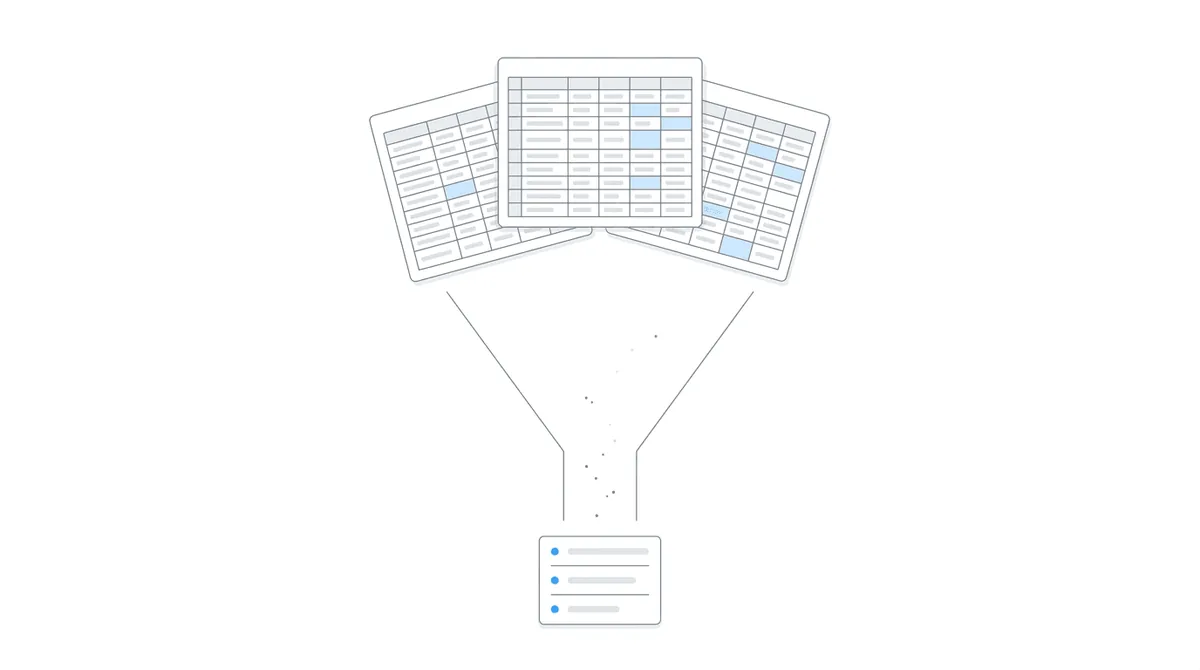
Before demonstrating the Chronicle workflow, Nikhil walked through the manual ERE method step by step. This section is valuable even for firms that use Chronicle, because it explains where the underlying data lives and how to access it directly.
The process starts by logging into the ERE and navigating to the Stash Reports section. From there, firms download three spreadsheets: one for hearing-level cases, one for appeals, and one for initial and reconsideration cases. Nikhil emphasized one critical detail that many firms miss: for the initial and recon report, you must scroll to the bottom and click “Download Spreadsheet” rather than just viewing the cases in the browser. The downloaded spreadsheet contains significantly more data, including columns for CE appointments, claimant info requests, and pending questionnaires.
Filtering for recent decisions
For hearing-level cases, the workflow is straightforward. Open the hearing spreadsheet, sort by status date (which corresponds to the decision date), then filter the Title II Decision and Title 16 Decision columns for entries that are not empty. Remove favorable decisions from the filter, and the remaining list shows recent unfavorable decisions that may need appeals filed. As Nikhil explained: “I’m able to see a list, in order, of all my recent decisions, which I may want to go through the appeals process for, whether it’s an AC appeal or it’s been remanded and now I know I have another hearing.”
Finding scheduled CEs
For consultative examinations, the data is harder to locate. The initial and recon spreadsheet includes up to five or six CE appointment columns at the far right of each row. Nikhil demonstrated a practical shortcut: use Excel’s Find function and search for the word “Scheduled.” This highlights every cell containing a scheduled CE appointment, letting firms quickly identify which clients have upcoming CEs that need attention.
“This thing is super messy,” Nikhil acknowledged while showing the spreadsheet. “There’s just a lot of information in here, so it’s really hard to find where those CEs are that you need to warn your clients about.”
The manual method works. Firms that commit to downloading and filtering these spreadsheets weekly will catch decisions and CEs. But it requires discipline, it does not scale well, and it leaves no audit trail. There is no record of which cases were reviewed, what was found, or whether follow-up happened. For firms looking for a more detailed guide to tracking SSA deadlines, the manual spreadsheet method is the baseline against which automated monitoring delivers its value.
How Does a Chronicle Monday Morning Workflow Actually Work?
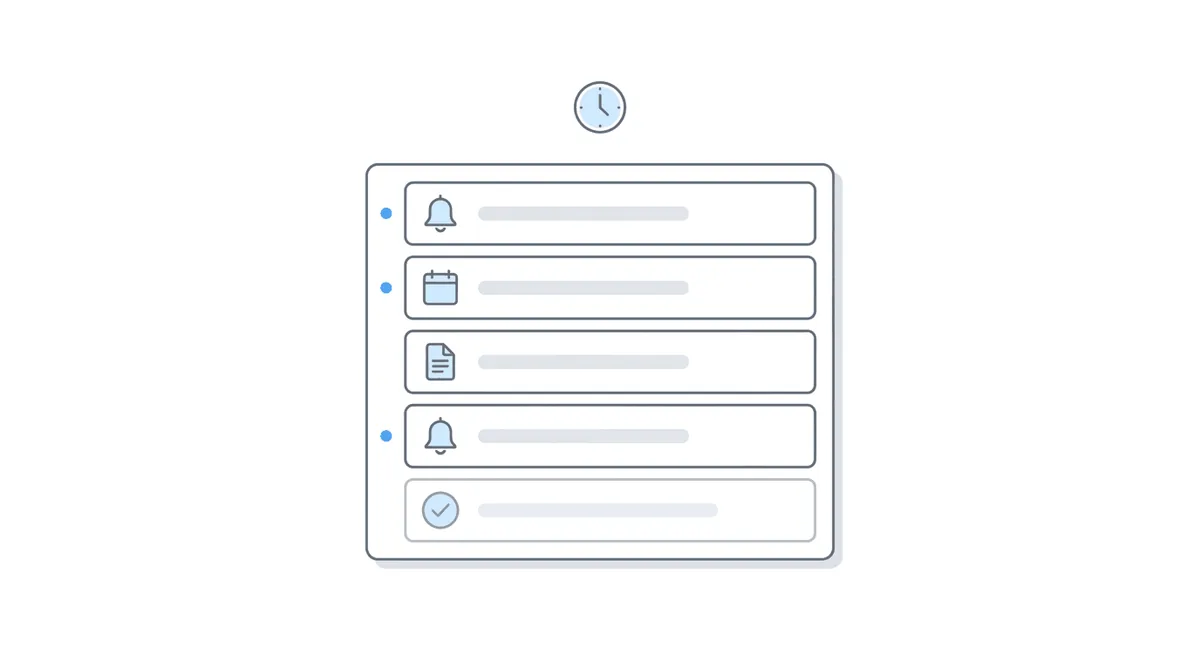
After walking through the manual ERE method, Nikhil transitioned to the Chronicle approach. The core difference: instead of downloading spreadsheets and hunting for changes, Chronicle surfaces changes through a notification system that delivers actionable items directly to your inbox.
The dashboard view
Chronicle’s firm dashboard provides an overview of recent decisions, both favorable and unfavorable. From the Decisions tab, users can filter by stage and outcome type. The Calendar view shows all scheduled CEs across the firm in one place. This is already an improvement over spreadsheet filtering, but Nikhil made a clear recommendation: “The most powerful part of Chronicle is the notification system.”
Setting up notifications
Chronicle offers two methods for configuring notifications:
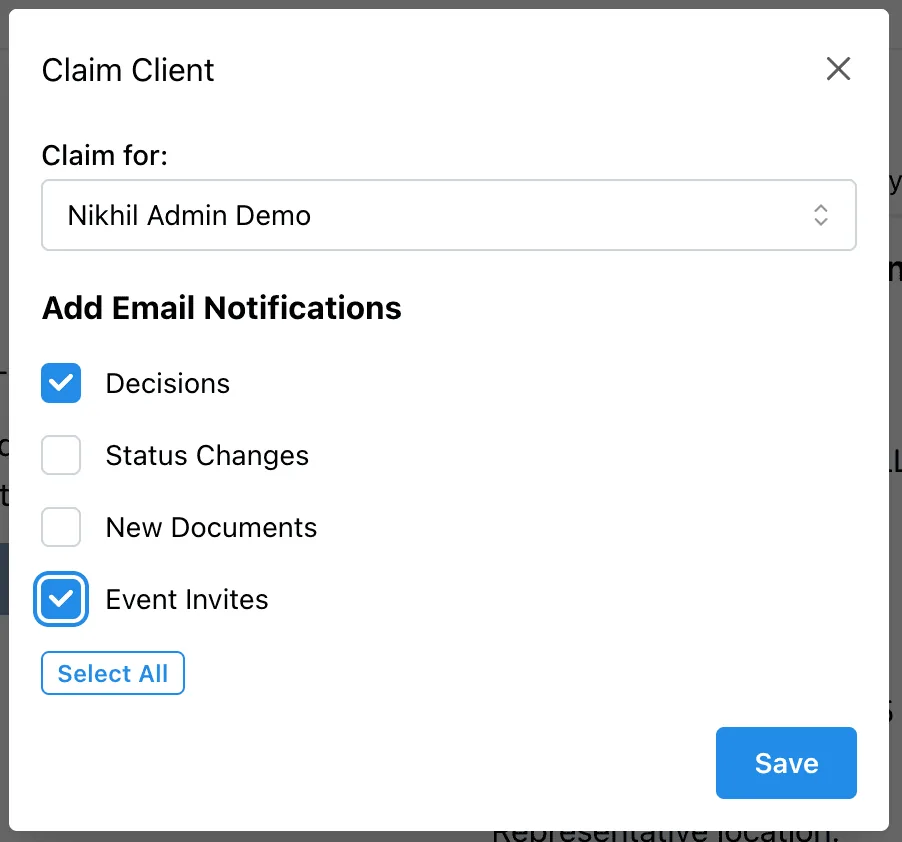
By case. Navigate to any individual case, click Claim, and select which notification types to enable (decisions, event invites, documents). This is ideal for practitioners who want granular control over which cases generate alerts. Nikhil recommended this approach for solo practitioners and small teams: “You can pick and choose which cases you want to follow, and you’re not overloading yourself with every email from every single case.”
By stage. Go to Settings, then Profile, and configure notifications for all cases at a given stage. This is best for case managers overseeing teams. For example, a hearing team lead can enable decision notifications for every hearing-level case, ensuring no decision is missed. Nikhil explained: “For every single case at the hearing level, email me when there’s a decision. That way I can stay on top of knowing when I need to check in with my team if they’re moving the case forward.”
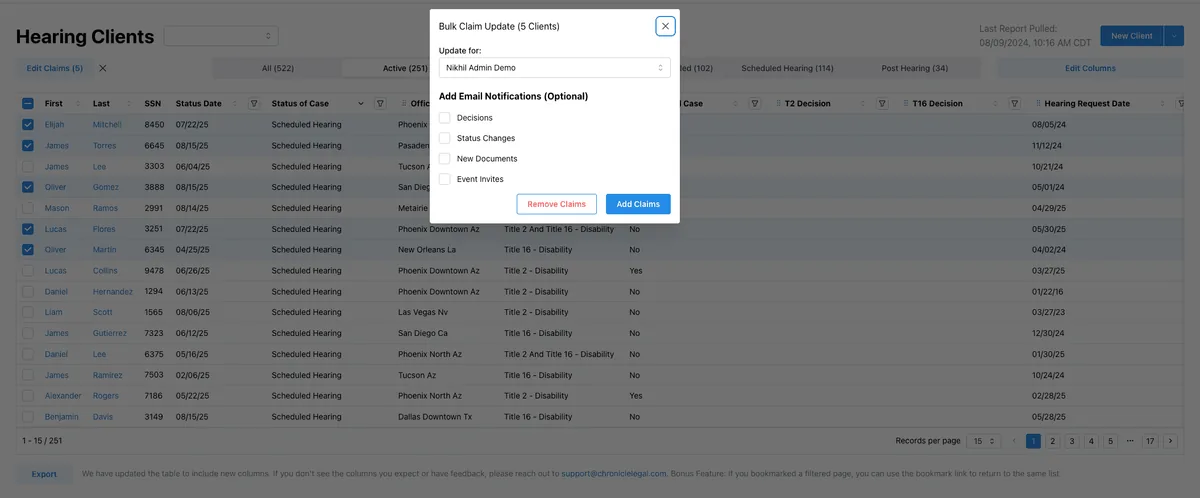
Both methods can be combined. A common pattern Nikhil described: “Initial and recon teams will do things by case to make sure they’re knocking out a lot of noise, because there’s a lot more noise at that initial level. And then the hearing team at that firm will just do a blanket by stage, because they monitor all hearings and want to make sure they’re getting notified of anything happening at the hearing level.”
Bulk operations and admin assignment
For firms with multiple team members, Chronicle supports bulk claiming and notification assignment. Nikhil demonstrated how an admin can sort cases by last name, bulk select a range, and assign them to a specific case manager with notifications enabled. This is particularly useful for firms that divide caseloads alphabetically or by date.
As Nikhil showed: “Sally Adams may be a case manager on my team. I can now claim for Sally Adams this case and hit Save. Now it is claimed for Sally.” This admin feature requires the admin or billing owner role in Chronicle. Firms needing role changes can contact Chronicle support directly.
The inbox as a task list
Once notifications are configured, case events arrive as emails. Nikhil demonstrated his Gmail inbox with a dedicated label for Chronicle notifications. Each email corresponds to a specific event: a CE being scheduled, a decision being made, a new document appearing. Clicking “View Client” in the email opens the case directly in Chronicle.
Nikhil’s top three tips for managing this workflow:
- Create a dedicated inbox or label. Keep Chronicle notifications separate from internal emails to avoid clutter.
- Only archive notifications after they’re handled. Use the notification folder as a task list. The email stays until the action is complete.
- Turn on document notifications for relevant cases. This gives you access to the underlying SSA documents, whether it is a hearing notice, a CE notice with appointment details, or correspondence.
The result is a Monday morning routine that starts with opening your Chronicle notification inbox rather than logging into the ERE. The core idea is that you can open Chronicle first before your email on Mondays, and from there you can daisy-chain that down the line.
For firms evaluating how ERE monitoring compares to case management software, this workflow illustrates the distinction clearly. Chronicle handles SSA visibility; your CMS handles firm execution. Together, they keep operations aligned with what the SSA is actually doing.
Should You Set Up Notifications by Case or by Stage?
This was one of the most practical questions addressed during the session, and the answer depends entirely on firm structure and role.
Solo practitioners and small teams: by case. When one or two people handle all case stages, per-case notifications prevent inbox overload. You claim the cases you are actively working and get alerts only for those. This keeps the notification volume manageable and lets you focus on the cases that matter most right now.
Case managers on larger teams: by stage. If your firm divides work by case stage (an initial/recon team and a hearing team, for example), by-stage notifications ensure complete coverage. The hearing team lead turns on decision notifications for all hearing-level cases. The initial team lead might enable CE notifications for all initial cases. No individual has to remember to claim each case manually.
The hybrid approach. Many firms combine both methods. Nikhil gave a concrete example: “Someone who says, I want to know about every single CE, but I don’t necessarily need to know about every hearing event. I just need to know about the decisions. So they can set something different for the initial cases than for the hearing stages.”
The key insight is that notification configuration is not a one-time setup decision. As a firm grows or restructures, the notification strategy should evolve. Firms that start with per-case notifications often transition to by-stage notifications as they add team members and specialize by case level.
For firms thinking about how to prioritize cases when everything feels urgent, the notification configuration is the upstream decision that determines whether Monday morning starts with a prioritized inbox or an undifferentiated wall of information.
What Is Coming Next for Chronicle Notifications?
Nikhil previewed the smart notifications roadmap that Chronicle is actively building. The current notification system alerts on broad event types (decisions, CEs, documents). The next iteration will allow firms to configure more granular triggers:
- Notification when a specific questionnaire has been sent out
- Notification when an earnings report is added, signaling that SGA can now be calculated
- Notification when a CE is missed, so the firm can call the client and reschedule
- Notification when a hearing is rescheduled, so the team can adjust calendars and arrange coverage
As Nikhil described it: “Each notification becomes more of a discrete task that you can choose if you want to receive or not, rather than having every single CE show up in your inbox.”
This addresses feedback from the live audience. One attendee, Tony, suggested in the chat that “it would be more useful to have a report screen capturing that data than each notification or a dedicated inbox.” That product feedback reflects a real tension between notification-based workflows and dashboard-based workflows, and the smart notifications feature aims to give firms more control over where that balance sits.
Nikhil also shared recent product updates and integration launches:
- Superinsight integration for AI-powered medical chronologies, allowing documents to flow directly from Chronicle into Superinsight
- LexMed V3 upgraded briefs with hyperlinked citations and stronger ALJ audit outputs
- Litify integration connecting Chronicle data to Salesforce-based case management for automated status syncing and reduced manual data entry
- Benny integration for mobile-first form completion, where Chronicle detects SSA form requests and Benny captures client responses on mobile
Frequently Asked Questions
The following questions were asked by attendees during the live Q&A session. Several additional questions and responses came through the Zoom chat throughout the event.
Are there spreadsheet columns or data that Chronicle doesn’t capture?
No. Chronicle captures every column available in the ERE Stash Report spreadsheets, including claims data, info requests, medical providers, and CE appointments. As Nikhil confirmed: “Chronicle does capture every single spreadsheet column, whether it is the claims, the info requests, the medical providers, or the CEs. Everything is currently captured in Chronicle and displayed to you in some form, and can be notified upon.”
How long does it take to get this routine working?
It depends on which method you use. The manual ERE spreadsheet approach requires downloading and filtering reports each week, plus manually entering tasks into your case management system. For firms with large caseloads, that initial pass can take a few hours. With Chronicle, notification setup is a one-time configuration that takes a few minutes. After that, the daily review consists of checking your notification inbox each morning.
Who should run this routine — attorney or case manager?
For solo practitioners, the attorney runs it directly, or delegates to an assistant who can learn to filter the ERE spreadsheets or manage Chronicle notifications. For larger teams, this is case manager work. As Nikhil explained: “It is very tactical, case-level work. It’s not really focused on the hearing; rather, it’s workflow-driven. So a lot of the case managers should have notifications set up if they’re in a larger team.”
If I miss Monday, does the backlog pile up?
Chronicle continues sending notification emails as case events occur. There is no backlog that accumulates in the system. If you skip a day, the unread notifications remain in your email inbox until you address them. The system does not require daily interaction to function correctly; it simply reflects what changed.
How is Chronicle different from just logging into the ERE?
The distinction is between hunting for changes and being notified of changes. Logging into the ERE requires navigating spreadsheets, filtering columns, and remembering what you checked last time. Chronicle automates that monitoring and delivers changes to your inbox. As Nikhil put it: “The ERE, you have to go through the spreadsheet, you have to go and find those changes. Which means you’re being reactive, and it’s easy to miss things, and it takes longer. If you’re using Chronicle and setting it up with notifications, you’re not hunting even through Chronicle for what you need to address. It’s showing up in your inbox the day it needs to be addressed.”
Can Chronicle do something to help with medical records?
Chronicle is not currently building a medical records request system. Nikhil recommended using your existing release point directly. For firms evaluating AI-powered options for medical record organization, Chronicle integrates with partners like Superinsight and LexMed that specialize in that workflow.
How do I set up admin access to assign notifications for my team?
You need the admin or billing owner role in Chronicle. Navigate to Settings, then Team, to verify roles. From there, you can claim cases on behalf of team members and configure their notifications. If you need your role changed, contact Chronicle support at support@chroniclelegal.com.
Watch the Full Replay
Missed the live event? The full 38-minute recording is available above, including timestamps for every section.
Upcoming Events
Chronicle’s The Disability Firm Playbook series continues with more tactical sessions focused on specific operational challenges in disability law practice. Each session delivers a single, implementable workflow that firms can apply the same week.
Stay tuned for the next session announcement. If you want to suggest a topic for a future Playbook session, submit your feedback through the feedback form or email support@chroniclelegal.com.
Chronicle will also be at upcoming industry conferences: NADR in Dallas, ACRD in Orlando, and NOSSCR in Baltimore. Stop by to say hello, share feedback, or pick up some Chronicle swag.
This was the first session in Chronicle’s The Disability Firm Playbook series, where we tackle one specific operational challenge per session with actionable takeaways that disability firms can implement the same week. The series complements Chronicle’s Advancing Technology in Disability Law events, which spotlight tools, integrations, and partnerships. For questions or to learn more about Chronicle’s ERE monitoring platform, visit chroniclelegal.com. To book a walkthrough of the Monday morning triage workflow applied to your firm, schedule a 20-minute demo.
Full Transcript
The following is a cleaned and lightly edited transcript of the full workshop session.
Will Yang: Hello everyone, and welcome to today’s session on spotting at-risk cases before they escalate. This is the first session in the Disability Firm Playbook. It’s a new series from Chronicle where we tackle one specific operational challenge per session with actionable takeaways that you can implement the same week. You will receive a full replay within pretty much a day after this event, so there’s no need to worry about missing anything over the course of this presentation. If you have to step aside, take care of something else, no worries as well. You’ll get a follow-up there. We will be taking questions in the Zoom chat, so if you have any questions along the way, the only thing we ask is that you just drop two asterisks in front of your question. It’s just a little bit easier to manage the questions as they come in that way.
Will Yang: Also, we have a freebie if you stick around until the end for this. It’s going to be the Monday morning case triage routine that Nikhil is going to be going over later on in this presentation. And if you are just joining us, it would be great to just have you drop into the chat your name, your firm, as well as how many active cases you’re managing. As I mentioned, if you stick until the end, submit some feedback for this event, and I will have this two-page morning triage that you will be able to access afterwards.
Will Yang: Before we get started, I’m going to go over our key learning takeaways from today. The first thing is, we’re going to be looking to leave the session knowing how to identify which cases need attention this week, ideally in under 10 minutes. We’re going to talk about how you can configure Chronicle, if you are using Chronicle, to surface the right alerts so that you stop hunting for case status. Ideally get to a repeatable Monday morning triage routine that actually scales as your caseload grows. And then shift your firm from reactive — waiting for problems — to being a little bit more proactive in seeing them first.
Will Yang: I’m Will. I focus on building education, partnerships, and collaborations that help disability practices adopt better tools and stronger operational standards. My work is centered around bringing together people and the technology that are pushing the disability field forward, and making sure that firms have clear paths to implement what actually works. I’ll be monitoring today’s session and handling Q&A. And I also want to introduce you to Nikhil, if you haven’t met him already. He is the founder of Chronicle, the platform that is helping Social Security disability firms automate case tracking, manage ERE access, and streamline hearing prep. Nikhil has worked with many attorneys and advocates across the country to simplify complex workflows in the disability space. Chronicle now monitors and has monitored over 177,000 cases, as well as 7.5 million SSA documents. With that introduction out of the way, I’m going to pass it over to Nikhil to talk about why this is uniquely hard in disability law, and set the stage before we then go into the workflows.
Nikhil Pai: Awesome. Well, great to be talking to you all. I’m sure this will not be news to you that disability is a uniquely difficult field of law because of the interaction with the SSA. I know, having talked to many representatives and attorneys, you end up calling the SSA all the time, takes up hours, and you just need more information. And that goes to the first point, which is the SSA doesn’t warn you when things change or happen on a case. You usually have to dig and hunt and find it.
Nikhil Pai: And this often is tied with a deadline. For many firms, the problem is they post a notice, there’s a deadline, you don’t have any notification of that unless it comes in the mail. The mail may have gone lost, or you have to check the ERE, and so you miss these deadlines, and it cascades into a whole other set of problems. You really compound this, especially if you’re a growing firm and you have hundreds and hundreds of cases going on.
Nikhil Pai: It’s hard to manage these processes because it’s siloed in the ERE or driven by mail. Unless someone’s actually updating things in your case management system, it’s hard to hold all of this in your head. There’s just no good way — some firms use spreadsheets, some firms use case management systems. It’s just very difficult because it’s a lot of manual, individual case information that’s hard to sift through.
Nikhil Pai: Then, there’s also the fact that these cases take a very long time to process. Given that, you just don’t know when a case is going to suddenly come up for an action. You don’t know when it’s actually going to get assigned at DDS. You don’t know when they’re actually going to issue a decision. You don’t know when the hearings get scheduled. So there’s all this waiting, and then suddenly action is needed, and there’s a deadline, and once again, it’s hard to keep track of that.
Nikhil Pai: And lastly, as you guys know, things run on mail. It’s often the mail that triggers these workflows. And unless you have someone opening and scanning mail every single day — and I know some attorneys who are essentially sitting there an hour a day opening mail and just putting it in a scan bed — you just can’t keep track of all of these notices coming in the mail.
Nikhil Pai: To really make it clear how this becomes a problem for firms, we mainly see three ways. There’s the missed deadlines. A lot of these notices from the SSA have 10-day notice deadlines. Unless that mail’s coming to you on time, you may already be 2 days away from the deadline, and you have to contact the client, and you’re really rushing, and you may miss that deadline. Second, your client gets mail or notices before you do. It could be an approval, it could be a questionnaire. It can really erode trust as their representative if you don’t know about what they’re calling about, and they are the ones bringing up problems or something they need to do before you even contact them.
Nikhil Pai: And then last is the silent file. Things are dormant, and suddenly they activate, you have to do something, and nothing is flagging it to you. It’s just some case you forgot about, because they’ve been really slow to process it, and then suddenly you’re scrambling.
Nikhil Pai: And that brings us to a really good quote that we heard from one of our firms — Will Viner from Viner Disability Law — which is: “We would receive calls from our clients telling us they’d been approved or denied. That doesn’t look very good professionally.” Clients should never know more about their cases than you do. And that’s really where we see firms need to have better processes in place to avoid these problems.
Nikhil Pai: Chronicle’s answer to this problem — and we’re going to be showing you both ways — but the way we see this being solved is daily ERE checks automatically. All of these systems that SSA have in place are usually mail-driven, but if you’re able to check the ERE for every single file, every single day, you’re able to stay ahead of these things and know what’s going on. With the ERE checks, we want to alert you whenever something changes overnight, so that way you’re always surfacing what needs to be actioned on from Chronicle. And then you’re able to filter this down by urgency — whether it’s an upcoming hearing, a CE, a notice, or a question you need to fill out. Be able to triage that, send it out to the right people, so that way you’re always on top of your cases.
Will Yang: That leads us to a quick thing before we start prepping for showing some of the standard ways and then the new way of doing this. I’m curious from the audience: on a typical Monday morning, how long does it take you to figure out which cases need your attention this week? Maybe it’s A, 15 minutes or less. B, about 30 minutes. C, an hour or more. Or D, you’re still figuring it out by Wednesday. I’d love to hear you respond in the chat with one of these letters.
Will Yang: Bobbie’s saying D — I’m still figuring out by Wednesday. A, because of Chronicle and Prevail, from Leanne’s side. Excellent. A from a number of folks here. C from Cassidy — an hour or more, usually how long it takes to scan in all the mail. Awesome. And as you guys keep on putting in those responses, Nikhil’s going to walk through what this looks like in terms of the different approaches for how firms handle this problem.
Nikhil Pai: Starting with the standard way. Something I want to make clear — we’re going to show you both ways to do it. How you can do it directly from the ERE. I know many firms actually don’t know about all the ways the ERE provides data, so we’re going to show you how to do that. And if you don’t use Chronicle, it’s also great to have a way of using the ERE directly. And then we’ll show you the way you can set it up in Chronicle and have it dialed in for your firm.
Nikhil Pai: So starting with the standard way. For many of you, you’re probably very used to this process of logging into the ERE. Any staff member can do this — you don’t need to have special codes to access this part of the ERE. And the key thing is essentially going into the Stash Reports section, where you click Get Stash Report, and then downloading each file as the spreadsheet version of it. Click Download Spreadsheet — it’s pretty straightforward for the hearing and appeals version. It will download these individual spreadsheets.
Nikhil Pai: The thing I really want to focus on is how you do it for the initial and recon cases, because it’s a little bit different there. You actually have to scroll down to the bottom and click Download Spreadsheet. The spreadsheet you get by downloading the full spreadsheet has a lot more information in there than you would get out of just looking at the cases directly in the ERE.
Nikhil Pai: I’ll walk through this live. We are focused on two key workflows for firms right now: recent decisions — meaning you want to ideally appeal those cases if they are denied — and second, CEs. The way you would do this is for the recent decisions, you would open up the hearing or appeals spreadsheets, and you would filter down that column of T16 and T2 decisions that are not empty, and sort by status date. That will give you a list of the most recent decisions, so that way you’re able to decide how you want to proceed on the appeals process.
Nikhil Pai: And then second for CEs — this is where it’s actually pretty hidden. You are able to filter down for scheduled CEs, so that way you’re able to find those in the spreadsheet and see the information that you can use to contact your client and remind them of their upcoming CEs.
Nikhil Pai: Let me walk through that download process again. Going into the ERE, clicking login, entering the ERE, getting status reports. The key one I’ll focus on is Get List of Initial Recon Cases. Make sure you actually click that and scroll down to Download Spreadsheet down at the bottom, because that’s where you get the extended version of the spreadsheets.
Nikhil Pai: You guys may or may not have seen this spreadsheet. The key thing to know with these spreadsheets for the initial and recon cases is they actually show you the claims — it could be Title II, Title 16. You’ll also see the claimant info requests here — these could be any pending questionnaires, medical evidence requests, and then CE appointment notices. And as you probably noticed, this thing is super messy. There’s just a lot of information in here, so it’s really hard to find where those CEs are that you need to warn your clients about.
Nikhil Pai: It’s pretty simple at this point. I would just click Find and type the word “Scheduled.” That will start showing me each CE that is a scheduled CE. I’ll pop open this column and actually expand this a little bit so that way I’m able to see all that information. And that’s how I can start identifying the CEs within the spreadsheet that need to be addressed.
Will Yang: Nikhil, do you mind just zooming in a bit and calling out which column out of the direct export that is that they should be looking out for?
Nikhil Pai: Yeah, sure. There are 3 columns in the spreadsheet. It will be at the very end for each row — CE Appointment 1, 2, 3. I think they have up to 5 or 6 CE appointments they’ll put on this sheet. And once again, in Excel, you’re clicking just Find and searching for the word “Scheduled,” and that will show you exactly which columns and rows have scheduled CEs.
Nikhil Pai: Then, for the hearing level. Very similar — this is the hearing sheet you guys may have seen before. The first thing you’ll want to do is sort by status date. That is the decision date that they actually have on file. So I was filtering on status date, and then I’ll go down here to Title II Decision and Title 16 Decision, click on the filter button, and then filter for Not Empty. And I’ll take out favorables, because that’s not relevant. Same thing here — I’ll take out blanks and favorables.
Nikhil Pai: And that way, I’m able to see a list, in order, of all my recent decisions, which I may want to go through the appeals process for, whether it’s an AC appeal or it’s been remanded and now I have another hearing. And then I can use this list to create my own to-do list of cases that I need to attend to in the next couple of days.
Nikhil Pai: Transitioning to the way you can set this up in Chronicle. This is a recap — the way you would go about using the ERE directly to identify the cases that need some action, whether it’s CEs that are scheduled or decisions that need to have an appeal filed. I’ll jump to my Chronicle page.
Nikhil Pai: If you guys are using Chronicle, you’re used to our dashboard. We have a couple different ways of turning on notifications or viewing this information. One, as you guys know, there is our dashboard of all recent decisions, so you’ll be able to go right here on your dashboard and see all the decisions — favorable or unfavorable. If you want to dial in on just the unfavorable decisions, you can go to the Decisions tab. Depending on what stage you want, click there — you’ll be able to see all the decisions, the date they were actually decided on, and you can filter down if you want to remove and just go for unfavorable decisions. And then same for CEs — I can just go to the Calendar view and view all the CEs for the firm in one place.
Nikhil Pai: That’s how you can view that data in the Chronicle dashboard, but the most powerful part of Chronicle is the notification system. I have the ability to turn on notifications per case. I know a lot of firms actually are not using notifications — they’re mainly using the dashboard — but I would highly recommend turning on notifications. You can do this case by case, where I’ll click Claim and turn on notifications. Here I’ll turn on decisions and event invites for this client, so that way I can get notified whenever there is a decision or a CE for this client.
Nikhil Pai: I can go one by one, claim them. I can also do it in bulk by going to any tab. Say my firm is alphabetically organized. I can bulk select here, and claim, and turn on those same notifications. The other benefit is if you are an account admin, you can actually claim and assign notifications for someone else. If I want to set these notifications and cases for Amy, I can do that as a Chronicle admin. That way, your team is managing their pipeline as well.
Nikhil Pai: Or I can go into Settings, and then Profile, and turn on these notifications by stage. I’ll talk about the pros and cons of each of these notification methods, but once these notifications are on, they will start coming to my inbox. I can check that every morning — every Monday morning — and see what has changed in Chronicle over the last couple of days, so that way I have a to-do list of the cases that matter.
Nikhil Pai: Here is my Gmail inbox. I’ve set up a label where I’m getting these notifications. I highly recommend you have a specific folder that these go into so they don’t crowd out your main inbox. And I’m now able to go down and see all these emails about certain cases — such as a CE being scheduled, a decision being made — and I can click “View Client” if I want to jump into that client and address it. That’s the benefit of Chronicle notifications — now I have this email inbox where I’m able to check on what has changed without having to navigate around the dashboard.
Nikhil Pai: Just to recap how it works in Chronicle: one, you will turn on case notifications. You’ll go either case by case or by stage in settings and turn on notifications, event invites, and decisions. Those will be your key notifications for cases you need to work on.
Nikhil Pai: Which one should you use? It really depends how your firm is set up — whether you’re a solo practitioner or you are a team with case managers. I would suggest by case for folks who are either small teams or sole practitioners, so that way you can pick and choose which cases you want to follow, and you’re not overloading yourself with every email from every single case.
Nikhil Pai: By stage is best for case managers overseeing a team. For example, if you are on the hearings team and you want to know about all decisions, you’ll just go into settings and say, for every single case at the hearing level, email me when there’s a decision. That way I can stay on top of knowing when I need to check in with my team if they’re moving the case forward. And you can always do both — pick and choose, if you’re doing it by case or by stage, on certain stages in certain cases.
Nikhil Pai: A good example would be someone who says, I want to know about every single CE, but I don’t necessarily need to know about every hearing event — I just need to know about the decisions. So they can set something different for the initial cases than for the hearing stages.
Nikhil Pai: When I’ve worked with firms directly, especially larger teams where they break it down by stage — those initial and recon teams, the lower-level teams, will do things by case to make sure they’re knocking out a lot of noise, because there’s a lot more noise at that initial level. They’ll say, these are the cases I want to make sure they’re attending their CEs, and they’ll turn it on for that. And then the hearing team at that firm will just do a blanket by stage, because they monitor all hearings and want to make sure they’re getting notified of anything happening at the hearing level.
Nikhil Pai: Then just as a quick reminder, you can view all this stuff on the dashboard, whether it’s on that initial page where you see every single decision. You do have those side tabs where you can filter down and really check by date when things have happened, or the calendars for CEs.
Nikhil Pai: The top 3 tips that I highly recommend for most firms: One, if you are using notifications, create a dedicated inbox. There can be a lot of noise, so you want to make sure that you’re not crowding out your internal emails. Second, only archive notifications after they’re handled. It’s really great if you have that dedicated folder to use it as a task list — you only archive or delete the email once you know it has been addressed. And then third, turn on documents for those cases, so that way you can actually see the underlying SSA documents, whether it is a hearing notice, a CE notice with the details of that appointment, and so on.
Nikhil Pai: To recap what you just saw: One, the standard way of reviewing ERE status reports. As a reminder, you can always use the ERE directly. There is a lot of information there. You can go log into the ERE every single week, download those three reports, filter and sort them to get the right information. Second, set up Chronicle notifications. That’s one of the key powers of Chronicle — having those notifications that you can check every morning about what’s changed on your cases. And if you make this a habit — you’re doing this every single day or every single week — you’re going to be less reactive over time. You’re going to stay ahead of cases, and you’re going to be able to address client concerns before they even hear about them. And that way they build trust with you and are very helpful in moving the case forward.
Nikhil Pai: I would also love to talk a little bit about what’s next and where Chronicle is going, just to seed what we’re working on and get your feedback. If you ever have any feedback, please drop them in the comments. We’re really focusing on smart notifications. Right now, our notifications are still a little too general. If you want to dial it in, it’s a little bit more difficult. And so we’re building a way to set up more granular notifications — so that way you can get notified only when a questionnaire has been sent out, or when the earnings report has been added so you know you can now go calculate SGA, or a CE is missed so you can call the client and get it rescheduled, or a hearing is rescheduled so your team can adjust their calendars and maybe get new coverage. Each notification becomes more of a discrete task that you can choose if you want to receive or not, rather than having every single CE show up in your inbox.
Will Yang: The reason why this is so important is because when you start with this foundation, it all feeds into the improvements that we’re about to make on the platform as well. Starting here is the first step. In terms of some of the high levels, I know we got some of these folks actually in the audience today, so I’ll read the one from Leanne. When you implement a system like this, ultimately — before Chronicle, a typical day was spent involved in logging into the ERE multiple times. Everything’s faster and everything’s easier now.
Will Yang: If you do want this two-pager — this triage overview — what we’ve done is, we have this Monday morning triage. Essentially what you can do is run through this routine: first, go over what the overnight ERE alerts were, what changed since Friday. Check the cases with recent decisions, review the CEs as Nikhil shared with you in the dashboard. Also confirm all the open SSA response windows are actioned, and then start prioritizing the cases. When you build this habit, we have a PDF version of this checklist as well. What this allows you to do is get ahead of where you need to go in the rest of the week. The core idea that we’re principling here is that you can open Chronicle first before your email on Mondays, and from there you can daisy-chain that down the line as well.
Will Yang: Nikhil, why don’t you share a little bit more about some of the upcoming releases, as well as what’s coming up next for the rest of Q1 for us.
Nikhil Pai: Yeah, for sure. A lot has happened in January and February already. We’ve launched a couple partnerships and integrations. We already launched Superinsight, which is another medical chronology provider. If you guys want to have some external options for medical chronologies, we do partner with Superinsight. They have a very robust AI tool for summarizing and writing briefs, and you’re able to integrate that with Chronicle so that all your documents automatically flow out of Chronicle into Superinsight.
Nikhil Pai: Second, LexMed V3 upgraded briefs. If you have used our AC Brief product, we launched that back in November. They’ve actually made significant improvements in that system to have hyperlinked citations, stronger ALJ audit outputs. I highly recommend trying that also and seeing those upgrades. A lot of firms have been saying great things about it, and the price is exactly the same as it was before.
Nikhil Pai: We now have an integration with Litify, which is a different case management system, if some folks are using that. That automatically lets Chronicle data, such as case status and documents, go into the case management system so that way you can build your own automations and avoid manual data entry.
Nikhil Pai: In February, we launched an integration with Benny, which I think Karen was just shouting out in the chat. Benny is a tool that helps applicants fill out forms, whether it’s the initial application form or the supplementary forms, such as the work history or the function report. It is also powered by AI and really guides clients through the process of filling out those very complex forms in an easy manner. And it integrates with Chronicle so that whenever those forms are requested and they show up in Chronicle, Benny will know about that and tee it up for you, so it’s a one-click and your client will receive those forms.
Nikhil Pai: In the coming months, we’re going to do the full conference cycle. We’re super excited to see folks at the conferences. I will be at NADR, ACRD, and NOSSCR — so Dallas, Orlando, and Baltimore. We have a bunch of great swag. If you guys want to come and say hi, give us any feedback about how things are going, or say nice things, we always love to hear it in person. I hope to see you guys there.
Will Yang: Excellent. Just to tease out some of the swag for our NADR folks — we’ve got some custom Chronicle socks, as well as some travel bags coming your way. On the NOSSCR side of folks, we’ll have some brand new swag that we won’t reveal until next month, so you’ll have to be there in person to see what’s coming down the line.
Will Yang: As I mentioned, if you are looking for just a two-page checklist of everything we went over today, just submit the quick feedback form in there and you’ll get it after you submit the feedback form. I’ll drop that link. We’re going to start going into some Q&A. I know we had some questions over the course of this presentation. Just to recap as well — this was the first of these Playbooks, and if there’s other tactical things that you’d like us to walk through, we’d love to hear that in the feedback form as well. If you are not currently using Chronicle and you want to see your cases this way, feel free to book a 20-minute walkthrough with our team. We’re happy to show you this workflow applied to your respective firm setup. The link is the second link in the chat as well.
Will Yang: With some questions, I am going to cover first the question from Tony: Are there any spreadsheet columns or data that Chronicle doesn’t currently capture?
Nikhil Pai: No, that’s a great question. The answer is no. Chronicle does capture every single spreadsheet column — whether it is the claims, the info requests, the medical providers, or the CEs — everything is currently captured in Chronicle and displayed to you in some form, and can be notified upon. And we are continuing to make that even better and easier for you guys.
Will Yang: If you are somebody that’s new using this routine, I’m curious, how long would it take for this routine to get going? What does week one actually look like if we were to apply this?
Nikhil Pai: It depends which version you’re using. If you’re going the standard way, you guys probably saw it’s a little more tedious because you have to go one by one and you have to have your system of keeping track of each case that’s in that spreadsheet. You might have to do some form of manual data entry into your case management system, creating tasks for each of those items. And that’s where it can take a few hours if you have a lot of cases to actually go through, but once you do that once a week, you will be saving a ton of time on the back end because you keep track of when you need to follow up. If you’re using Chronicle, the actual setup of notifications — you do it once, it will take you a couple of minutes. And then going forward, you will always have your email inbox of all your tasks, and you’re not spending any time setting it up, and it will only take you a few minutes to review every morning.
Will Yang: Karen asked this question: Can Chronicle do something to help with medical records?
Nikhil Pai: We are currently not working on a medical request system. We recommend folks just use your release point directly. There are a bunch of different options out there, but Chronicle is not working on it directly.
Will Yang: In terms of your recommendation with this routine, who do you recommend runs it? Should it be an attorney? Should it be a case manager?
Nikhil Pai: Yeah, as most things, it depends, especially on the structure of your team. If you are a solo practitioner, definitely it’s the attorney. They’re the one who will be going through it. If they have an assistant, that would be great — if they can go through that spreadsheet and learn how to filter and sort those spreadsheets and create those tasks. Or if they have a Chronicle account, that assistant can also get the notifications for the important ones. If you’re a larger team, this is definitely more for the case managers. It is very tactical, case-level work. It’s not really focused on the hearing — it’s workflow-driven. So a lot of the case managers should have notifications set up if they’re in a larger team.
Will Yang: For folks that aren’t familiar with it, if they miss something on Monday, does the backlog pile up, or does Chronicle hold state in that way?
Nikhil Pai: Chronicle does essentially keep sending emails. There’s never a backlog that forms, unless you let it build up in your email inbox.
Will Yang: I know you had a section in your demo where you showed folks, if you’re an admin user, what they could set up for other folks. Can you just review that section again? It went a little bit quickly earlier.
Nikhil Pai: Yeah, let me share my screen. Definitely a less-used feature that I highly recommend folks use. One, you need to be an admin in Chronicle. If you aren’t an admin and you need to be changed, just let the support team know, we can flip it. You’ll be able to go to the Chronicle settings, then Team, and see the role of each person. You need to be an admin or a billing owner to be able to use this feature.
Nikhil Pai: I can then go to any specific case — I’ll start with a specific case, click on that case. I can click Claim, and then I can claim it for someone else. So Sally Adams may be a case manager on my team. I can now claim for Sally Adams this case and hit Save. Now it is claimed for Sally. If I refresh this, it will say “followed by Sally” also. That way, I’m able to help my team know which cases they’re working on and get notifications for those cases.
Nikhil Pai: If you are doing something where you are alphabetical, or by date, you can go into our list views, sort and filter — for example, if someone is working on names Y through W, I can sort by last name, use this bulk select, click Edit Claims, and then also claim for Sally, turn on notifications optionally, and hit Save. That will now assign those cases to Sally.
Will Yang: If someone’s wondering, we log into the ERE a few times a day — how is this ultimately different?
Nikhil Pai: Yeah, it’s really about whether you’re hunting for changes or you’re being notified of changes. The ERE, as I was showing, you have to go through the spreadsheet, you have to go and find those changes. Which means you’re being reactive, and it’s easy to miss things, and it takes longer. If you’re using Chronicle and setting it up with notifications, you’re not hunting even through Chronicle for what you need to address. It’s showing up in your inbox the day it needs to be addressed.
Will Yang: I’m just going through the chat. I think I’ve covered most of the core questions here. The key takeaway today: Case visibility isn’t a people problem — it’s usually a system problem. Chronicle gives you and your firm the morning view that every disability practice needs. If you’re on Chronicle already, you can run through this routine every Monday and open the triage view, whether that’s using a combination of the by-case or by-stage method. And if you’re not on Chronicle, feel free to book some time with us. The link is in the chat.
Will Yang: If you want the checklist, just submit some feedback. We are reviewing that feedback on a regular basis to continue improving our programming. And if you have any questions, whether it’s getting admin set up for your account, feel free to email us at support@chroniclelegal.com.
Will Yang: Thank you so much for everybody for joining us today. Again, if you can share some feedback, that’d be great. If you’re going to any of the upcoming conferences — NADR, ACRD, or NOSSCR — we’d love to see you and stop by. Other than that, that will wrap it up for today. Thank you so much, everybody, for hopping on today.