
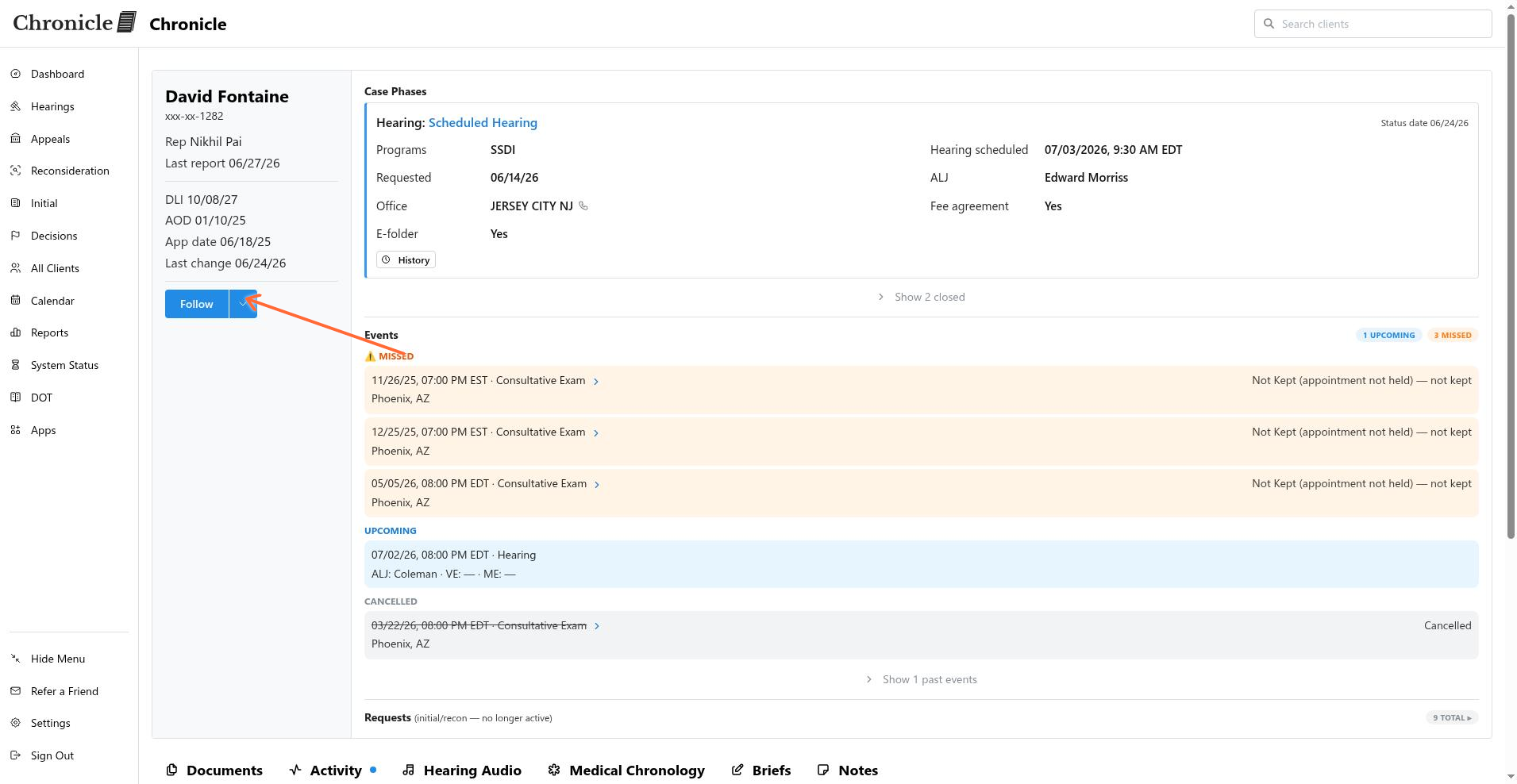
Open the client detail page and check the client header. The action is shown as Following when you already follow the client.
Follow a case
Follow one client from the client detail page, choose the notification types for that follow, and use the rule-managed controls when an auto-follow rule also matches the client.
Follow a client
The client detail page shows Follow when you are not following the client and Following when you are.
Open the client detail page.
In the client header, click Follow.
In the Follow Client modal, review the Add Email Notifications options.
Choose notification types
Use the Add Email Notifications picker to select the events you want for this client, then click Save. See Review notification types for what each event means.
Decisions
Milestones — Opened, Closed, Dropped
Status of Case
Hearings & CEs — Scheduled, Updated, Rescheduled, Cancelled, Experts changed, Missed CE, Attendance declined
Documents — Added, Exhibited
Medical records — Sent, Received
Info requests — Sent, Received
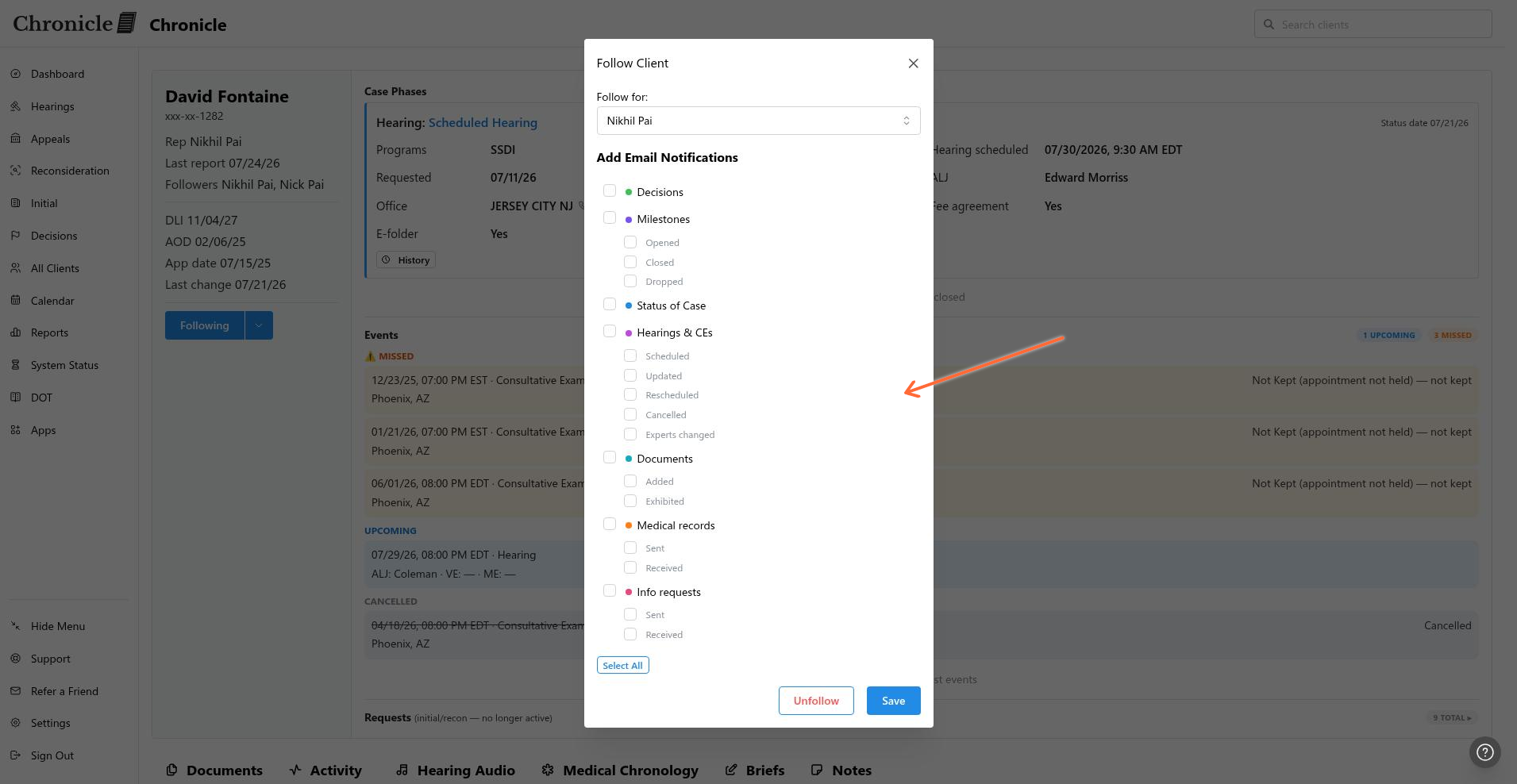
Click Select All to select every notification type before saving.
Follow for another teammate
Admins and other authorized team members can create or edit a follow for a teammate from the same modal.
In the Follow Client modal, open Follow for:.
Select the teammate who should receive the follow.
Choose the notification types for that teammate.
Click Save.
Following for another teammate requires both permission to manage follow rules and permission to manage the team. The selected teammate must belong to the same firm.
Restricted users cannot be targets of follow rules. A restricted user can update per-client notification preferences on an assigned case, but Unfollow is unavailable there because removing the follow would revoke access.
Unfollow a client
Remove a manual follow from the client detail page when no matching rule prevents the action.
Click Following in the client header.
In the Follow Client modal, click Unfollow.
When an auto-follow rule prevents unfollowing
An active auto-follow rule can own the follow and disable Unfollow.
Your rule shows Your rule matches this client — edit the rule to stop following. When another teammate’s rule owns the follow, the message identifies that teammate and says they must edit the rule.
Open Set up follow rules to edit or deactivate the matching rule. When the rule no longer owns the follow, return to this modal and use Unfollow.
Reset a manual override
When you save custom notification choices for a rule-matched client, the follow becomes manual and shows Custom preferences — your rules no longer manage this client.
Click Reset to rule-managed to clear the manual override and return the client to the matching rule’s notification settings.
Common issues
I cannot see Follow
I cannot follow for another teammate
Your account is missing permission to manage follow rules or manage the team, or the selected teammate belongs to another firm.
Unfollow is disabled
An active auto-follow rule owns the follow, or the case is assigned to a restricted user. Edit the matching rule when the rule owns the follow; do not remove the follow from a restricted assigned case.
Was this helpful?
Was this helpful?