
Your account does not have permission to manage follow rules. Ask an admin to update your permissions.
Set up follow rules
Create ordered rules in Settings > Profile > Follow & Notifications to follow matching clients automatically and set the notification types for those follows.
Before you start
Your account must have permission to manage follow rules. The Follow & Notifications tab is available only to accounts with that permission.
Open the follow-rule settings
Open Settings, then select Profile.
Select Follow & Notifications.
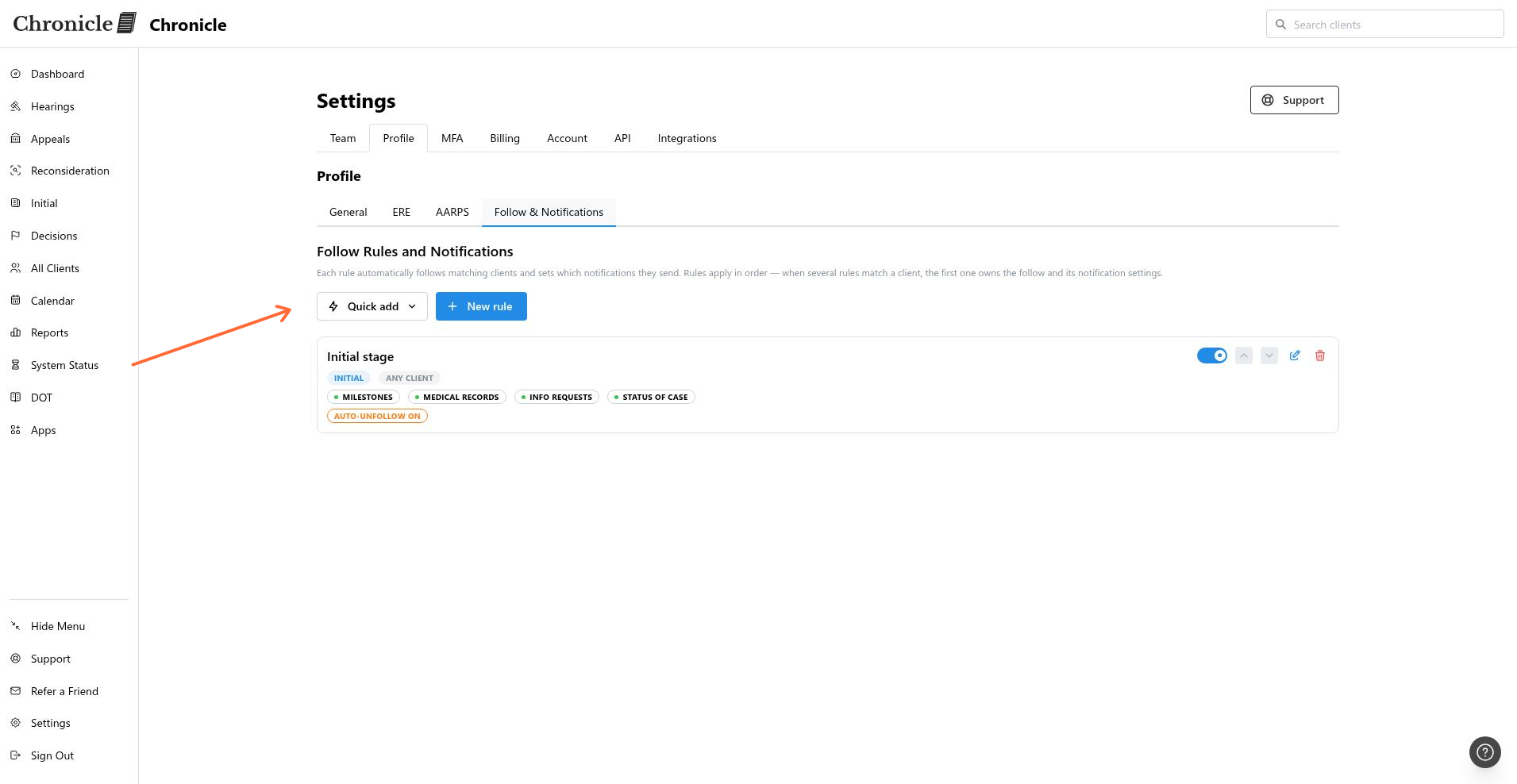
The page heading is Follow Rules and Notifications. It explains that rules automatically follow matching clients and set the notifications they send.
Start with a preset
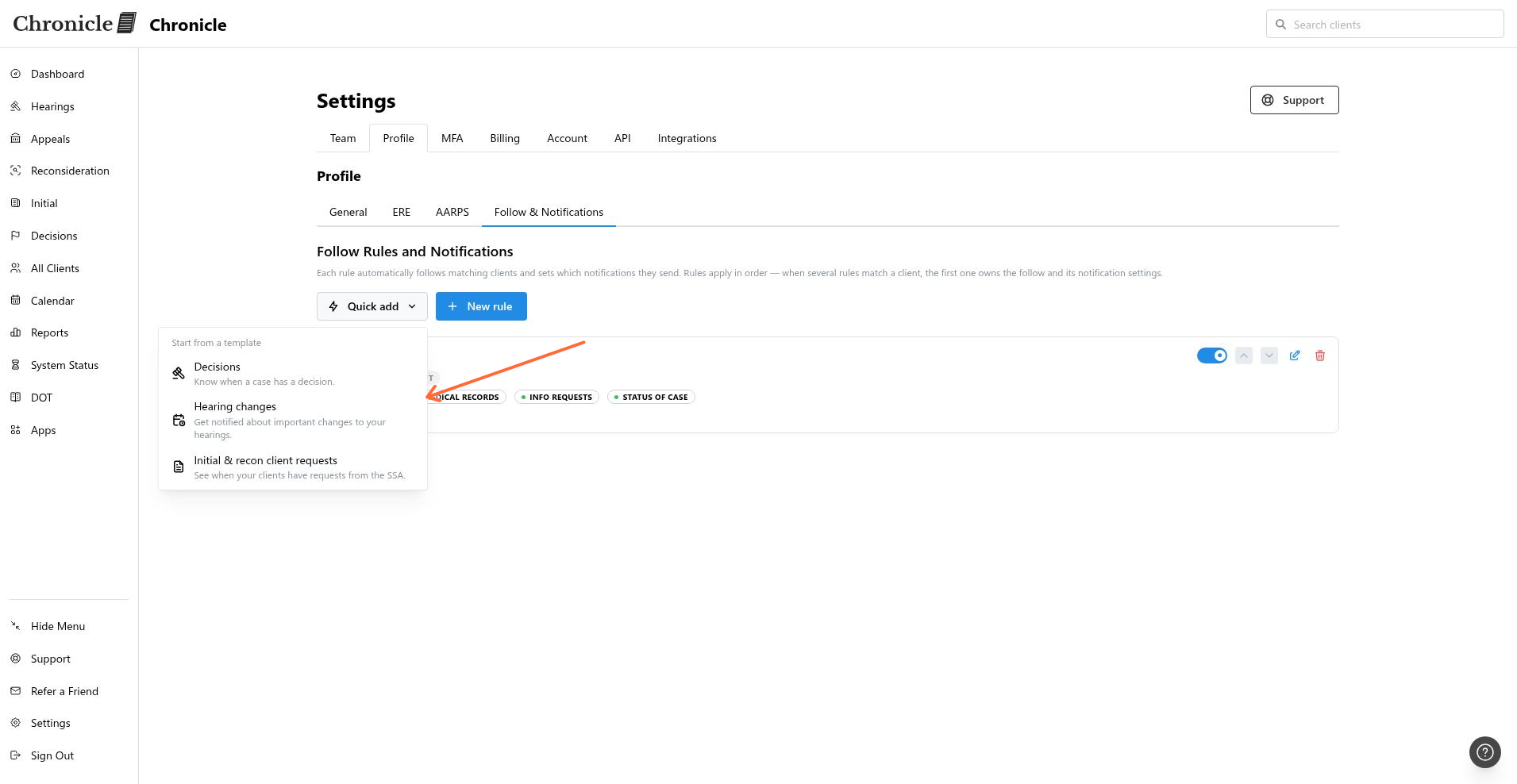
Use Quick add when a preset matches the work you need to monitor.
On Follow Rules and Notifications, click Quick add.
Choose a template:
Decisions creates four stage rules for Initial, Reconsideration, Hearing, and Appeals decisions.
Hearing changes creates a hearing-stage rule for rescheduled, cancelled, and experts-changed events.
Initial & recon client requests creates an Initial and Reconsideration rule for documents added, info requests sent, and hearings scheduled.
When no rules exist, the page shows No follow rules yet and Create your own rule.
Create a rule
Use a custom rule when you need matching criteria or notification choices that a preset does not provide.
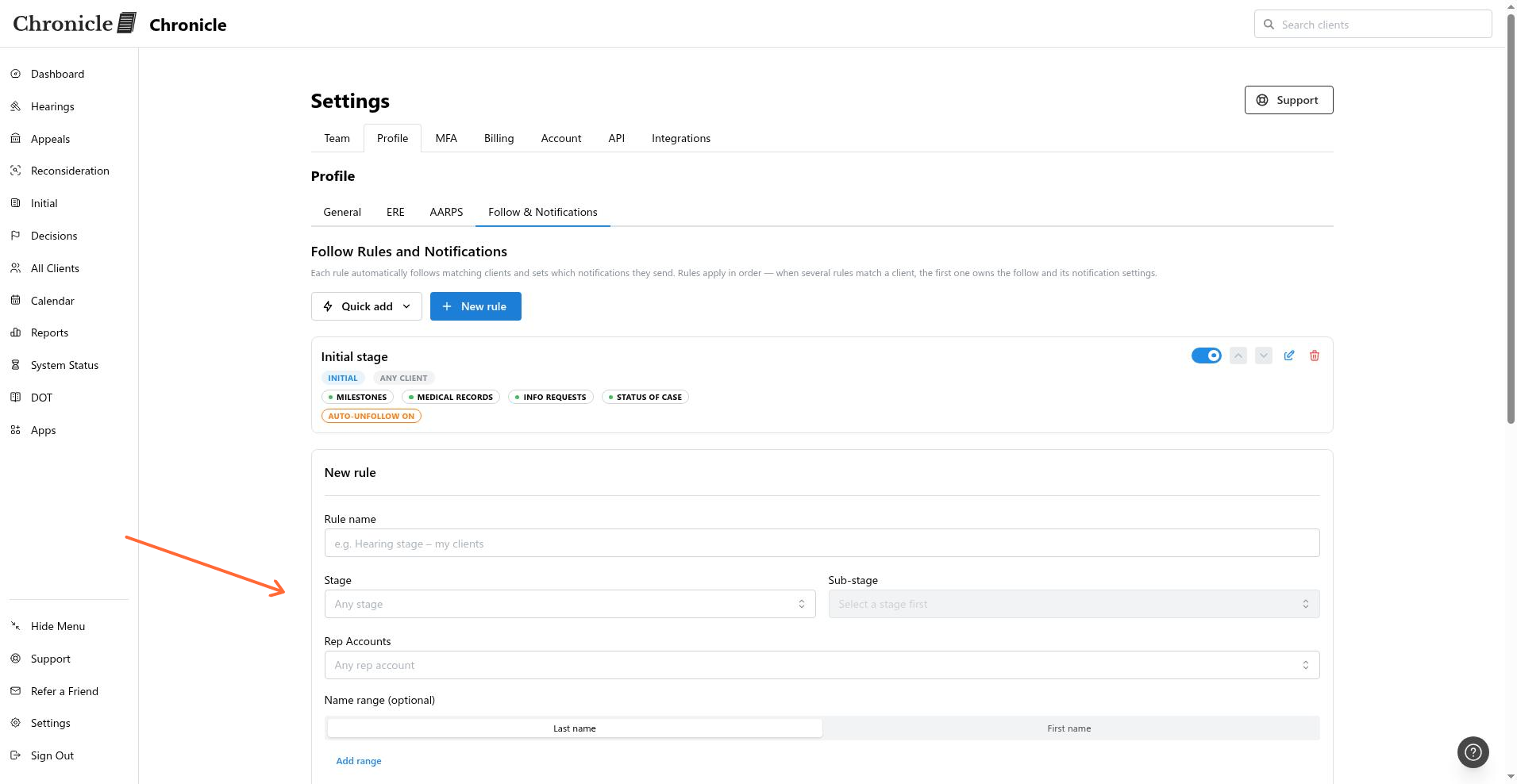
Click New rule, or click Create your own rule in the empty state.
Enter a Rule name.
Choose the matching criteria:
Stage — select one or more of Initial, Reconsideration, Hearing, and Appeals.
Sub-stage — select from the options for the stage you chose. This field stays disabled until a stage is selected.
Rep Accounts — limit the rule to selected representatives.
Name range (optional) — match clients by first-name or last-name letter range.
Set Auto-unfollow. When enabled, Chronicle stops following a client when it no longer matches the rule.
Under Notify me on, select categories or nested actions from the notification picker. See Review notification types for event meanings.
Click Save rule.
Chronicle applies the saved rule to matching clients.
Order and maintain rules
Rules run from top to bottom. When several rules match one client, the first matching rule owns the follow and its notification settings.
Move a rule up or down to change which rule wins.
Edit a rule to change its criteria, notification types, or Auto-unfollow setting.
Turn a rule off to stop it from owning new matches without deleting it.
Delete a rule
Deleting a rule lets you keep its existing follows as manual follows or remove those follows.
Open the delete action on the rule.
In Delete rule?, choose Keep follows to convert the rule-created follows to manual follows, or choose Remove follows to remove them and let remaining rules reapply.
Manage another teammate’s rules
Use the team member edit modal to manage another teammate’s follow rules when you have permission to manage the team and follow rules.
Open the teammate from team settings.
Select Follow & Notifications in the edit modal.
Edit and save that teammate’s rules.
Restricted users cannot be targets of follow rules.
Common issues
I cannot see Follow & Notifications
I cannot unfollow a matching client
The matching rule owns the follow. Edit or deactivate that rule, then return to the client and use Unfollow.
The rule does not match the client I expected
Review the rule’s stage, sub-stage, rep account, and optional name-range criteria. A higher rule in the list may match first and own the client.
Was this helpful?
Was this helpful?