Use the Clio integration to keep matched matters up to date with SSA case data and documents, add hearings and consultative exams to a Clio calendar, and bring selected client details back into Chronicle. Connect Clio first using Connect Clio to Chronicle.
What syncs
Each capability has its own settings. A connected Clio account does not mean every capability is on.
Capability
Direction
What it does
Stages and client fields
Chronicle to Clio
Updates the matter stage and the Contact or Matter custom fields you map.
Documents
Chronicle to Clio
Files SSA documents in a Chronicle ERE folder on the matched matter.
SSN back-sync
Clio to Chronicle
Fills a missing full SSN from the selected Clio custom field.
Hearings and CEs
Chronicle to Clio
Adds upcoming hearings and consultative examination appointments to the target calendar, with reschedules and cancellations following.
Contact details
Clio to Chronicle
Updates date of birth, phone number and email from the sources you select.
Matching
Links existing records
Links a Chronicle client to an existing Clio matter using the configured practice areas and SSN source.
Client messages
Chronicle to Clio
Logs new Chronicle Dispatch texts and client replies as Communications or Notes.
Case ownership
Clio to Chronicle
Makes eligible Chronicle teammates follow the Clio matters they own.
Open the integration
You need a Chronicle administrator or account owner to manage these settings.
In Chronicle, open Settings > Integrations.
Open Clio.
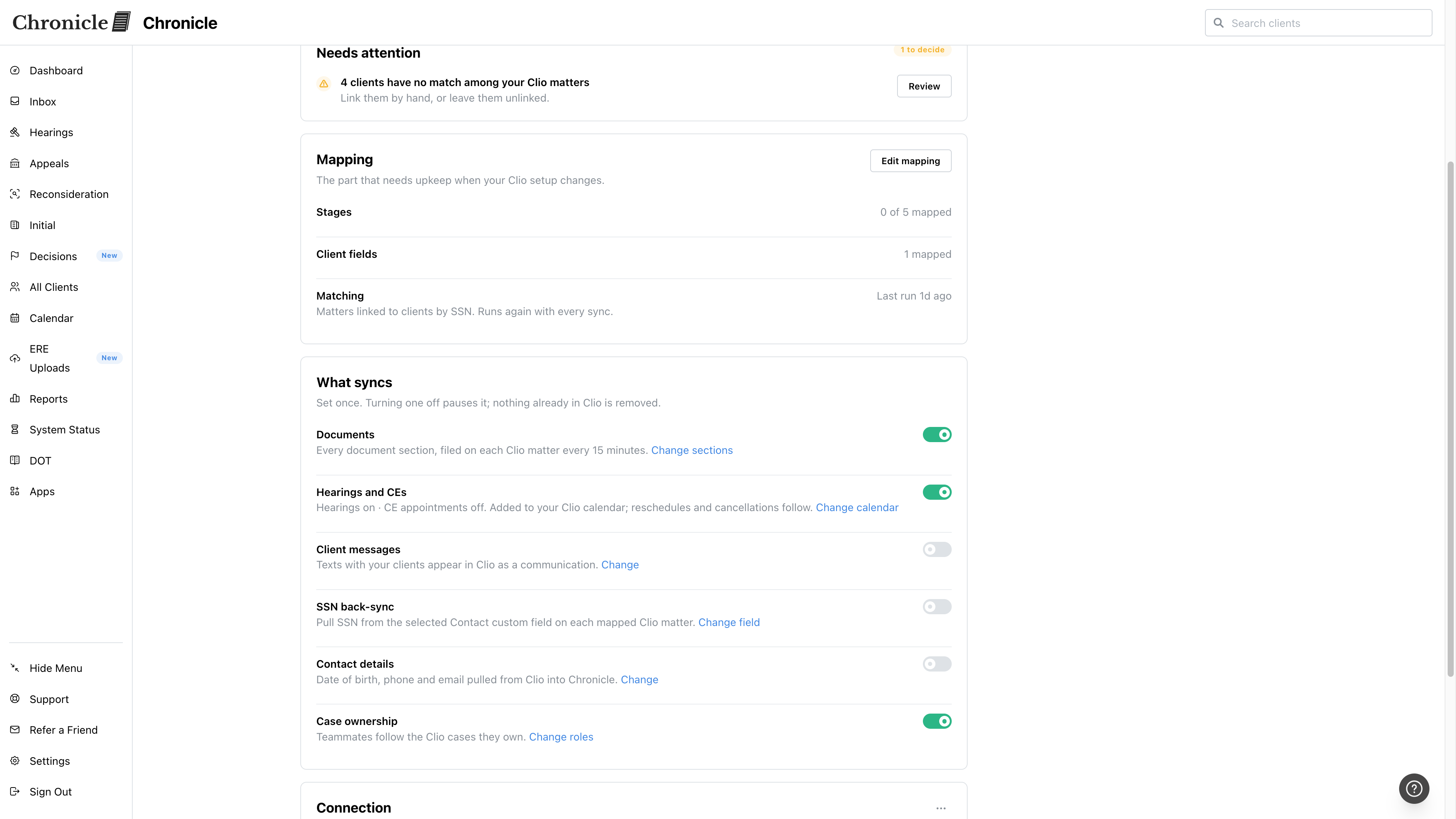
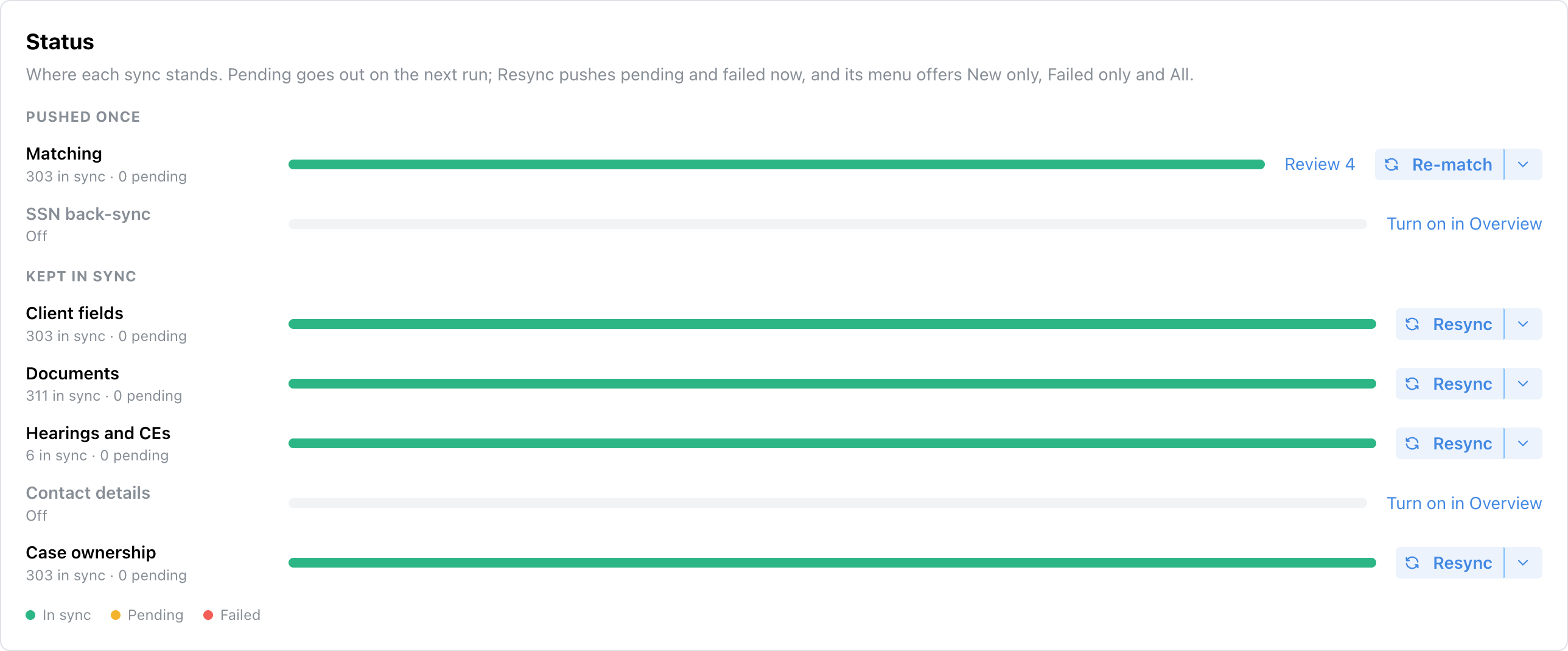
Use Overview to change settings and review matching issues. Use Sync to check results and retry records.
The Clio integration app, with the Overview and Sync tabs.
Move from matching to everyday use
Once matching works, choose which information your firm wants us to send to Clio or pull back into Chronicle.
If the app still shows the setup checklist, use Open mapping to configure the destinations described below, or Skip for now to leave destination mappings for later.
Open Choose what to sync and review each capability.
For hearings or CEs, use Change calendar to select the target calendar and appointment types.
Click Finish setup after reviewing the choices.
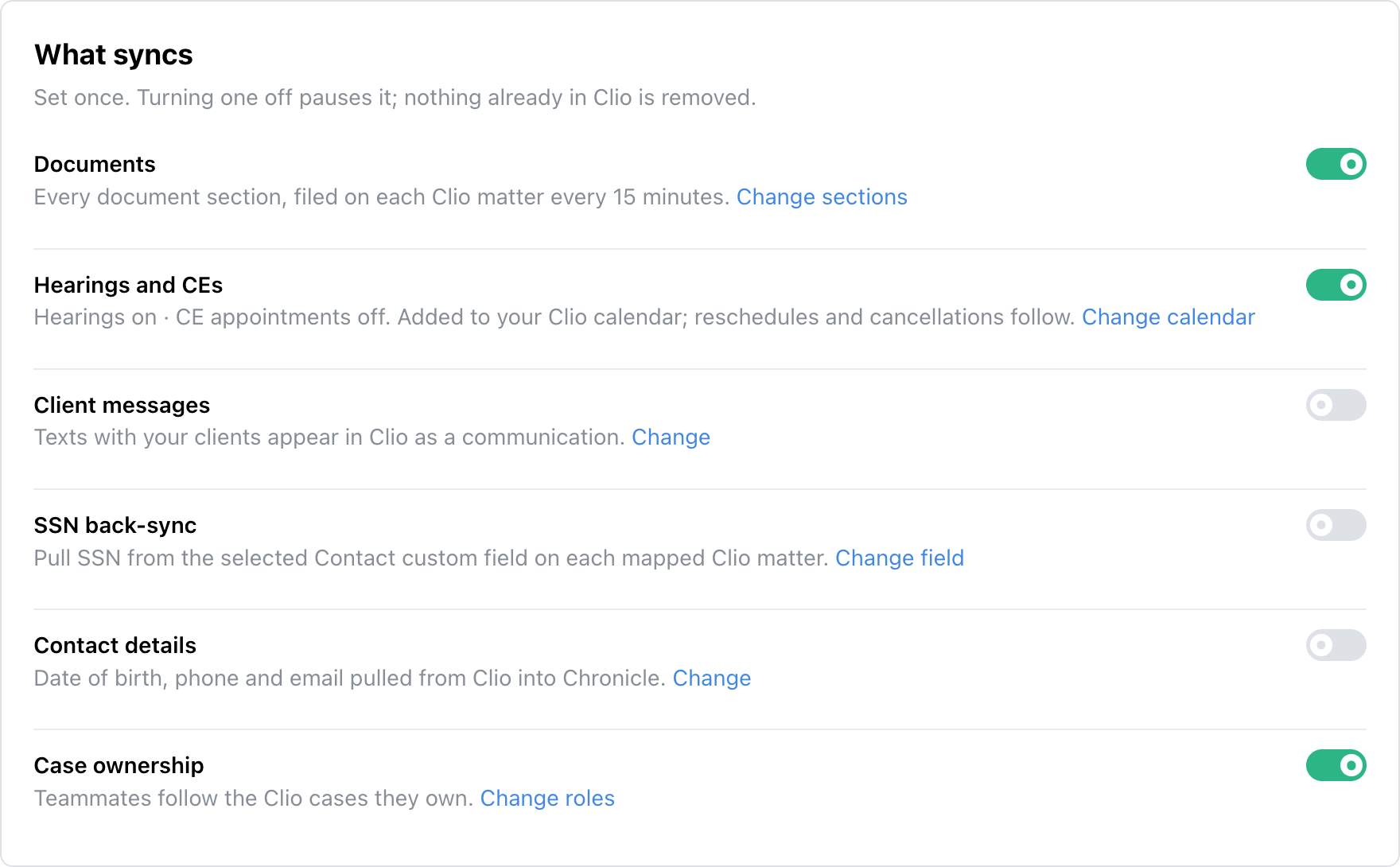
For a new Clio connection, documents and hearings start on. Skip for now on Choose what to sync also completes the app checklist; it does not switch those defaults off. Turn off any sync your firm does not want before continuing.
After the app checklist is complete, use Overview to change the same settings. Turning a document or calendar sync off pauses it; existing filed records remain in Clio.
The What syncs switches on the Clio Overview.
Stages and client fields
These settings control the data we send after clients have been matched. They are separate from the practice areas and SSN source used during setup.
Map SSA statuses to Clio stages
Stage mapping moves a matched matter to the stage associated with its current SSA status.
In Overview > Mapping, click Edit mapping.
Open Stages.
Expand the Clio stage you want to map.
Select the status groups or individual statuses that should move a matter to that stage.
Click Save mapping.
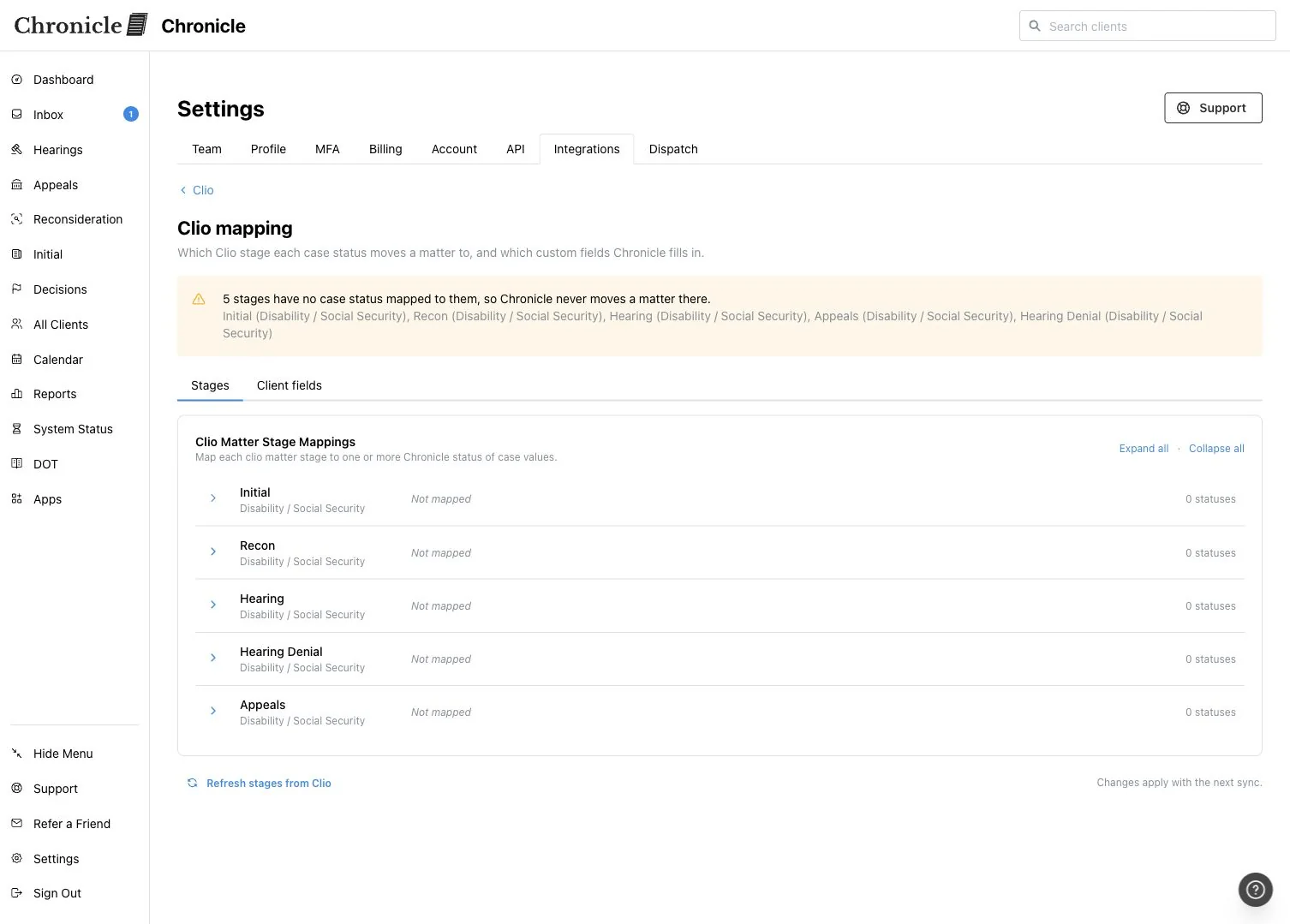
A stage with no statuses selected stays unmapped. Use Refresh stages from Clio after adding or changing stages in Clio.
Repeated syncs do not reset a manual stage change when the mapped target is the same stage we last sent. A later SSA status that maps to a different stage can move the matter again.
Clio stage mapping. The example has no stages mapped; choose the SSA statuses for your firm's stages.
Map client fields
Map only the fields your firm wants us to maintain in Clio. We fill mapped fields going forward as SSA data arrives; use a resync to update existing matters.
In Overview > Mapping, click Edit mapping.
Open Client fields.
Click Add Mapping.
Select the Chronicle field and the destination Clio custom field.
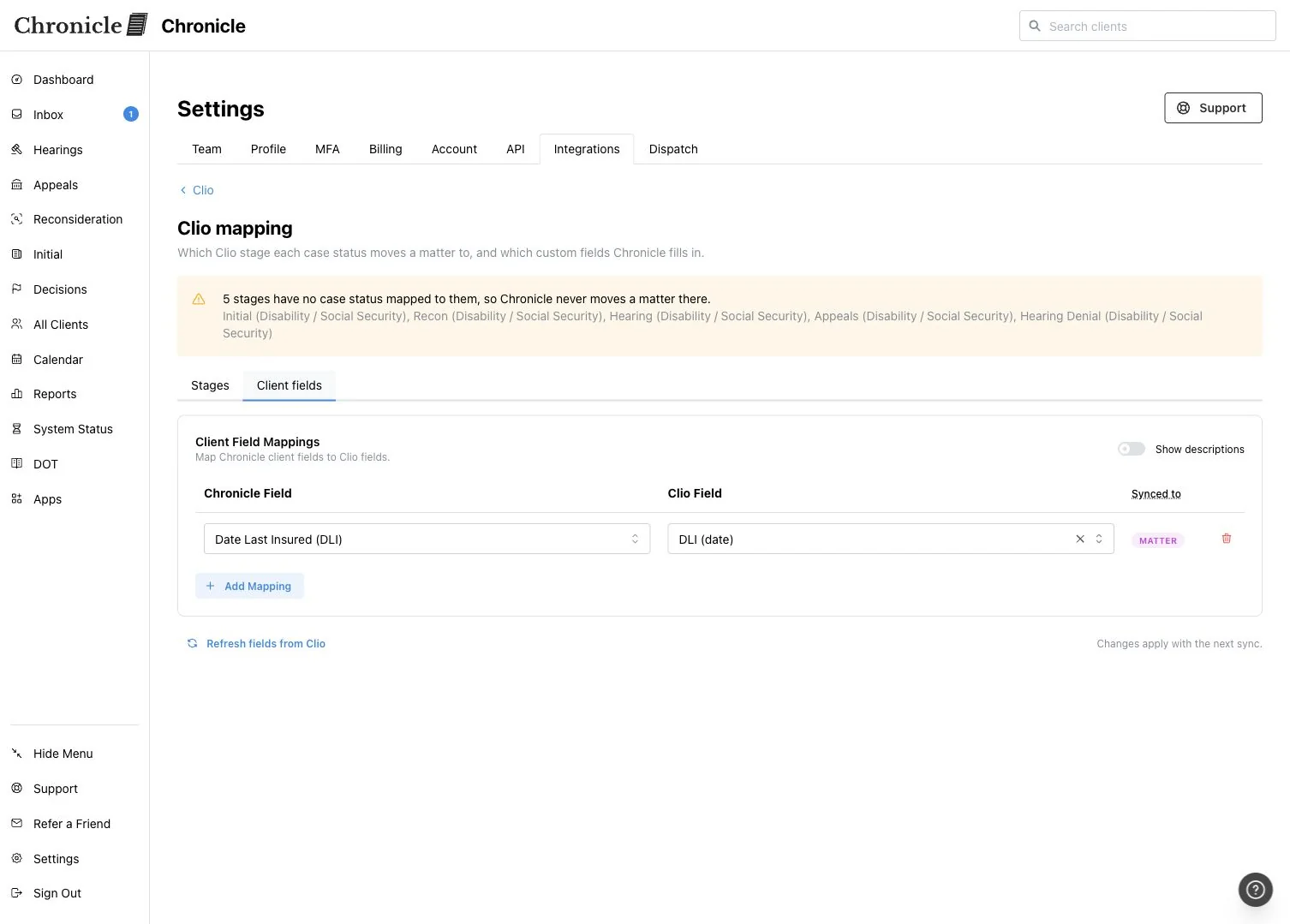
Check Synced to: Contact fields update the matter's primary client, and Matter fields update the matter itself.
Click Save mapping.
Turn on Show descriptions for help choosing a Chronicle field. Use Refresh fields from Clio if a new Clio custom field is missing.
Supported destinations are text, date and number custom fields, including compatible currency fields. Pick lists, checkboxes and relationship fields are not supported. The client field mapping reference lists compatible fields and types.
A mapped Clio field. Synced to identifies whether the destination is a Contact or Matter.
Documents
Document sync files documents we have already retrieved from SSA into a Chronicle ERE folder on the matched Clio matter. We create that folder on the first document sync.
In Overview > What syncs, turn on Documents.
Click Change sections.
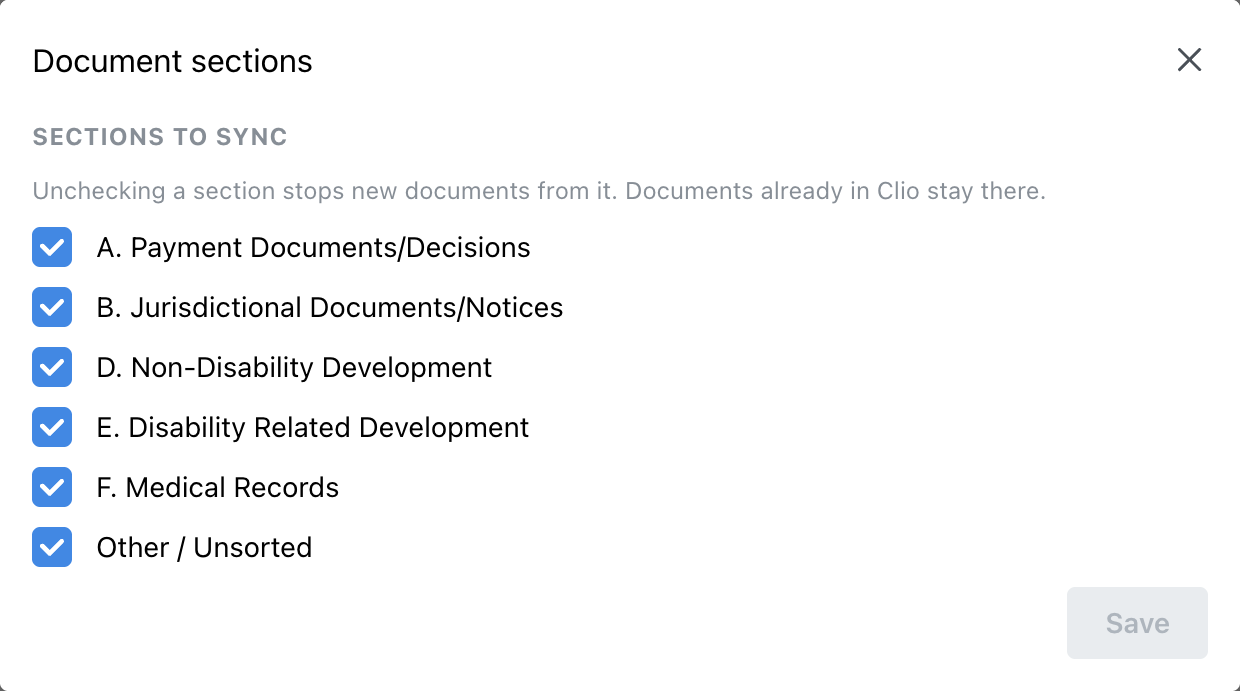
Select the document sections to include, then click Save.
Document sync runs every 15 minutes. For historical documents, use the document resync options on the Sync tab. A document must be available in Chronicle before it can be filed in Clio.
Turning Documents off, or deselecting a section, stops new filing for that scope. Documents already in Clio stay there.
Choose the document sections to file on matched Clio matters.
SSN back-sync
SSN back-sync fills a missing full SSN in Chronicle from your configured Clio custom field. It does not replace an SSN already stored in Chronicle.
In Overview > What syncs, use Change field beside SSN back-sync if you need to choose a different SSN source.
Select the custom field containing the full SSN, then click Save if you changed the configuration.
Turn on SSN back-sync.
Standard Matter fields can be used for matching, but cannot be used for SSN back-sync. A last-four-only value cannot fill a full SSN.
Turning on SSN back-sync also starts e-File monitoring for matched clients as their full SSNs fill in; standard per-case monitoring fees apply to those cases. Check the client's e-File monitoring settings after the SSN has been filled. Use Enable e-File monitoring for the monitoring steps.
Hearings and CEs
Calendar sync needs a writable Clio target calendar. The hearings and consultative examination switches can be set separately.
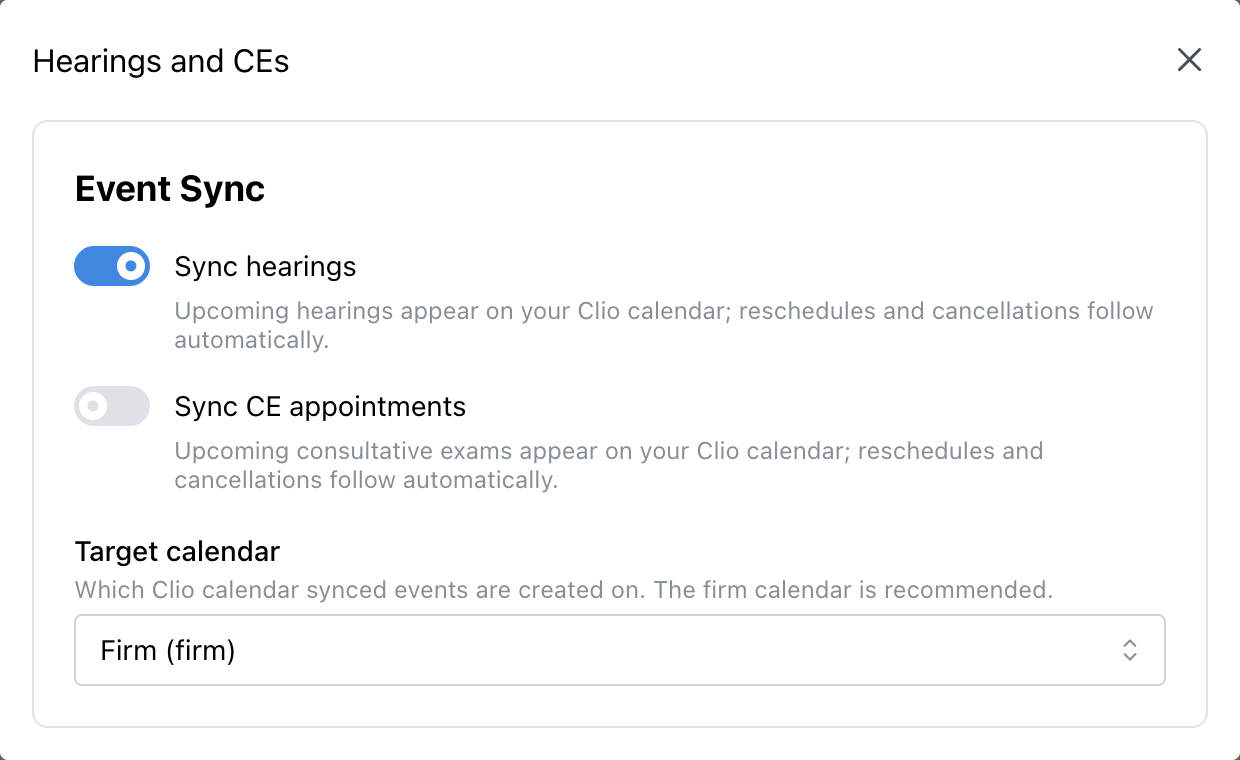
In Overview > What syncs, click Change calendar beside Hearings and CEs.
Select the Target calendar. The firm calendar is recommended and is selected automatically when available and no target has been saved.
Set Sync hearings and Sync CE appointments to the scope you want.
These settings save automatically. Check an upcoming event on the selected Clio calendar after the next sync. Reschedules and cancellations follow automatically.
Calendar selection and hearing or CE switches save automatically.
Contact details
Choose the details you want Clio to maintain in Chronicle. This is separate from the client-field mappings that send data in the other direction.
In Overview > What syncs, click Change beside Contact details.
Turn on Sync contact details from Clio.
Select a source for Date of birth, Phone number and Email, leaving any field blank that you do not want to pull.
Changes save automatically. Valid incoming values can update existing values in Chronicle; blank incoming values do not clear them. A field pulled from Clio is excluded from the outbound mapping picker so the two directions do not compete.
Client messages
Client-message sync requires Chronicle Dispatch access. It logs new outbound texts and inbound client replies on the matched Clio matter.
In Overview > What syncs, click Change beside Client messages.
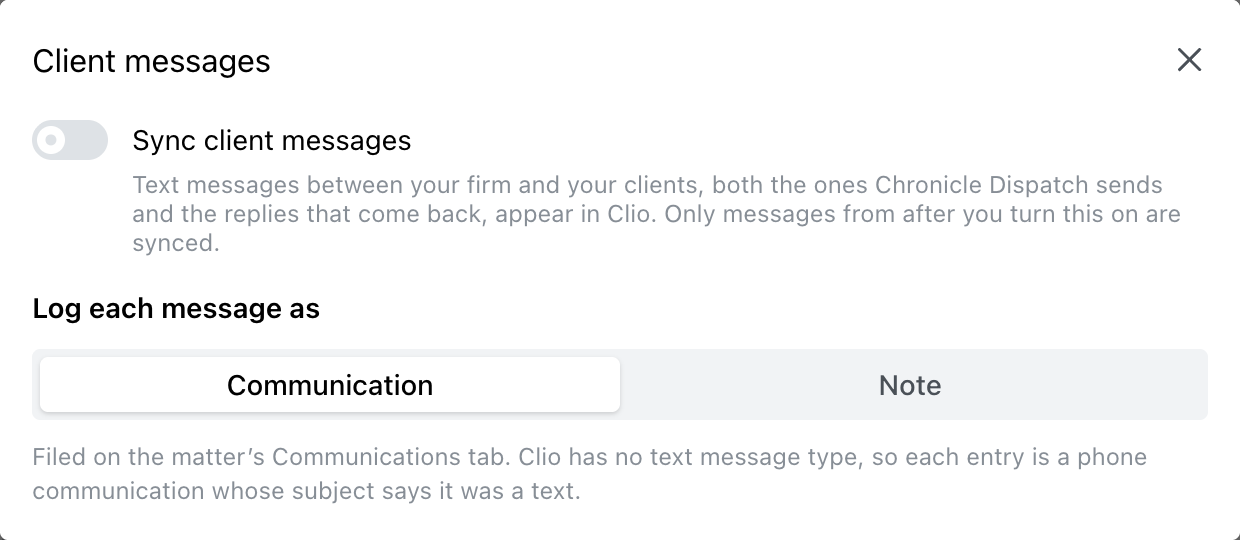
Under Log each message as, choose Communication or Note.
Turn on Sync client messages.
Communication entries appear on the matter's Communications tab as phone communications with a subject identifying them as texts. Notes appear as matter notes.
Only messages from after you enable syncing are included. Changing the log destination affects new messages; entries already sent to Clio stay as they are.
The Client messages settings. Choose the destination before enabling sync.
Case ownership
Case ownership matches Clio users to Chronicle teammates and makes eligible teammates follow their matters.
In Overview > What syncs, click Set up beside Case ownership, or Change roles if it is already configured.
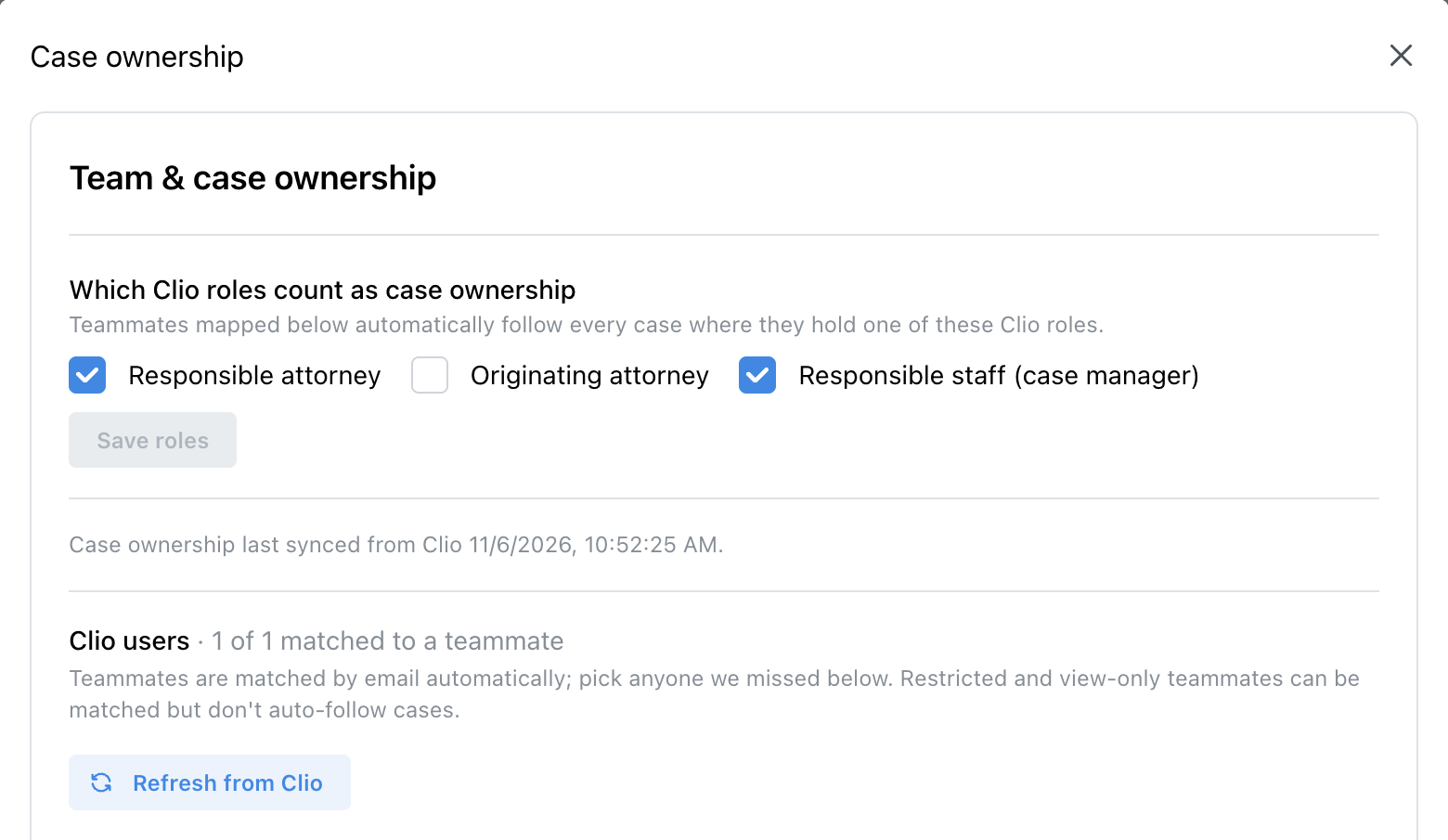
Select the ownership roles to use: Responsible attorney, Originating attorney and/or Responsible staff (case manager).
Review the Clio-user matches. Select the appropriate Chronicle teammate for anyone not matched automatically by email.
Click Save roles.
Followed cases update within a few minutes after ownership sync finishes. Restricted and view-only teammates can be matched to Clio users but do not automatically follow cases through ownership.
Case ownership roles and the Clio-user matches. Teammates are matched by email automatically.
Removing an ownership role, or turning ownership off, removes follows supplied only by that ownership rule.
Shared sync and matching guides
Use the shared guides for workflows that apply across integrations.
Check the affected capability and matched matter before retrying a sync.
A document is missing from Clio
Confirm the document is available in Chronicle and the client is linked to the correct Clio matter.
Check that Documents is on and its section is selected.
Check the Documents result on the Sync tab, then retry the affected records.
If the document is missing from Chronicle, check e-File monitoring before retrying the Clio sync.
No target calendar is available
The connected Clio user needs permission to write to a Clio calendar. Ask your Clio administrator to correct that access, then reopen Change calendar and select a target.
Client messages cannot be logged as Communications
An older Clio connection may lack Communications access. Reconnect Clio from Connection actions to authorize it, or select Note as the message destination. Existing entries are not moved.
A Clio field or stage is missing from the mapping editor
Refresh fields or stages from the matching tab on the mapping page. Unsupported field types do not become available by refreshing. Check that the selected practice areas include the relevant matter stages.
A contact detail is not being updated
Confirm Contact details is on and a source is selected for that detail. Blank source values leave Chronicle unchanged. Invalid dates, phone numbers or email addresses are rejected; review any rejection counts in the contact settings and correct the value in Clio.