
Check integration sync status
Open an integration's Sync tab to see which records are up to date, review recent runs and investigate one client's results. A healthy connection confirms access to the provider; it does not confirm that every client is matched or every capability has synced.
Check the overall status
The available capabilities depend on the integration and the syncs your firm has enabled. Matching and SSN back-sync appear under Pushed once. Client fields, Documents, Hearings and CEs, Contact details and Case ownership appear under Kept in sync.
In Chronicle, open Settings > Integrations.
Open the integration you want to check.
Open the Sync tab. The Status panel at the top lists each capability.
Find the affected capability, such as Matching, Documents or Client fields.
Select See failed to list failed records, or Review beside a count of unmatched clients.
What you see | What to do |
|---|---|
In sync (green) | The tracked records are up to date for that capability. Check the actual destination when investigating a specific missing item. |
Pending (yellow) | Records still need processing or have changes waiting to sync. They go out on the next run. Check the latest run before starting another. |
Failed (red), with a failed badge | Select See failed or open the run details. Correct the reported problem, then choose Resync and Failed only. |
Review followed by a count, on the Matching row | Clients with no match or more than one possible match. Use the shared guide Fix a client's integration match. |
Off, with Turn on in Overview | The capability is switched off, so nothing syncs for it. Turn it on from the Overview tab. |
See failed and Review open a list of records. Filter it by All, In sync, Out of sync (pending and failed records) or Failed. The Matching list also has Unmatchable and Archived. Archived means the client or linked record is outside the integration's active scope, so check that before expecting further syncing. You can search by name and use Export to download the list.
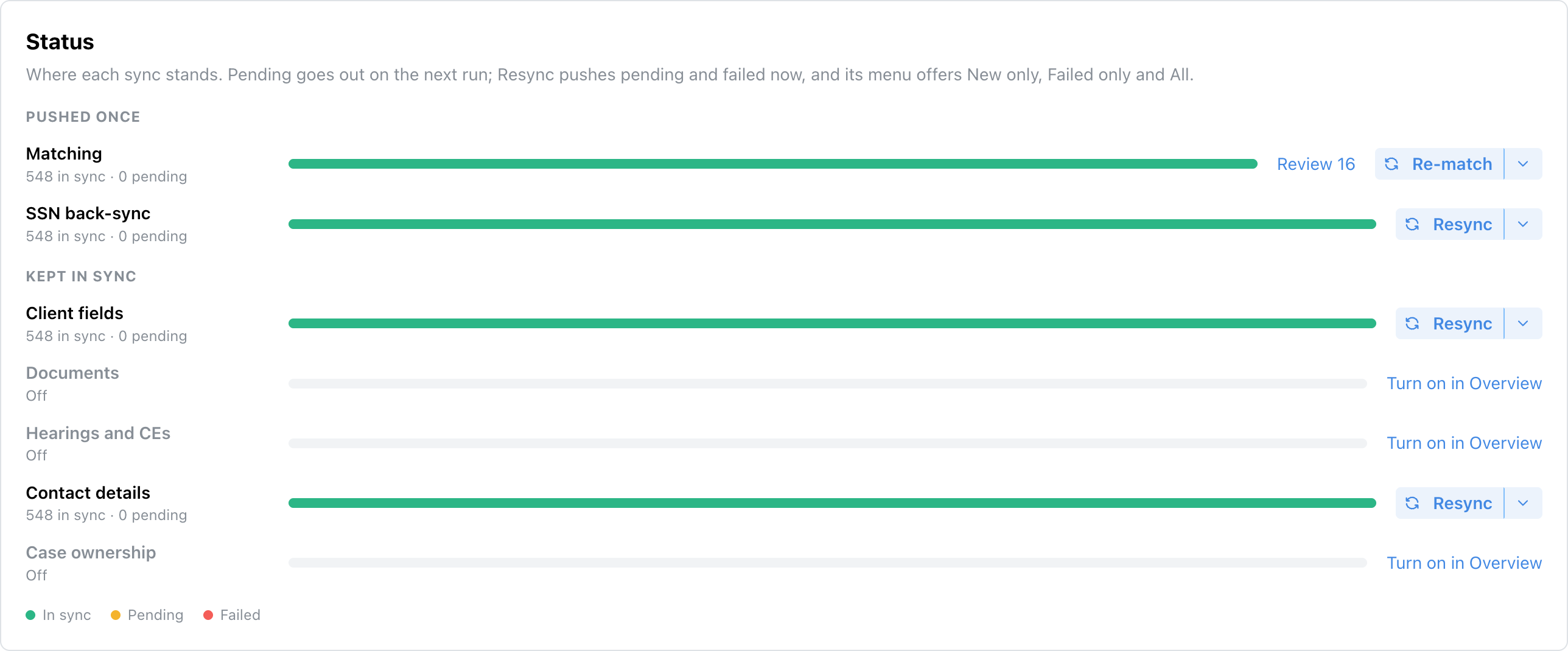
Neos example. The capability list and counts depend on your integration.
Read recent sync runs
Run history shows what a sync actually processed, including failures and skipped records.
On the integration's Sync tab, scroll to the Runs panel.
Use Success, Failed or In Progress to narrow the list, or All for the full history. The capability selector, set to All capabilities by default, limits the list to one capability.
Find the relevant object type and run time. Started by shows Schedule for automatic runs and Manual for a resync you started.
Select the run to expand its items. Export Errors and Export Successes download them.
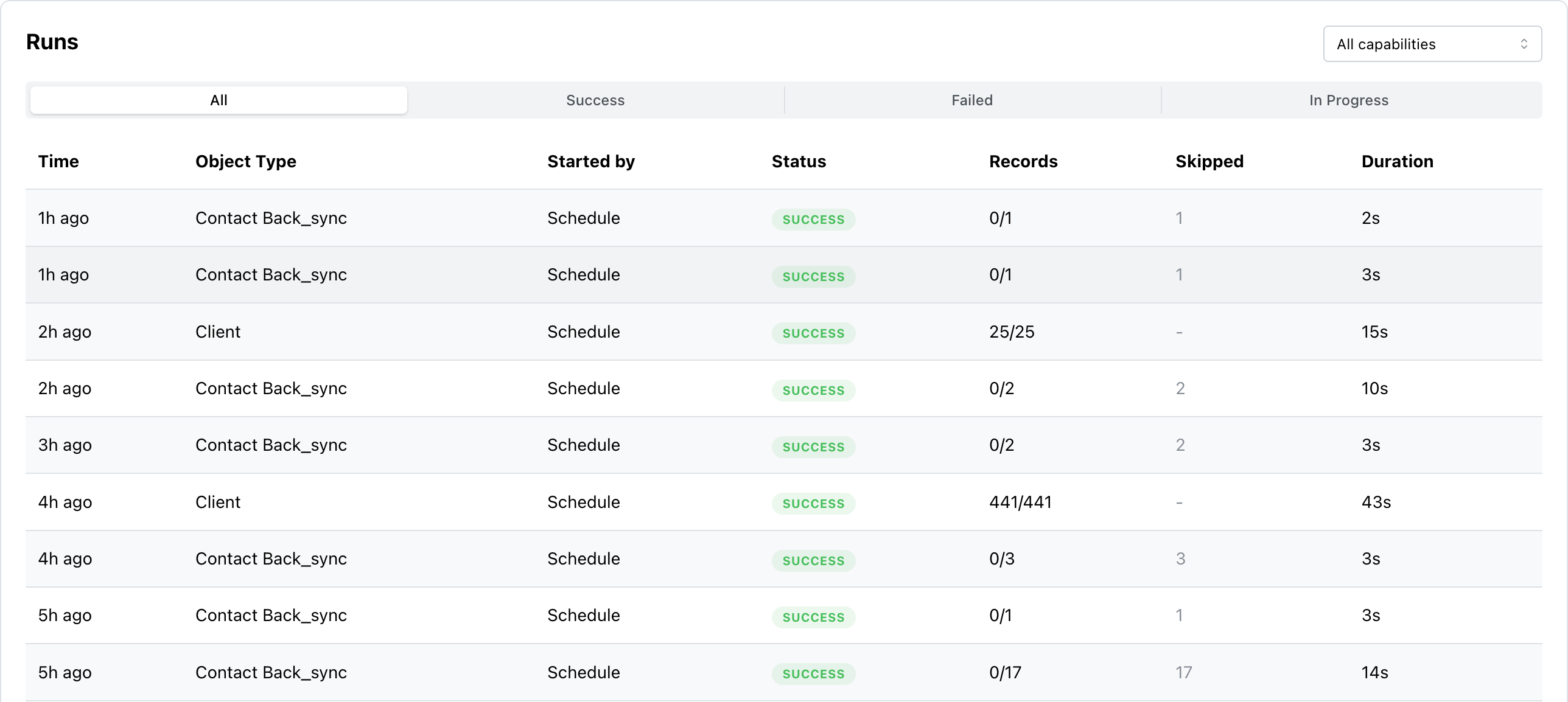
The Runs history with status filters.
Check the records, skipped records and duration as well as the run status. A successful run does not mean every client was eligible for that run.
Check one client
The client's Sync panel helps separate a matching problem from a document or field-sync problem. The panel may show an integration under its short name, such as box or sharepoint, instead of its display name.
Open the client in Chronicle.
Open the client's actions menu and select Sync.
Find the integration and check Matching.
Compare the record ID beside the integration name with the record in the provider.
Review the affected fields or documents and their available error details. The Activity list below shows recent attempts, and its Failed filter appears once something has failed.
For Salesforce, the integration's more-actions menu also has Open in Salesforce, which opens the linked record. Other integrations do not have an Open in item.
Use Fix a client's integration match if the link is missing or incorrect. Use Resync integration data after correcting a retryable problem.
When these controls differ
Client-message delivery and logging results are reviewed in the message settings rather than the shared Runs history. Use your integration's usage article for those controls.
Salesforce and Docrio matching is managed through the Salesforce package. Partner-managed integrations such as Dibcase use the partner's sync controls. Storage integrations show folder-review issues instead of matter or case matches: on the Overview tab, Needs attention has a Review button that opens the folders to review.