
Fix a client's integration match
Use a client's Sync panel to link an unmatched client or change an incorrect link. Use Review on an integration's Overview when several clients need attention. Re-running matching leaves successful links in place, so an incorrect existing link needs a manual change.
A Chronicle administrator or account owner needs to manage integration matches. Before linking, identify the correct provider record and check that its client details agree with Chronicle.
Check why the client did not match
Automatic matching depends on the integration's selected case or project type, matching fields and eligible provider records.
Open the integration from Settings > Integrations.
Check its selected scope, such as Clio practice areas or the provider's case or project type.
Check the configured matching source and the client's values in both systems. For SSN-based matching, compare the last name and last four digits in your own systems. Matching ignores case, accents, hyphens, commas, apostrophes and periods, so Perez-Velez matches Perez Velez. It never drops part of a name, so Perez Velez does not match Velez.
Check whether the provider record is closed, outside the selected scope, missing the matching value or one of several possible records.
Correct the source value or scope, then use Re-match for unresolved clients. When you already know the right record, link it directly using the steps below.
Link an unmatched client
Manual linking is available for supported integrations, including Clio, Filevine, Neos, Box, Dropbox and SharePoint / OneDrive.
Open the client in Chronicle.
Open the client's actions menu and select Sync.
Find the integration and select Link record or Pick record.
Enter the provider's record ID or supported record URL and click Look up.
Verify the returned client's identity and record details, including any closed or archived warning.
Click Link to this record.
Clio accepts a matter ID or URL, Filevine a project ID or URL, Neos a case number or case GUID/URL. Use the record from the provider, rather than guessing an identifier.
For storage integrations, enter the folder ID. Box accepts a folder ID or a folder web address that contains /folder/ and the ID. Dropbox needs the folder ID, which starts with id:, and SharePoint / OneDrive needs the folder's drive item ID. Dropbox web addresses and SharePoint sharing links do not contain these IDs. For a client in the folder review list, use Browse to pick the folder instead.
Check that Matching is Matched and that the record ID shown beside the integration name is the one you entered. Salesforce is the only integration with an Open in link to the linked record.
Change an incorrect existing link
Changing a successful link redirects future syncs and can affect previously synced documents or appointments.
In the client's Sync panel, open the integration's more-actions menu.
Select Change link….
Look up the correct record and verify its details.
If the client has sync history, choose the history option below.
Click Link to this record.
Verify the new link and check the destination after syncing.
History option | What happens |
|---|---|
Forward only | Future documents and appointments use the new record. Existing documents and appointments remain on the old record; previously synced appointments continue updating there. |
Resync everything into the new record | Document sync creates fresh copies in the new record when enabled. Old copies are not deleted. Clio can move existing hearings; Filevine and Neos leave existing appointments on the old record. |
Mapped fields and the mapped phase or stage use the new record under either option. Text messages already filed in the provider are not moved.
If changing the link times out, reopen the client's Sync panel and check the current link before repeating the action. The link can already have changed.
Review several unresolved matches
The integration's review list groups clients that need a decision.
On the integration's Overview, find Needs attention.
Click Review.
Select a candidate with Choose a matter, or enter a record ID and use Look up, as available.
Verify the candidate and click Link.
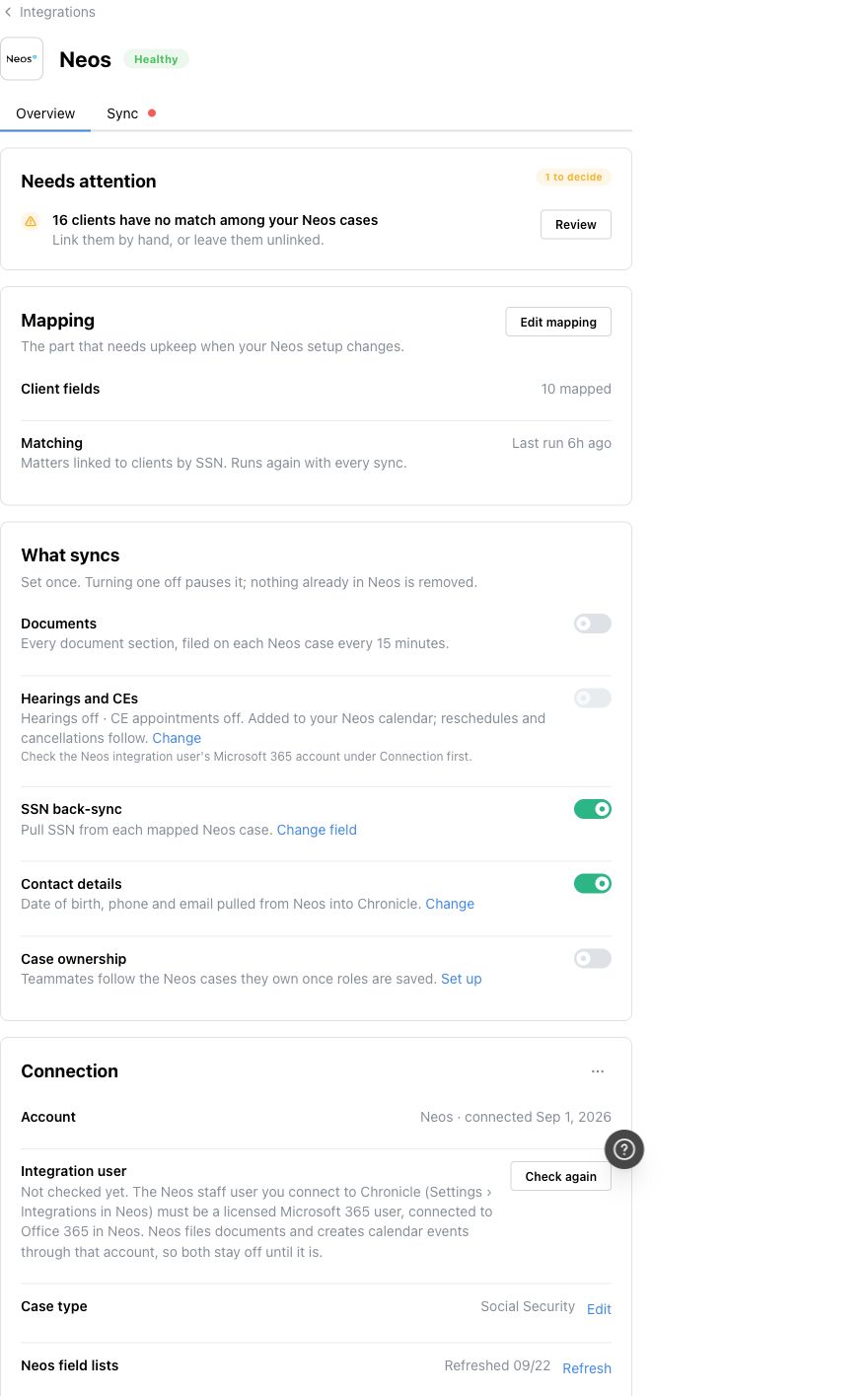
Neos example. Start from Review to resolve clients that could not be matched automatically.
Use Not in the provider only for a client who should not sync with that integration. This excludes that client from all its syncs; a resync does not remove the exclusion.
To restore an excluded client, use Undo not in the provider in the client's Sync panel. The next matching run can try that client again.
Resolve storage-folder matches
Storage integrations use folder review rather than a matter or case picker.
Open Review from the integration's Needs attention area.
In Folders to review, use Use for the correct suggested folder, Browse and then Link for another folder, or the offered Create action for a new folder.
Check the linked folder and subsequent document sync.
Each suggested folder is marked Strong match or Name only. A folder marked Linked to another client cannot be selected.
Create makes a new folder from your folder template and adds the client's Chronicle ID in brackets, for example Doe, Jane (1234) [C42]. The suffix keeps the new folder apart from the same-named folder that put the client in review.
A client who is not selected is not a failed match. This applies to Atticus, and to Box, Dropbox and SharePoint / OneDrive when Which clients get folders is set to Only clients I select. The client's Sync panel shows Not selected for sync.
When matching is managed elsewhere
Salesforce and Docrio record matching is managed through the Salesforce package. For Dibcase or another partner-managed integration, correct the link through that provider's supported workflow. Use the integration's setup and usage articles for those steps.