
Enable e-File monitoring
Turn on e-File monitoring for a client so Chronicle can continuously check the SSA Evidence and Case Status portal (ERE) and pull new documents automatically. The setting is managed on the client’s Documents tab.
Before you start
You need the Add SSN permission to enable monitoring. This is available to Staff, Manager, Admin, and Billing owner roles depending on your firm’s account settings. If you do not see the option, ask a firm admin to enable documents for the client. For details on role permissions, see Roles and permissions.
Enable monitoring
Open the client’s detail page and select the Documents tab.
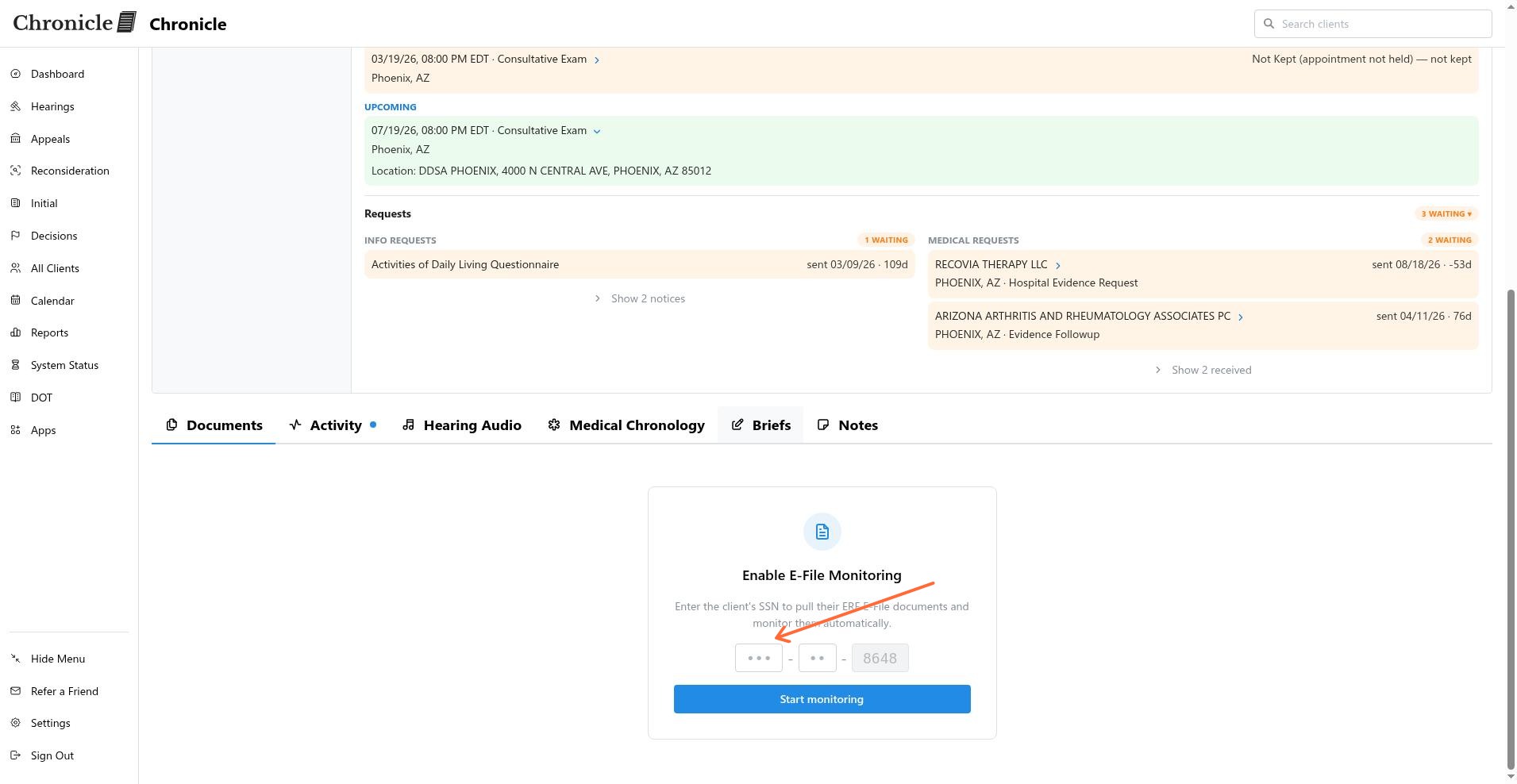
In the Enable E-File Monitoring card, enter the first five digits of the client’s SSN in the visible fields. The last four digits are pre-filled from the client record.
Click Start monitoring.
What happens next
After you submit, the page switches to Queued for Document Pull. Documents are pulled from the ERE automatically, and you will receive an email when they are ready. You can also click or start now to trigger the pull immediately.
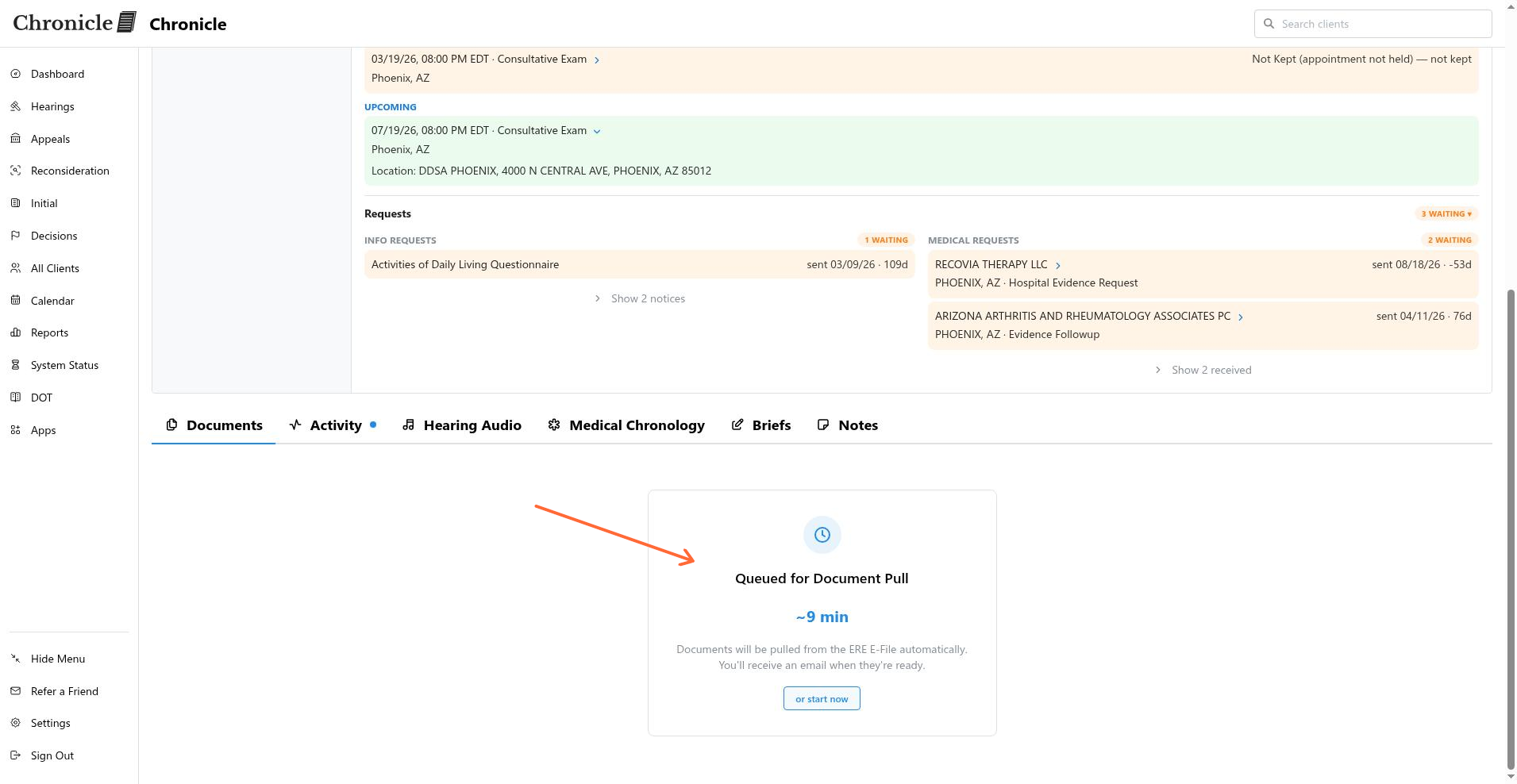
If a potential ERE access issue is detected, you may see the warning Possible ERE access issue. You can still click Start now anyway to proceed. If document pulls are paused, the message Document pull paused appears; once the underlying issue is resolved, pulls resume automatically.