
Narrow your filters and export in batches if your firm’s dataset is larger than the limit.
Filter and export case lists
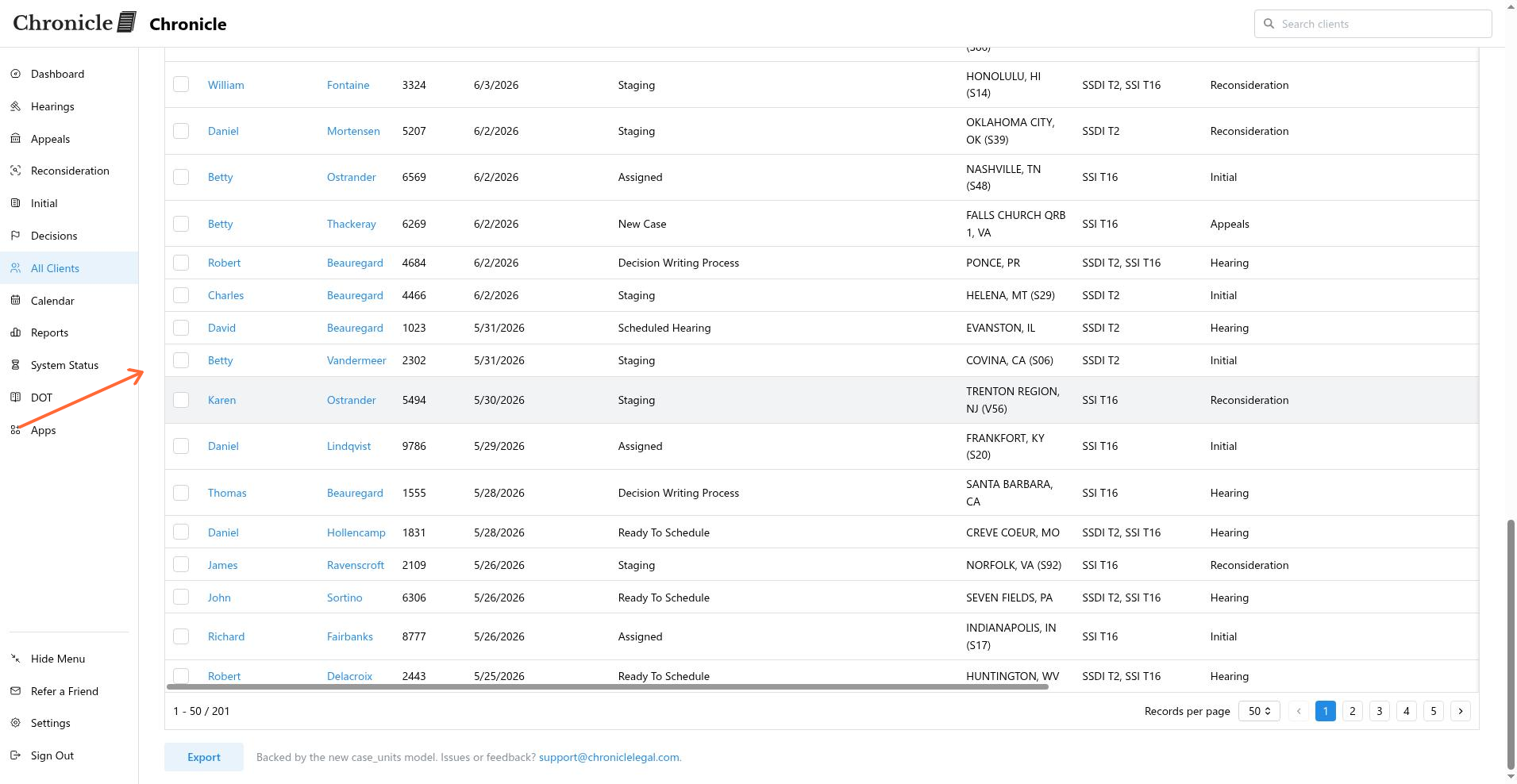
The case list in Chronicle is a stage-driven table on the Clients page. You can choose which columns appear, reorder them, filter the rows, and export the current view to CSV.
Case list stages and columns
The table adapts its columns to the stage you are viewing. Available stages are All, Initial, Reconsideration, Hearing, Appeals, Decisions, and Closed.
Some columns appear only on certain stages. For example, hearing details such as ALJ Name, ALJ Location, and Medical Expert are shown only on the Hearing stage. Latest Decision Date appears on Hearing, Appeals, Decisions, and Closed, but not on Initial or Reconsideration. Level is hidden on Initial, Reconsideration, Hearing, and Appeals, and shown on All, Decisions, and Closed.
The First column is always pinned to the left and cannot be hidden or reordered.
Hide, show, and reorder columns
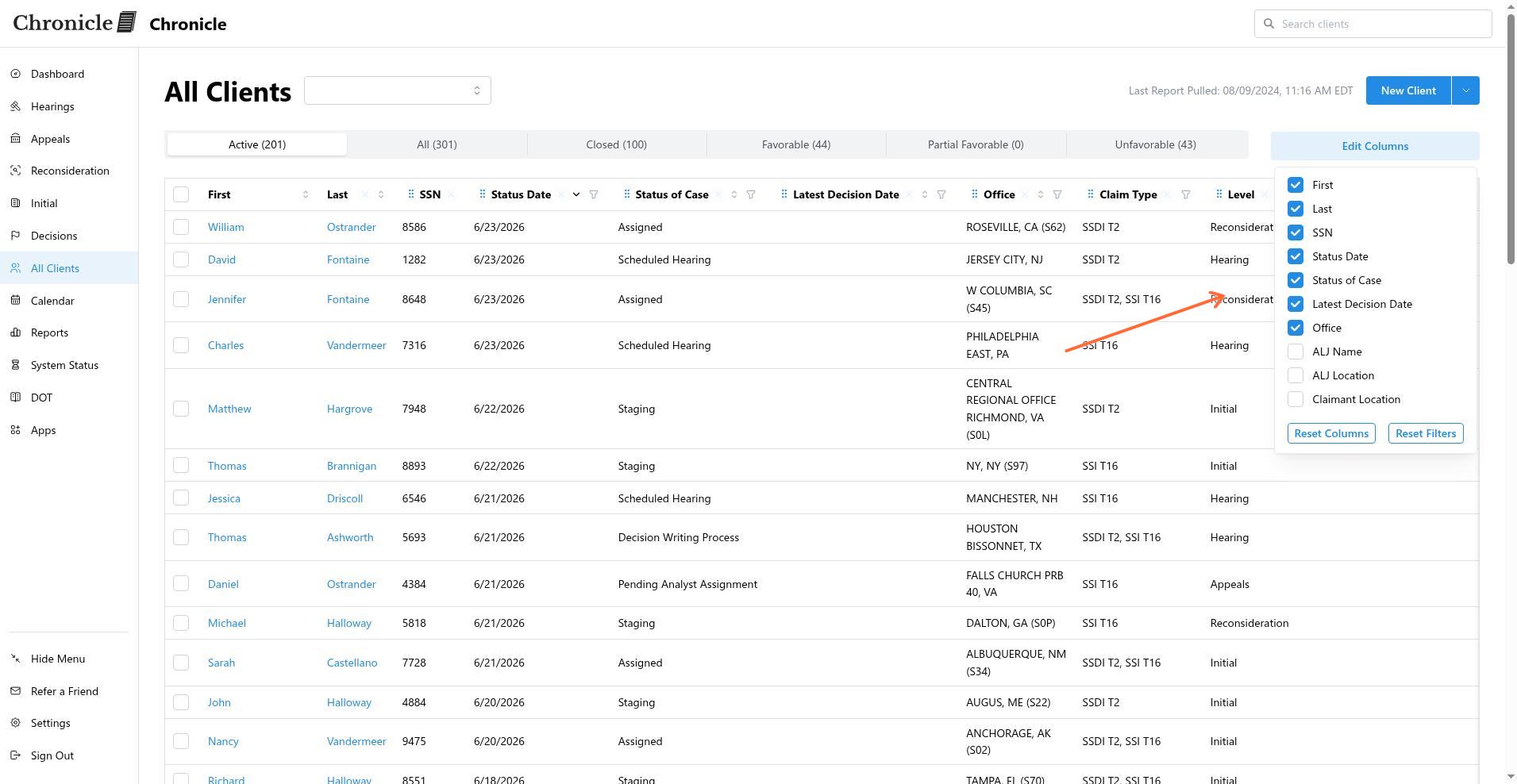
Use the Edit Columns button above the table to open the column picker. In the picker, each column has a checkbox that controls its visibility. Uncheck a column to hide it; check it again to restore it. You can also drag columns in the picker to change their order in the table, except for the locked First and Last columns.
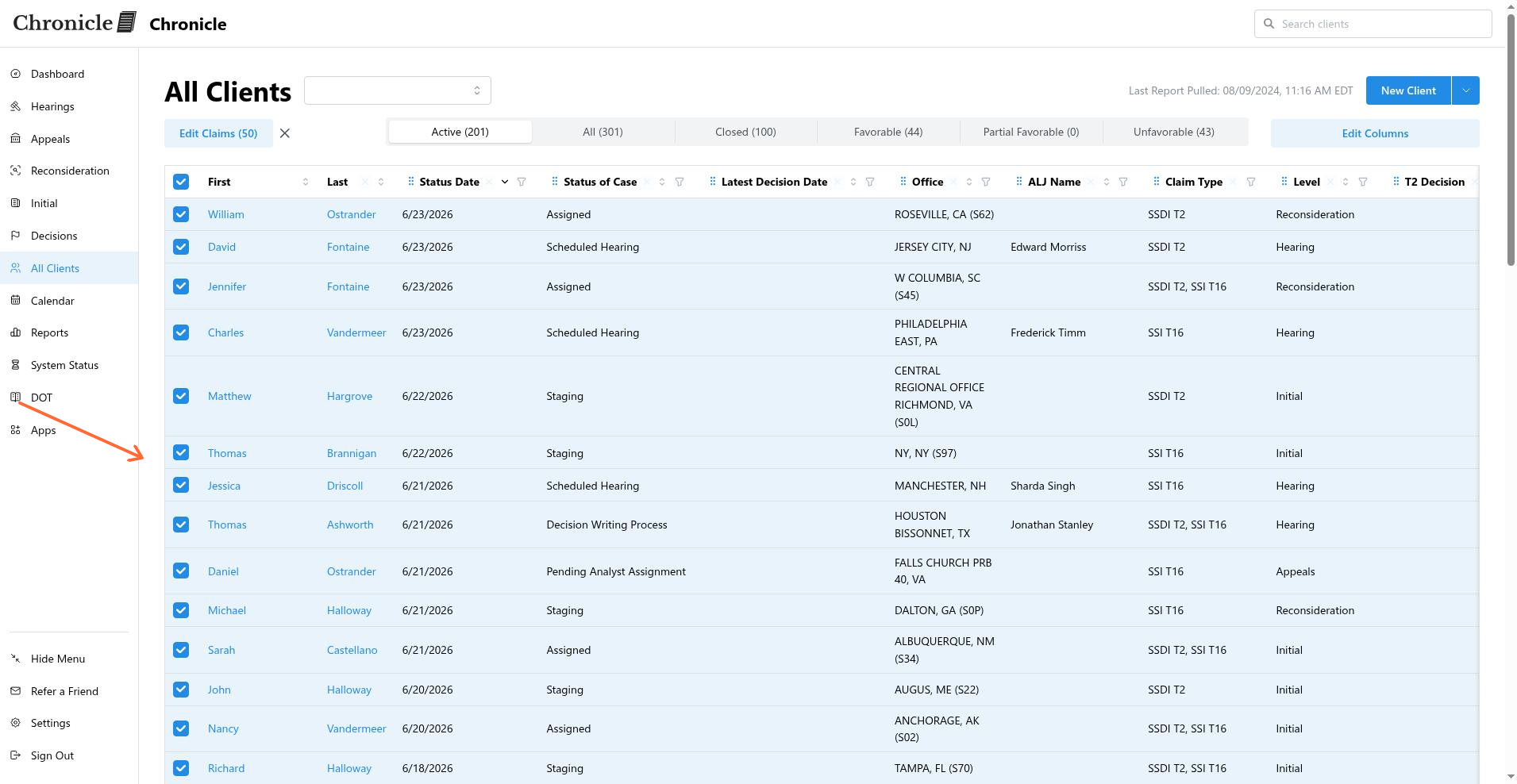
After hiding columns, the table refreshes immediately to show only the selected fields.
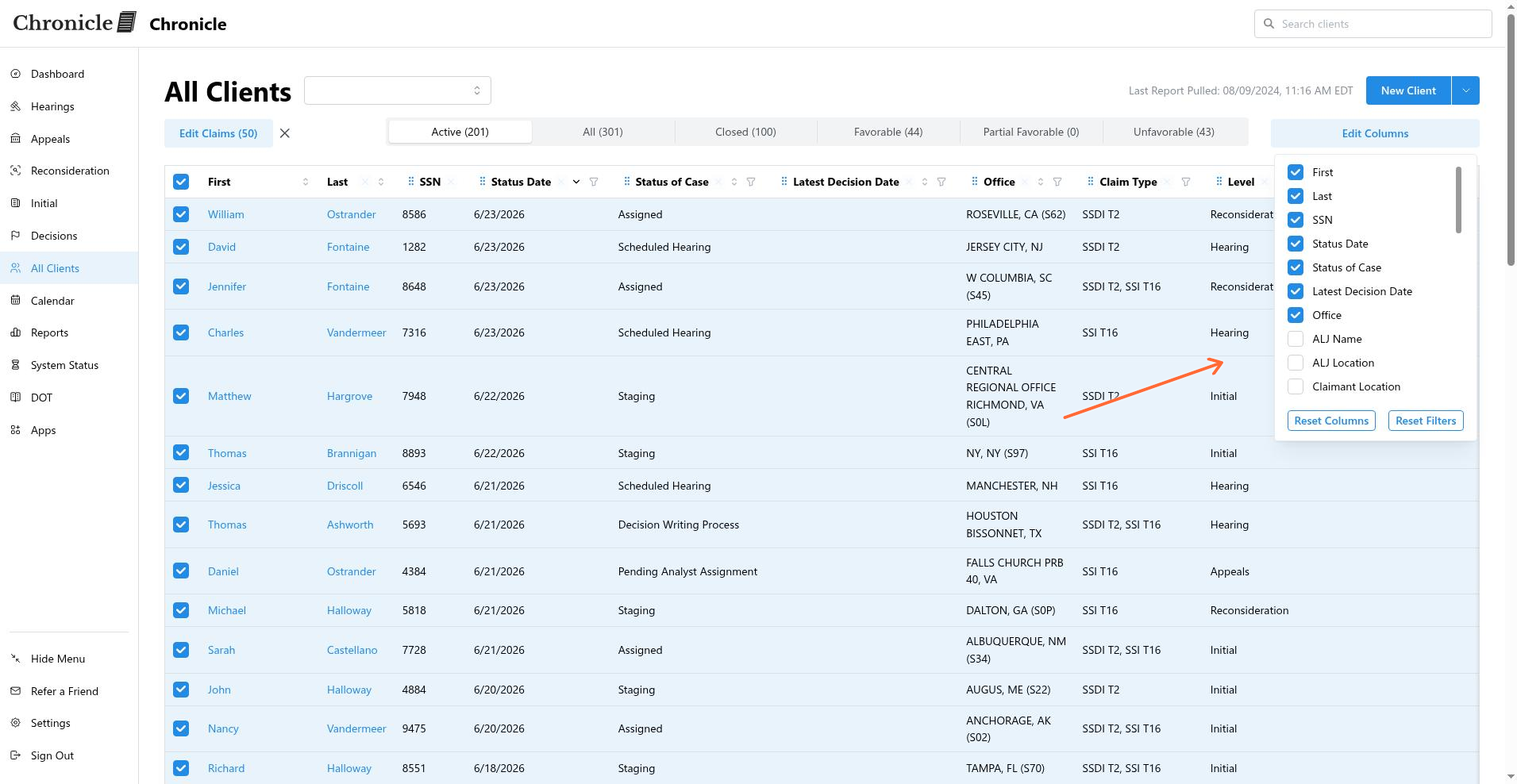
To restore the original column set, reopen the picker and click Reset Columns.
Filter the list
Filters are available above the table. Use the status radio buttons to narrow results by Active, All, Closed, Favorable, Partial Favorable, or Unfavorable. A text search input lets you quickly find a specific client. Some columns also support date-range and multi-select filters directly from the table headers.
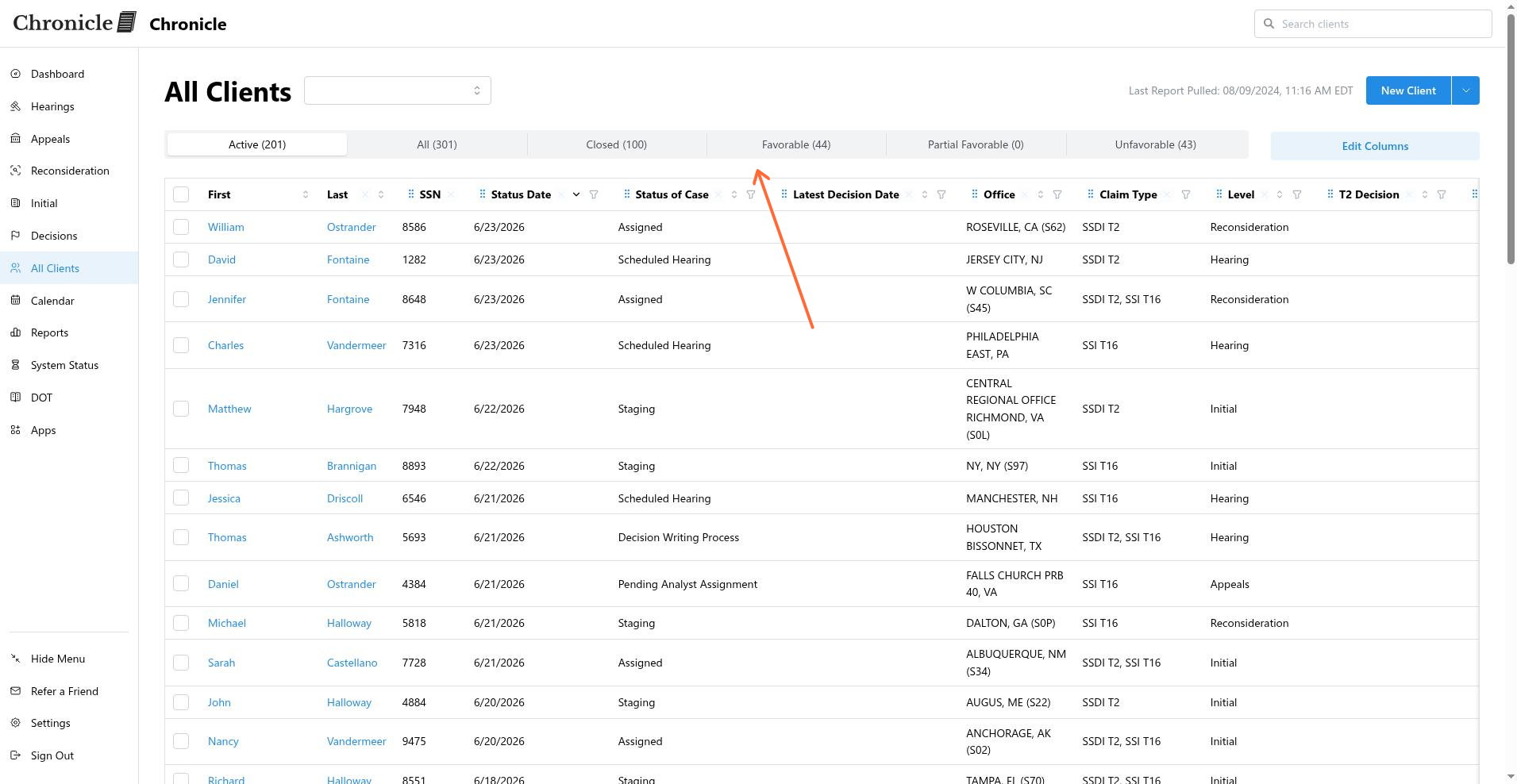
Filter state is reflected in the URL, so you can bookmark or share a filtered view.
Export to CSV
Click the Export button above the table to download the current view as a CSV file. The export uses the name clients-{stage}-{YYYY-MM-DD}.csv and includes only the columns you have chosen to make visible. If the result set exceeds 50,000 rows, the file is capped at that limit.
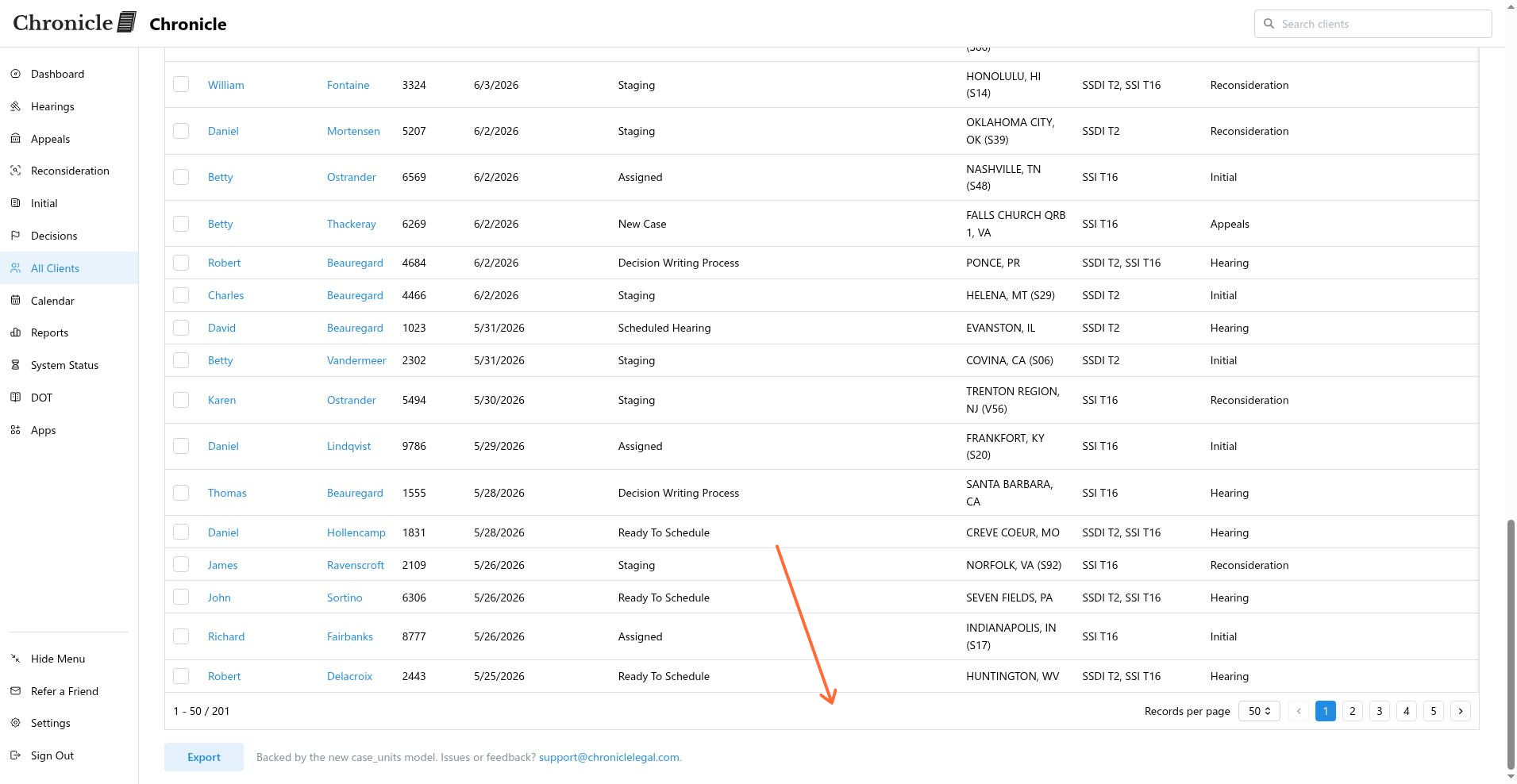
While the export is generating, a notification appears. When it completes, you will see either Downloaded {rowCount} rows or Downloaded {rowCount} rows (capped at 50,000). If the export fails, an error message explains the reason.
Adjust your filters and visible columns before exporting so the CSV contains exactly the data you need.
Common issues
Exports are capped at 50,000 rows
Edit Columns changes do not persist
Column choices are saved per-user. If they reset, clear your browser cache and try again.
Was this helpful?
Was this helpful?