
Check that your date range and event-type filters are not excluding all results. Switch to Table view to confirm events exist outside the selected calendar range.
Use the calendar
Open the Calendar page at /dashboard/calendar to see all upcoming events across your firm. You can filter by event type, switch between a calendar grid and a table list, and subscribe to feeds that sync with your external calendar.
Filter events
Use the event-type buttons at the top of the page to show only the events you need.
All Events — shows CE appointments and hearings together.
CE Appointments — shows consultative examinations only.
Hearings — shows hearings only.
Selected filters are saved in the page URL, so you can bookmark or share a specific view.
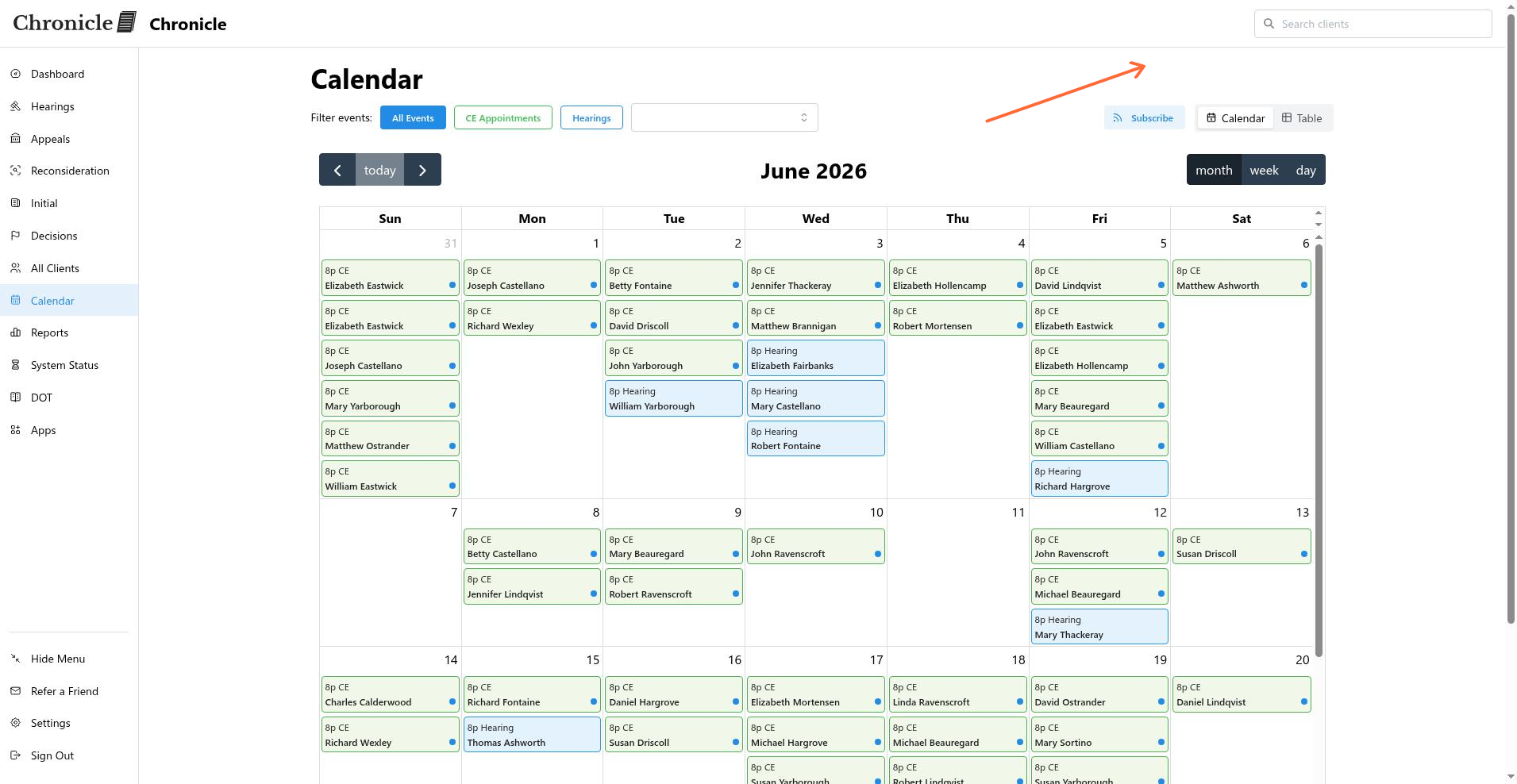
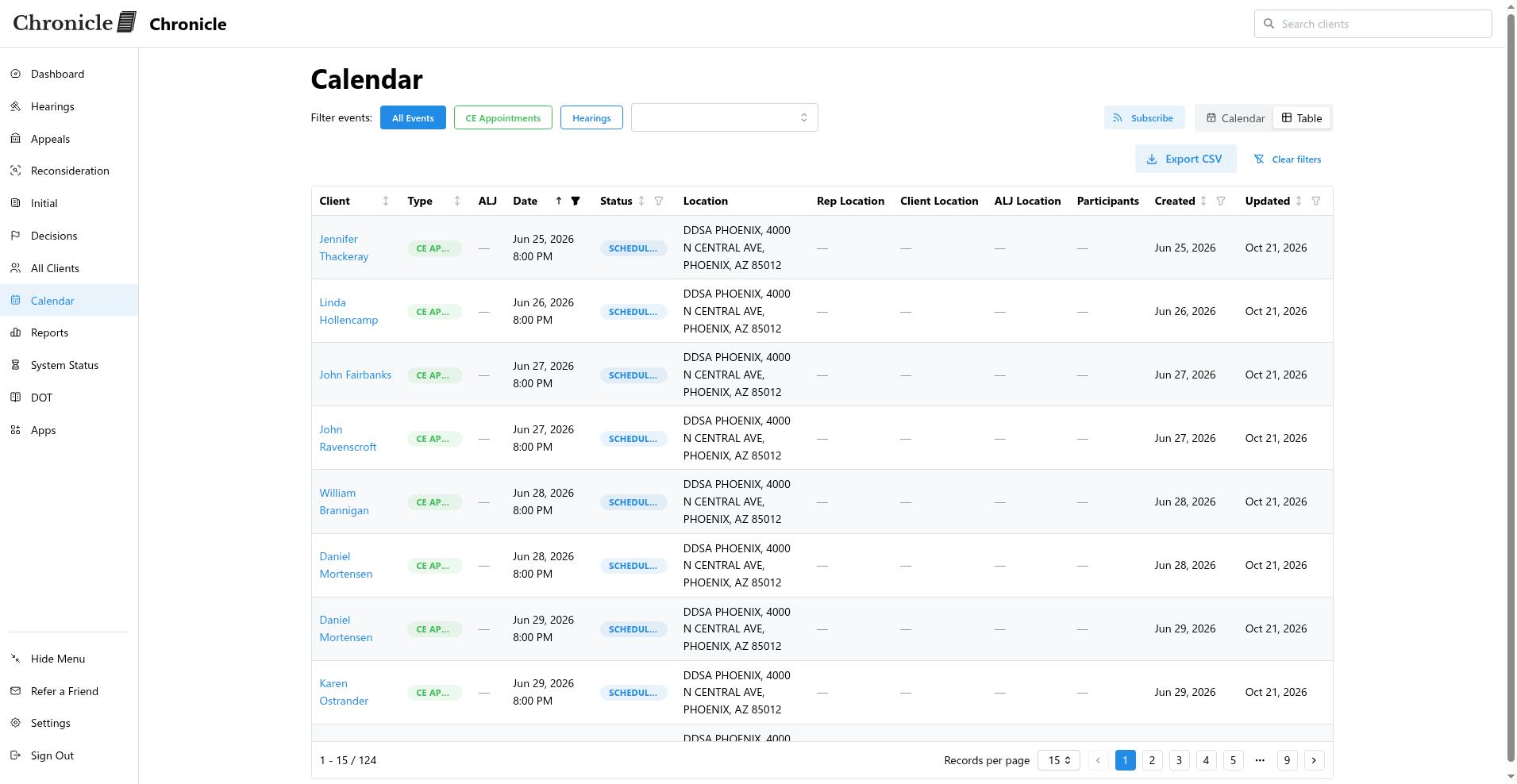
Switch between Calendar and Table views
Click the view toggle to change how events are displayed.
Calendar — events appear as cards on a month, week, or day grid. Click an event card to open the client record.
Table — events are listed in rows with columns for date, client, type, status, and location. Export the filtered table to CSV when you need a spreadsheet.
Subscribe to calendar feeds
Click Subscribe to open the Subscribe to Calendar modal and copy an iCal link for your external calendar app.
The modal offers three event feeds, each with an All Clients or My Clients scope:
All Events — choose All Clients for every firm event, or My Clients for events belonging only to clients you follow.
Hearings Only — subscribe to all hearings or only your clients’ hearings.
CE Appointments Only — subscribe to all CE appointments or only your clients’ CE appointments.
Click Copy Link next to the feed you want, then paste the URL into Google Calendar, Outlook, or Apple Calendar. The modal also provides direct Add to Google Calendar and Add to Outlook shortcuts for the selected feed.
My Clients includes only clients you follow. To follow or unfollow a client, open the client record and toggle Follow. See Follow a case for details.
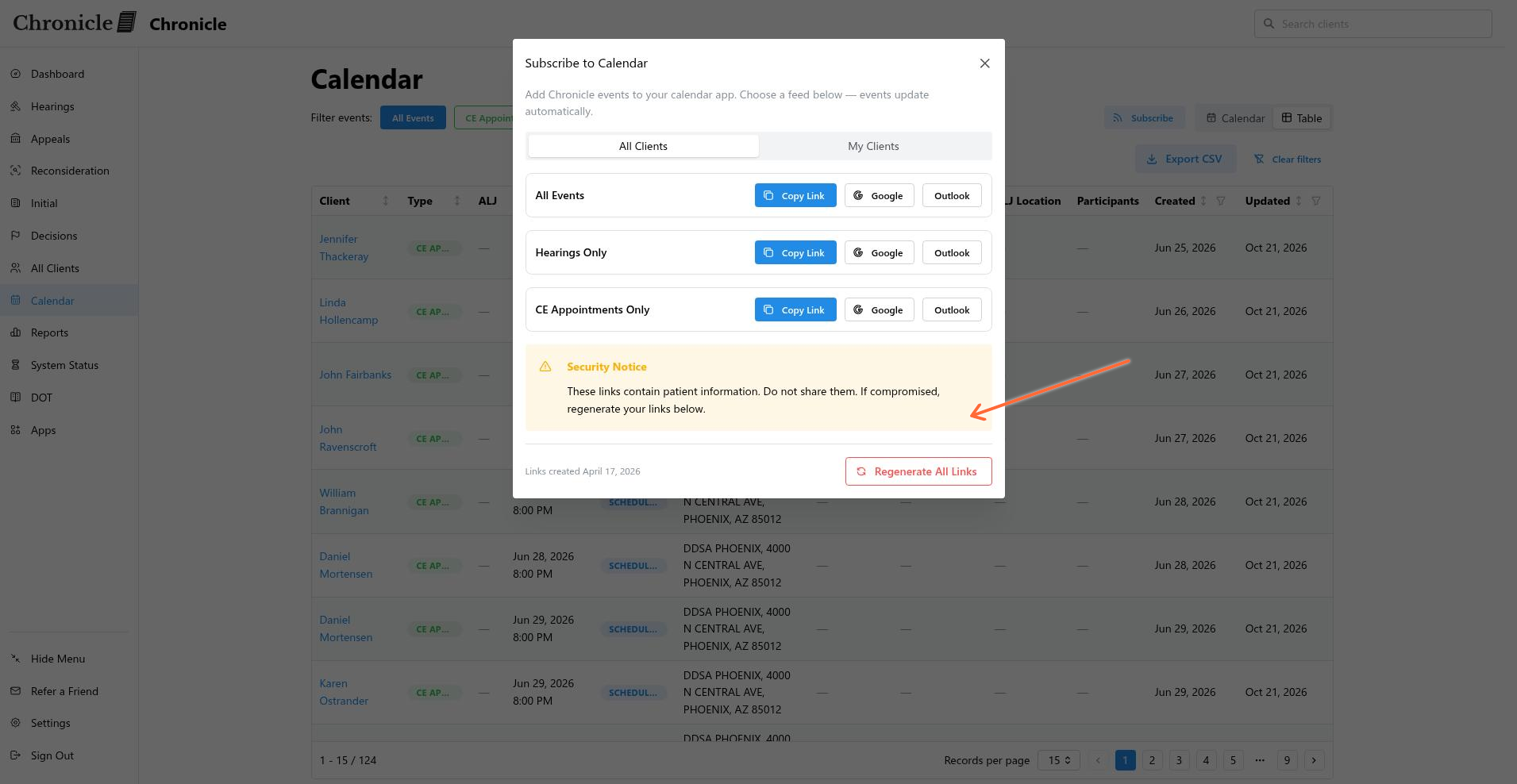
Regenerate or reset links
If a calendar link is shared by mistake or you want to invalidate old subscriptions, click Regenerate All Links in the Subscribe modal. This creates new feed URLs and breaks any existing calendar subscriptions, so you will need to re-add the feeds to your external calendar apps.
If no events appear
Make sure a date range is selected in the calendar view.
Check that your current filters are not excluding all results.
Switch to Table view to confirm whether events exist outside the selected calendar range.
Common issues
Calendar shows no events
Regenerated links broke my external calendar
After clicking Regenerate All Links, copy the new feed URL and re-add it to Google Calendar, Outlook, or Apple Calendar.
Was this helpful?
Was this helpful?