
Resync integration data
Use Resync on an integration's Sync tab to retry pending or failed records, or use a client's Sync panel to retry an individual item. Correct a missing match, disabled capability or provider-access problem before retrying.
A Chronicle administrator or account owner needs to manage integration settings. The retry controls depend on the integration and capability.
Resync a capability
Choose the narrowest scope that includes the records you need.
In Chronicle, open Settings > Integrations.
Open the integration, then Sync > Status.
Find the affected capability.
Click Resync for pending and failed records, or open the adjacent menu to choose another scope. For Matching, the primary action is Re-match.
Review the scope and click Confirm.
After the run finishes, check Runs and the affected records.
Scope | When to use it |
|---|---|
Primary Resync or Re-match action | Process pending and failed records. Matching also retries clients with unresolved matches. |
New only | Process records that have never synced for that capability. |
Failed only | Retry failures after correcting the cause. For Matching, this also retries clients with no match or multiple possible matches. |
Resync all | Reprocess the capability's eligible records, including previously synced records. |
Re-match all | Retry unresolved matching across the integration. Successfully matched clients keep their current links. |
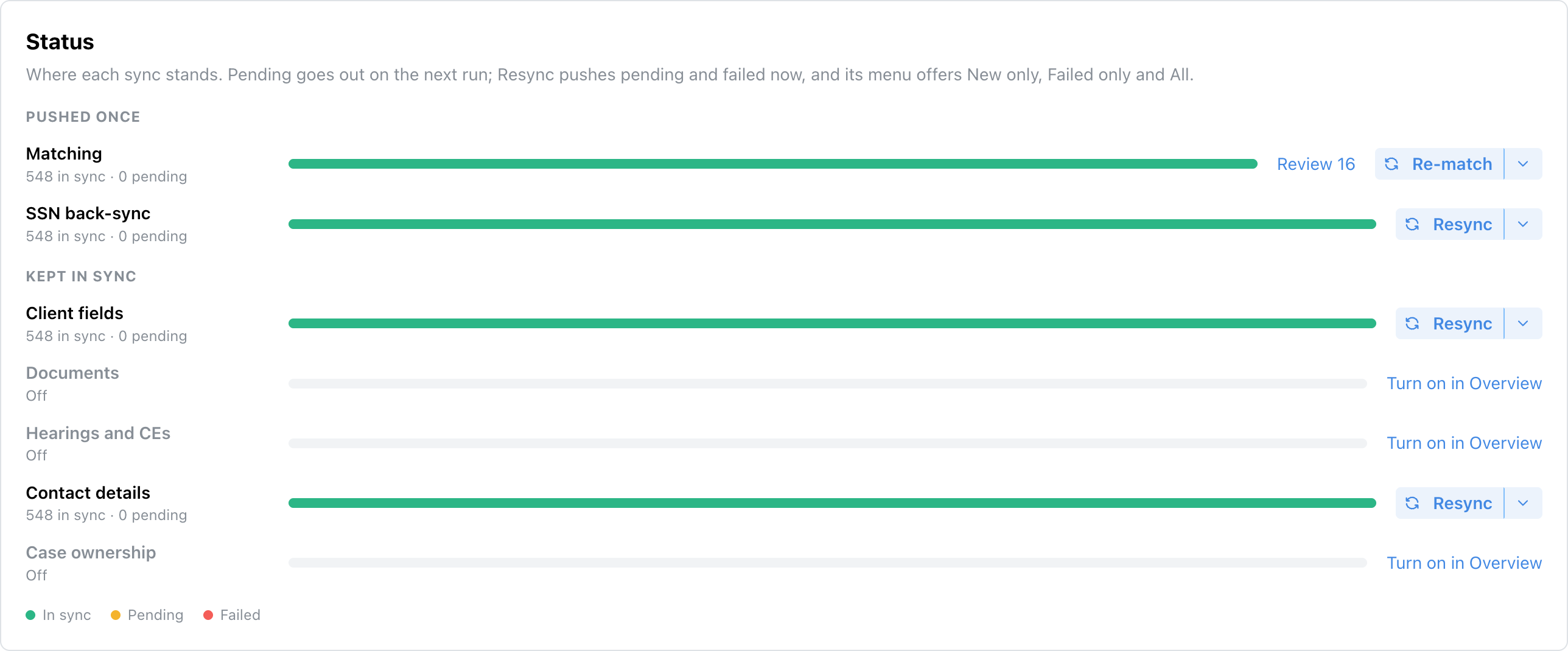
Neos example. Each capability has its own action and scope menu.
A queued action has not completed yet. While it is running, wait for the result before starting another retry.
Re-match all does not fix a client that is already linked to the wrong record. Change that client's link using Fix a client's integration match.
Retry one client's fields or documents
Use the individual retry when only one client or document is affected.
Open the client in Chronicle.
Open the client's actions menu and select Sync.
Check the integration's match and the affected item.
Use Sync or Retry beside the fields or document, when available.
Check the result in the client panel and the destination record.
If the client is unmatched, resolve the match first. If the document is missing from Chronicle, correct e-File monitoring before retrying the integration's document sync.
Re-upload all documents for one client
Use a full re-upload only when you need fresh copies of that client's documents in the destination.
In the client's Sync panel, open the integration's more-actions menu.
Select Re-upload all documents…, when available.
Review the destination and click Re-upload.
Check the resulting documents in the linked record after the run.
Re-upload creates fresh document copies. Existing copies remain in the provider, so the destination can contain duplicates.
If retry controls are unavailable
Check that the capability is enabled and your role can manage integrations. Client-message syncing has separate controls in the integration's message settings.
Salesforce, Docrio and partner-managed integrations can use provider-specific sync controls. Follow that integration's usage article when it does not offer the shared Sync tab.