
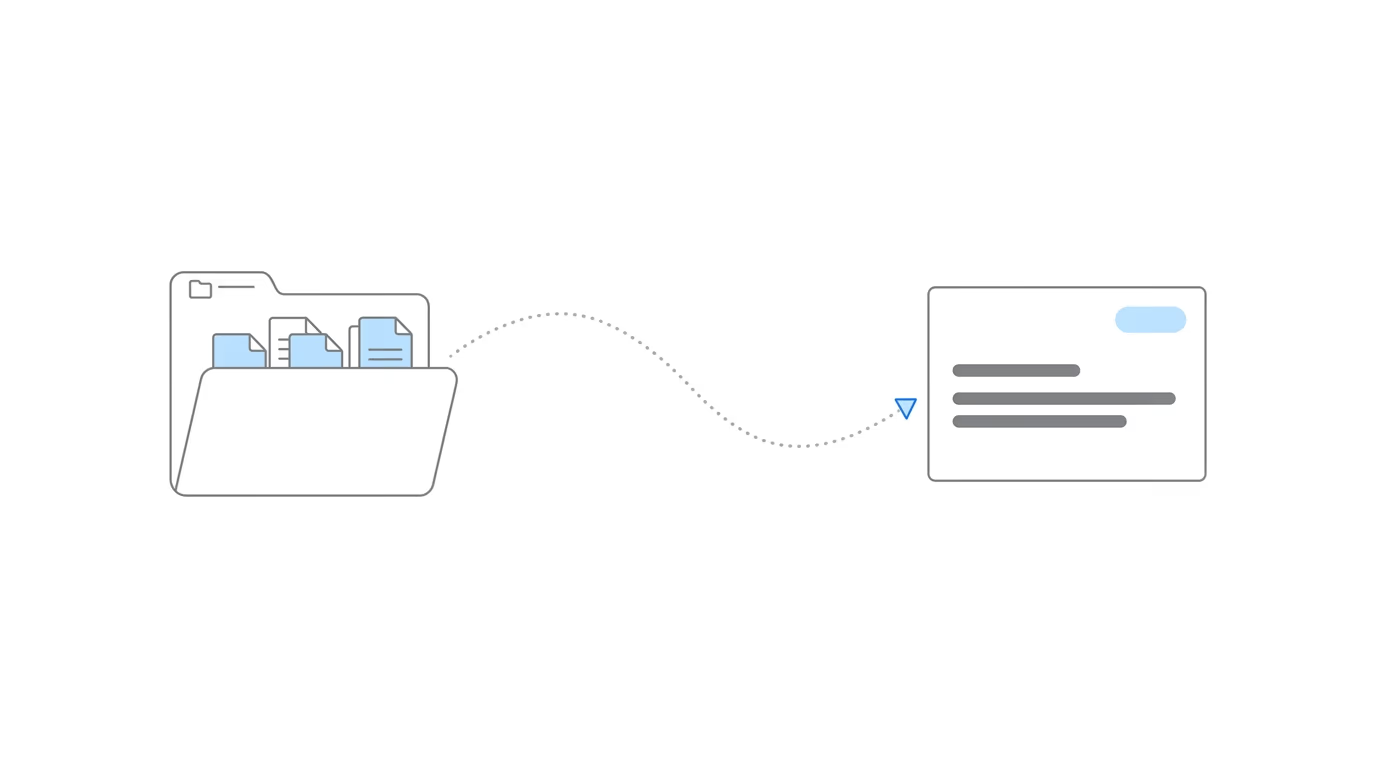
Chronicle launched its native Clio integration on April 15, 2026, during a live demo event, the latest session in the Advancing Technology in Disability Law series. The integration automatically syncs Electronic Records Express (ERE) data from Chronicle into Clio matters, replacing the manual data entry that disability firms have historically relied on to keep their case management system aligned with what the Social Security Administration is actually doing. For the product-level overview of what the integration does and what it unlocks downstream, see our announcement post on the Clio integration.
Fall 2026 Updates: What’s New in the Clio Integration
Since the April 2026 launch, the Clio integration has become a two-way sync: Chronicle still sends ERE data into Clio, and Clio now fills in SSNs, contact details and case ownership in Chronicle. Nikhil Pai and Will Yang walk through every change in this 12-minute update, recorded in November 2026:
Data Now Flows Back Into Chronicle
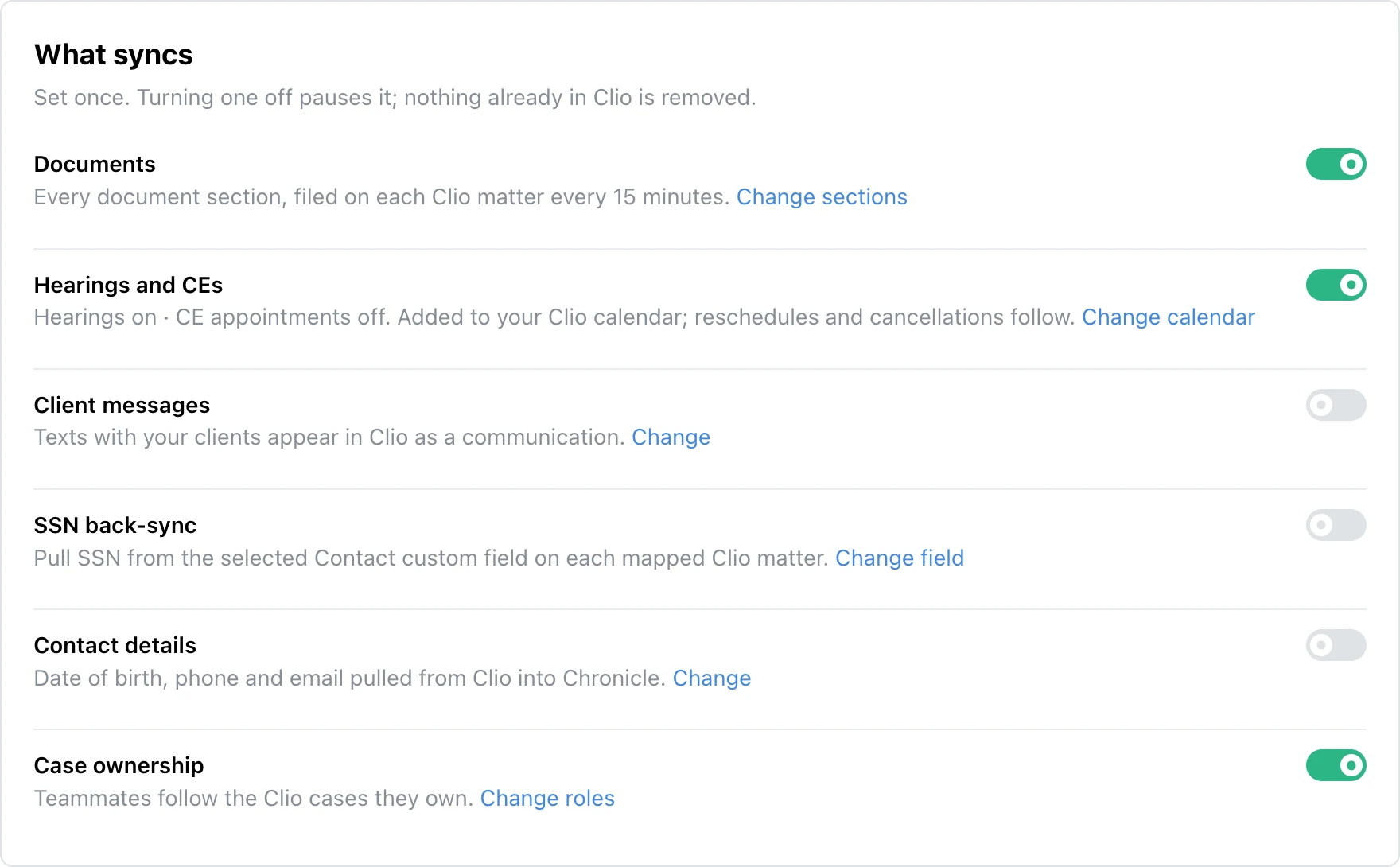
- SSN back-sync. Chronicle pulls missing SSNs out of Clio, so your team no longer enters them by hand before Chronicle can pull a case file.
- Contact details. Chronicle can pull date of birth, phone and email from the Clio contact or matter fields you choose. Chronicle Dispatch uses them to text clients and verify who they are.
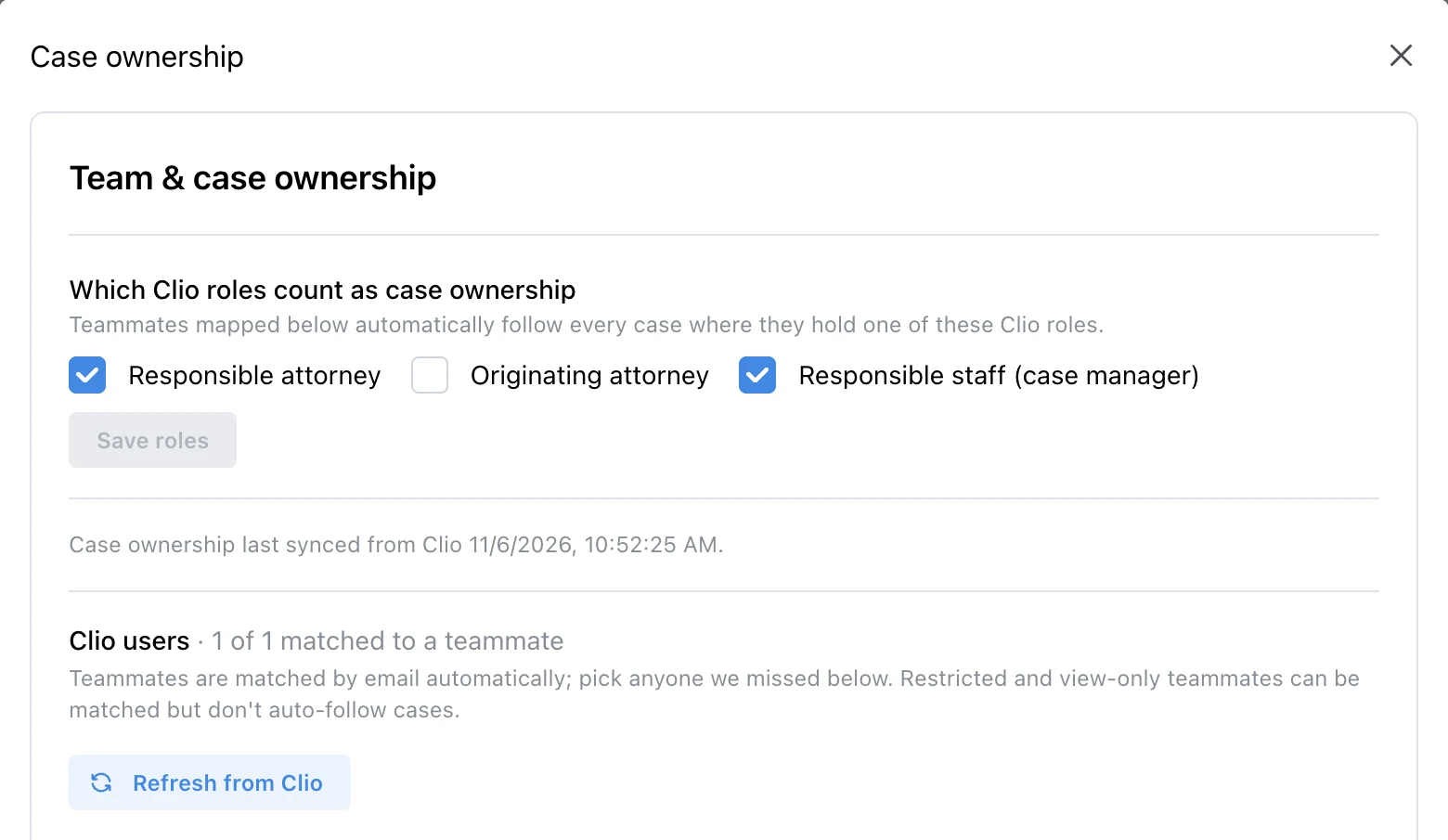
- Case ownership. Choose which Clio roles count, such as Responsible Attorney, Originating Attorney or Responsible Staff. Chronicle matches Clio users to teammates by email, and owners follow their cases in Chronicle automatically.
More of Your ERE Data in Clio
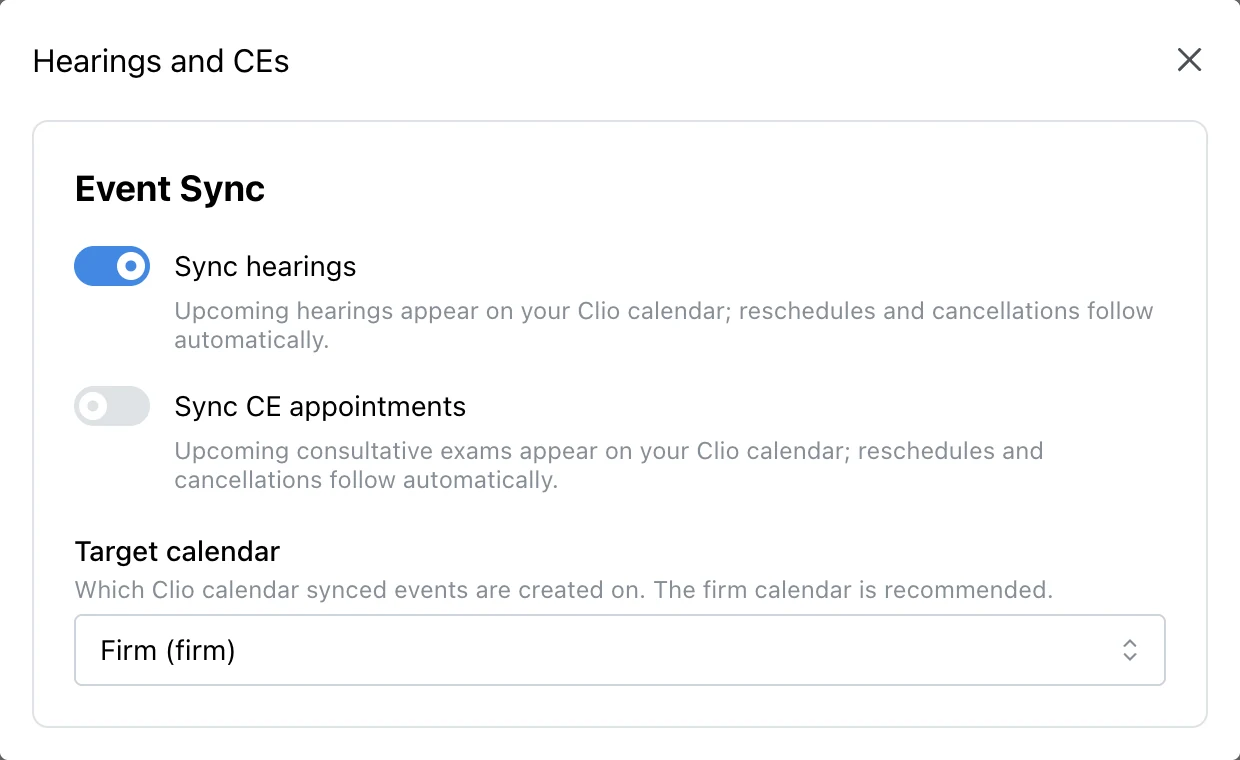
- Hearings and CEs. Sync hearings, consultative exams or both, onto the Clio calendar you pick.
- Client texts. If you use Chronicle Dispatch, texts with your clients are logged to Clio as a Communication or a Note, ready for a fee petition.
- Document sections. Sync only the ERE document sections you want, such as medical records or decisions.
A Sync Center to Check It All
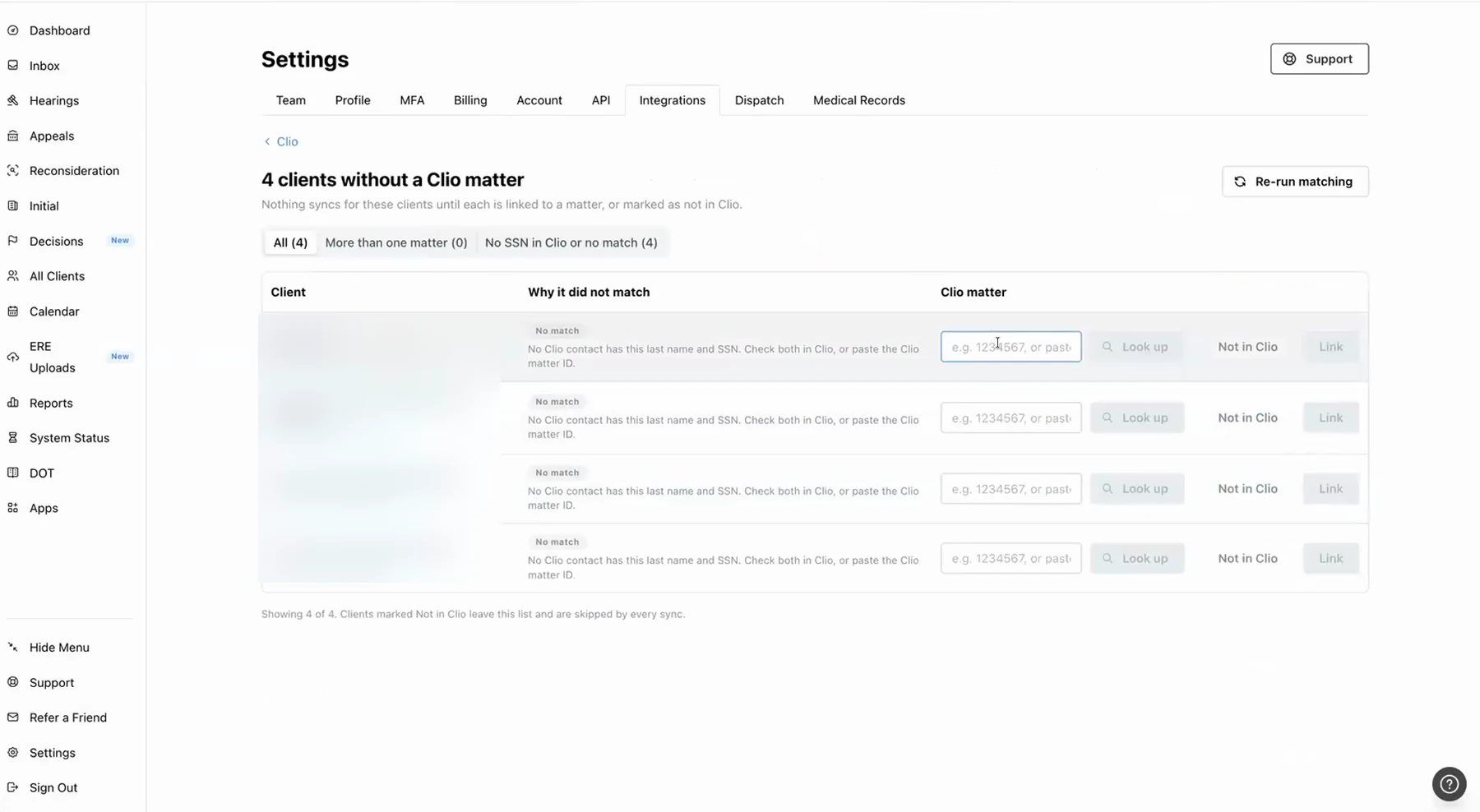
The new sync center shows what is current and what is pending for each data type, lets you trigger a resync, and lists any clients that did not match so you can link them by hand.
Each of these is its own setting, so you can turn them on one at a time. The basics (connecting Clio, matching clients, and mapping ERE status and dates) have not changed, and the original walkthrough below still covers them.
The Original Launch Walkthrough (April 2026)
Speakers:
- Nikhil Pai, Co-founder and CEO of Chronicle, the platform helping Social Security disability firms automate case tracking, manage ERE access, and streamline document workflows. Chronicle now monitors over 235,000 cases and 11.7 million SSA documents across 2,800+ disability professionals.
- Will Yang, Co-founder of Chronicle, moderator. Will leads community, partnerships and events at Chronicle, building educational resources for disability law practices.
The Core Problem: Manual ERE Data Entry Into Clio
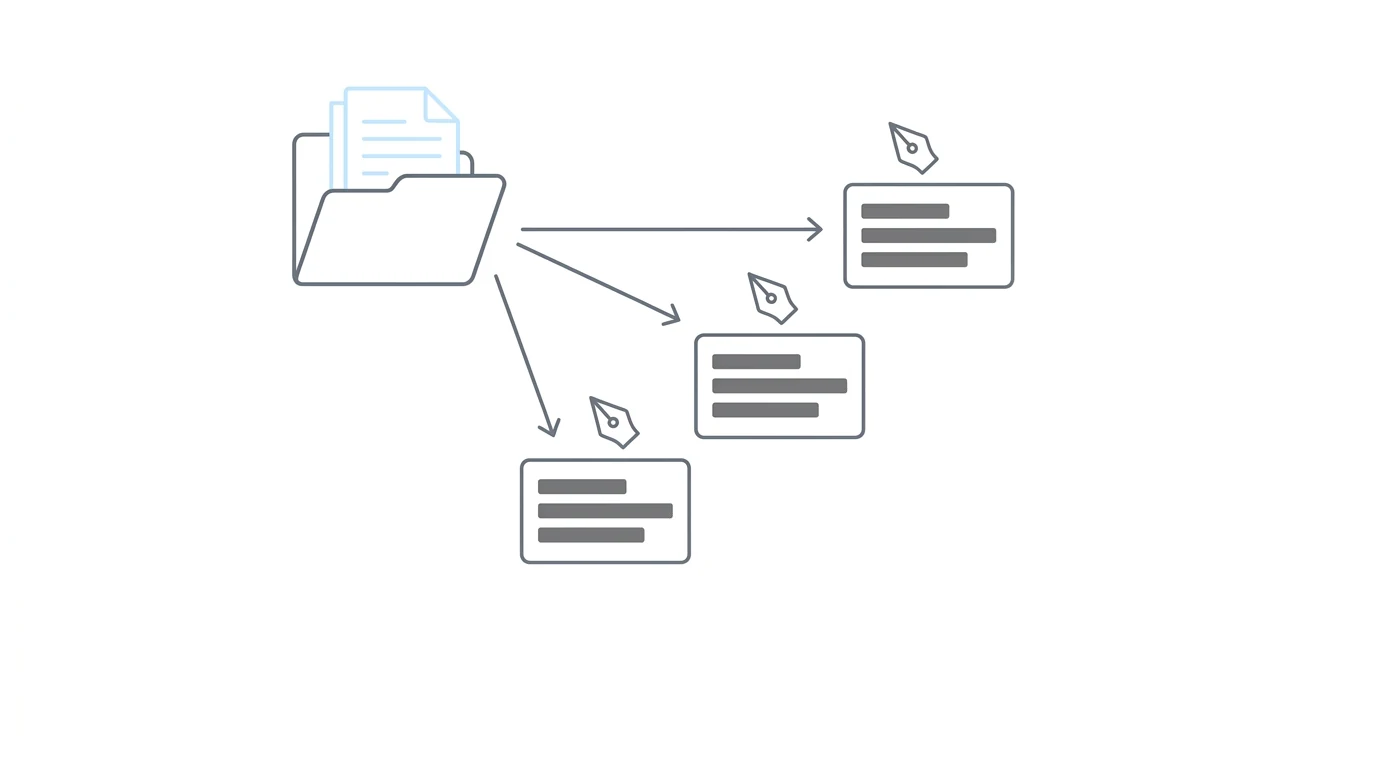
For firms using Clio as their system of record, case managers spend hours every week typing ERE data into Clio: status updates, hearing dates, decisions, documents. That workflow tax scales directly with caseload. More cases, more manual entry.
As Nikhil Pai explained: “The core problem we try to solve at Chronicle is understanding where your cases are at at the SSA.” The challenge is that Chronicle’s ERE monitoring lives in a separate silo from Clio, where staff actually do the work.
“The goal of this integration is to connect those two systems,” Nikhil said. That way, the flow of data from the ERE that Chronicle is monitoring automatically lands in Clio, without anyone typing it in.
Specific consequences of manual entry:
- Data entry falls behind: Your CMS stops reflecting what’s actually happening at the SSA.
- Staff toggle constantly: Case managers jump between the ERE and Clio to reconcile state.
- Automations don’t fire: Clio workflows and tasks can’t trigger on events the system doesn’t know about.
What the Integration Syncs
The native integration pushes three core data types from Chronicle into Clio every 15 minutes:
- Case status: ERE level, status, and decisions map into Clio matter stages.
- Calendar events: Hearings land as Clio calendar entries on the associated matter.
- Documents: Evidence and notices from the ERE sync to a Chronicle ERE folder inside the Clio matter.
This is a direct API connection, not a Zapier workflow or third-party middleware.
How the Setup Works
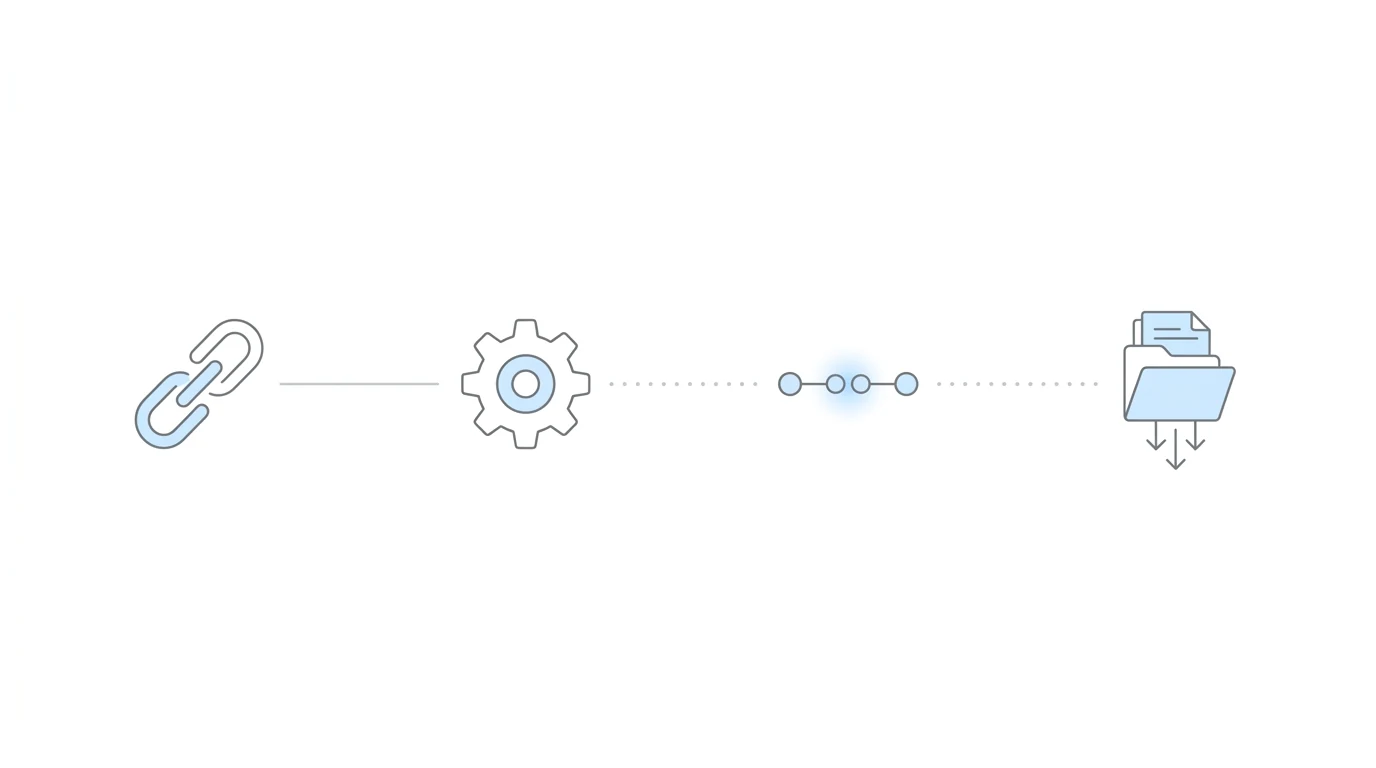
The full setup takes four configuration steps inside Chronicle. Authentication itself takes about 30 seconds; the mapping decisions are where most firms spend their time.
Step 1: Connect and Authenticate
A Clio admin logs into Chronicle, goes to Settings → Integrations → Clio, and clicks Connect to Clio. After authorizing access, the connection shows a green light. Every change Chronicle later makes to Clio appears under the name of whoever authenticated, a small quirk worth knowing before handing the setup to a specific person.
Step 2: Configure the Sync
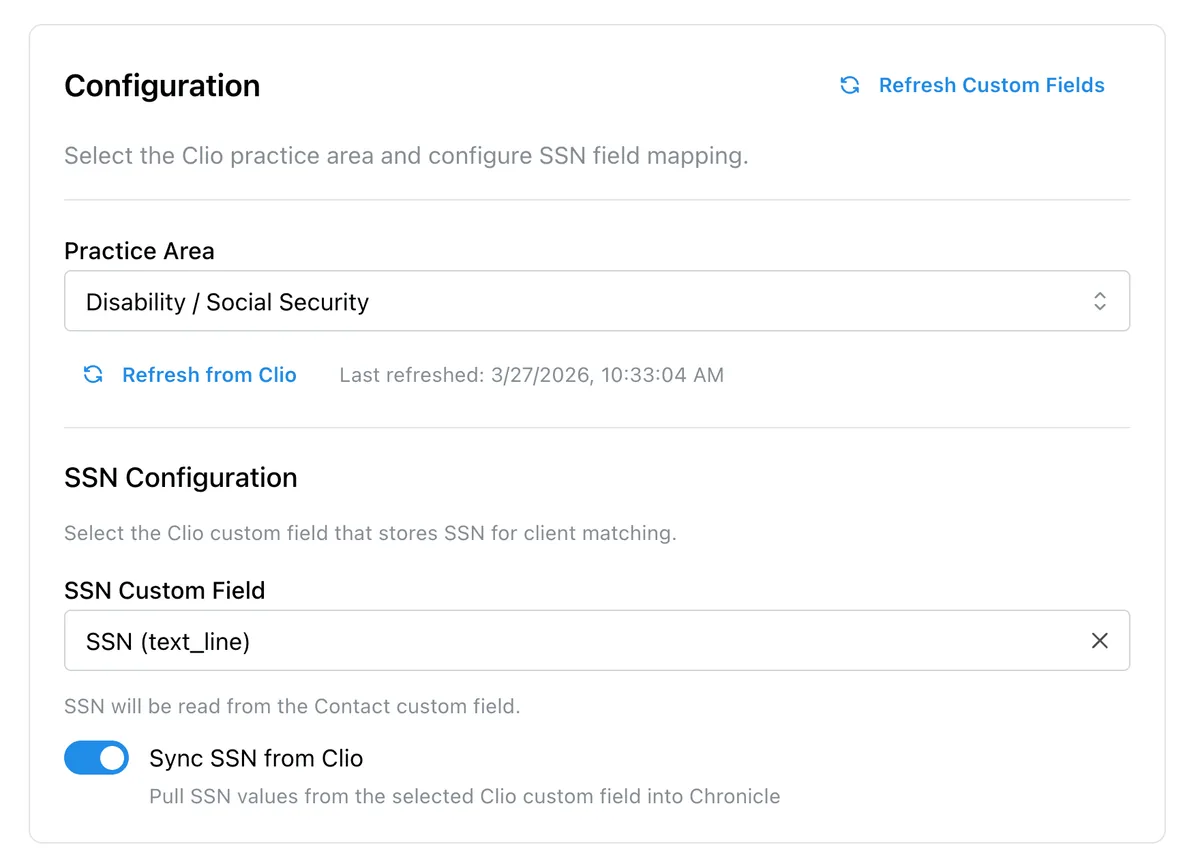
Select your practice area (Disability / Social Security) and tell Chronicle which Clio field holds the client’s SSN. SSN is not a standard Clio field, so firms typically have a custom field already. Chronicle can read the SSN from either the contact or the matter.
There’s also an optional toggle to sync full SSNs from Clio back into Chronicle, which saves manual entry on the Chronicle side but incurs the standard Chronicle per-case fee for monitoring.
Step 3: Client Matching
Chronicle matches ERE clients to Clio contacts using last name and last four of SSN. During the demo, Nikhil showed a 1,400-client account where every match resolved automatically except one. Liam Smith had multiple Clio matters with the same last name plus last four, so it surfaced as “Multiple Matches” for manual resolution.
The two failure modes are Multiple Matches (too many matters matching the same criteria) and No Match Found (last name spelling differs from the ERE). Unmatched clients export to a list you can work through manually.
Step 4: Matter Stage Mapping
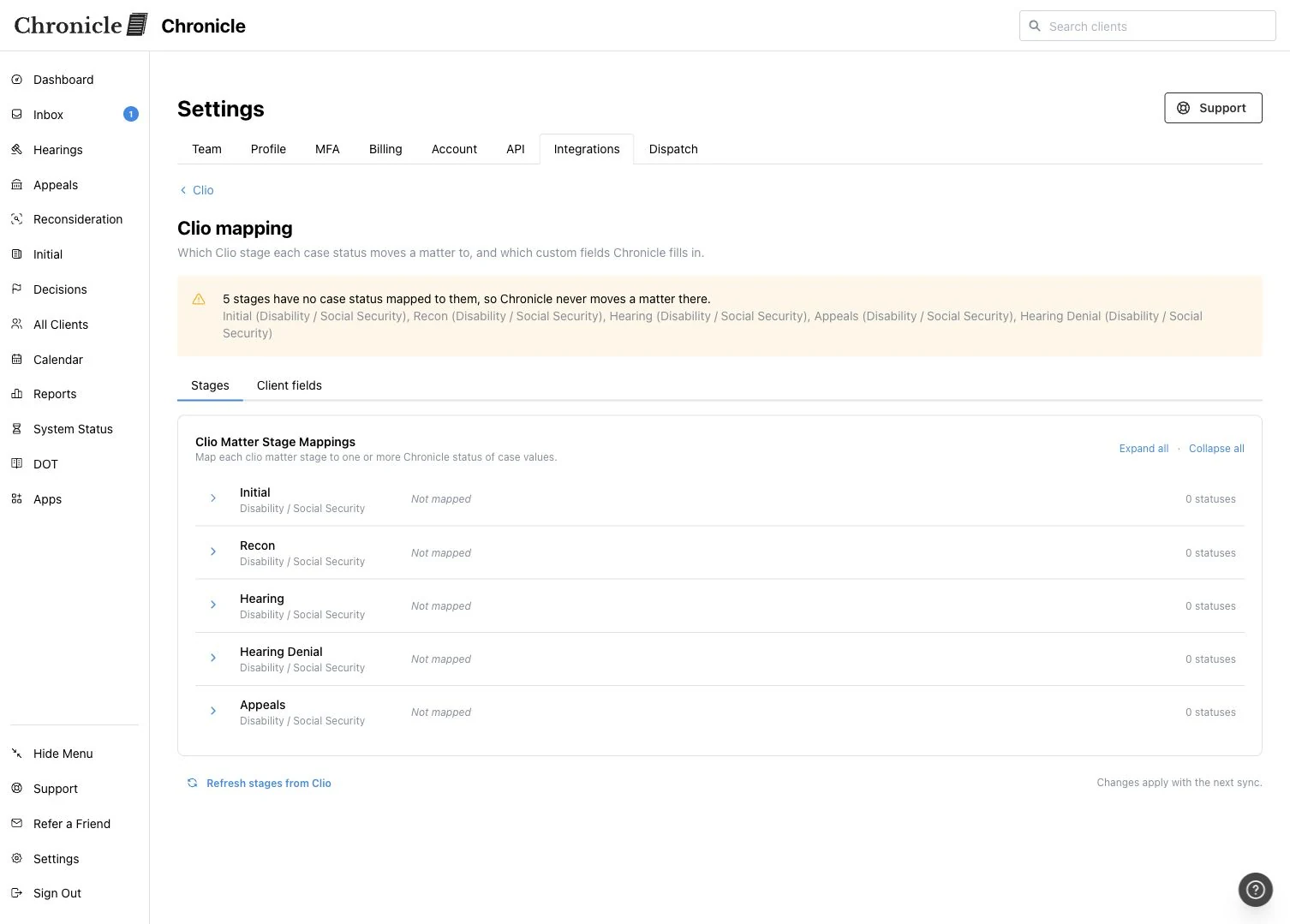
Each Clio matter stage maps to one or more Chronicle case statuses. For example: Initial stage → ERE “Initial Open”; Recon stage → ERE “Initial Close Unfavorable”; Hearing stage → ERE “Master Docket” or “Scheduled Hearing.”
Importantly, Chronicle will never overwrite manual changes: “We will never overwrite a stage change that you have done manually,” Nikhil emphasized. Once a case moves automatically, it won’t be moved back automatically, so manual overrides always stick.
Step 5: Field Mapping
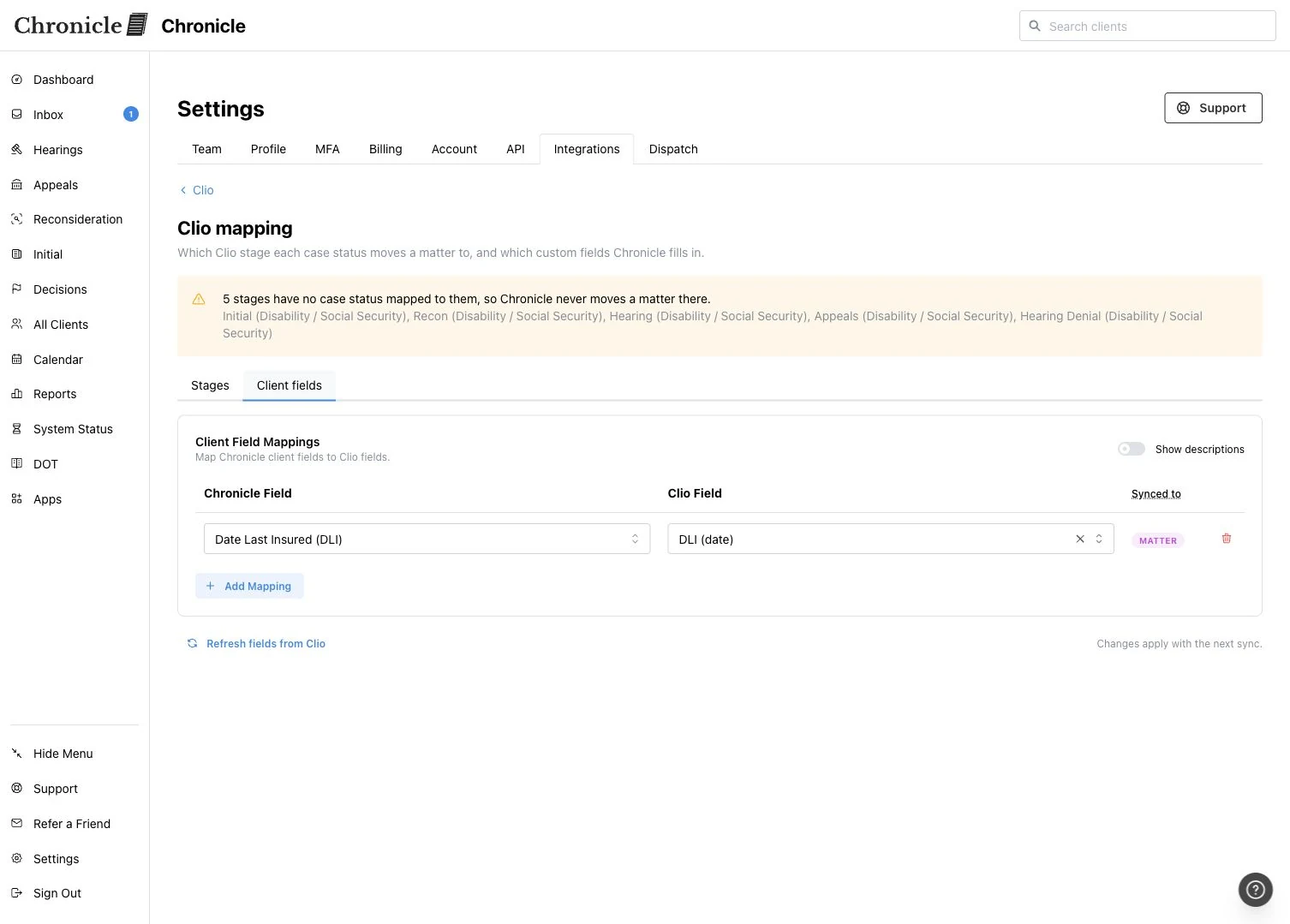
Map specific ERE data points to Clio custom fields: status of case, DLI, hearing date, office, and so on. Chronicle supports text and date fields. Related contact fields (like hearing office as a linked Clio contact) are not yet supported.
“We only fill when there are updates,” Nikhil noted. For existing matters, there’s a resync button that backfills all matters or a date-bounded subset.
Step 6: Document Sync
Toggle document sync on, and Chronicle automatically moves ERE files into a Chronicle ERE folder inside each Clio matter. To pull historical documents for existing cases, use Resync, then All, on the Documents row of the Sync tab. Documents sync every 15 minutes alongside the other data types.
This is also what unlocks Clio’s own AI features. As Nikhil put it: “In order for those features to work best, you have to have all of your evidence in Clio.” Without documents in Clio, the AI tools have nothing to work with.
Why Native Matters: A Direct API, Not Zapier
Most firms attempting this workflow before today used Zapier as a bridge. Chronicle’s native integration replaces that setup with a direct API connection.
As Will Yang put it during the recap: “You authenticate once, and from there, it’s configured, and it’s just feeding through.”
The practical differences:
- Cost: Included with Chronicle Pro. Nikhil on switching: “First and foremost, cheaper. You’re probably paying a hundred-some dollars a month for the Zapier integration.”
- Reliability: No third-party connector to debug when it breaks. Chronicle maintains the integration directly.
- Document sync: Zapier-based integrations to case management systems typically can’t move documents. The native integration does.
- Ongoing updates: As Clio evolves (especially its AI features), the native integration evolves with it.
Customer Proof: Travis McCracken
Travis McCracken at Golson, McCracken Inc. has been running the integration in production. He shared:
Chronicle has become an integral piece of my business operations, to the point that I simply could not run my company without it. Beyond the core functionality, the integrations and the consistent willingness to communicate, adapt, and improve the platform have driven meaningful, foundational improvements across our workflows.
The new Clio integration, automatically syncing documents from ERE, gives me confidence that everything is captured and organized without extra work. It’s rare to find a product and leadership team so aligned with the needs of its users, and I look forward to continuing to grow alongside Chronicle in the future.
Travis’s firm also helped shape how Chronicle handles the gap between “initial close unfavorable” and a filed reconsideration. They run an intermediate Clio matter stage for filed-but-pending appeals, which Chronicle populates automatically.
What’s Not Yet Synced
A few ERE data types were not part of the initial launch:
- Consultative exams (CEs): Now supported. Since the Fall 2026 update, CE appointments sync to the Clio calendar you choose.
- SSA information requests: Roadmap item.
- Medical requests: Roadmap item.
The launch covers the core data firms need in their CMS every day: status, hearings, and documents.
Availability & Pricing
Current status: Available today for all Chronicle Pro customers with a Clio subscription.
Cost: Included with Chronicle Pro at no additional fee. Chronicle Essentials customers need to upgrade to Pro to access the integration. A separate Clio subscription with admin access is required.
Setup time: Authentication runs about 30 seconds. Full configuration takes about 15 minutes of clicking. Stage and field mapping decisions typically take a few hours to a couple of days depending on how much a firm wants to customize. Chronicle recommends starting with field mappings before tuning stage logic.
Launch offer: Chronicle is offering a free white-glove integration setup session for Pro customers. Book a white-glove setup session to have the team walk through the configuration live.
Frequently Asked Questions
Does the integration add a Chronicle shortcut inside Clio?
Not yet. There is a shortcut in the other direction: from any Chronicle client page, an “Open in Clio” button deep-links to the matter in Clio.
We don’t change matter stage in Clio until the reconsideration is actually filed. Can the integration handle that?
Yes. Add an intermediate Clio stage (for example, “File Initial Appeal”) between Initial and Recon. Configure Chronicle to move matters into that intermediate stage on “Initial Close Unfavorable,” then out to Recon only when the ERE confirms Recon is open.
Are related contact fields supported for things like hearing office?
Not yet. The integration supports Clio text fields and date fields. Related contacts are not yet supported.
How does the integration distinguish “ready to schedule” from “scheduled hearing”?
The ERE exposes both as distinct statuses. You can map “Ready to Schedule” and “Scheduled Hearing” to different Clio matter stages, and Chronicle will route each accordingly.
Is there a native MyCase integration?
Not yet. Chronicle’s native integrations are Clio, Filevine, Litify and Neos. MyCase firms can currently bridge with Zapier for stage and field mappings, but Zapier cannot handle the document sync.
Do I need a dedicated Clio field for the last four of SSN?
No. Chronicle can read from any existing SSN field in Clio, full SSN or last four, on either the contact or the matter.
If I’m already using Zapier, why switch?
Cost and reliability. Zapier typically runs around $100+/month; the native integration is included with Chronicle Pro. Zapier connectors also fail intermittently and require your team to debug. Chronicle maintains the native integration directly.
Does data flow both ways?
Yes, since the Fall 2026 update. Chronicle sends ERE data into Clio, and Clio can fill in SSNs, contact details (date of birth, phone and email) and case ownership in Chronicle. Each back-sync is its own setting.
What should we turn on first?
Start small: turn on one feature, see how it works for your team, then expand, and revisit the settings page monthly to see what else to turn on. Of the Fall 2026 features, Nikhil calls the case ownership sync the most useful, because many firms work from their Chronicle notifications each morning, and accurate ownership keeps those notifications going to the right people.
Where did the Fall 2026 updates come from?
Customer feedback. Firms using Chronicle Dispatch wanted client texts saved in Clio for fee petitions, and firms were managing case followers in two places, Chronicle and Clio. Text logging and the case ownership sync answer both.
How are firms using the Clio integration with Chronicle Dispatch?
Dembo Law in Illinois uses both. Proffer letters reach the firm the day they are sent, so deadlines don’t slip, and Dispatch alerts the client right away. That let the firm learn, the same day a CE notice went out, that a client could not attend, instead of when the client received the letter. Every message is saved to the Clio case for a fee petition.
How can we learn more about Chronicle Dispatch?
Watch the Dispatch webinar on the Chronicle blog, or open the Inbox tab in Chronicle to see what Dispatch would do for your caseload.
Upcoming Events
ERE Data in Filevine, Automatically: Chronicle’s Native Integration
The same workflow, built for Filevine. Walkthrough of the full setup, matter mapping, and document sync.
April 16, 2026 | Register
About This Series
This session is part of Chronicle’s Advancing Technology in Disability Law series, spotlighting tools, workflows, and integrations helping disability firms modernize how they work. Upcoming sessions cover additional CMS integrations, automation patterns, and partner launches.
Clio joins Chronicle’s growing ecosystem of partner integrations, including our native Filevine, Litify and Neos integrations, the Superinsight medical chronology integration, and the Benny integration for automated SSA forms.
Key Takeaways
-
Manual ERE-to-Clio data entry is eliminated. Case status, hearings, and documents sync into Clio matters every 15 minutes without anyone typing them in.
-
Native integration beats Zapier on cost, reliability, and scope. Zapier cannot sync documents, costs extra, and breaks without warning. The native integration is included with Chronicle Pro.
-
Setup is fast; mapping decisions are where firms spend time. Authentication takes 30 seconds; configuration takes 15 minutes. Customizing stage logic to match your firm’s workflow is the part worth thinking through carefully.
-
Chronicle never overwrites manual stage changes. Automatic moves happen once; manual overrides always stick, so your team’s exceptions are preserved.
-
Document sync unlocks Clio’s AI features. Clio’s AI needs evidence in Clio to work. The integration puts it there automatically.
For questions or to learn more: Contact support@chroniclelegal.com or book a Chronicle demo.
Full Transcripts
Fall 2026 Update (November 2026)
Lightly edited for readability.
Will Yang: Hello, everyone, and welcome to this session on what’s new with Chronicle and Clio’s native integration. We’re going to talk about everything that’s changed over the last few months since our initial April 2026 release of the integration. In case you are new here and don’t already have a background in what Chronicle and Clio can do together, be sure to watch the April event we ran, because it gives you a good foundation for the baseline capabilities of the native integration. It also covers exactly how to connect your Clio account to Chronicle, what it’s like to match your Chronicle clients to your existing records, and how to map ERE status and dates into your fields. So be sure to start there. Now I’m going to turn it over to Nikhil, who’s going to talk about what’s changed since that initial release.
Nikhil Pai: Awesome. Number one thing to know is that these integrations are the lifeblood of every firm. They are how your systems stay up to date. Your system of record is your case management system, like Clio, and so having real-time data is super important. What we’ve done since April 2026 is expand what we’re able to sync into your case management system, so you have even more details recorded there that you can build automations off of. And we as Chronicle are able to pull more information out, so our automations and our systems are easier to use. If you don’t know, we recently launched a tool called Dispatch that allows Chronicle to have automated communication with your clients for things like CEs and forms requested. Since then, we’ve expanded our Clio integration to make sure those things are easier to set up in both directions.
Part one: data now flows back. Beforehand, Chronicle was all about pushing information from Chronicle to Clio. We’re now able to pull more information back out. The first thing we can pull is missing SSNs. Chronicle can more easily find the SSNs in Clio, so your team does not need to manually enter them into Chronicle each time you want documents pulled. With SSNs, we’re able to give you earlier access to your case files.
Second is contact details. If you are using Dispatch, we need your client’s phone number and date of birth for verification and texting. Chronicle is now able to pull those contact details out of your case management system, like Clio.
And finally, case ownership. Beforehand, you had to manage case ownership in two places: followers in Chronicle and owners in Clio. Now, if you’re doing all that work in Clio, Chronicle can just sync it, so everyone who is an owner in Clio is also an owner in Chronicle and gets the right notifications. Each of these is its own setting, and you can pick and choose what you turn on.
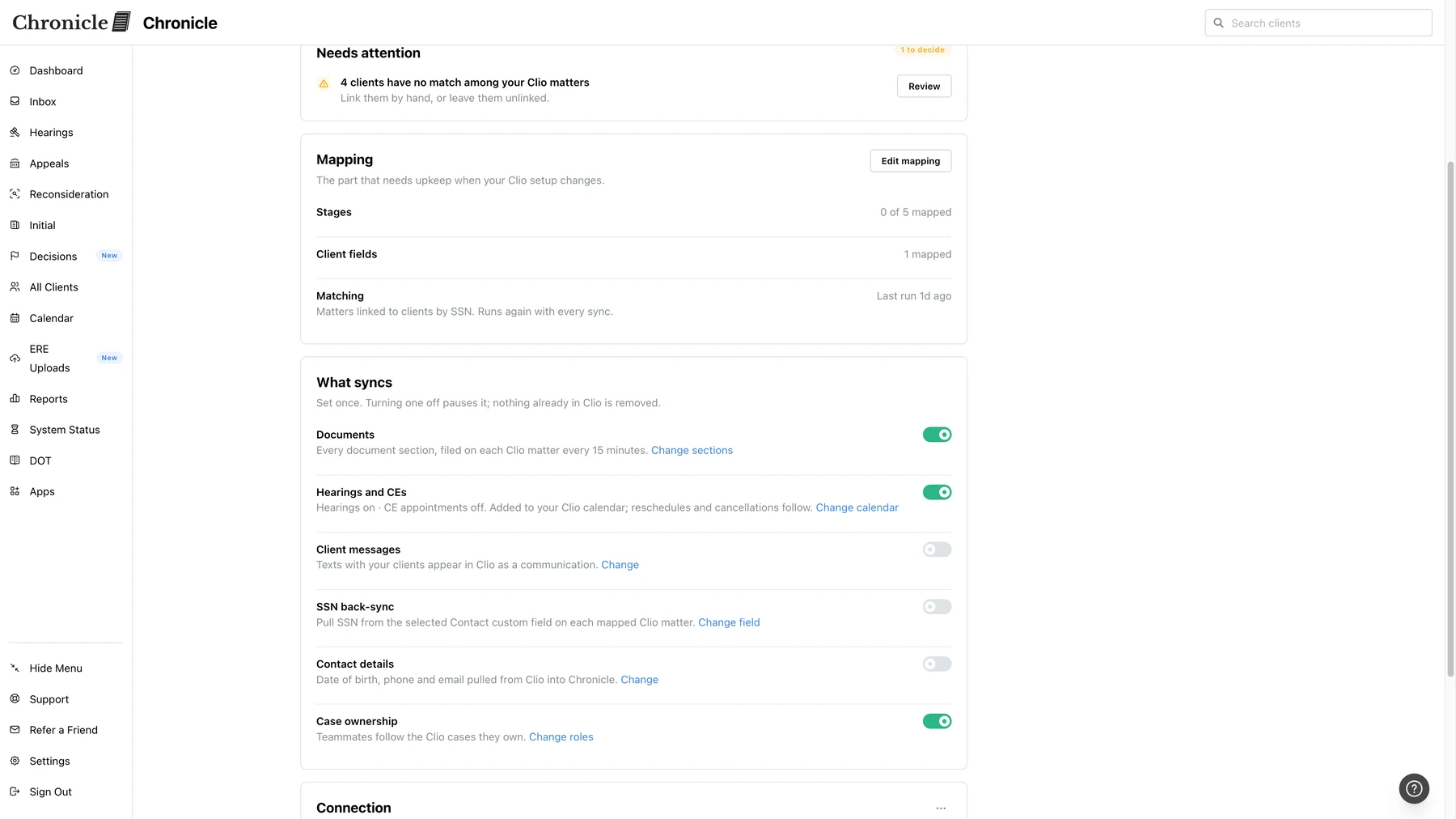
We also have a lot of other data we now push into Clio. As I was just mentioning, Chronicle can pull out SSNs, contact details and case ownership, and this is what it looks like in Chronicle, where each one can be turned on and configured. For team following, you’re able to choose which roles you want to sync from Clio into Chronicle, such as responsible attorney, originating attorney or responsible staff, and you’ll be able to match the Clio users to their Chronicle users. We’ll automatically match them on email, but you can override or do any additional matching as needed.
Then for CEs and appointments, you can choose what you turn on and which calendar they go on, so you can do just hearings, just CEs, or both. And you’re also able to turn on text logging. If you’re using Chronicle Dispatch to contact your clients, those messages can be logged into Clio as communications or notes, so if you’re running a fee petition, it can easily be exported from Clio.
Will Yang: And if folks are not using Dispatch, how can they learn more?
Nikhil Pai: To learn more about Dispatch, we have a great webinar on our blog, or you can go to the Inbox tab in Chronicle to see what Dispatch can do for your firm based on your caseload.
Then for our document sync: before, we would sync every single document from Chronicle into Clio. Now you can choose which sections you want. If you only want medical records or only want decisions, you can turn on just those syncs instead of getting all documents loaded into Clio, which can save you a little on storage costs.
And finally, we’ve made a lot of updates to our sync center, where you’re able to see exactly how your syncs are running, what is up to date and what is not, trigger resyncs, and review which cases we can’t match so you can manage those more easily.
Will Yang: As you probably gather at this point, with this update Chronicle is able to more robustly send your ERE data into Clio, and Clio can fill in the SSNs, contact details and case ownership in Chronicle. With this improvement on the two-way sync side of things, your firm is able to work more efficiently than it could before. Now we’re going to switch gears and show you some of these changes in Chronicle, so you can get a sense of what the user experience looks like.
Nikhil Pai: Awesome. Let me just share my screen. This is Chronicle. As you’re familiar with, you just go into Settings and then Integrations. This shows you the list of all the integrations you may have set up. You’ll find your Clio integration and click Manage. If you’re new, set up your integration: just click Add Integration, select Clio, and it’ll walk you through the process. If you’ve already been using our integration, you’ll just go here and click Manage.
Once you’re in, you can see all the new features we’ve launched. You still have the ability to edit and map fields between Chronicle and Clio to fill out custom fields, and you can now go down to What syncs to see the things you can sync in either direction. For documents, you can change sections and adjust which sections you want synced. You can turn on hearings and CEs and also select which calendar and which event types you want synced. For client messages, which relates to Dispatch, you can turn that on and choose whether you want each one to be a communication or a note, depending on how you structure your data.
For contact details, again for Dispatch, if you want us to pull in contact details, you just let us know which fields to use from your contact or your matter. You’ll also be able to turn on the SSN back-sync. And finally, case ownership, where you choose which roles from Clio you want synced and how to match between Clio and Chronicle. If you want a specific user to be associated with a Clio user, you just add them, and that will match them up.
You can also now go into the sync history to see what’s going on with your syncs. If there’s anything wrong, it will be flagged. And especially for fixing matching: if you have any clients we could not match because of a hyphenated last name, you can now click Review, see that list, and plug in their Clio matter ID to attach them to the correct case. And that’s pretty much it.
Will Yang: Awesome. If you have any questions about how the Clio and Chronicle direct integration works, feel free to reach out to us at support@chroniclelegal.com. As a reminder, integrations are included on the Chronicle Pro plan. And if you don’t currently use Chronicle, you’re welcome to book a demo with us, either using the QR code on the screen or by going to chroniclelegal.com/demo.
Let’s cover a couple of commonly asked questions about these integration updates. First question for you: can you share a little more about the inspiration for some of these changes? Did they mostly come from feedback from firms that used the first version of the Clio integration, or, in general, how did you approach what we’ve built and released today?
Nikhil Pai: Yeah, for sure. At Chronicle, we always believe the customer comes first, so we listen to every piece of feedback we get, and a lot of this did come from firms. The ability to sync notes for Dispatch was key for fee petitions, so that’s why we built a lot more into this two-way sync for firms using Dispatch. And for followers, we heard that this was just manual work; people had to do things in two places, and we wanted to make that easier. It always comes down to how we can make firms’ lives easier.
Will Yang: From the Clio firm implementations you’ve seen, what are some of the key decisions firms have to think about when toggling on these different pieces of the integration? Are there certain things, like case ownership, that you find get used more than others, or in general, how should people approach the setup?
Nikhil Pai: It always depends on your firm size and your internal processes. The thing I always recommend with our integrations is to start small: turn on one feature, see how it works for you, and then expand. Have a monthly cadence of revisiting the settings page to see what else you can turn on that you may have skipped in your first round, so you roll things out over time. I think the new one that is definitely the most useful is the ownership sync, because firms love Chronicle notifications. They’re the lifeblood of how firms work each morning; they check their notifications from Chronicle to know what’s important to work on. So having accurate ownership is super important, and turning that on automates a lot of it.
Will Yang: And last question: what success stories have firms using the Clio integration shared with Chronicle, in terms of time savings, efficiency gains or overall staff satisfaction?
Nikhil Pai: Yeah, for sure. As folks know, automation is the name of the game, especially as you grow your business. You don’t want to have to keep growing your headcount, and that’s one of the core problems Chronicle tries to solve. That’s where this integration, being able to update fields or move case phases, lets a lot of automations trigger without manual data entry, and that really compounds the time savings for your staff.
A great example of where these automations are saving firms time is Stacy Dembo of Dembo Law in Illinois. She is using Chronicle Dispatch and our Clio integration, and just being able to get proffer letters the day they’re sent out, so you don’t miss any deadlines, saves a lot of time. When you combine that with Dispatch, which can alert your clients, she is able to catch a client who can’t attend a CE the day that CE notice was sent out, rather than when the client got it. Because of the automations, it’s all triggered and sent to the client immediately, and saved to their Clio case for whenever they need it for a fee petition or anything else.
Will Yang: Awesome. And with that, that concludes our recap of what’s new with Chronicle’s Clio integration. If you have any other questions, feel free to reach out at support@chroniclelegal.com. That’s it for this time. Thanks, everybody.
Nikhil Pai: Thanks.
Integration Launch Event (April 2026)
The following is a cleaned and lightly edited transcript of the full integration launch event.
Welcome and Series Introduction
Will Yang: Hi everyone, and welcome to today’s session, Eliminate Manual Data Entry: Chronicle and Clio in Action. This is part of Chronicle’s Advancing Technology in Disability Law series, where we highlight tools, workflows, and integrations that are helping disability firms modernize how they work.
As a heads up, in case it’s your first time with us, you will receive a full replay right after today’s event, so there’s no need to worry about missing anything. We’ll also be taking questions throughout in the Zoom chat.
By the end of this session, you will be leaving with these takeaways. First, you’re going to learn about how Chronicle’s native Clio integration eliminates manual ERE entry. You’re going to also learn what the setup process looks like on the Clio admin side, and then field mapping, followed by matter stage mapping. Nikhil’s going to walk us through that. We’re going to also go over how ERE data will flow into Clio automatically.
Then we’re going to learn why native integrations are so much more reliable and cost-effective than if you’ve been piecing this together with Zapier or something else, and how to get started with a free white-glove setup session.
For submitting feedback at the end of this workshop, we have a CMS integration setup checklist, so if you’re looking for a guide as to how to integrate your case management system into Chronicle later on, be sure to fill out that feedback form, which we’ll share at the end of the workshop. It includes details of everything we went over today, as well as how to do this across Clio, Filevine, Litify, and more.
For a quick introduction from me, I’m Will. I focus on building education, partnerships, and collaborations that help disability practices adopt better tools and stronger operational standards. I’m joined today by Nikhil, the founder of Chronicle, a platform that’s helping Social Security Disability firms automate their case tracking, ERE monitoring, and document workflows.
Chronicle is now monitoring over 177,000 cases and 7.5 million SSA documents across 2,100 disability professionals. Nikhil’s going to walk us through why we built this integration and how this workflow works exactly from here. Nikhil, feel free to take it away.
Why We Built This
Nikhil Pai: Great, well, great to be talking with you all. I’m super excited about this presentation today. It’s been a long time in the making.
The core problem we try to solve at Chronicle is understanding where your cases are at at the SSA. If you’re running 20 to hundreds of thousands of cases, at any point it can be overwhelming, since the data’s always changing. These cases take 18 months, and so you’re not tracking each one every single day. Chronicle is built to monitor that.
However, Chronicle is monitoring the ERE. It’s a silo of data, meaning you have to check Chronicle all the time, or get our notifications to know what’s going on, whereas you usually have a case management system such as Clio, where you’re constantly triaging, doing tasks, having your case managers or your staff take notes. It really is your system of record.
The goal of this integration is to connect those two systems. That way the flow of data from the ERE that Chronicle is monitoring is able to automatically end up in your case management system, so you don’t have to do manual data entry, and it means that you can build automations and keep your systems more up-to-date.
The key things we’re really trying to solve for: first is manual data entry. There’s all these things like the DLI, the AOD, the hearing date, the status of the case, the decision, that currently live in the ERE. A lot of staff is mainly entering that into Clio to trigger automations or move the stage forward in Clio. We’re trying to make that automated.
Second is the actual set of documents in the ERE. To have compliance, to have your record of all your documents, you are often downloading that out of the ERE and Chronicle and putting it into Clio. We want to automatically push those things for you, so you don’t have to do that manual process. It’s really about this manual data entry problem and connecting those two systems together.
It works in 4 simple steps. First, you have to connect and authenticate. We are an approved plugin with Clio, so we’ll have a direct connection to your Clio system, and you’ll have to authenticate that. Then you configure your sync, you tell us how we actually match the Chronicle clients to the Clio clients and matters. Then you can configure your matching, how this data flows into each field, or stage, or folder. And finally, you can start to sync and actually start seeing that data flow into Clio.
With that, let’s go into a live demo.
Live Demo: Connect and Authenticate
Nikhil Pai: This is your Chronicle dashboard, just a level set. You’re probably used to logging into this every day, where you’re seeing all of your case statuses, your decisions, and so on. And then you also have your Clio dashboard. This is my Clio account, so it’s a little bit empty, but you can see in here, I have all my matters that are open in Clio. Very similar, probably, to the setup you have.
To make it more concrete, in my Clio account, I have my stages. These are very basic, you would likely have more, but I have initial, recon, hearing, and appeals. You may have additional stages, but each matter goes through a set of stages in Clio.
To actually set up this integration, we’ll start with the authentication step. First, you go into Settings, then Integrations, and there’ll be a tab for Clio. As you can see, we have our other available integrations, but we’re focusing on Clio today. To authenticate, it’s super simple, I just click Connect to Clio.
That will open this page, and we’ll request that we have the ability to see things in your account. You’ll allow access, and that will create the connection. Now if I go back to Integrations in Clio, I’ll see that I’m connected, and it’s a green light.
I just want to make one quick note here. Whoever sets up the integration, all the actions that Chronicle will take will come underneath their name. Right now, when Chronicle updates a field or uploads a new document into Clio, it will say “Nikhil” made that change in Clio. That’s just a quirk, so just know whoever sets up this integration, their name will be attached to all the changes Chronicle is making.
Live Demo: Configure the Sync
Nikhil Pai: The next step is the configuration side of things. You need to actually set how we match clients. The way Chronicle matches a client to a matter in Clio is based off of last name and last four of SSN. So just know, if your Clio matters’ last names don’t match up with the ERE, we will fail to match, and I’ll show you how that actually manifests.
To configure it, first you select a practice area. Everyone here should be doing Disability Social Security, so you’ll just select that.
Then you tell us where the SSN is kept in Clio. SSN is not a standard field in Clio, so you will have to have created it yourself. Likely, you have it somewhere already. You go down this list and select which one it’s on. We are able to pull it both from the contact or from the matter, so you could have it in either place. Once again, it’s the last 4 of the SSN we’re checking against.
You have the option to also turn on a sync of SSNs from Clio into Chronicle. As you probably know with Chronicle, to activate documents on each client, you have to manually enter in the SSN each time. If you turn this on, when we match a client based on the last four, we will also pull that full SSN into Chronicle and start monitoring the files. Just note there are the associated fees of that happening automatically.
Live Demo: Client Matching
Nikhil Pai: Once these are set, your account is now able to match clients, and you’ll actually jump down to the client matching section.
We will automatically start matching new clients, but if you want to match all previous clients, just click this blue Match Clients button, and we will run a full sync. With our movie magic, I’ve already synced all my 1,400 clients between Chronicle and Clio, so it’s already able to check between the two, and it’s found a match for everything.
But there was one that failed to match: Liam Smith. Here, you’ll be able to see that Liam Smith actually had multiple matches, so we failed to match them in Clio. If there’s no matches, it would show no matches. The two common scenarios are either multiple matches, meaning there’s too many matters, and we don’t know which one to choose, and you’ll have to resolve that in Clio, or no matches, which means we failed to find the client based on last name and last four of SSN.
You can export this list if you want to and work through it. Initially, there likely will be quite a few that are not matched if you have messy data in Clio.
Live Demo: Matter Stage Mapping
Nikhil Pai: Once it’s matched, you now have the ability to set up field mappings. This is to the point of manual data entry, how you can actually start mapping data from Chronicle into Clio.
I’ll start with the stage mappings. Just to remind you, in Clio, each matter has a stage, and right now I have my four set up. If I go into Chronicle and go down into Stage Mappings, I’ll have the same four Clio stages, and now I can choose, based on the ERE status of case, what moves it into that stage.
If I want something to move automatically into the initial stage, I can click this list, and I’ll see all the possible stages in the ERE. Unfortunately, there are a lot, this is quite a messy list, we’re going to do some work to clean it up, but I can say, when the initial is open, I want to move into the initial matter stage in Clio. Same here for recon.
Alternatively, if I want to automatically move once the case is closed, I can say, I want to move to recon when it is “initial close unfavorable.” So I can go into the initial list, find the close, and say when it is T2 close unfavorable, move it automatically into recon.
You can select multiple. For example, in hearing, I can move it to hearing automatically when it hits master docket, but I can also say I only want it to be when it’s hearing scheduled.
Just know, there’s a lot of stages. It’s a little bit of a trial-and-error process where you will want to turn some of it on and see how it moves forward. We will never overwrite a stage change that you have done manually. We will automatically move it once, but we will never move it again, so if it’s in recon, and you manually move it to Hearing, we won’t move it back to Recon later.
Live Demo: Field Mapping
Nikhil Pai: Then we have the field mappings. In Clio, you’re probably used to having a set of custom fields on your clients. Here, for example, I have status of case, DOI, Office, and hearing date. You may have more, you are able to configure these yourself, but I’m sure you have an admin who’s able to do so.
I can go in here, and I’ll see a full list of these Clio fields, and I can map Chronicle data into those fields. So I can do status of case goes into status of case. I can do DLI into the DLI field, and Office into Office. That will go into those respective fields, and I’ll save the field mapping. Chronicle will automatically update Clio going forward with this data.
Just note: when we start, we will never go and backfill the data, we only fill when there are updates. If you ever want to resync the fields and make everything get updated, you can click this resync button and do all, or new only, or from a specific date, and we will go and update all your matters from that date.
Live Demo: Document Sync
Nikhil Pai: The last thing you can configure is the document sync. You can enable the document sync, and that will automatically move ERE files into Clio. If I turn it on, it’s just a toggle, it will start moving all new documents in, and then I can click this Backfill button if I want all of my old documents to show up in Clio.
To show you what that looks like, on this Clio case for Paul King, I can go into my documents folder, and there will be a Chronicle ERE folder right there. If I go in, I have all my sections, and I can click into them, and I will actually have all my documents that were in Chronicle also appear in Clio. I can click on these, and I’ll be able to view them from Clio.
This is also really great if you’re using any of the Clio AI tools. Having these documents in Clio enables a lot of those AI tools.
You can always, to monitor how things are going, go down into the sync history, and view what’s happening. We’re syncing every 15 minutes, so just know that is the delay you can expect. Every 15 minutes, we will sync new data.
Live Demo: Automations in Clio
Nikhil Pai: One last bonus piece of content: automations in Clio. Assuming that you use matters and matter stages, and you have tasks associated with each stage, you may have used the Clio feature of tasks and task lists.
I have this task list right now for preparing that has “confirm hearing availability,” “contact client,” “review medical records.” These are the tasks I want assigned out when we get to hearing.
I can go into the automation settings of Clio, settings and automated workflows, and I can do matter stage change, assign task list. For disability, when it goes from Recon to Hearing, I can assign my task list “Prep Hearing” to responsible staff.
Now in Clio, whenever Chronicle automatically moves the case to hearing, this task list will get assigned to my responsible staff, so they can start working that case and know what they need to do. And that is the live demo.
Workflow Shift and Why Native Matters
Will Yang: Just to recap for folks: before this integration, case managers had to monitor the ERE, then manually enter a lot of these status updates, hearing dates, and documents into Clio for every case. Now this is all fully natively integrated. It’s automatically updating once you set up this integration. When your staff pulls up the client, all the relevant information and documents will be there, and there’s no toggling between systems.
The reason why these native integrations are so much more powerful than, for example, if you configure this with Zapier is because, as Nikhil showed you, you authenticate once, and from there, it’s configured, and it’s just feeding through.
Also, the cost is fully included in your Chronicle Pro subscription if you are already on that tier, whereas if you are using Zapier, you probably are paying for a separate Zapier integration on that side. There’s a direct API, there’s no middleware to worry about breaking if Zapier ever had an outage. It’s just Chronicle talking to Clio and Clio talking to Chronicle.
In general, we’re going to maintain updates with this integration as well. As things are evolving with Clio, whether it’s with their AI tooling and other respective features, we’re in touch with the Clio team on that side as well.
Customer Proof
Will Yang: We’ve had some firms that have been using this integration and shared a couple words in terms of their experience. Specifically, Travis McCracken from Golson, McCracken Inc. told us:
Chronicle has become an integral piece of my business operations, to the point that I simply could not run my company without it. Beyond the core functionality, the integrations and the consistent willingness to communicate, adapt, and improve the platform have driven meaningful, foundational improvements across our workflows.
The new Clio integration, automatically syncing documents from ERE, gives me confidence that everything is captured and organized without extra work. It’s rare to find a product and leadership team so aligned with the needs of its users, and I look forward to continuing to grow alongside Chronicle in the future.
With this sync, just to recap, ERE case status is going into your Clio matters, hearing dates are going into calendar events, and ERE documents are now accessible in Clio as well.
Launch Offer
Will Yang: To get started, we have a special launch offer. It’s a free white-glove integration setup in case you want to just walk through this authentication. There were a lot of those stages Nikhil was showing in the field mapping that you might want a second pair of eyes on.
All you need to do, there will be a link in the chat where you can book a time, if you’re already a customer with us, to book your white-glove session. You just need to make sure that you’re on a Chronicle Pro plan, and that you have a Clio subscription with admin access. If you need to reach us, you can contact us at support@chroniclelegal.com.
Q&A
Will Yang: Cassie asked if this integration adds some sort of shortcut to Chronicle within Clio, either in the matter or the contact.
Nikhil Pai: In Clio, no. Currently, there is no shortcut that is created in Clio. However, we do have a shortcut from Chronicle to Clio. If you’re on any client, there will be a button, and it’ll say “Open in Clio,” and that will open up the matter in Clio for you.
Will Yang: The next question was from David. He was mentioning that they currently don’t change matter status in Clio until they actually file the appeal, so technically it’s not recon until RFR is filed. Are there any tips for how to not let appeals slip through the cracks using this Chronicle integration?
Nikhil Pai: Yeah, for sure. I was actually just working with Travis, who gave the quote. What we’ve done with him is, on the matter stages, we’ll actually have one between initial and recon, called “file initial appeal.” We will have Chronicle, once it is in initial close unfavorable, move into that appeals stage, and then it’ll only move out once recon is open, meaning they’ve accepted that appeal. So it really comes down to just having multiple stages to mean multiple things.
Will Yang: He also asked, in terms of the hearing office automatic updates, in Clio, they list the hearing office as a related contact in the relevant matter. Is it possible to get this to auto-update?
Nikhil Pai: Great question. Unfortunately, the only types of fields we support right now in Clio are text fields and date fields. We are not able to do related contacts.
Will Yang: In terms of automations, they also have a hearing task list, but it does not get assigned until the hearing is actually scheduled. Is there an SSA or Chronicle status that differentiates between a case being ready to schedule at hearing and scheduled at hearing?
Nikhil Pai: Yes. In the hearing section, we have “scheduled hearing” versus “ready to schedule,” which is a different one. There are two different ones at the ERE that you can use for different stages.
Will Yang: Beverly was asking if we have anything similar for MyCase, or any differences between the Clio integration and the MyCase integration.
Nikhil Pai: For sure. Unfortunately, we do not have a native MyCase integration at this time. You are able to get some of this functionality by using Zapier to integrate with MyCase, and we have a couple firms doing that. It can do all of the stage mappings and field mappings; it cannot do the document sync.
Will Yang: Jeff asked if you have to create a new matter field in Clio for the last 4 digits of the SSN in order to match that with Chronicle.
Nikhil Pai: No, we can use any existing SSN field. The field we target when you say where the SSN is kept can be the full SSN, it doesn’t need to be just the last four.
Will Yang: Eric’s asking about the best way to get access now if they don’t want to have an appointment in two weeks for a white-glove setup.
Nikhil Pai: If you don’t want to do the white-glove, you just go into Settings, then Integrations and Clio, and it will be there. You do not need to use us to go through it, but we are always happy to take a second look once you’ve done that setup.
Will Yang: How long does setup typically take from what you’re experienced with some of the folks that were testing this integration?
Nikhil Pai: The setup process only takes 15 or so minutes. It’s actually taking the time to decide what fields you want to map, and what stages you want to map, that takes potentially more time as you try to tinker with it and figure out what works best for your firm and your use case. That could take a couple hours to a couple days, just depending on how much thought you want to put behind that. This is where I really recommend doing it incrementally, so maybe just start with the field mappings, pipe some data in before you start messing with the actual stages. These stage mappings can be a little more finicky and take more thought.
Will Yang: Can you sync CEs or info requests with the integration?
Nikhil Pai: Unfortunately, CEs and info requests are not available at this time, but that is in the roadmap for later.
Will Yang: If someone’s currently using Zapier, why would one want to switch to this integration with Clio?
Nikhil Pai: First and foremost, cheaper. You’re probably paying a hundred-some dollars a month for the Zapier integration, so switching to this would allow you to offload that cost, and if you’re on the Chronicle Pro plan, it is included.
Second is just reliability. Zapier can be a little flaky at times, and so this just makes sure that it’s something that Chronicle can monitor for you and fix as needed. It’s just about offloading some of that effort to Chronicle. Zapier is something you have to manage yourself.
Will Yang: You had mentioned something during the demo around Clio’s AI features. How exactly does this unlock that?
Nikhil Pai: I will say I am not the most familiar with the AI features. I know they have some amount of AI document review and potentially medical chronologies. It’s called Clio Manage AI, and in order for those features to work best, you have to have all of your evidence in Clio. Chronicle syncing it in can enable some of that.
Will Yang: Does this data flow both ways, or is it one-directional right now?
Nikhil Pai: It only flows into Clio, so Chronicle to Clio. The only thing we will ever take out of Clio will be the full SSN of the client if you turn on this sync.
Will Yang: Can multiple people at the firm use this?
Nikhil Pai: Anyone in Clio and anyone in Chronicle can view both sets of data, so there’s no limitation on who views it. Only one person can set it up, and that person who sets it up will be the actor in Clio who makes the changes.
Will Yang: What about cases folks already have in Clio?
Nikhil Pai: If you have any clients in Clio, we will do our best to match, that’s the matching process. There’s always just the possibility that the matches aren’t working due to last names being spelled differently, and that’s something we can definitely address during the white-glove setup.
Will Yang: Last question, in general, covering the cost again: does this cost anything extra?
Nikhil Pai: There’s no additional cost if you’re on the Chronicle Pro plan. If you are on Chronicle Essentials, you will need to upgrade to Chronicle Pro in order to have this integration.
Closing
Will Yang: Today, we focused on Chronicle’s new Clio native integration. This eliminates manual ERE data entry between the case management systems for Clio users, and makes it updated in your Clio matter. If you are a firm that is using Clio, you should now be able to start working on toggling this in your Chronicle setup so that you no longer have to be manually talking between the two respective platforms.
As a reminder, you will get a replay for today’s session. For Chronicle Pro users, feel free to book a white-glove session in the Zoom chat if you need a second pair of eyes on setting this up for your team. Please share your feedback, you’ll get the CMS integration setup checklist.
We’ll be back tomorrow for our next session, which is also going to be another integration: how to get your ERE data into Filevine, in the case where you are using Filevine instead of Clio.
Big thanks to Nikhil for walking us through this integration, and thanks everybody for your thoughtful questions. If we don’t catch you tomorrow, we hope to see you in Baltimore at the NOSSCR Conference.