
Confirm support activation, then review the latest Sync runs. Authentication tests do not transfer records, and Finish setup does not activate a connection.
Use the Salesforce integration
Use the Chronicle Salesforce package for client data, document records and events, with optional SSN, contact-detail and ownership back-sync. Complete Connect Salesforce to Chronicle first.
What syncs
Available capabilities and enabled settings are different. Review the options your firm wants to use.
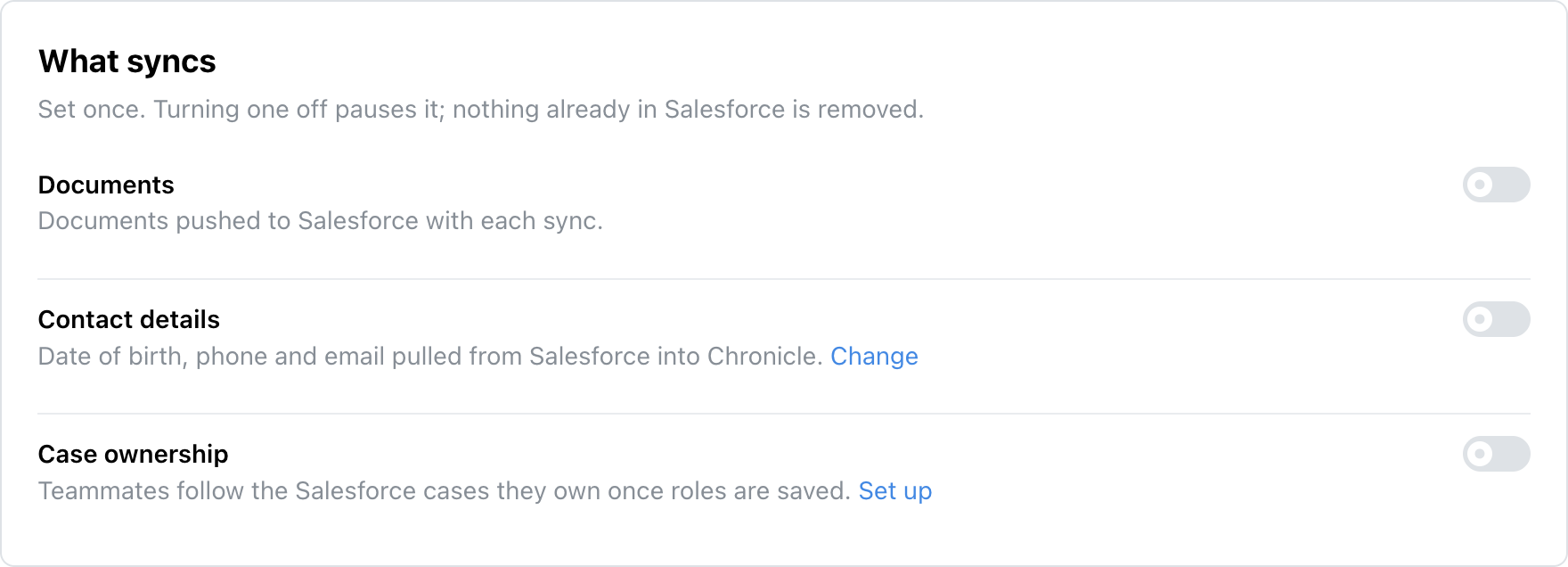
The What syncs switches for the Salesforce integration.
Capability | Direction | What it does |
|---|---|---|
Client fields and case status | Chronicle to Salesforce | Update packaged Chronicle Client data automatically; Salesforce-side configuration controls how it is used in your org. |
Documents | Chronicle to Salesforce | Sync Chronicle document records through the package when enabled. |
SSN back-sync | Salesforce to Chronicle | Fill missing full SSNs through a configured related-record lookup. |
Hearings and CEs | Chronicle to Salesforce | Sync package event data automatically. |
Information and medical requests | Chronicle to Salesforce | Sync SSA information-request and medical-request records through the package. |
Contact details | Salesforce to Chronicle | Pull configured date of birth, phone and email from the related object. |
Record matching | Inside Salesforce | Link Chronicle Client records with the package matching rule. |
Case ownership | Salesforce to Chronicle | Follow cases using supported record-owner, user or team-role sources. |
Open the integration
A Chronicle administrator or account owner can manage these settings.
In Chronicle, open Settings > Integrations.
Open Salesforce.
Use Overview for settings and Sync for status and run results.
Move from matching to everyday use
A successful connection test and Finish setup do not activate an inactive connection. Our support team must activate it first.
Confirm our support team has activated the intended Chronicle-account and Salesforce-org connection.
Open Choose what to sync if the app checklist is still open.
Review Documents, SSN back-sync and contact-detail choices.
Click Finish setup.
Client fields and case status
Client fields sync automatically into the package's Chronicle Client records. Salesforce has no Chronicle-side stage or client-field mapping editor and no switch for this automatic field sync.
Open a synced Chronicle Client in Salesforce.
Check its case data and the matching lookup to the intended existing record.
Have your Salesforce administrator review the org's package configuration and automation for displaying or using those values on your own records.
Use the Salesforce package's matching rule to correct the existing-record link. Changing a generic Chronicle matching retry scope does not replace that rule.
Documents
The Salesforce Documents switch syncs Chronicle document records through the managed package. Filing document files on Litify Matters through Docrio is a separate integration.
In Overview > What syncs, set Documents to the scope agreed for this connection.
Check a synced Chronicle Client and its related document records after the next run.
Use Use the Litify Docrio integration if your firm wants files filed on the chosen Litify Matter.
SSN back-sync
The lookup belongs to Chronicle Client; the full-SSN field belongs to the related Salesforce object. This pulls into Chronicle and is separate from the matching rule's last-four field.
In Overview > What syncs, use Set up or Change field beside SSN back-sync.
Enter Lookup Field on Chronicle Client using the field's Salesforce API name.
Enter SSN Field on Related Object using the full-SSN field's API name.
Click Save Field Config.
Turn on SSN back-sync.
The integration user needs permission to read the lookup and the related full SSN. A last-four field cannot fill a full SSN. Existing SSNs in Chronicle are not replaced.
Hearings and CEs
Hearings and CE data sync automatically through the package, without a separate Chronicle switch.
Review the event run on the Salesforce integration's Sync tab.
Open the related event records on a known Chronicle Client in Salesforce.
Confirm the intended Salesforce users can view those records.
Contact details
Contact back-sync uses the same related-record lookup as SSN back-sync. Enter Salesforce field API names rather than display labels.
Configure Lookup Field on Chronicle Client in the SSN source settings if it is not already saved.
In Overview > What syncs, click Change beside Contact details.
Turn on Sync contact details from Salesforce.
Enter the related-object field API names for Date of birth, Phone number and Email.
Leave each edited field so its value saves.
Leave a source blank to skip that detail. Valid incoming values can update existing details; blank provider values do not clear Chronicle values.
Case ownership
Eligible Chronicle teammates automatically follow cases associated with the provider roles your firm selects.
In Overview > What syncs, use Set up beside Case ownership, or Change roles when configured.
Select the ownership roles your firm uses.
Review the provider-user matches and choose the correct Chronicle teammate where needed.
Click Save roles.
Supported sources include the Litify Matter owner, the matched-record owner and the user or team-role sources available in your Salesforce org. Grant the integration user read access to the chosen source records.
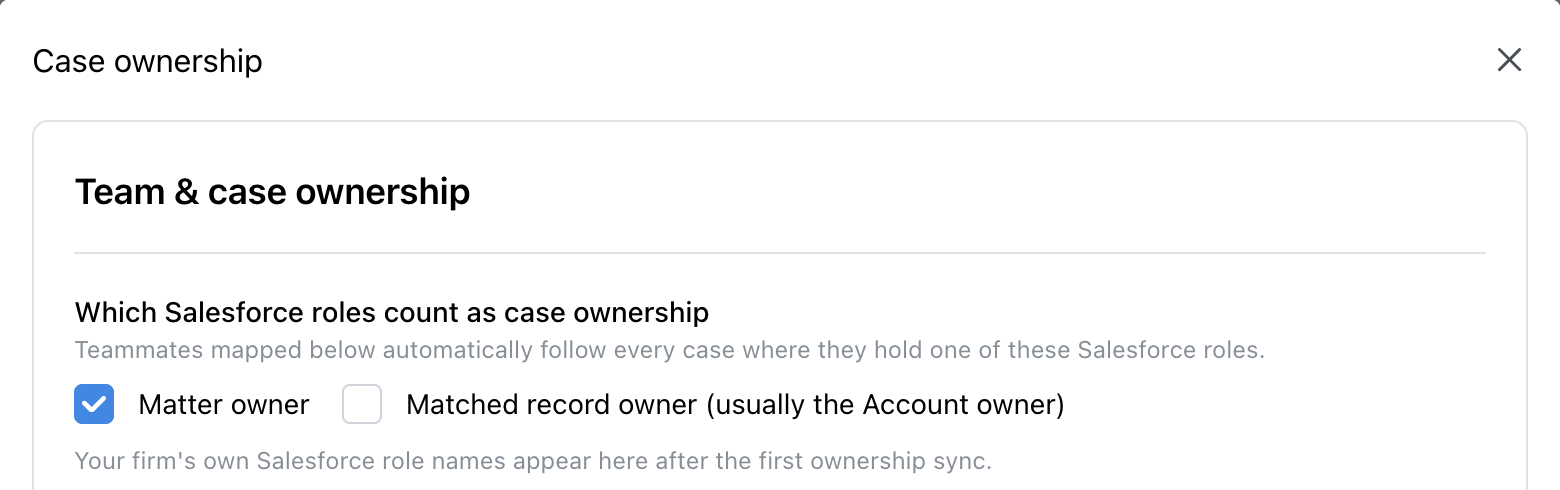
Case ownership source selection.
Restricted and view-only teammates can be matched to provider users but do not automatically follow cases through ownership. Removing a role or turning ownership off removes follows supplied only by that ownership rule.
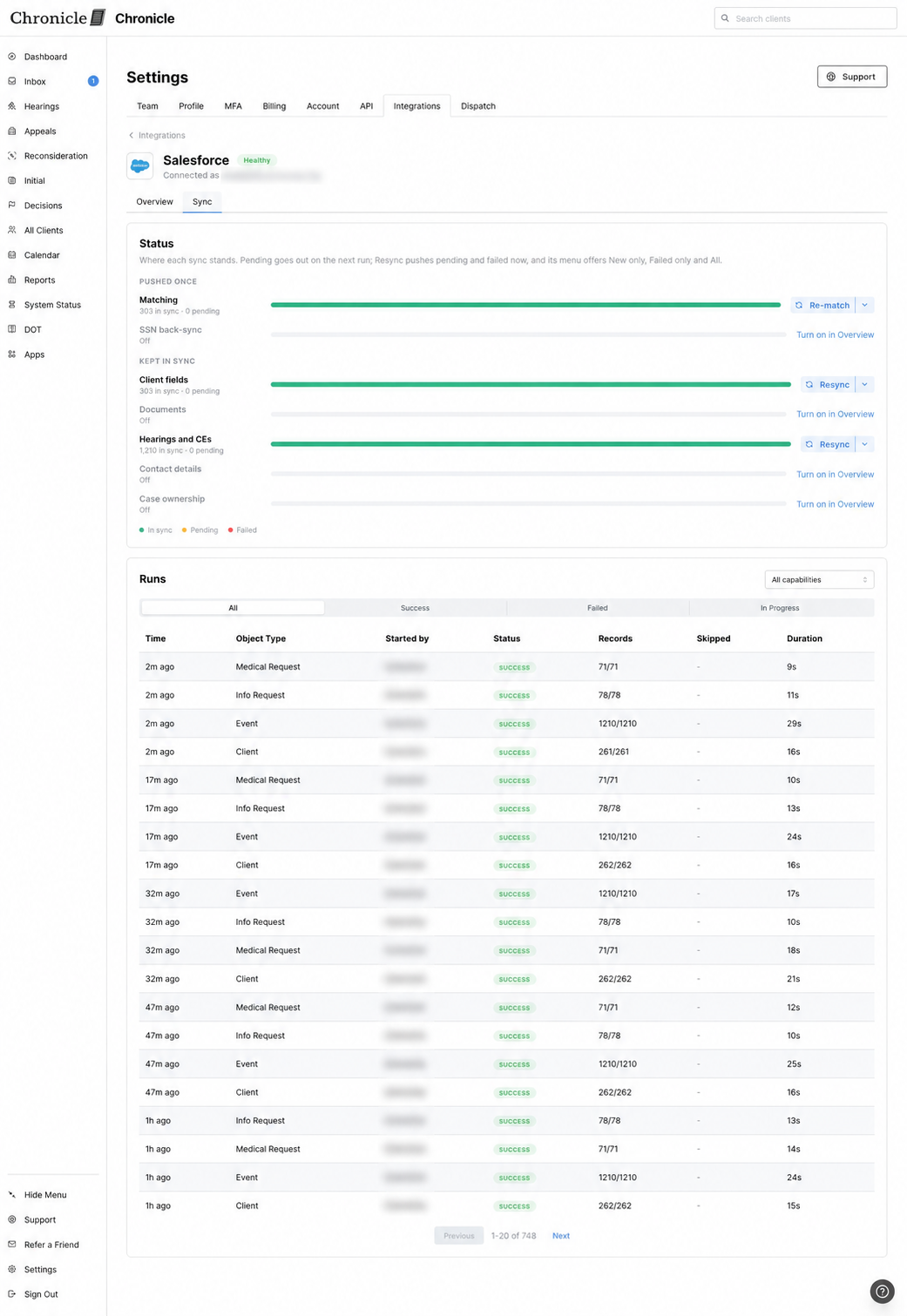
Example Salesforce Sync view. Client fields and events have run results; optional document and return syncs are off in this capture.
Verify initial and ongoing runs
Check the actual Salesforce records as well as the run status.
Open the Salesforce integration's Sync tab.
Review client data, documents when enabled, and hearings/CE run results.
Open a synced Chronicle Client and its related records in Salesforce.
Check access as the intended end user.
For a new destination requiring a full initial transfer, coordinate a complete client sync first. Sync related documents and events after the parent clients arrive. Use Resync integration data for retry scopes.
Use Salesforce actions that call Chronicle
Salesforce-to-Chronicle actions need the matching package action permission set, not only read access to Chronicle records.
Action | Permission set |
|---|---|
Refresh a client | Chronicle Client Refresher |
Update a full SSN | Chronicle Full SSN Updater |
Upload evidence to ERE | Chronicle ERE Document Uploader |
In package 1.10 or later, these action permission sets include Chronicle API credential access. Have your Salesforce administrator assign only the actions each user needs, then test as that user.
Shared sync and matching guides
Check integration sync status: review capability status, run results and one client's activity.
Resync integration data: choose a retry scope or retry an individual item.
Fix a client's integration match: resolve missing or ambiguous matches and correct an existing link.
Usage troubleshooting
Connection tests pass, but no data arrives
A return sync does not fill data
Check the Chronicle Client lookup, the related record, the source API names and the integration user's field access. The full SSN source is distinct from the matching last-four source.
Was this helpful?
Was this helpful?