
Check that the integration user's Docrio profile has Create Folder. Verify the client's Matter selection and review the document-sync result.
Use the Litify Docrio integration
File SSA documents on each client's chosen Litify Matter through Docrio. Complete Connect Litify Docrio to Chronicle first.
What syncs
Available capabilities and enabled settings are different. Review the options your firm wants to use.
Capability | Direction | What it does |
|---|---|---|
Documents | Chronicle to Litify Docrio | File selected SSA documents on the Litify Matter chosen by the Salesforce package. |
Matter selection | Salesforce package to Chronicle | Use the Matter link maintained in Salesforce, rather than a separate Docrio matching rule. |
Open the integration
A Chronicle administrator or account owner can manage these settings.
In Chronicle, open Settings > Integrations.
Open Litify Docrio.
Use Overview for settings and Sync for status and run results.
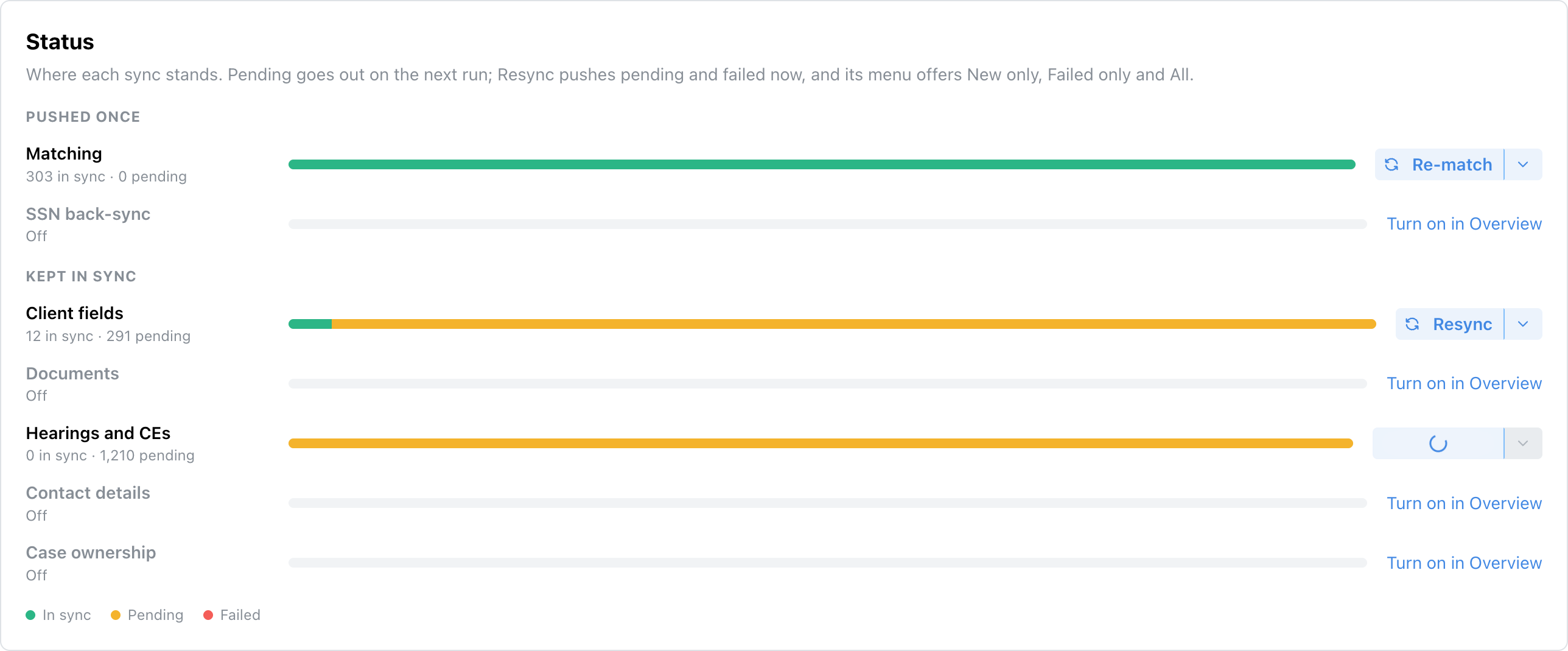
The Litify Docrio Sync tab's Status view.
Documents
File SSA documents already available in Chronicle under Chronicle ERE / section on the chosen Litify Matter.
In Overview > What syncs, turn on Documents.
Click Change sections.
Select the sections to include.
Click Save.
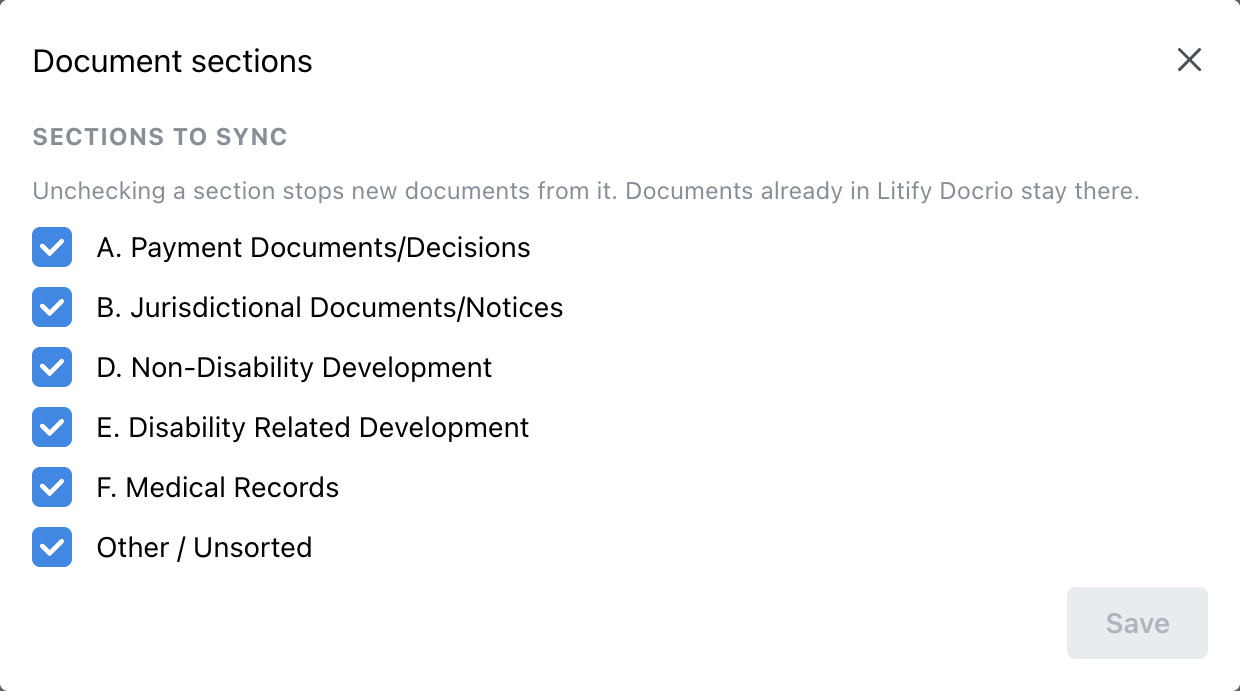
Choose the document sections to file on matched Matters.
Document sync runs every 15 minutes. For historical documents or failed filing, use Resync integration data. Turning Documents off or unchecking a section stops new filing for that scope; existing files remain in the destination.
After reviewing the document choices, use Finish setup if the app checklist remains open.
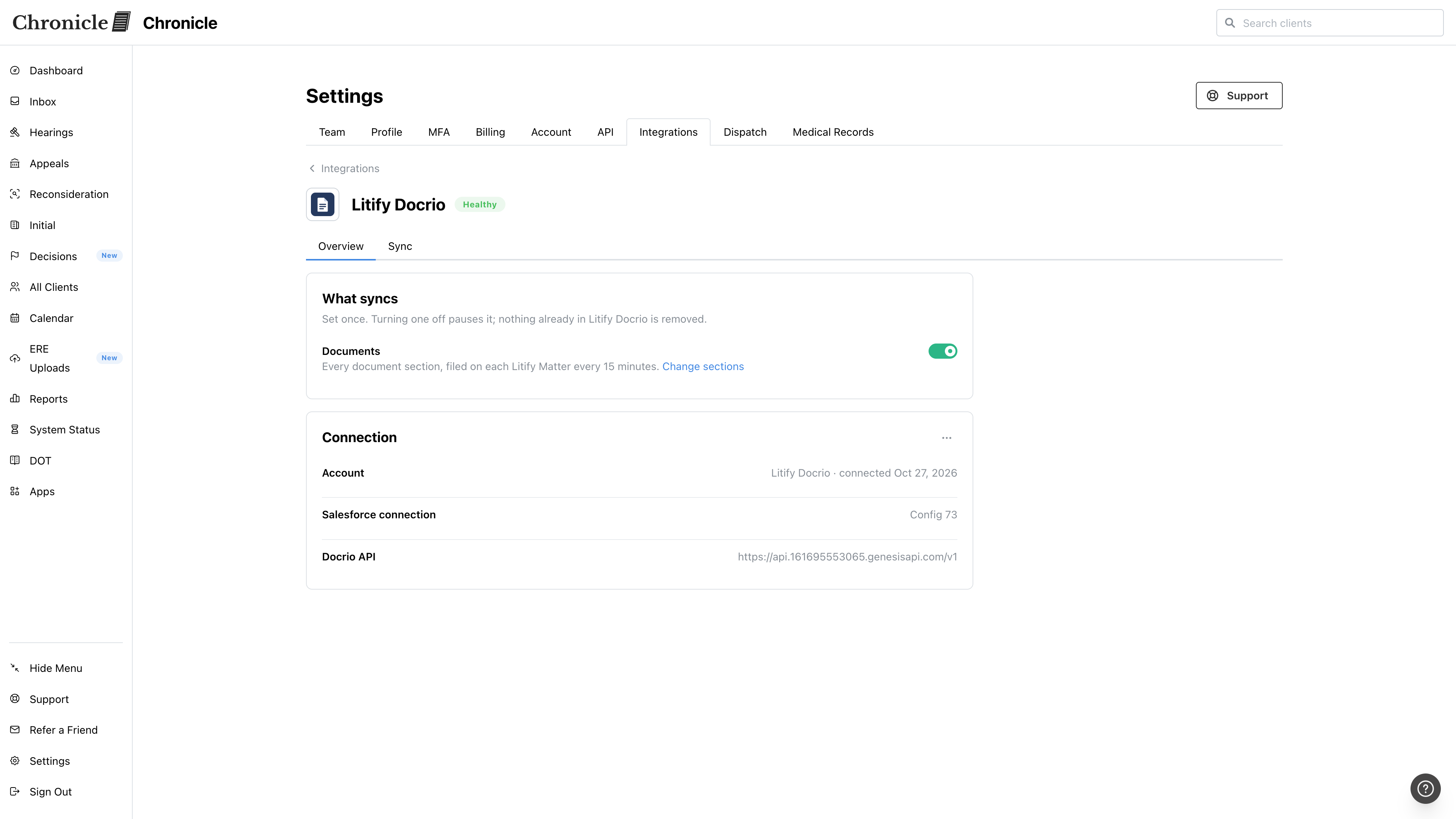
Example Docrio Overview with document syncing enabled.
Use document categories and metadata
We include the document's ERE section as its Docrio Document Category, along with document details and a link back to Chronicle.
Add the ERE section names to Docrio's Document Category choices if your team wants to filter by them. The connection test identifies missing category choices. Chronicle leaves Litify's own AI classification fields alone.
Change the destination Matter
Change the client's Matter lookup in Salesforce. We check Matter choices hourly.
Open the Chronicle Client in Salesforce.
Set its Matter lookup to the intended Litify Matter.
After the Matter refresh and document sync, check that files appear on the intended Matter.
Changing the Matter can file documents again on the new Matter. Existing copies on the old Matter are not deleted. Clearing the Matter pauses new filing for that client.
Shared sync and matching guides
Check integration sync status: review capability status, run results and one client's activity.
Resync integration data: choose a retry scope or retry an individual item.
Docrio matching happens in Salesforce, so there is no match to link or review in Chronicle. To fix which Matter a client uses, see Set up Matter matching in Salesforce for Docrio.
Usage troubleshooting
The file is uploaded but not visible on the Matter
Document names or metadata cannot update
Enable Edit File Info for the integration user's Docrio profile, then use the shared resync guide for the affected records.
A document is missing
Check that it exists in Chronicle, its section is selected and the correct Matter is selected in Salesforce. The client also needs a Chronicle Client record in Salesforce. Docrio filing is separate from the Salesforce Documents switch.
Was this helpful?
Was this helpful?