
Confirm the client is selected, Documents is on, the folder is correctly linked and the document type is in the supported milestone list. Ordinary medical evidence outside that list is not included.
Use the Atticus integration
Share supported milestone documents with Atticus through Box for the clients your firm explicitly selects. Complete Connect Atticus to Chronicle first.
What syncs
Available capabilities and enabled settings are different. Review the options your firm wants to use.
Capability | Direction | What it does |
|---|---|---|
Milestone documents | Chronicle to Atticus through Box | Share the fixed supported milestone-document types for selected clients. |
Selected clients and folders | Explicit client scope | Use only the clients your firm selects, including selected inactive clients. |
Open the integration
A Chronicle administrator or account owner can manage these settings.
In Chronicle, open Settings > Integrations.
Open Atticus.
Use Overview for settings and Sync for status and run results.
Milestone documents
Atticus uses a fixed document-type list, rather than every SSA document or a general section selection.
Click Finish setup if the folder checklist is still open. This turns document filing on and opens Overview; no files are shared until clients are selected.
In Overview > What syncs, check that Documents is on.
Review the selected Atticus clients.
Check an eligible document in a selected client's Atticus Box folder after syncing.
Supported families include initial applications (Form 16, with optional Form 3368), representation and withdrawals, determinations and denials, appeal filings, hearing notices, decisions and remands, court complaints and orders, awards, fee petitions and fee authorizations.
We share whole supported document types regardless of the decision outcome. Fee-petition rejection notices and other fee decisions are excluded. Supply the Atticus Fee Addendum separately.
Turning Documents off pauses new uploads. Existing Box files remain.
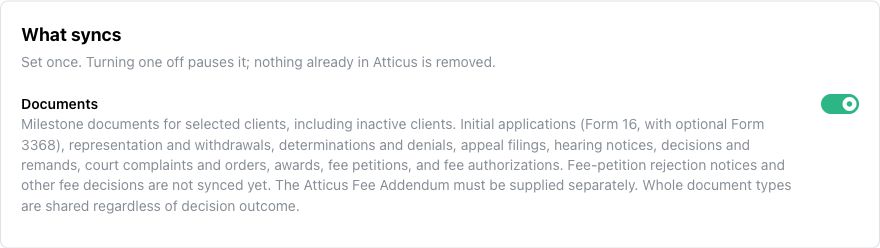
Example Atticus document setting with syncing enabled. Client names and identifiers are excluded.
Maintain the selected clients
Active and inactive clients can opt in. A new Chronicle client is never added automatically.
In the Atticus client list, search for the clients you want to change.
Select their checkboxes.
Click Add selected to include them or Remove selected to stop future uploads.
Removing a client keeps existing Box files and the saved folder association. Re-adding the client restores the folder link when available.
Verify the first selected client
Saving the selection starts folder matching. Check the destination before relying on ongoing sharing.
Wait for matching after adding a known client.
Use Review for any folder that needs a decision.
Open the client's actions menu and select Sync.
Verify the Atticus Box folder link points to the intended destination.
Check a supported milestone document in that folder after syncing.
Import an Atticus client list
Upload the original Atticus export to match referrals to existing Chronicle clients and add confirmed matches to document sharing. A CSV with first and last names also works. Import Atticus referrals from a CSV.
Shared sync and matching guides
Check integration sync status: review capability status, run results and one client's activity.
Resync integration data: choose a retry scope or retry an individual item.
Fix a client's integration match: resolve missing or ambiguous matches and correct an existing link.
Usage troubleshooting
Was this helpful?
Was this helpful?