
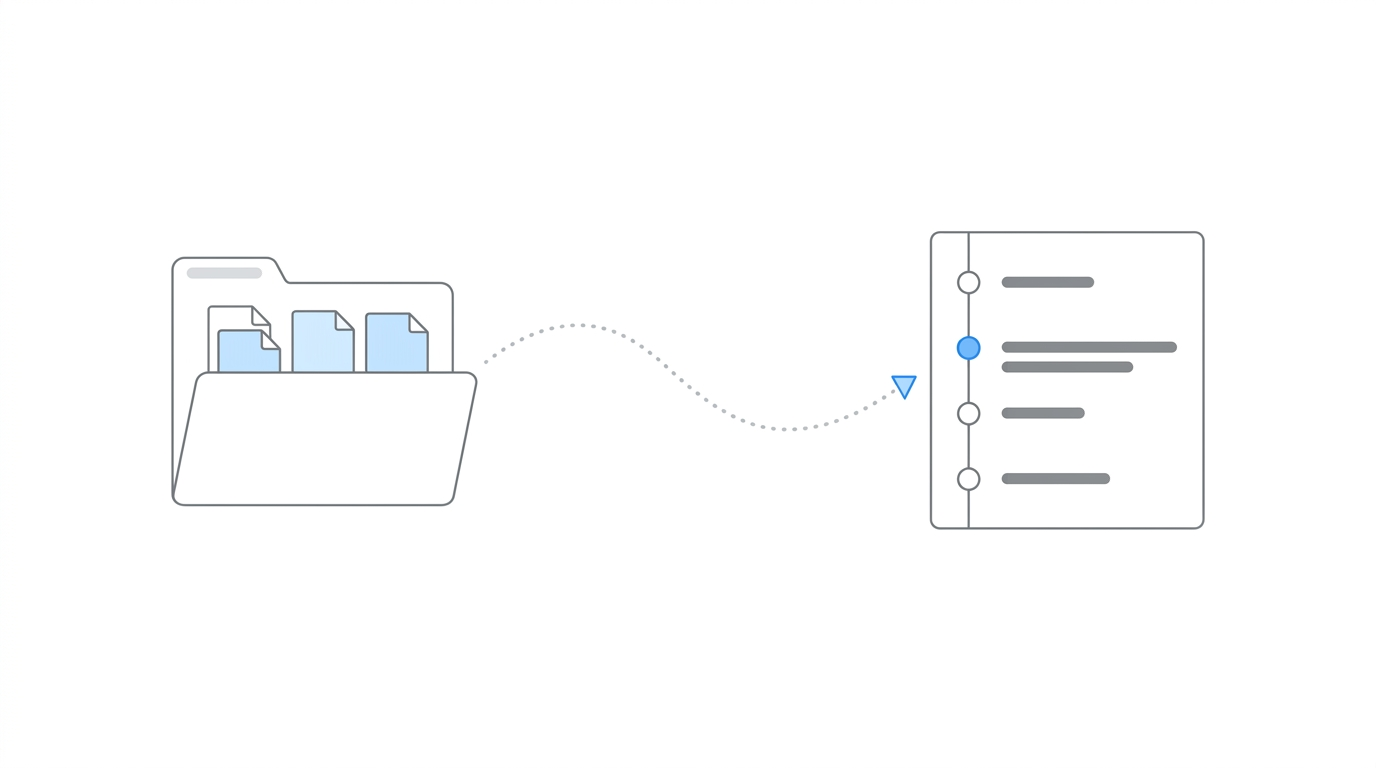
Chronicle launched its native Filevine integration on April 16, 2026, during a live demo event, the latest session in the Advancing Technology in Disability Law series. The integration automatically syncs Electronic Records Express (ERE) data from Chronicle into Filevine projects, replacing the manual data entry that disability firms have historically relied on to keep their case management system aligned with what the Social Security Administration is actually doing. For the product-level overview of what the integration does and what it unlocks downstream, see our announcement post on the Filevine integration.
Speakers:
- Will Yang, moderator, focused on partnerships helping disability practices adopt better tools and stronger operational standards.
- Nikhil Pai, Founder of Chronicle, the platform helping Social Security disability firms automate case tracking, manage ERE access, and streamline document workflows. Chronicle now monitors over 177,000 cases and 7.5 million SSA documents across 2,100+ disability professionals.
The Core Problem: Manual ERE Data Entry Into Filevine
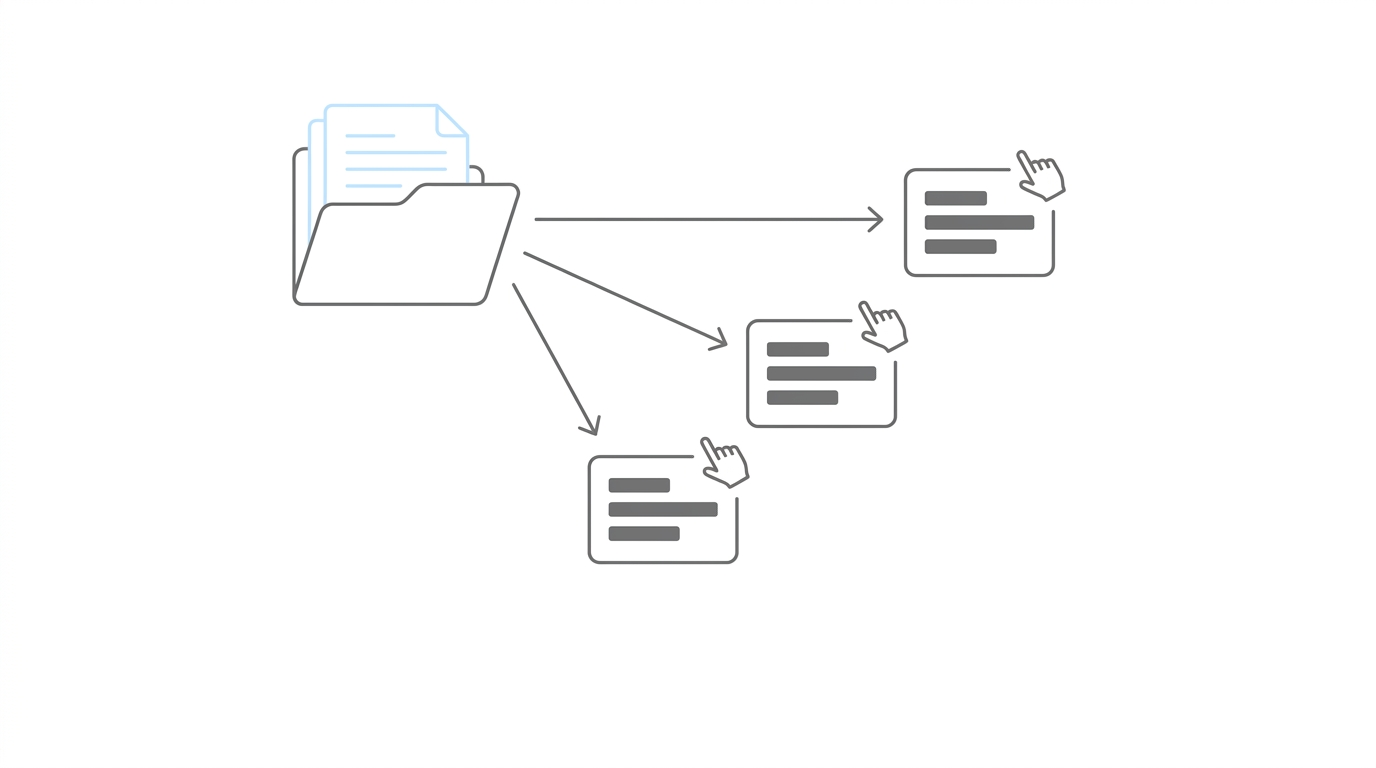
For firms using Filevine as their system of record, case managers spend hours every week typing ERE data into Filevine projects: status updates, hearing dates, decisions, documents. That workflow tax scales directly with caseload. More cases, more manual entry.
As Nikhil explained: “A lot of data is changing all the time, whether it is the hearing date, or the status of the case, or the DLI and the AOD, or new documents coming in. A lot of that moves very quickly, it’s all in the ERE, and it’s hard to keep track of.”
The disconnect has a specific downstream cost. Filevine automations only run when someone changes a project phase or enters a field. “This lets Filevine fall behind reality,” Nikhil said. “Unless someone remembers to make that update, you actually don’t know what you need to do next, and that makes you miss deadlines or fall behind and scramble at the last minute.”
Specific consequences of manual entry:
- Data entry falls behind: Your CMS stops reflecting what’s actually happening at the SSA.
- Staff toggle constantly: Case managers jump between the ERE and Filevine to reconcile state.
- Automations don’t fire: Filevine phase-based automations can’t trigger on events the system doesn’t know about.
What the Integration Syncs
The native integration pushes three core data types from Chronicle into Filevine every 15 minutes:
- Case status: ERE level, status, and decisions map into Filevine project phases.
- Calendar events: Hearings land as Filevine calendar entries on the associated project.
- Documents: Evidence and notices from the ERE sync into a Chronicle ERE folder inside each Filevine project.
This is a direct API connection, not a Zapier workflow or third-party middleware.
How the Setup Works
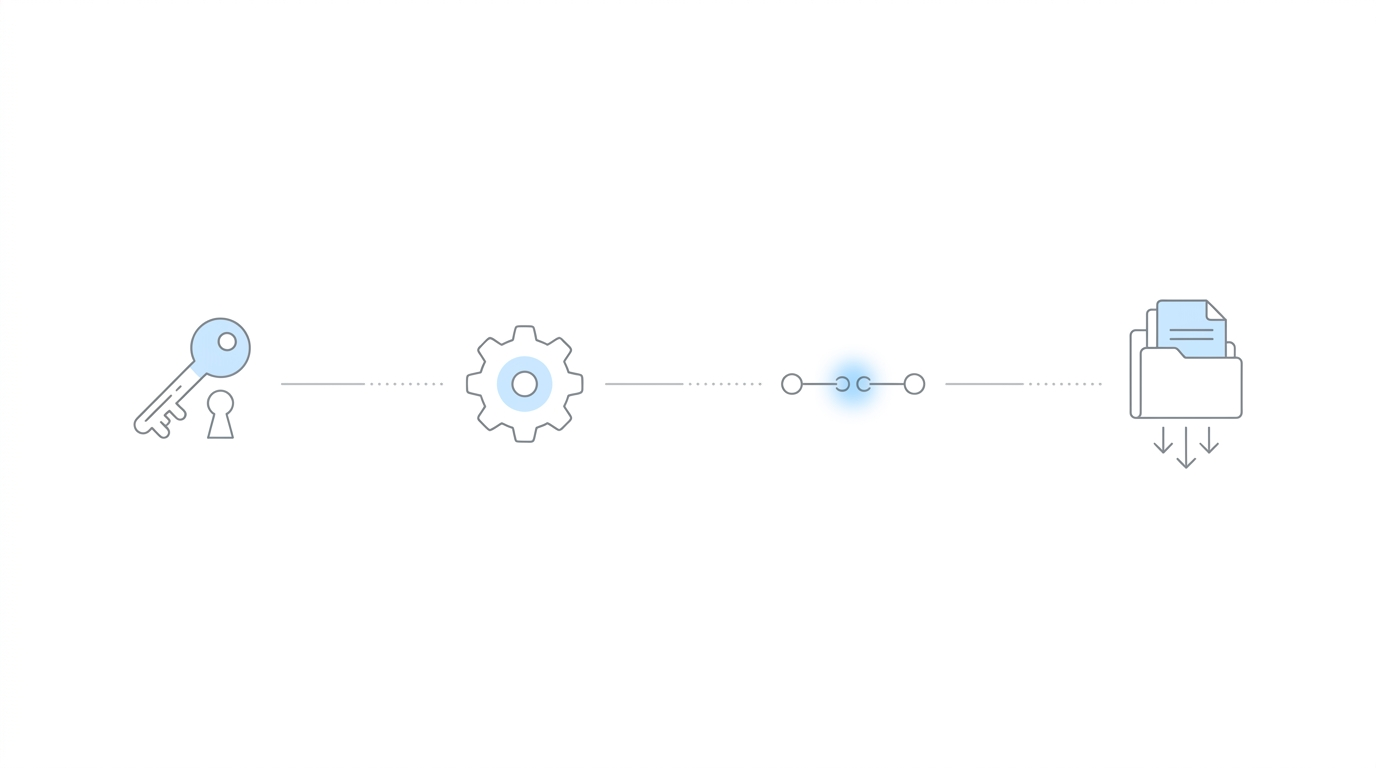
Setup runs in four steps inside Chronicle, but the Filevine side requires a specific preparation sequence. The three-part Filevine configuration — activating the Chronicle integration, creating a service account, and generating a personal access token — is where most firms spend time on the first pass.
Step 1: Connect and Authenticate
A Filevine admin sets up three things in Filevine first:
- Activate the integration. In Filevine, go to Settings → Advanced → Integrations, search for Chronicle, and click Activate.
- Create a Chronicle service account. Still in Advanced, go to Service Accounts, click New, choose Chronicle, grant all permissions, and Create.
- Generate a personal access token. Under your user settings, go to Manage My Account → Access Tokens, click New, and assign the token to the Chronicle service account with Filevine API, Webhook API, and Bulk Data API scopes.
That token can only be copied once. Paste it into Chronicle at Settings → Integrations → Filevine and hit Save Changes.
As Nikhil explained the three access scopes: “The first one is API access. This is how we interact with the system — a set of protocols for how I get a contact or a matter. The bulk data API is so we can use the API in bulk, so we can be more efficient with API calls. And then the webhook API access lets us know when changes happen in Filevine — when a change happens, they tell us via a webhook.”
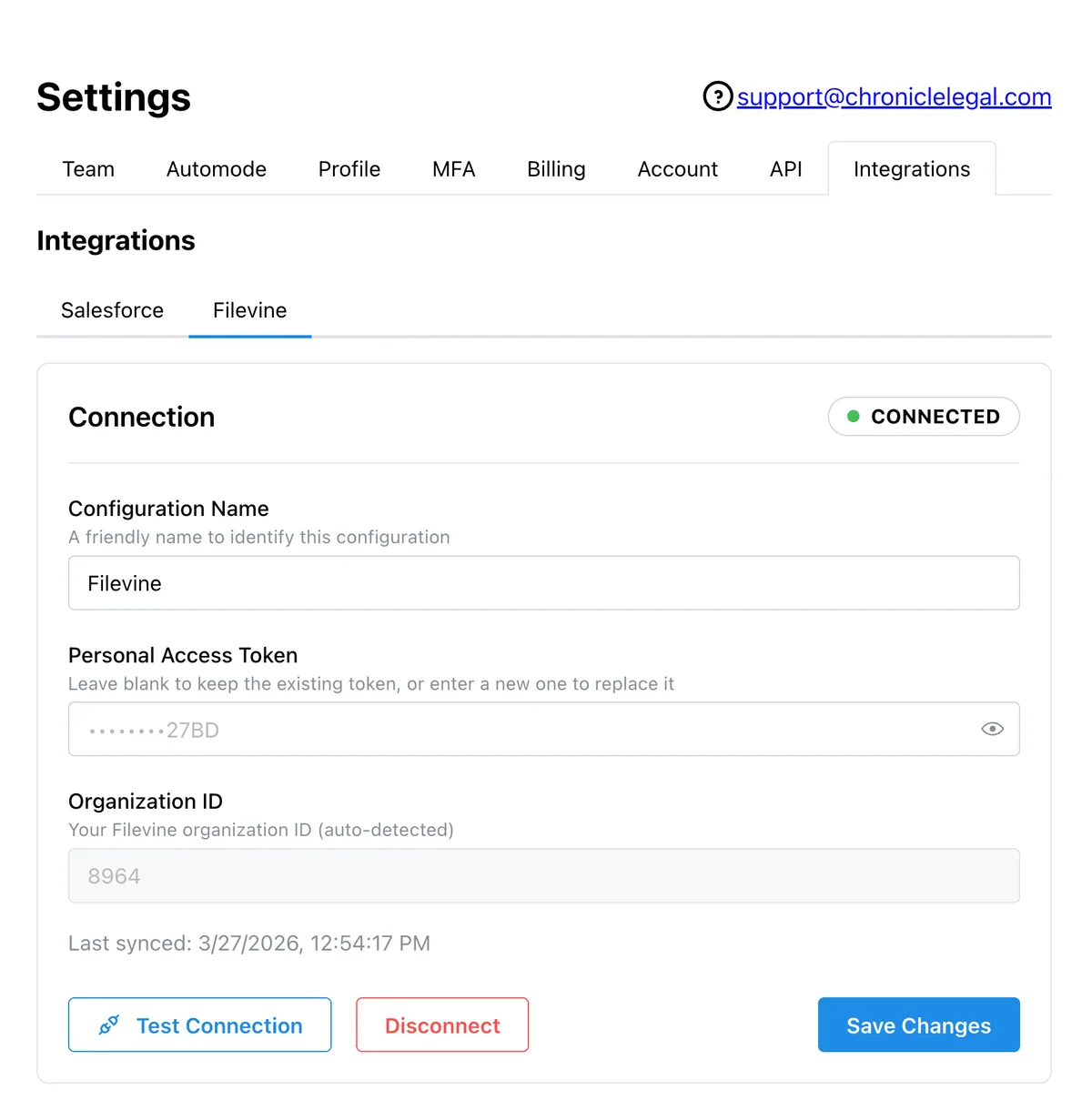
Step 2: Configure the Sync
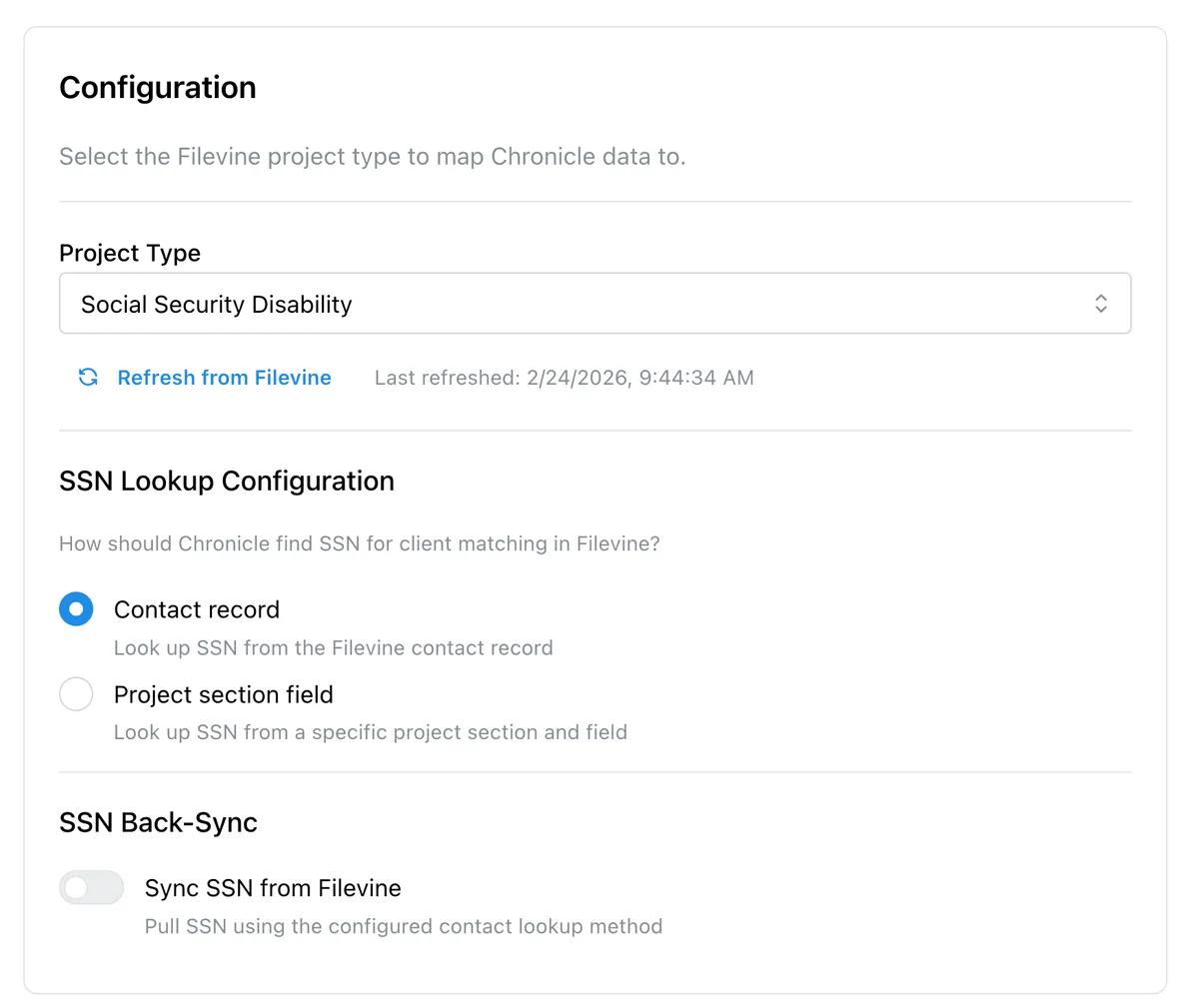
Select your project type (Social Security Disability) and tell Chronicle where the client’s SSN lives in Filevine. SSN can be on the built-in contact field or in a project section field — Chronicle can pull from either.
For multi-discipline firms running PI, workers’ comp, or other practice areas alongside SSD, the project type selector makes sure Chronicle only operates on disability projects.
There’s also an optional toggle to sync full SSNs from Filevine back into Chronicle, which automatically enables document monitoring. Standard Chronicle per-case fees apply for any cases auto-enabled this way.
Step 3: Client Matching
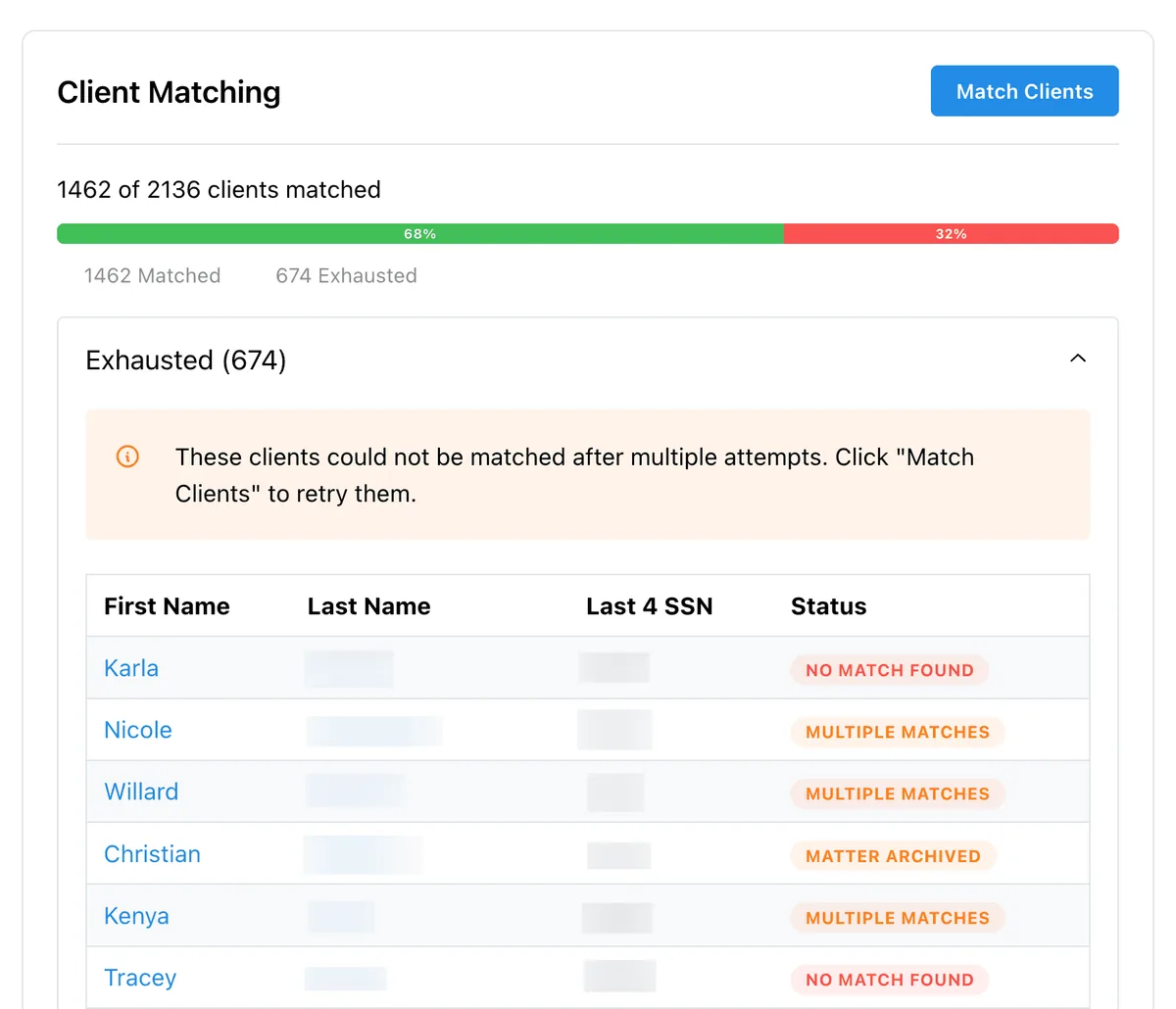
Chronicle matches ERE clients to Filevine contacts using last name and last four of SSN. The match runs against all clients when you click Match Clients, and unmatched clients surface in an exhausted list with a reason.
The two failure modes are Multiple Matches (too many Filevine projects match the same last name + last four) and No Match Found (last name spelling differs from the ERE). Unmatched clients can be exported and resolved manually in Filevine.
Step 4: Phase Mapping
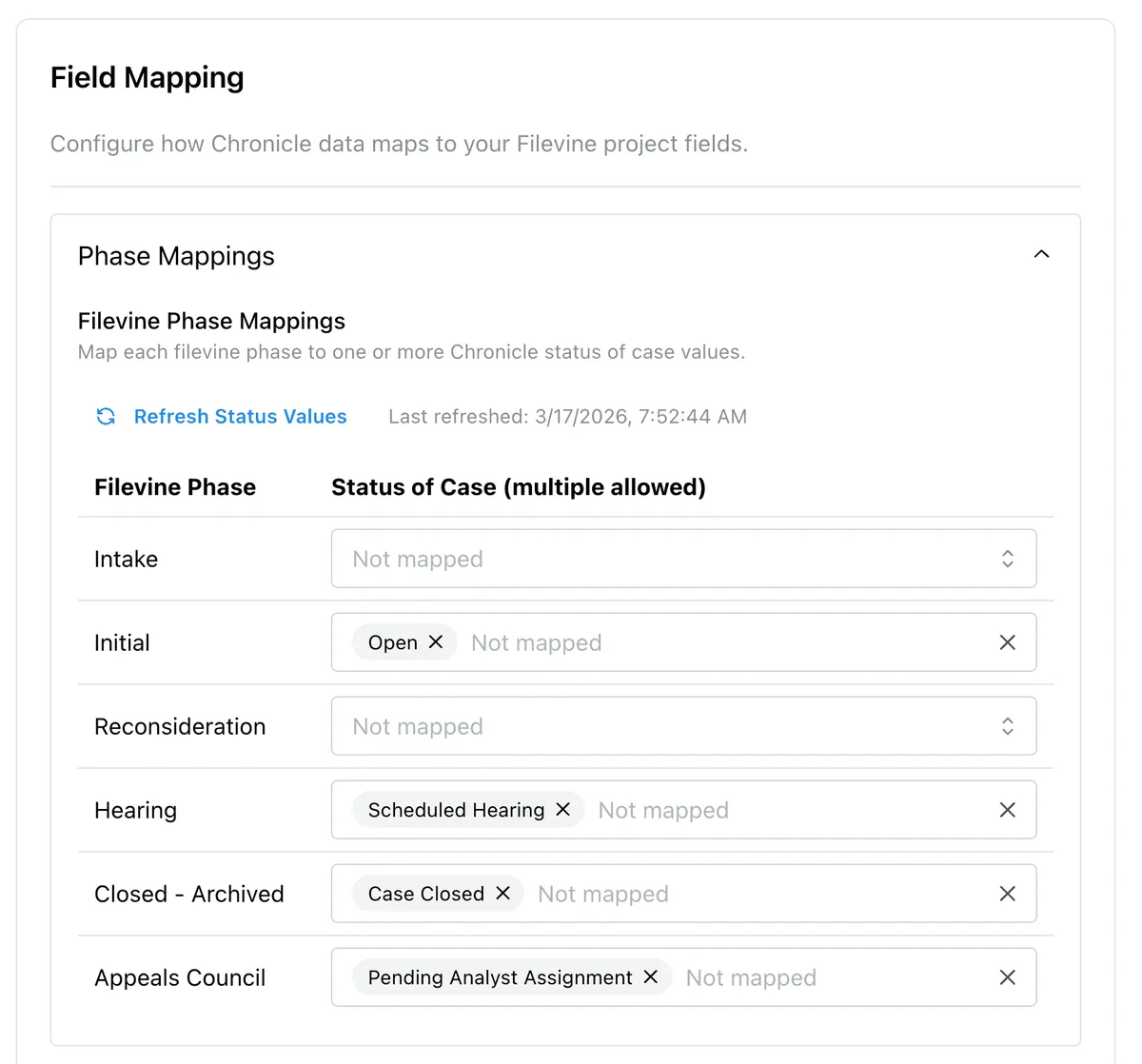
Each Filevine phase maps to one or more Chronicle case statuses. For example: Initial phase → ERE “Initial Open”; Recon phase → ERE “Recon Open”; Hearing phase → ERE “Scheduled Hearing” (rather than “Ready to Schedule,” so the project only moves when the hearing is on the calendar).
Importantly, Chronicle will never overwrite manual phase changes: “We will only ever move it once,” Nikhil emphasized. “So if we move it into hearing, and then you move it to appeals, the system won’t move it back.”
Step 5: Field Mapping
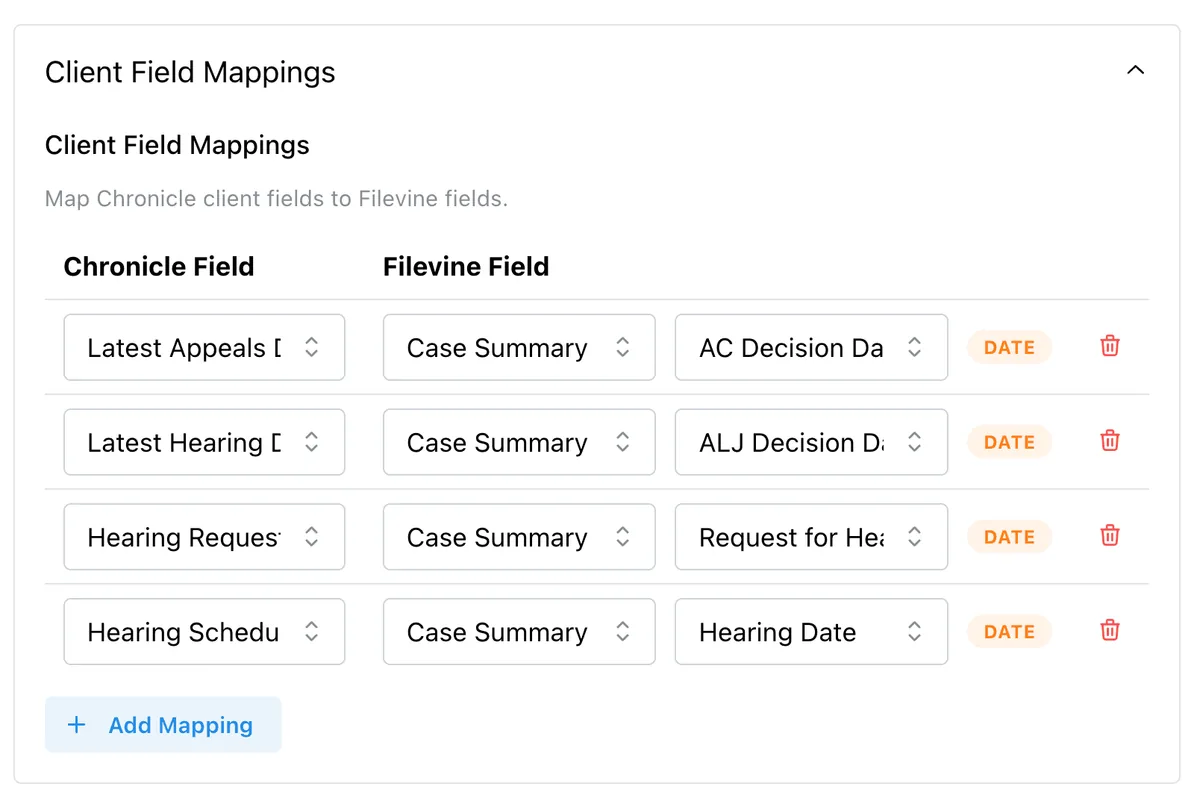
Map specific ERE data points to Filevine fields: status of case, DLI, AOD, ALJ, hearing date, office. Chronicle supports Filevine text fields and date fields. Related contacts and pick lists are not yet supported, so ALJs configured as Filevine contacts can’t be populated automatically today.
Nikhil’s recommendation for first-time setup: “Start small — just do a couple phases or a couple fields, just to see if it works well, and then you can always increase from there.”
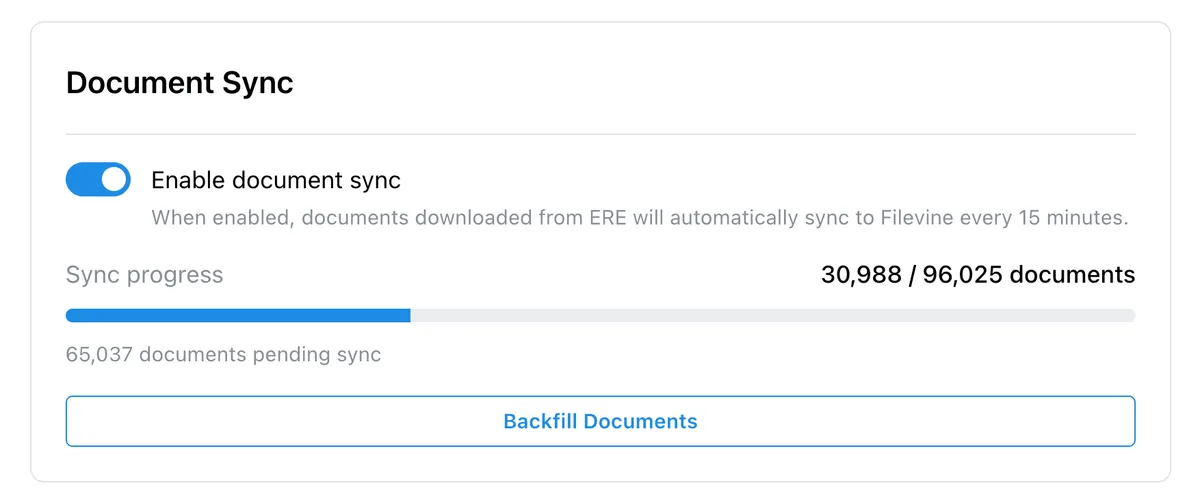
Step 6: Document Sync
Toggle document sync on, and Chronicle automatically moves ERE files into a Chronicle ERE folder inside each Filevine project. The folder is created automatically on first sync. Documents sync every 15 minutes alongside the other data types.
For existing cases, the Backfill Documents option pulls in historical documents. Nikhil’s recommendation here was direct: “For the most part, I would say backfill your documents. It’s worth having everything from the ERE in there, so each client file looks complete in Filevine.”
Having ERE documents in Filevine is also what makes Filevine’s own AI features meaningfully useful — the AI has the full case evidence to work with instead of a partial record.
Sync History and Manual Resync
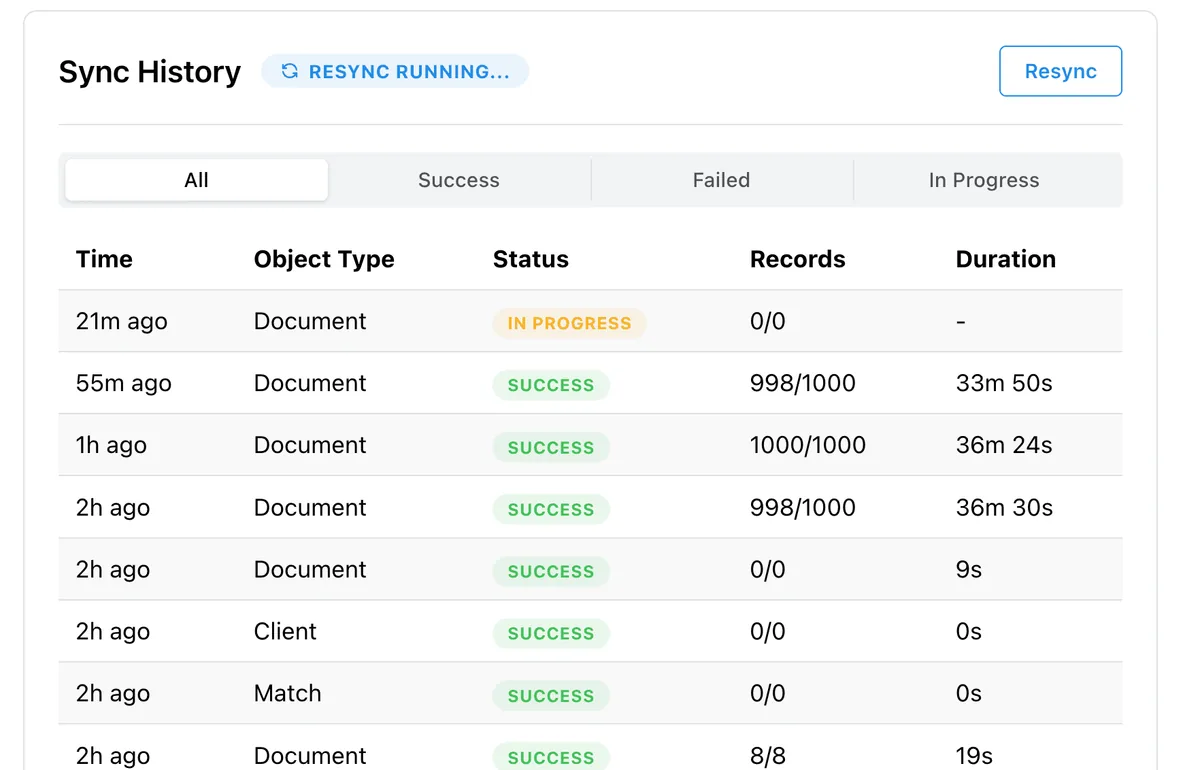
Under Settings → Integrations → Filevine, a sync history log shows every sync with status, record counts, and duration. A manual Resync button is available if you want to force a full refresh after changing mappings — which is how you backfill mapped fields across all existing matched projects.
Why Native Matters: A Direct API, Not Zapier
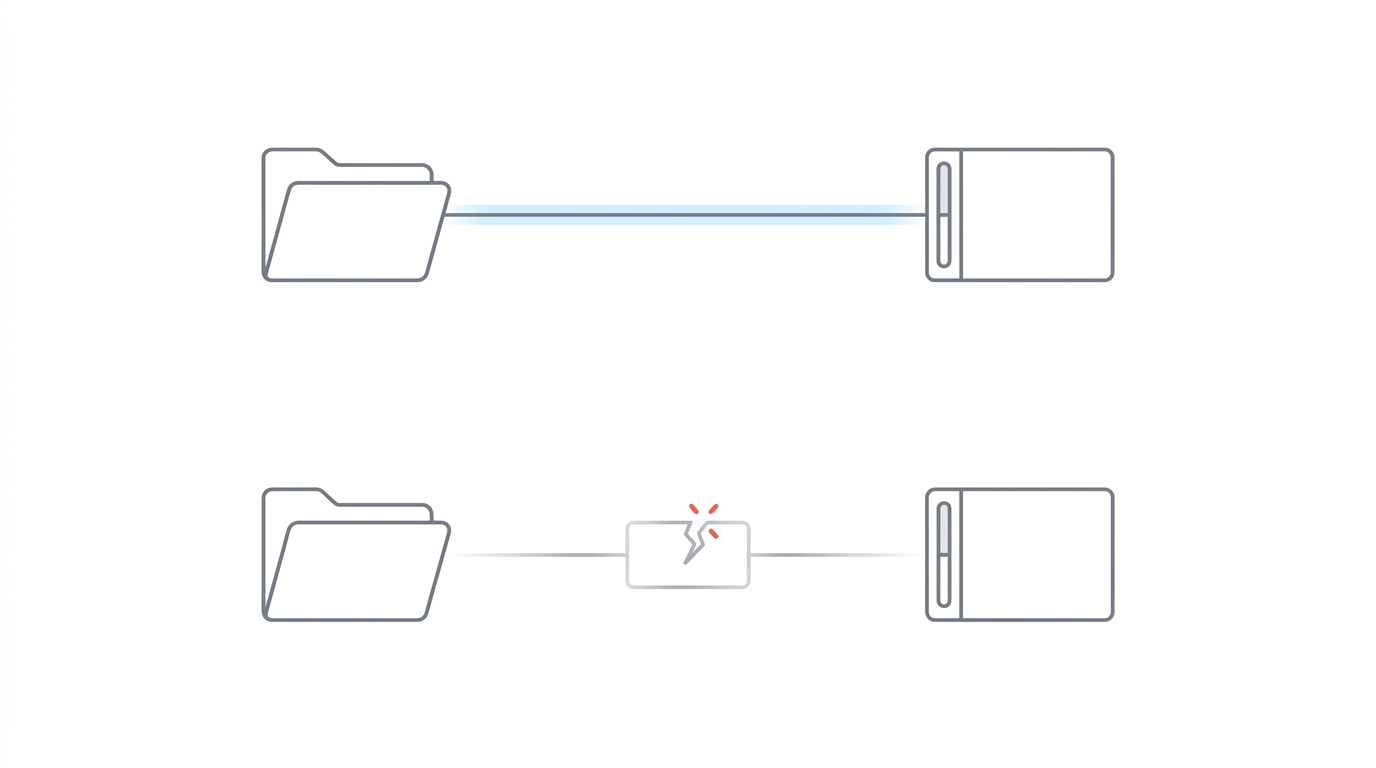
Most firms attempting this workflow before today used Zapier as a bridge. Chronicle’s native integration replaces that setup with a direct API connection.
As Will Yang put it during the recap: “It essentially allows you to just authenticate and configure it once. As opposed to having to manage all of these other potential setups and Zaps through Zapier for this same functionality to exist through a Zapier flow.”
The practical differences:
- Cost: Included with Chronicle Pro. Nikhil on switching: “You’re paying a hundred dollars a month for something that this will do better. Definitely make that transition.”
- Reliability: No third-party connector to debug when it breaks. Chronicle maintains the integration directly, including when Filevine’s API evolves.
- Document sync: Zapier-based Filevine integrations typically can’t move documents. The native integration does, which unlocks Filevine’s AI features downstream.
- Ongoing updates: The integration evolves alongside Filevine and Chronicle, with no firm-side reconfiguration required.
Customer Proof: John Foss, Fortis Disability
John Foss at Fortis Disability has been running the integration in early access. He joined the call live and his team’s experience was shared verbatim during the session:
We really enjoy and appreciate the native Filevine integration. The field mapping feature has been a game-changer, immediately saving our team significant time by eliminating manual data entry. Furthermore, we really appreciate the updated phase mapping, which enables powerful downstream automations in Filevine, ensuring our team stays timely and on target.
— John Foss, Fortis Disability
The specific sequence Fortis described — field mapping first for the time recovery, then phase mapping to unlock downstream automations — is the order Nikhil also recommended for new firms: get the fields flowing, prove the data is right, then layer on the phase-based automations on top.
What’s Not Yet Synced
A few ERE data types and Filevine field types are not part of the initial launch:
- Consultative exams (CEs): Roadmap item.
- SSA information requests: Roadmap item.
- Medical requests: Roadmap item.
- Related contacts and pick lists: Text fields and date fields are supported today; related contacts (like ALJs configured as Filevine contacts) and pick-list fields are not.
- Date of birth sync back to Chronicle: The optional back-sync into Chronicle covers SSN only; DOB is not pulled from Filevine.
The launch covers the core data firms need in their CMS every day: status, hearings, and documents.
Availability & Pricing
Current status: Available today for all Chronicle Pro customers with a Filevine subscription.
Cost: Included with Chronicle Pro at no additional fee. Chronicle Essentials customers need to upgrade to Pro to access the integration. A separate Filevine subscription with admin access is required.
Setup time: The personal access token setup takes a few minutes if you’re already a Filevine admin. Phase and field mapping configuration varies — it’s a firm-level design decision about what ERE statuses trigger what phase moves, and what data lands in which Filevine field. Most firms get through the full configuration in a single working session.
Launch offer: Chronicle is offering a free white-glove integration setup session for Pro customers. Book a white-glove setup session to have the team walk through the configuration live.
Frequently Asked Questions
Is the phase mapping required?
No. Everything is pick and choose — phase mapping, field mapping, and document sync each turn on independently. Many firms start with field mapping only, then layer in phase mapping once they trust the data.
Do I need to pre-create a Chronicle ERE folder in Filevine?
No. Chronicle automatically creates the Chronicle ERE folder on first sync. If you’ve already created one with the exact name, Chronicle will use it, but the recommendation is to let the system create the folder to avoid duplicates.
Will the integration field-map related contacts, like ALJs configured as Filevine contacts?
Not yet. Field mapping supports Filevine text fields and date fields. Related contact fields and pick lists are not yet supported.
Does the document sync pull the merge packet, or individual files?
Individual files. Every document from the ERE lands in the Chronicle ERE folder as a separate file, not as a bundled merge packet.
How long does setup typically take?
The personal access token setup runs a few minutes. The phase and field mapping configuration is where firms spend real time — it’s a design decision about what ERE status triggers what phase, and what data goes where. Start small, prove it works, then expand.
If I resync, will Chronicle overwrite hearing dates or other fields I’ve already entered manually in Filevine?
Yes — that’s what resync is for. On ongoing sync, Chronicle only updates going forward and overwrites fields it owns. If you click the resync button, Chronicle wipes the mapped fields and repopulates from current ERE data for every matched project. Phase moves are the exception: manual phase changes are not reversed.
What exactly gets overwritten?
Only fields you’ve explicitly mapped. If you mapped the “office” field to a specific Filevine field, Chronicle will overwrite whatever’s there with the current ERE value. Unmapped fields are untouched.
Does data flow both ways?
Mostly one-way, Chronicle into Filevine. The one exception is the optional SSN back-sync from Filevine to Chronicle, which auto-enables document monitoring on new cases. Standard Chronicle per-case fees apply to any cases auto-enabled this way.
Can Chronicle also pull date of birth from Filevine?
No. Only SSN is pulled back into Chronicle. DOB remains a manual field in Chronicle.
Is there an additional charge to sync a Chronicle case into Filevine?
No. Chronicle Pro includes the sync at no additional per-case cost.
What happens with future Filevine field-mapping suggestions?
Field mapping stays manual for now. Every firm structures Filevine sections and fields differently, so Chronicle keeps the mapping configurable rather than prescriptive. The benefit: you set it up once and forget about it.
Is there a native MyCase integration?
Not yet. Filevine is live today, joining Clio in Chronicle’s native CMS lineup. MyCase firms can currently bridge with Zapier for stage and field mappings, but Zapier cannot handle the document sync.
Why does this require Chronicle Pro?
Native CMS integrations are part of the Chronicle Pro plan. The Pro plan is what unlocks the direct API connections Chronicle maintains on each firm’s behalf.
Upcoming Events
See what’s next on Chronicle’s events calendar and subscribe to get notified when new sessions go live. If you’re attending NOSSCR in Baltimore next week, the Chronicle team will be there in person.
About This Series
This session is part of Chronicle’s Advancing Technology in Disability Law series, spotlighting tools, workflows, and integrations helping disability firms modernize how they work. Upcoming sessions cover additional CMS integrations, automation patterns, and partner launches.
Filevine joins Chronicle’s growing ecosystem of partner integrations, including our native Clio integration and Litify integration, the Superinsight medical chronology integration, and the Benny integration for automated SSA forms.
For firms still spending 15+ hours a week on manual ERE checks, the native Filevine integration is the fastest way to recover that time inside the case management system your staff already lives in.
Key Takeaways
-
Manual ERE-to-Filevine data entry is eliminated. Case status, hearings, and documents sync into Filevine projects every 15 minutes without anyone typing them in.
-
Native integration beats Zapier on cost, reliability, and scope. Zapier cannot sync documents, costs roughly $100/month, and breaks without warning. The native integration is included with Chronicle Pro.
-
Filevine setup has three prerequisite steps. Activating the integration in Filevine, creating a Chronicle service account, and generating a personal access token are the Filevine-side work — then configuration happens in Chronicle.
-
Chronicle never overwrites manual phase changes. Automatic phase moves happen once; manual overrides always stick. Field values do get overwritten on resync, but only for fields you’ve explicitly mapped.
-
Document sync unlocks Filevine’s AI features. Having the full ERE evidence in Filevine means the AI has the full case record to work with. Backfill documents on initial setup so the existing caseload catches up immediately.
For questions or to learn more: Contact support@chroniclelegal.com or book a Chronicle demo.
Follow us on LinkedIn to continue hearing about upcoming events.