
Check that the new connected account can access the root and every affected client folder. A connection can succeed even when old linked folders are not visible to that account.
Use the Box integration
File SSA documents in Box for the clients included in your folder scope. Complete Connect Box to Chronicle first.
What syncs
Available capabilities and enabled settings are different. Review the options your firm wants to use.
Capability | Direction | What it does |
|---|---|---|
Documents | Chronicle to Box | File selected SSA document sections under each linked client folder. |
Client-folder matching | Links client folders | Match existing folders or create missing folders within the selected root. |
Open the integration
A Chronicle administrator or account owner can manage these settings.
In Chronicle, open Settings > Integrations.
Open Box.
Use Overview for settings and Sync for status and run results.
Documents
After folder matching, click Finish setup if the checklist is still open. This turns document filing on and opens the Overview controls; review the included sections there.
File SSA documents already available in Chronicle under client folder / Chronicle ERE / section.
In Overview > What syncs, turn on Documents.
Click Change sections.
Select the sections to include.
Click Save.
Document sync runs every 15 minutes. For historical documents or failed filing, use Resync integration data. Turning Documents off or unchecking a section stops new filing for that scope; existing files remain in the destination.
Documents without a section go under Unsorted.
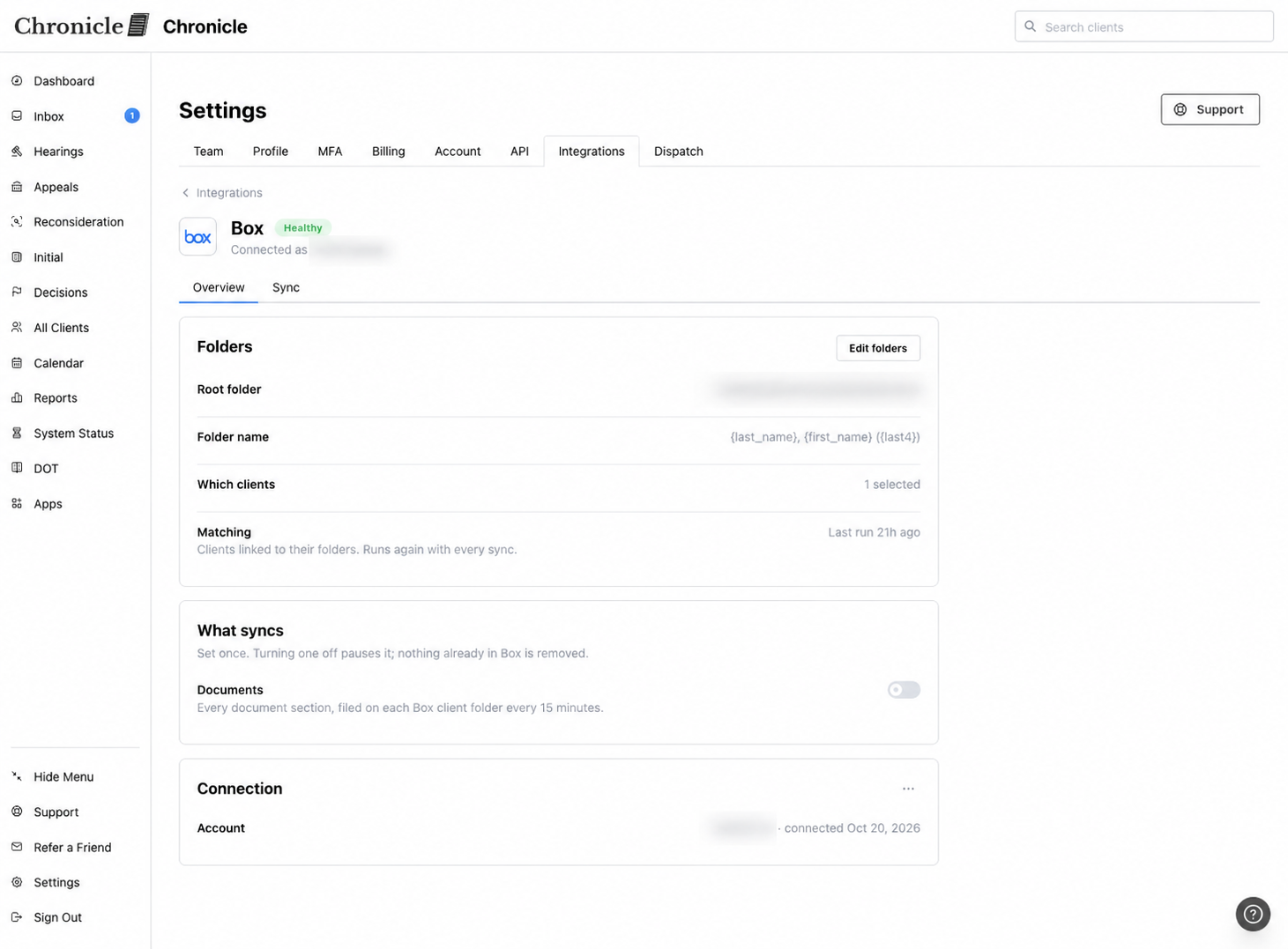
Example Box configuration. A root, folder template and one selected client are saved; document sync is off.
Change which clients receive documents
Client scope controls future filing. It does not delete files already in the provider.
In Client folders, review Which clients get folders.
Choose All active clients or Only clients I select.
Update the selected clients if using the selected-only option.
Click Save folder settings.
Removing a client pauses future filing and keeps the folder and existing files. Re-adding the client restores the saved folder link when it is still available.
Change names or provider access
Changing New client folder name and saving folder settings affects newly created folders. Existing folders keep their names.
The root cannot be changed after clients are linked. If you reconnect with a different provider account, it must be able to access the existing linked client folders.
Shared sync and matching guides
Check integration sync status: review capability status, run results and one client's activity.
Resync integration data: choose a retry scope or retry an individual item.
Fix a client's integration match: resolve missing or ambiguous matches and correct an existing link.
Usage troubleshooting
Documents stopped after reconnecting
A document is missing
Confirm the document exists in Chronicle, its client is in scope, its folder is correctly linked, Documents is on and its section is included. Review the run result before resyncing.
Was this helpful?
Was this helpful?