
Verify the client’s last name and last four SSN digits in Chronicle exactly match the Filevine contact or project record.
Connect Filevine to Chronicle
Use Chronicle’s native Filevine integration to sync ERE case status, hearing dates, and documents directly into your Filevine projects. No Zapier or third-party middleware is required.
Before you start
You need an active Chronicle Pro subscription. Essentials plans must upgrade to Pro to access this integration.
You need a separate Filevine subscription with admin access.
Create a Filevine service account and token
Filevine must first enable the integration. If you need help, refer to Filevine’s guide on enabling a certified partner integration.
In Filevine, go to Settings → Advanced → Integrations.
Activate the Chronicle integration.
Create a Chronicle service account.
Generate a personal access token for that service account. Copy the token to your clipboard.
Configure the integration in Chronicle
In Chronicle, go to Settings → Integrations → Filevine.
Paste the personal access token into the Personal Access Token field.
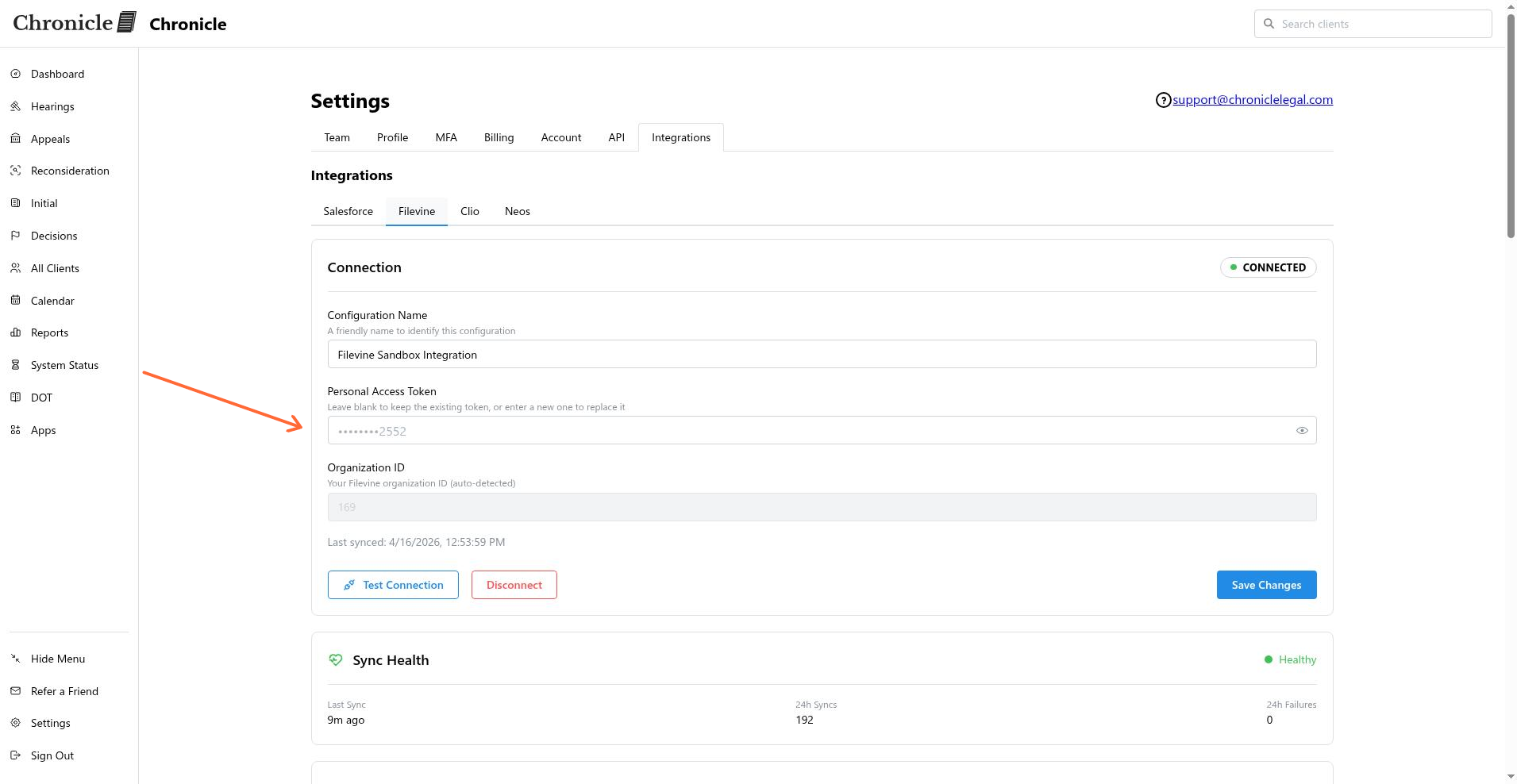
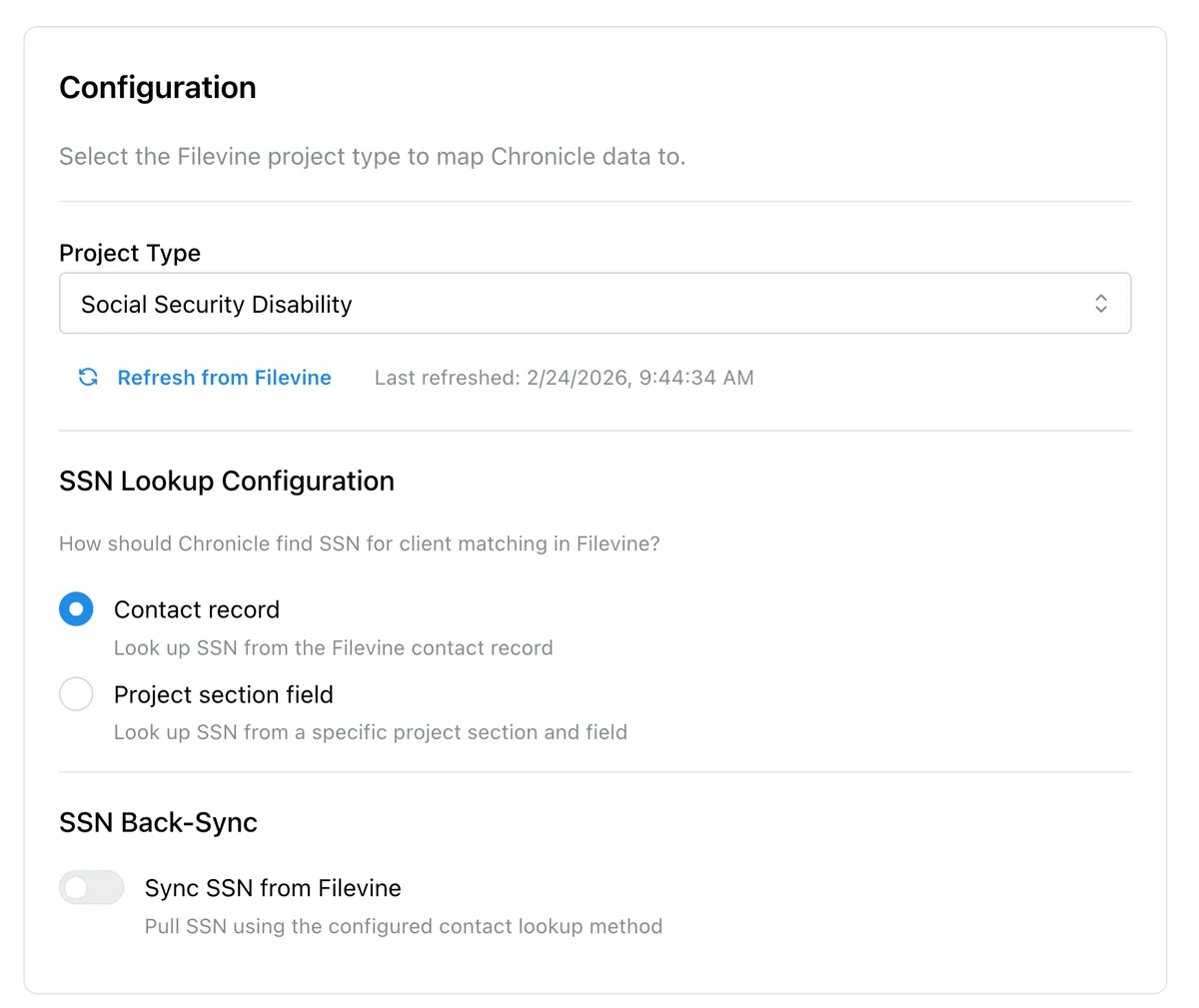
Select Social Security Disability as the project type.
Choose where the client’s SSN lives in Filevine. The SSN lookup can use either a Contact record field or a Custom field on the project.
Field mapping and client matching
Chronicle matches ERE clients to Filevine contacts using last name plus the last four digits of the SSN. After matching, you can map Chronicle data to Filevine fields.
Phase mapping is configurable. Chronicle never overwrites manual phase changes you make in Filevine.
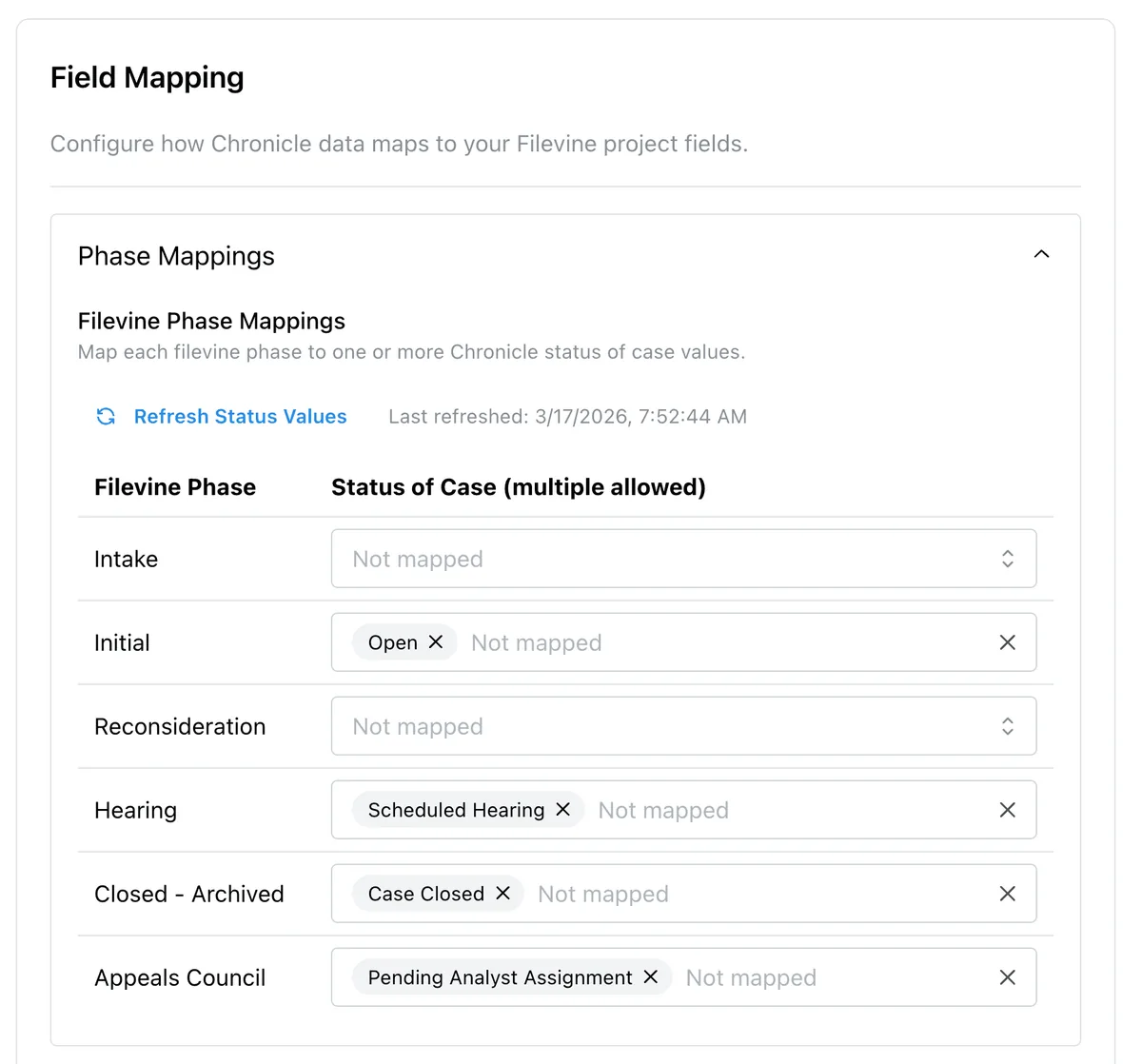
Field mapping supports scalar text, date, and number fields in Filevine. See Client field mapping options for every Chronicle field and the Filevine types accepted.
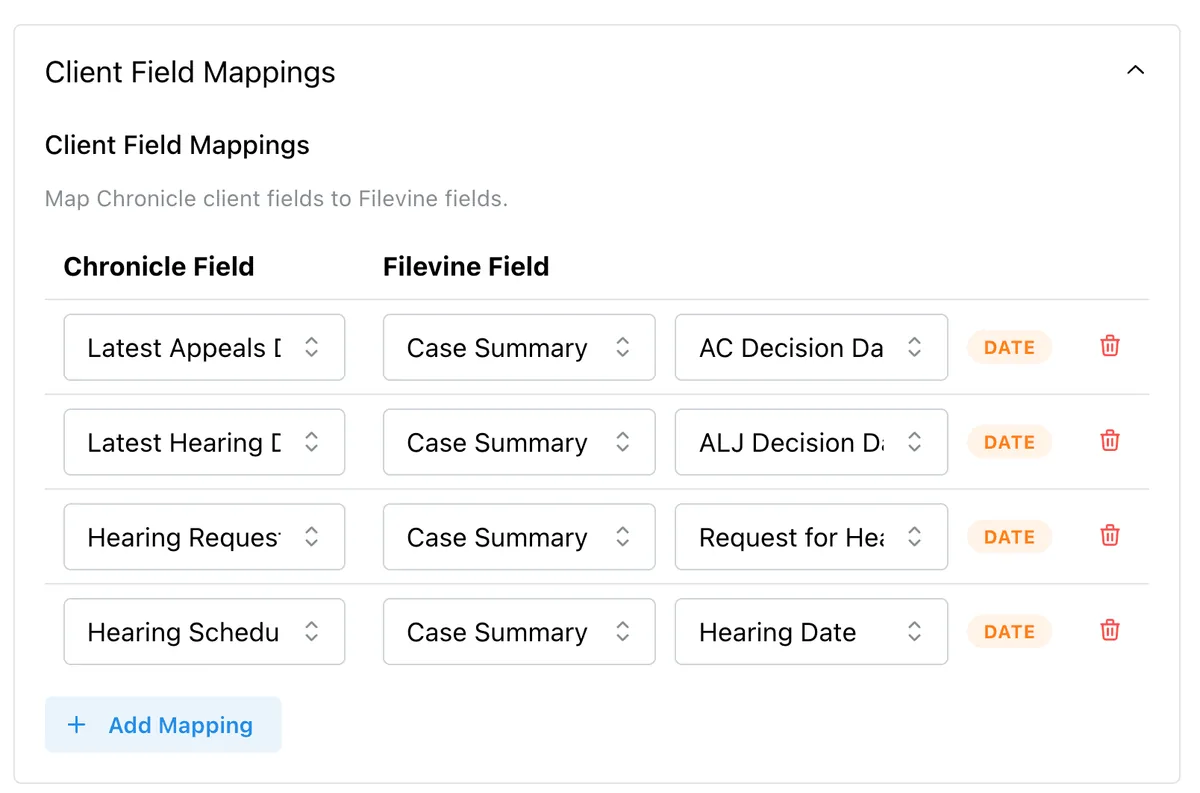
Related contacts and pick lists are not yet supported.
If a client cannot be matched automatically, the status shows as Multiple Matches or No Match Found.
Document sync
Documents from ERE sync into a Chronicle ERE folder inside the matching Filevine project. The folder is created automatically on the first sync.
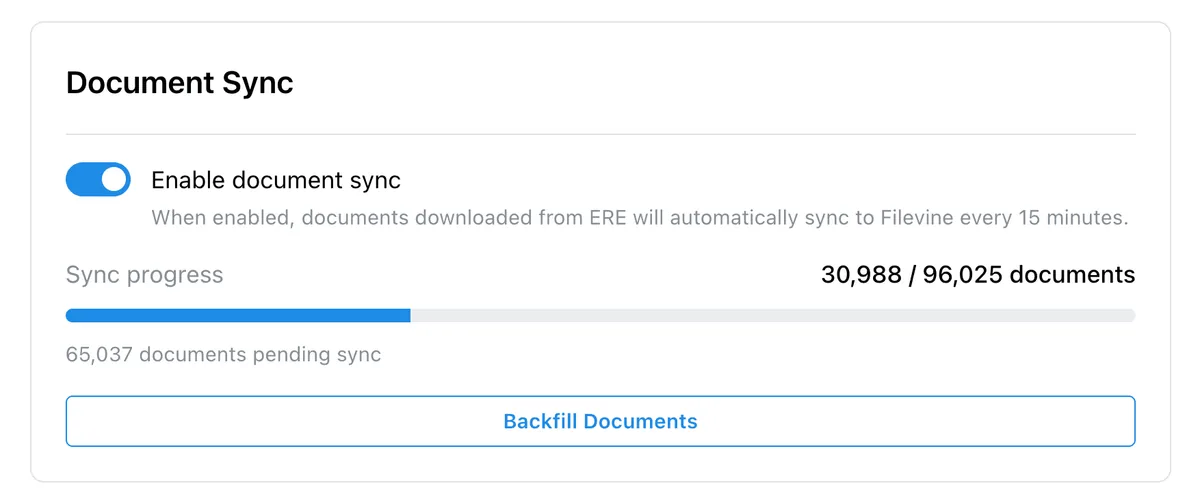
Document sync runs every 15 minutes and can backfill historical documents.
SSN back-sync and document monitoring
Enable the optional SSN back-sync to push the client’s SSN from Filevine back into Chronicle. When this is active, Chronicle automatically enables document monitoring for those clients.
Resync and sync history
Use the Resync button to force an immediate refresh of mapped fields and documents. The Sync History table shows the status of recent sync jobs.
Next steps
Open the Filevine integration settings to finish configuration.
Read about Enable e-File monitoring if you turned on SSN back-sync and want to monitor document activity.
Read about Troubleshoot e-File monitoring issues if documents are not appearing as expected.
Read about View roles and permissions to see who can manage integrations and SSN settings in your firm.
Common issues
Client shows No Match Found in Filevine
Documents are not syncing into Filevine
Check that e-File monitoring is enabled and the Filevine integration is active. Use the Resync button to force a refresh.
The integration settings are not visible
Your firm must be on a Chronicle Pro subscription. Essentials plans must upgrade to Pro to access this integration.
Was this helpful?
Was this helpful?