
Only team members with an Owner, Admin, or Billing owner role can access billing. Non-admins are redirected to their profile settings.
Update your billing information
Update your payment method, view your plan details, and manage billing settings on the Billing & Usage page.
Who can update billing
Only team members with an Owner role or above can access the Billing page and update payment information. Non-admins are redirected to their profile settings when they try to open Billing & Usage.
Open Billing & Usage
Navigate to Settings > Billing, or click Setup Billing from a dashboard alert if one is shown. The page is named Billing & Usage and lives at /dashboard/settings/billing.
Update your payment method
The top of the Billing & Usage page shows your current plan, billing cycle, and payment method (card brand and last four digits). To change your card or billing address, click the Update payment info button near the payment method.
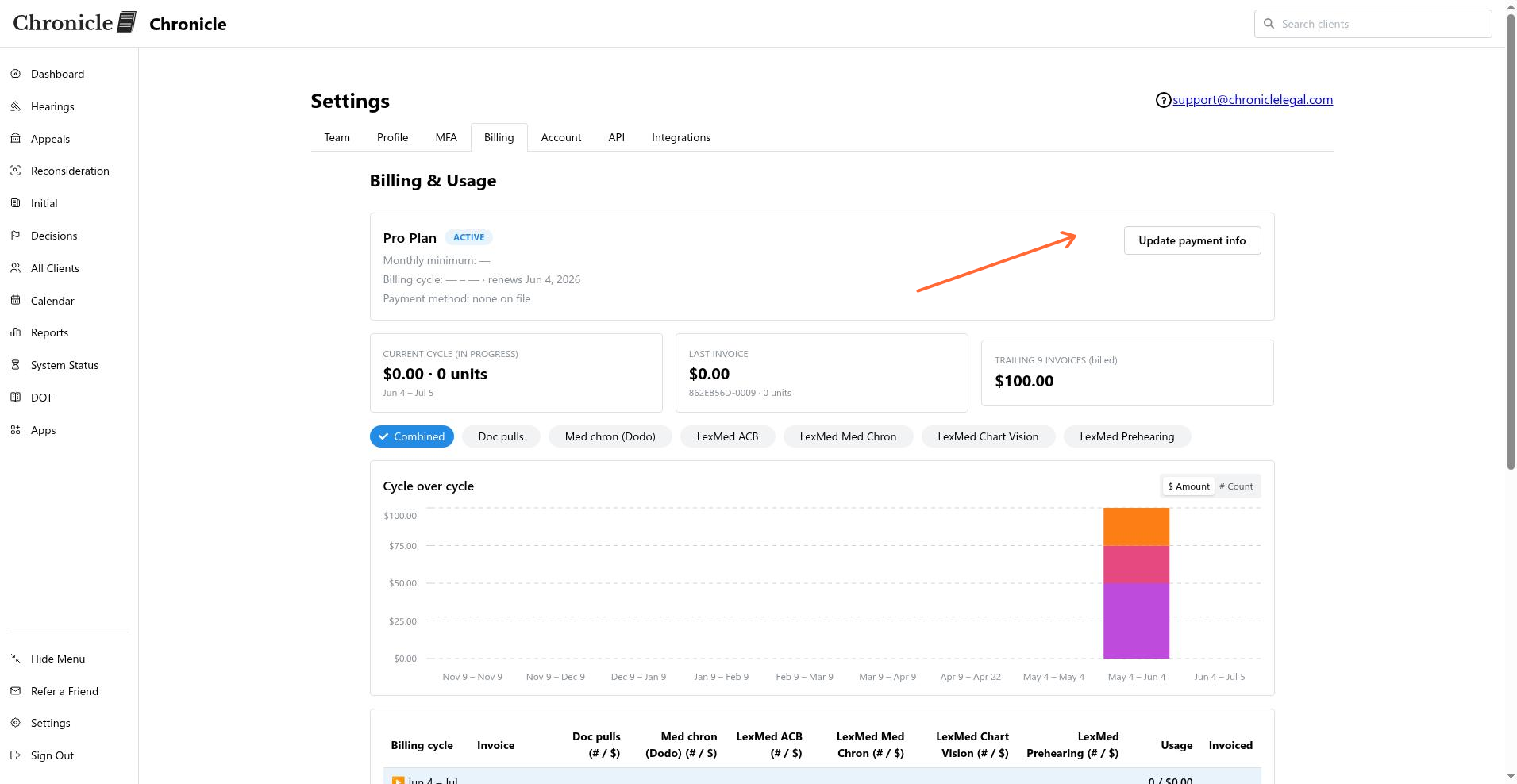
Follow the prompts to enter the new card or billing address. The page may also show options such as Remove Card, Modify Card, or Add Card, depending on whether a card is already on file.
Cancel or change your plan
To cancel or change your plan, contact Chronicle support. The self-service Billing & Usage page does not include plan cancellation or downgrade controls.
Common issues
The Billing tab is not visible
Card update fails
Verify the card details and billing address with your bank before retrying.
There is no option to cancel the plan
Contact Chronicle support to cancel or change your subscription. Self-service cancellation is not available.
Was this helpful?
Was this helpful?