
Chronicle delivers invite emails immediately. Ask the invitee to check spam and other email folders first. If it is still missing, use Reset password from the team table.
Invite team members to your firm
Send team member invitations from the Your Team page in Settings.
If an Invite Team Members alert appears on your dashboard, selecting it opens the same team page.
Before you start
Only managers and admins can view the team page. Only admins can assign the Admin role to a new invitee.
Send an invitation
In Chronicle, go to Settings > Team.
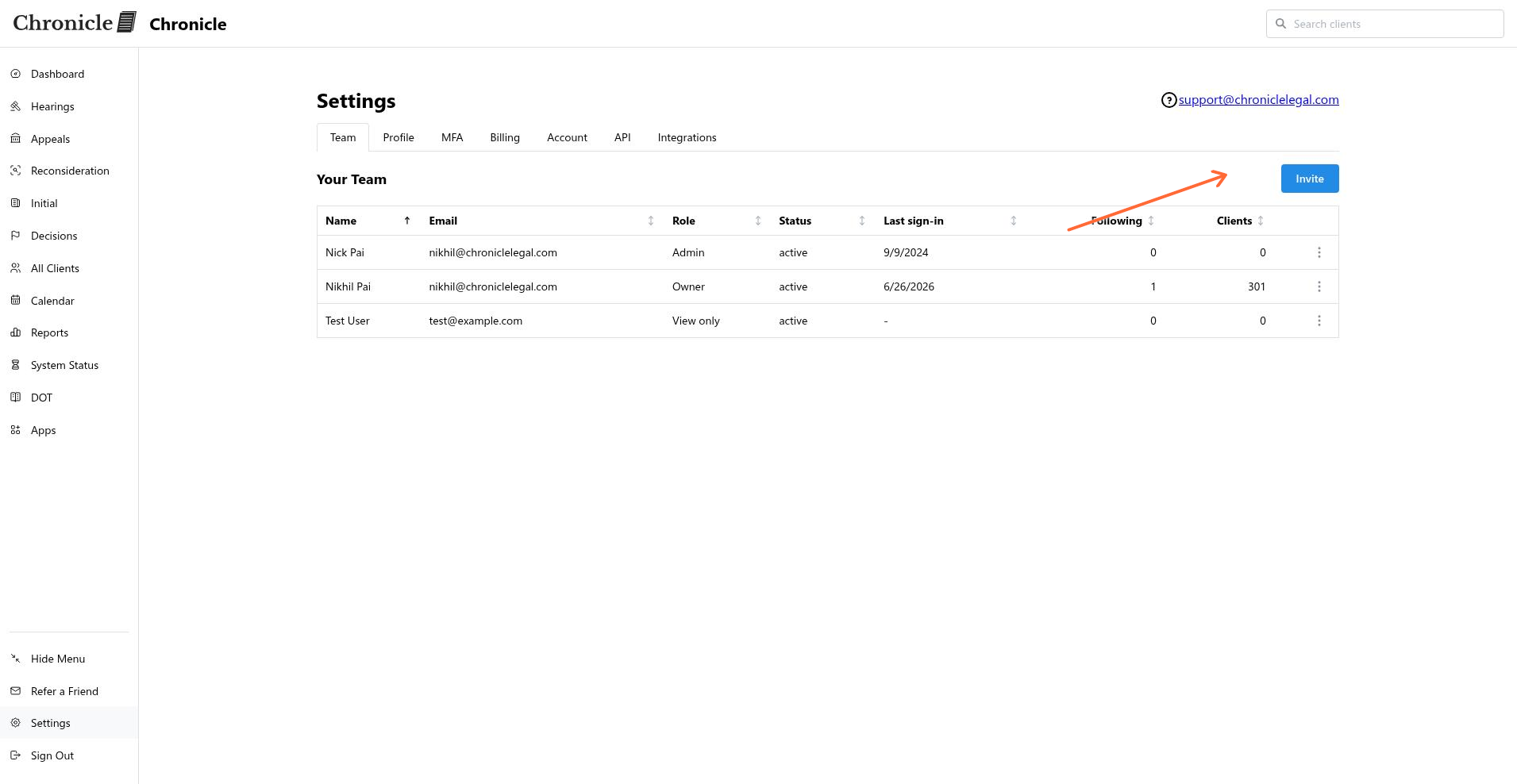
Click Invite.
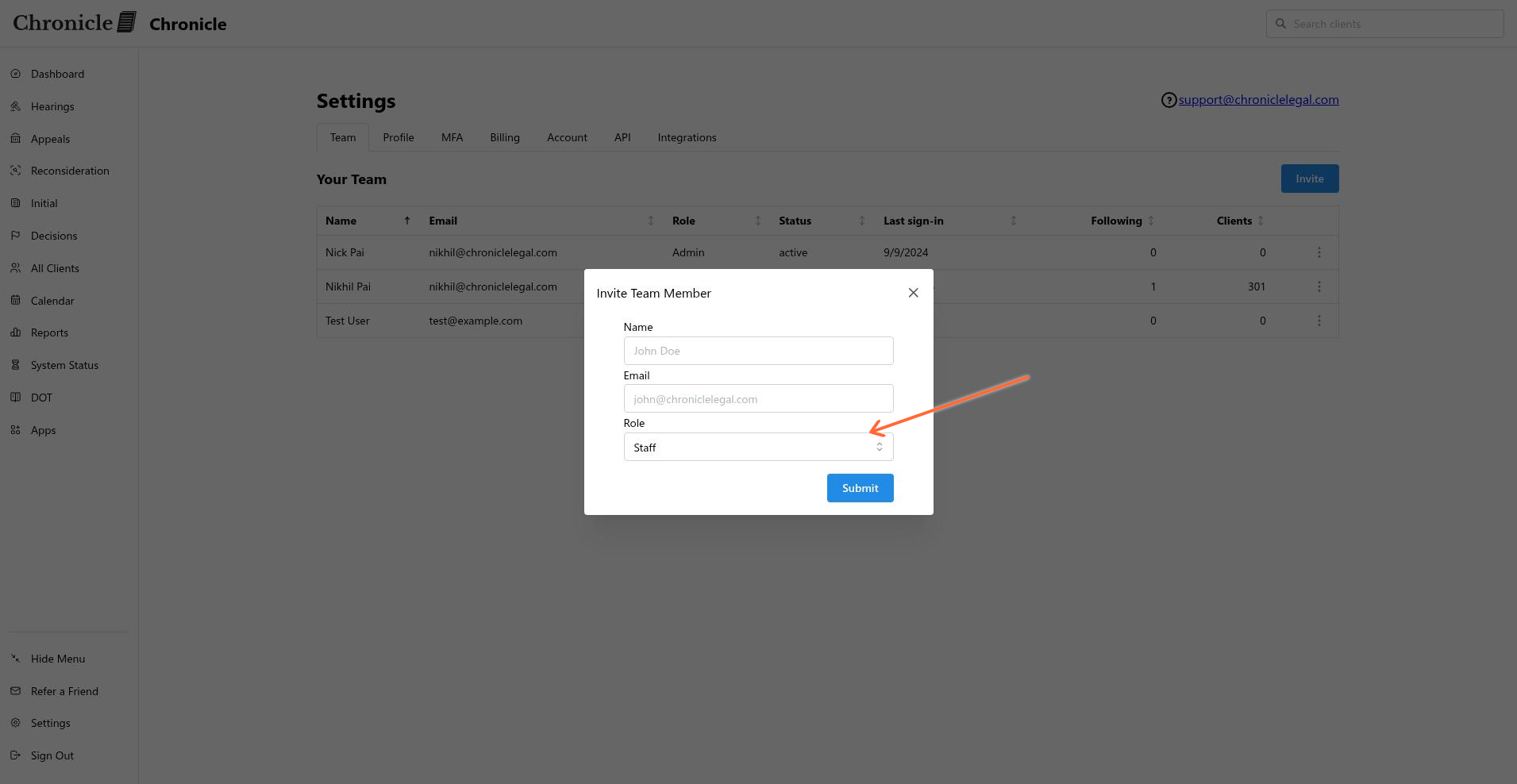
In the Invite Team Member modal, enter the person’s Name and Email.
Select a Role. The default is Staff. The available options are Admin, Manager / Rep, Staff, View only, and Restricted.
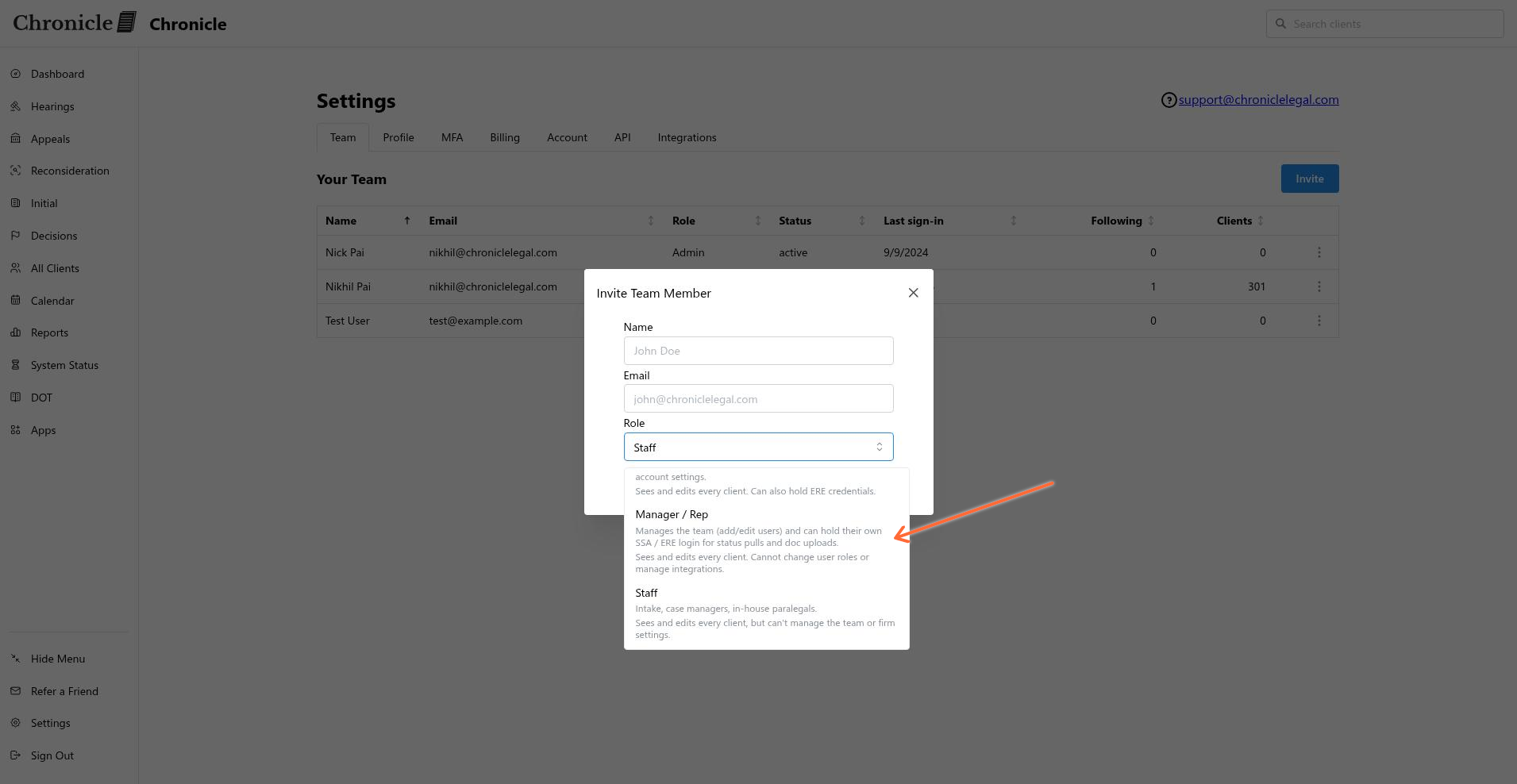
Click Submit.
The modal closes and the team table refreshes. The invitee appears in the list with an invited status, and Chronicle sends them an invitation email.
What the invitee does
The invitee receives an email titled You’ve been invited to Chronicle. Clicking Accept invitation takes them to a password creation screen. Once they set a password, they can log in.
Send a password reset
If an invitee did not receive or accept their invitation, find their row on the Settings > Team page, open the row menu, and select Reset password.
Common issues
The invitee did not receive the email
Error: “This user is already on your team”
This email address already belongs to a member of your firm. Verify the address or check the team table for duplicates.
Error: “This user belongs to another firm”
The email is tied to an existing Chronicle account under a different firm. The invitee must use a different email or contact support to transfer their account.
Error: “Only admins can invite at ADMIN role”
Managers cannot assign the Admin role during an invite. Ask an admin on your team to send the invitation, or select a different role.
Was this helpful?
Was this helpful?